
How to Pay your Bill Online
Summary: These instructions explain how to pay your bill online through MBA.
SeeDownload Attachmentsarticle(s)
 How to Pay your Bill Online _ Knowledge _ Salesforce.pdf
How to Pay your Bill Online _ Knowledge _ Salesforce
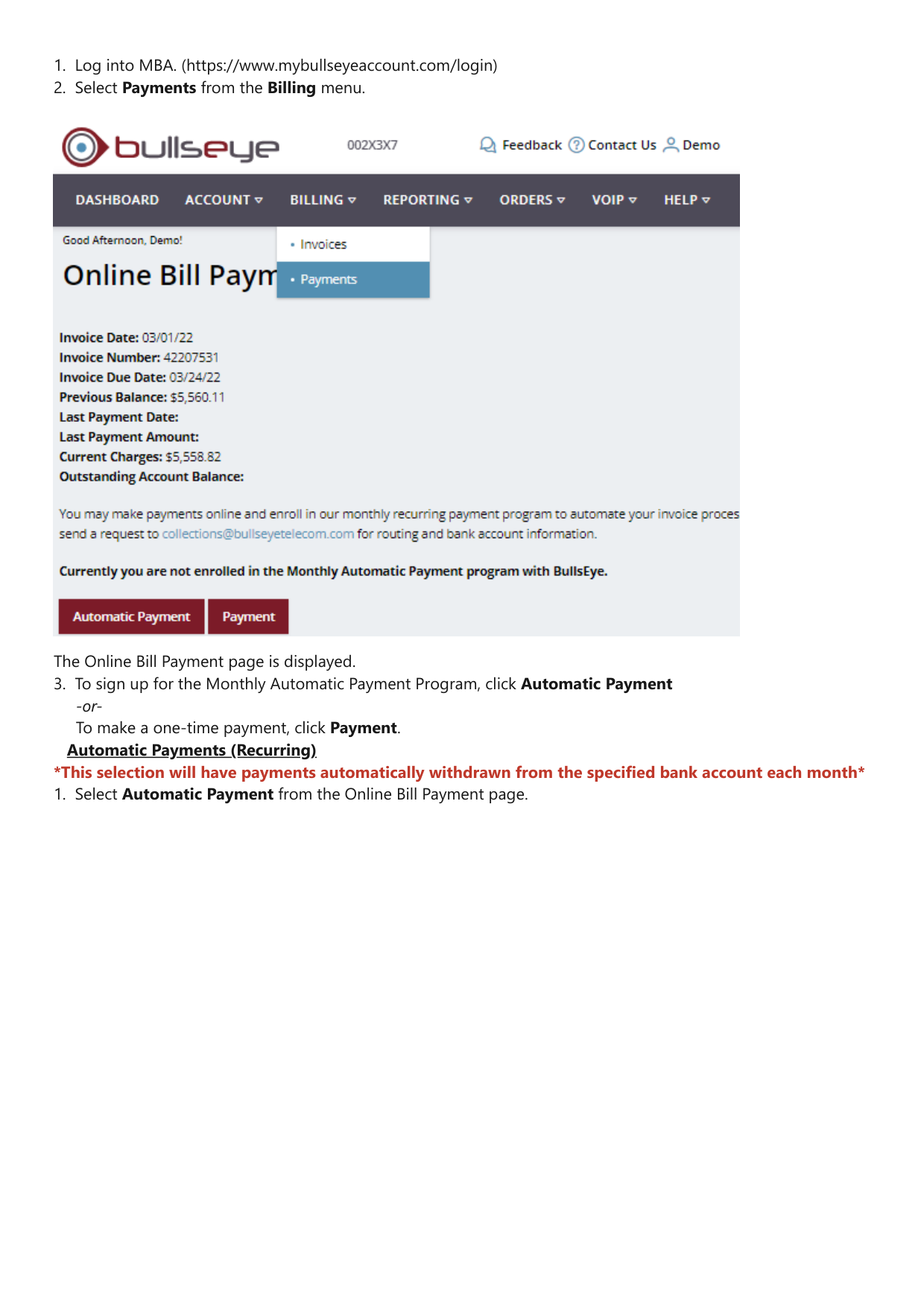
1. Log into MBA. (https://www.mybullseyeaccount.com/login)
2. Select Payments from the Billing menu.
The Online Bill Payment page is displayed.
3. To sign up for the Monthly Automatic Payment Program, click Automatic Payment
-or-
To make a one-time payment, click Payment.
Automatic Payments (Recurring)
*This selection will have payments automatically withdrawn from the specified bank account each month*
1. Select Automatic Payment from the Online Bill Payment page.
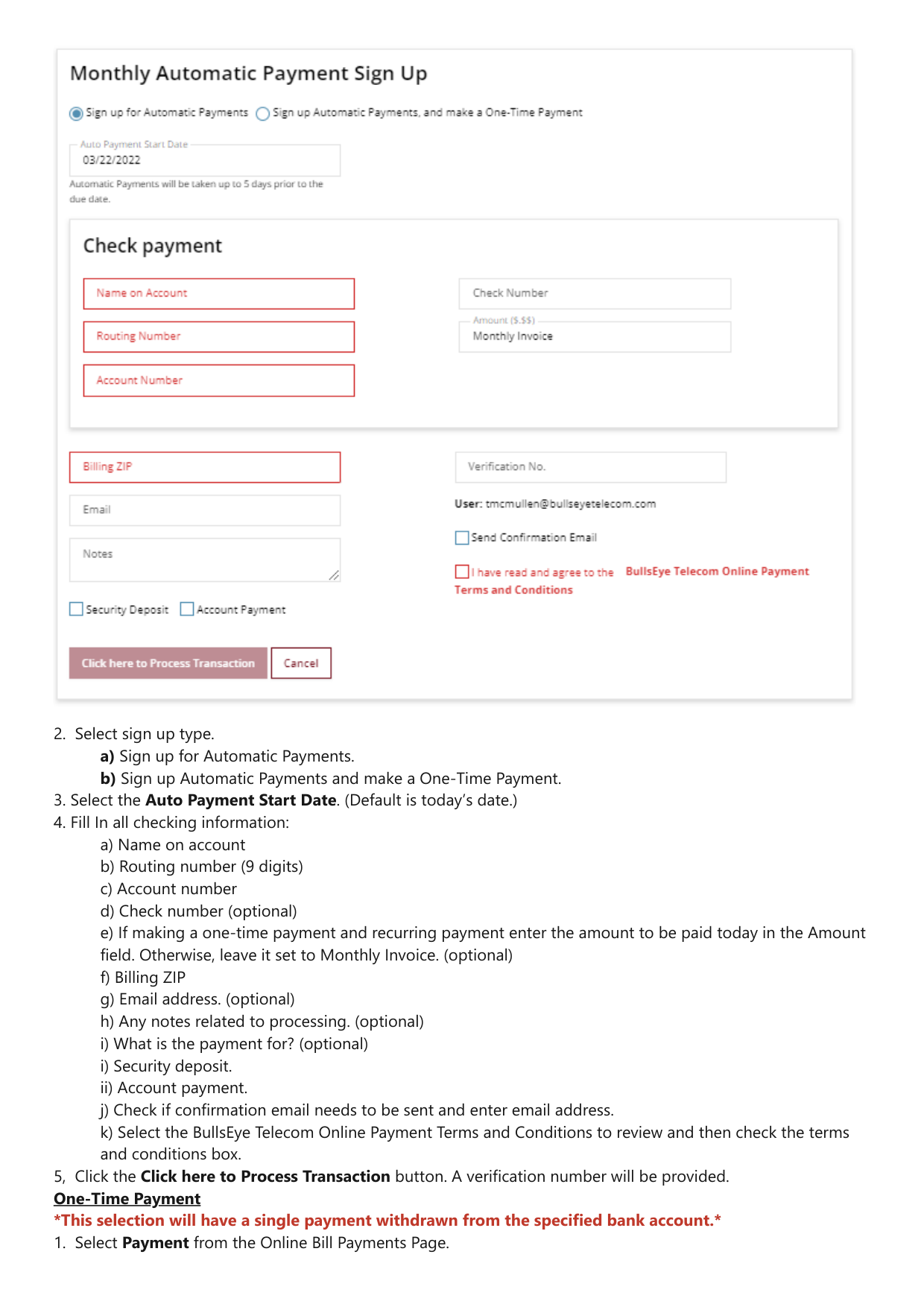
2. Select sign up type.
a) Sign up for Automatic Payments.
b) Sign up Automatic Payments and make a One-Time Payment.
3. Select the Auto Payment Start Date. (Default is today’s date.)
4. Fill In all checking information:
a) Name on account
b) Routing number (9 digits)
c) Account number
d) Check number (optional)
e) If making a one-time payment and recurring payment enter the amount to be paid today in the upperAmount
leftfield. Otherwise, leave it set to Monthly Invoice. (optional)
f) Billing ZIP
g) Email address. (optional)
h) Any notes related to processing. (optional)
i) What is the payment for? (optional)
i) Security deposit.
ii) Account payment.
j) Check if confirmation email needs to be sent and enter email address.
k) Select the BullsEye Telecom Online Payment Terms and Conditions to review and then check the terms
and conditions box.
5, Click the Click here to Process Transaction button. A verification number will be provided.
One-Time Payment
*This selection will have a single payment withdrawn from the specified bank account.*
1. Select Payment from the Online Bill Payments Page.
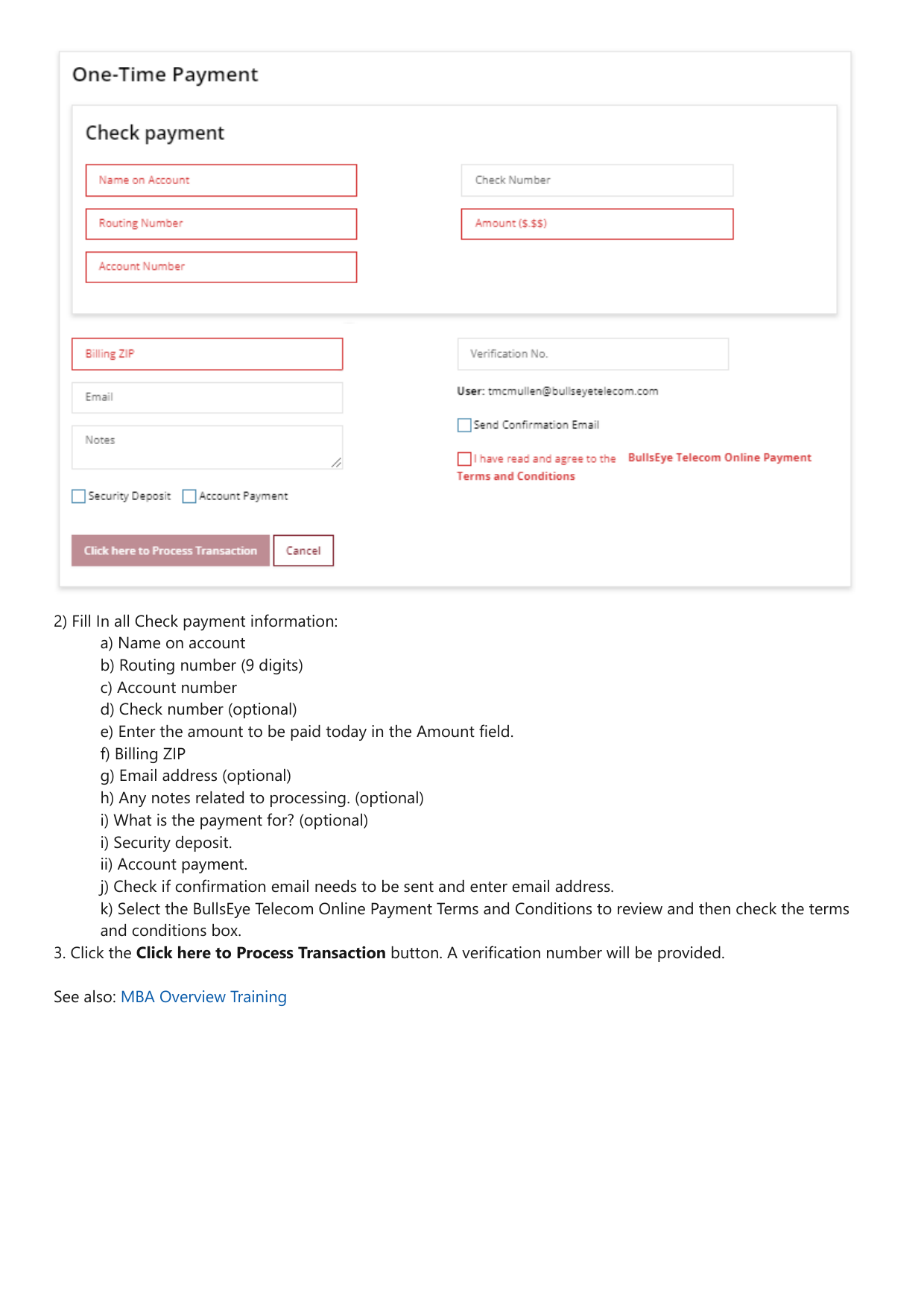
2) Fill In all Check payment information:
a) Name on account
b) Routing number (9 digits)
c) Account number
d) Check number (optional)
e) Enter the amount to be paid today in the Amount field.
f) Billing ZIP
g) Email address (optional)
h) Any notes related to processing. (optional)
i) What is the payment for? (optional)
i) Security deposit.
ii) Account payment.
j) Check if confirmation email needs to be sent and enter email address.
k) Select the BullsEye Telecom Online Payment Terms and Conditions to review and then check the terms
and conditions box.
3. Click the Click here to Process Transaction button. A verification number will be provided.
See also: MBA Overview Training