
BullsEye Unified Communications User Guide for Android Tablet
Summary: This is the detailed BullsEye Unified Communications (UC) User Guide for the Android tablet.
Download article(s)
 BullsEye Unified Communications User Guide for Android Tablet.pdf
BullsEye Unified Communications User Guide for Android Tablet

BullsEye Unified Communications for Android Tablet
User Guide
Release 22.5.1
Document Version 1
BULLSEYE UNIFIED COMMUNICATIONS FOR ANDROID TABLET USER GUIDE
©2018 BULLSEYE TELECOM, INC.
PAGE 2
Bullseye Unified Communications for Android Tablet ® Guide
Copyright Notice
Copyright© 2018 BullsEye Telecom, Inc.
All rights reserved.
Any technical documentation that is made available by BullsEye Telecom, Inc. is
proprietary and confidential and is considered the copyrighted work of BullsEye
Telecom, Inc.
This publication is for distribution under BullsEye Telecom non-disclosure agreement
only. No part of this publication may be duplicated without the express written
permission of BullsEye Telecom, Inc., 25925 Telegraph Road, Southfield, MI 48033.
BullsEye Telecom reserves the right to make changes without prior notice.
Trademarks
Any product names mentioned in this document may be trademarks or registered
trademarks of BullsEye Telecom or their respective companies and are hereby
acknowledged.
This document is printed in the United States of America.
BULLSEYE UNIFIED COMMUNICATIONS FOR ANDROID TABLET USER GUIDE
©2018 BULLSEYE TELECOM, INC.
PAGE 3
Table of Contents
1
About Bullseye Unified Communications for Android Tablet ...............................................6
2
Get Started ....................................................................................... Error! Bookmark not defined.
2.1
Install .......................................................................................... Error! Bookmark not defined.
2.2
Sign In ........................................................................................ Error! Bookmark not defined.
3
Main Tabs ........................................................................................................................................7
4
Contacts ....................................................................................................................................... 10
4.1
Contact Card .............................................................................................................................. 10
4.2
Add Contacts ............................................................................................................................. 10
4.3
Edit.............................................................................................................................................. 11
4.4
Filters .......................................................................................................................................... 11
4.5
Sort and Display Order .............................................................................................................. 11
5
Availability.................................................................................................................................... 13
6
Instant Messaging ...................................................................................................................... 15
6.1
Chat Tab .................................................................................................................................... 15
6.2
Chat ............................................................................................................................................ 15
6.3
Group Chat (Ad Hoc Rooms) ................................................................................................... 16
7
Audio and Video Calls ............................................................................................................... 17
7.1
Dial Pad Tab .............................................................................................................................. 17
7.2
Make Audio or Video Calls ........................................................................................................ 17
7.3
Answer Call ................................................................................................................................ 17
7.4
In Call Actions ............................................................................................................................ 17
7.5
Missed Calls and New Messages ............................................................................................ 18
7.6
Message Waiting Indicator and Voice Mail Access ................................................................. 18
7.7
Business Line Call Back ............................................................................................................ 18
7.8
Contact Name Lookup for Incoming Calls and Call Logs ....................................................... 19
7.9
N-Way Calling (Conference) ..................................................................................................... 19
7.10 Call Waiting ................................................................................................................................ 19
7.11 New Call ..................................................................................................................................... 19
7.12 Call Transfer............................................................................................................................... 19
7.13 Call Pull ...................................................................................................................................... 19
7.14 Call Park ..................................................................................................................................... 20
7.15 Swipe Between Chat, Audio/Video, and Screen Share Communication Views .................... 20
7.16 Seamless Call Handover for VoIP Calls ................................................................................... 20
8
Call History .................................................................................................................................. 21
9
Side Navigation ........................................................................................................................... 22
9.1
My Status ................................................................................................................................... 22
9.2
Call Settings ............................................................................................................................... 22
9.2.1
Do Not Disturb .................................................................................................................. 23
BULLSEYE UNIFIED COMMUNICATIONS FOR ANDROID TABLET USER GUIDE
©2018 BULLSEYE TELECOM, INC.
PAGE 4
9.2.2
Call Forwarding ................................................................................................................. 23
9.2.3
Remote Office ................................................................................................................... 23
9.2.4
Block My Caller ID ............................................................................................................ 23
9.2.5
Bullseye Unified Communications Anywhere ................................................................. 23
9.3
Preferences ................................................................................................................................ 24
9.3.1
Language Support ............................................................................................................ 24
9.3.2
Troubleshooting ................................................................................................................ 25
9.3.3
Device ID ........................................................................................................................... 25
9.3.4
Automatic Sign-in .............................................................................................................. 25
9.4
Test Call ..................................................................................................................................... 25
9.5
About .......................................................................................................................................... 25
9.6
Help Page .................................................................................................................................. 25
9.7
Sign Out ..................................................................................................................................... 25
10 My Room ...................................................................................................................................... 26
10.1 Guest Client ............................................................................................................................... 26
11 Search Enterprise Directory ..................................................................................................... 27
12 Screen Share ............................................................................................................................... 28
13 Multi-Device Support ................................................................................................................. 29
14 Push Notifications for Calls ...................................................................................................... 30
15 Other Features ............................................................................................................................ 31
15.1 Version Control .......................................................................................................................... 31
15.2 Privacy Management ................................................................................................................ 31
15.3 Firewalls and Network Address Translations ........................................................................... 31
15.4 Failover and Failback ................................................................................................................ 31
15.5 Secure VoIP Communication ................................................................................................... 31
15.6 Emergency Call Address Change Service ............................................................................... 32
16 Acronyms and Abbreviations .................................................................................................. 33
17 Appendix A: Third Party Software .......................................................................................... 35
BULLSEYE UNIFIED COMMUNICATIONS FOR ANDROID TABLET USER GUIDE
©2018 BULLSEYE TELECOM, INC.
PAGE 5
List of Figures
Figure 1 Main View ................................................................................................................................... 8
Figure 2 Instant Messaging .................................................................................................................... 15
BULLSEYE UNIFIED COMMUNICATIONS FOR ANDROID TABLET USER GUIDE
©2018 BULLSEYE TELECOM, INC.
PAGE 6
1
About Bullseye Unified Communications for Android Tablet
Bullseye Unified Communications for Android Tablet provides the following
communication features:
◼
Instant Messaging and Presence (IM&P)
◼
Voice Calling (VoIP)
◼
Video Calling
◼
Bullseye Unified Communications Call Settings
BULLSEYE UNIFIED COMMUNICATIONS FOR ANDROID TABLET USER GUIDE
©2018 BULLSEYE TELECOM, INC.
PAGE 7
1
Get Started
This section contains the essential information for getting started with Unified
Communications.
1.1
Installation
Download the BullsEye Unified Communications app from Google Play®
(search “BullsEye UC”) and then install on your Android® mobile phone.
1.2
Sign In
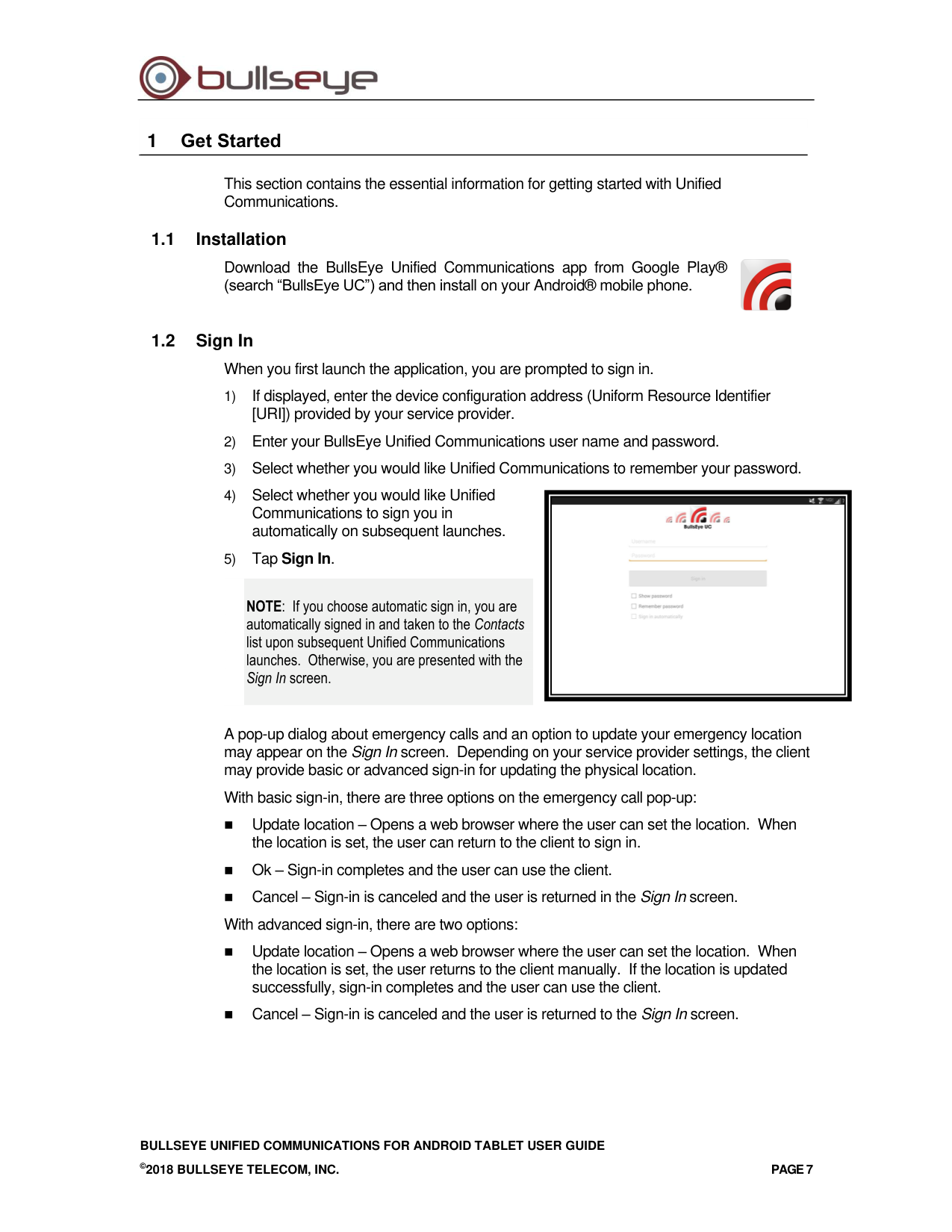
When you first launch the application, you are prompted to sign in.
1) If displayed, enter the device configuration address (Uniform Resource Identifier
[URI]) provided by your service provider.
2) Enter your BullsEye Unified Communications user name and password.
3) Select whether you would like Unified Communications to remember your password.
4) Select whether you would like Unified
Communications to sign you in
automatically on subsequent launches.
5) Tap Sign In.
NOTE: If you choose automatic sign in, you are
automatically signed in and taken to the Contacts
list upon subsequent Unified Communications
launches. Otherwise, you are presented with the
Sign In screen.
A pop-up dialog about emergency calls and an option to update your emergency location
may appear on the Sign In screen. Depending on your service provider settings, the client
may provide basic or advanced sign-in for updating the physical location.
With basic sign-in, there are three options on the emergency call pop-up:
◼
Update location – Opens a web browser where the user can set the location. When
the location is set, the user can return to the client to sign in.
◼
Ok – Sign-in completes and the user can use the client.
◼
Cancel – Sign-in is canceled and the user is returned in the Sign In screen.
With advanced sign-in, there are two options:
◼
Update location – Opens a web browser where the user can set the location. When
the location is set, the user returns to the client manually. If the location is updated
successfully, sign-in completes and the user can use the client.
◼
Cancel – Sign-in is canceled and the user is returned to the Sign In screen.
BULLSEYE UNIFIED COMMUNICATIONS FOR ANDROID TABLET USER GUIDE
©2018 BULLSEYE TELECOM, INC.
PAGE 8
2
Main Tabs
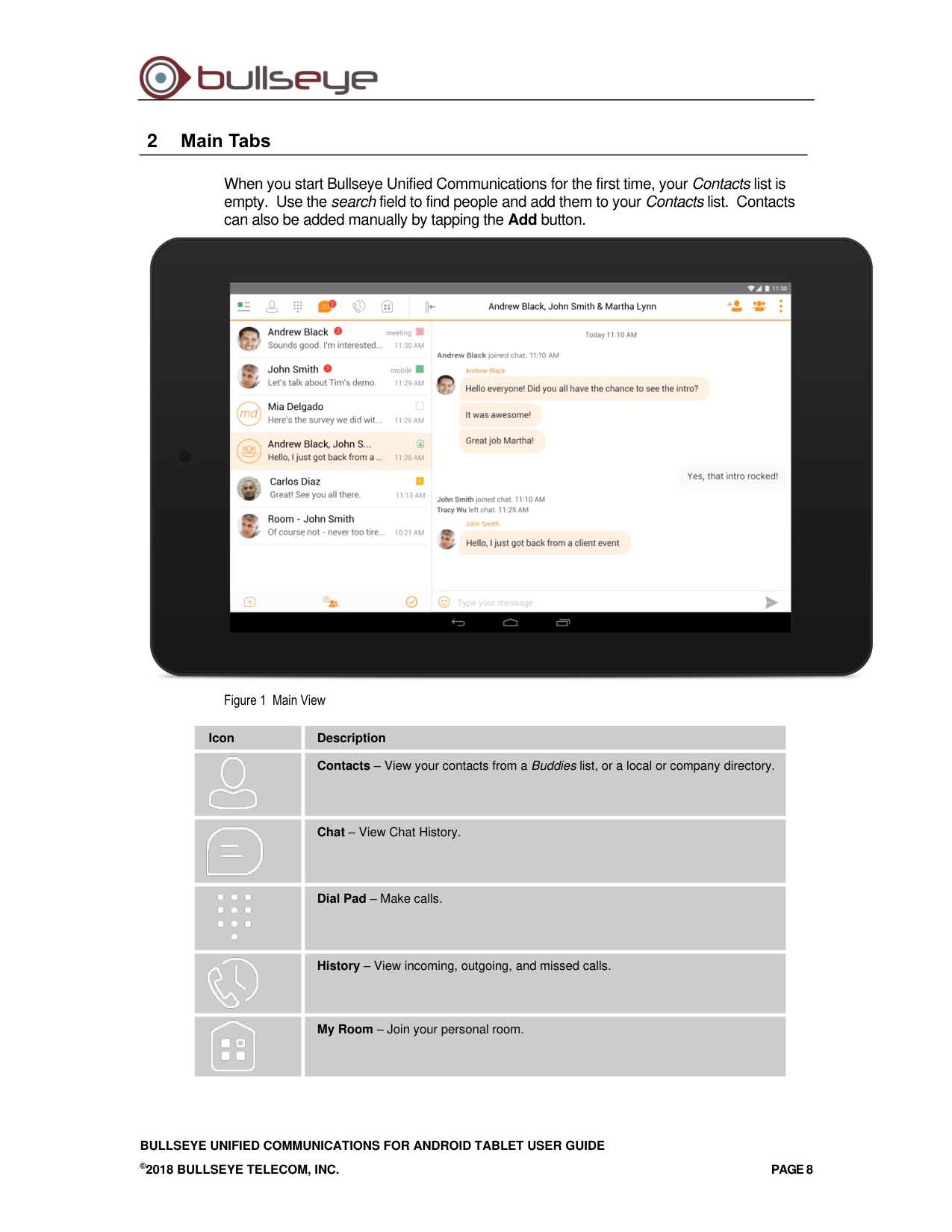
When you start Bullseye Unified Communications for the first time, your Contacts list is
empty. Use the search field to find people and add them to your Contacts list. Contacts
can also be added manually by tapping the Add button.
Figure 1 Main View
Icon
Description
Contacts – View your contacts from a Buddies list, or a local or company directory.
Chat – View Chat History.
Dial Pad – Make calls.
History – View incoming, outgoing, and missed calls.
My Room – Join your personal room.
BULLSEYE UNIFIED COMMUNICATIONS FOR ANDROID TABLET USER GUIDE
©2018 BULLSEYE TELECOM, INC.
PAGE 9
The main view contains a number of tabs that present information about the contacts and
communications options located on the top bar:
◼
Contacts
◼
Dial Pad
◼
Chat
◼
History
◼
My Room
NOTE: Settings are available from the side navigation menu.
BULLSEYE UNIFIED COMMUNICATIONS FOR ANDROID TABLET USER GUIDE
©2018 BULLSEYE TELECOM, INC.
PAGE 10
3
Contacts
The Contacts list in the Contacts tab can contain different types of contacts as follows:
◼
Presence-enabled contacts
◼
Non-presence-enabled contacts
Any contact can be marked as a favorite and it appears at the top of the Contacts list in
the Favorites section.
Presence-enabled contacts are users with an Extensible Messaging and Presence
Protocol (XMPP) address. These can be other Bullseye Unified Communications users or
users from federated systems such as Google Talk. Non-presence-enabled contacts can
be phone or conference numbers. These are also stored on the server and available on
all client instances of the user.
Contacts can also be organized in Groups.
The Contacts tab contains the following:
◼
UC-One Contacts
−
All
−
Online
◼
Contact Directories
−
Local Address Book
−
Directory
Local Address Book provides contacts from the local contacts. Directory provides
contacts from the company directory.
3.1
Contact Card
The contact card displays information about a contact based on the contact type. This
includes Bullseye Unified Communications contacts, Local Address Book contacts, and
contacts from directory search results.
The user can initiate a call or chat session directly from the contact card. This includes
joining other contact's My Room or dialing a My Room audio bridge from a directory
contact search result.
If the contact has an associated email address, then the application supports sending an
email to the contact by launching the native email client on the mobile device.
3.2
Add Contacts
When you sign in for the first time, there are no contacts on your Contacts list. Add a new
presence-enable contact at any time by selecting the option Add Contact from the plus
icon in the left bottom bar. Another way to add new contacts is to use the directory search
option from the Contacts tab.
In the Add Contact screen, enter the contact’s information and then select OK. By default,
your presence information is always shared with a new contact if an XMPP address is
provided.
BULLSEYE UNIFIED COMMUNICATIONS FOR ANDROID TABLET USER GUIDE
©2018 BULLSEYE TELECOM, INC.
PAGE 11
If you receive a buddy request, you can decline or accept it. If you decline the buddy
request, you can always share your presence information later by selecting Subscribe
from the buddy contact card. Note that the contact must accept your subscription request
for you to establish the presence relationship successfully.
Add a conference number by selecting the option Add Conference from the plus icon in
the left bottom bar. In the Add Conference screen, enter the conference information and
then select OK A conference contact is a special contact used for conference bridges to
avoid having to remember a PIN code and a conference number, for example, for a
recurring conference.
Add a local contact by selecting the Add Local Contact option using the plus icon in the left
bottom bar. The Add Local Contact option opens the native Address Book for adding a
new contact in the local phone book.
Add a group in the Contacts list by selecting Add Group using the plus icon in the left
bottom bar. Type a group name, select contacts that you want to be in the group, and
then select Done.
3.3
Edit
Tap a contact from the Contacts list to open a contact card. This is the same for
presence-enable and non-presence-enabled contacts.
◼
Select Edit from action overflow button to open the Contact Information dialog box
where you can edit information. This works for both presence-enabled and non-
presence-enabled contacts.
◼
Select Unsubscribe from action overflow button to remove the presence relationship
between you and that contact. This means you do not see the contact’s presence
information and your contact does not see yours. Select Subscribe to re-establish a
presence relationship. An unsubscribed contact remains on the Contacts list and is
always shown as “offline”.
◼
Select Remove from action overflow button to remove the contact from your Contacts
list.
3.4
Filters
There are four contact filters available from the Contacts tab:
◼
All – Shows all Presence-enabled and Non-presence-enabled contacts.
◼
Online – Shows only the presence-enabled contacts that are currently online.
◼
Local Address Book – Shows the contacts from your local phone book.
◼
Directory – Shows the contacts from a company directory (which requires a search).
3.5
Sort and Display Order
The following options in Preferences control how contacts are displayed:
◼
Display by – display First name or Last name first.
◼
Sort by – sort by First name or Last name.
◼
Short name format – format of the name to be used in chat lists.
BULLSEYE UNIFIED COMMUNICATIONS FOR ANDROID TABLET USER GUIDE
©2018 BULLSEYE TELECOM, INC.
PAGE 12
NOTE: Asian names – Chinese, Japanese, and Korean (CJK)
On Android, Asian names (CJK) are not dependent on the preceding settings. Asian names are
always sorted by Last name and displayed with the Last name first. For Asian names, the short
name format is always the full name.
BULLSEYE UNIFIED COMMUNICATIONS FOR ANDROID TABLET USER GUIDE
©2018 BULLSEYE TELECOM, INC.
PAGE 13
4
Availability
For each contact to which you have subscribed, you can see their availability. Similarly,
your contacts can see your availability on their Contacts list.
NOTE: Availability can also be referred to as presence status, which was the term used in
previous releases of Bullseye Unified Communications.
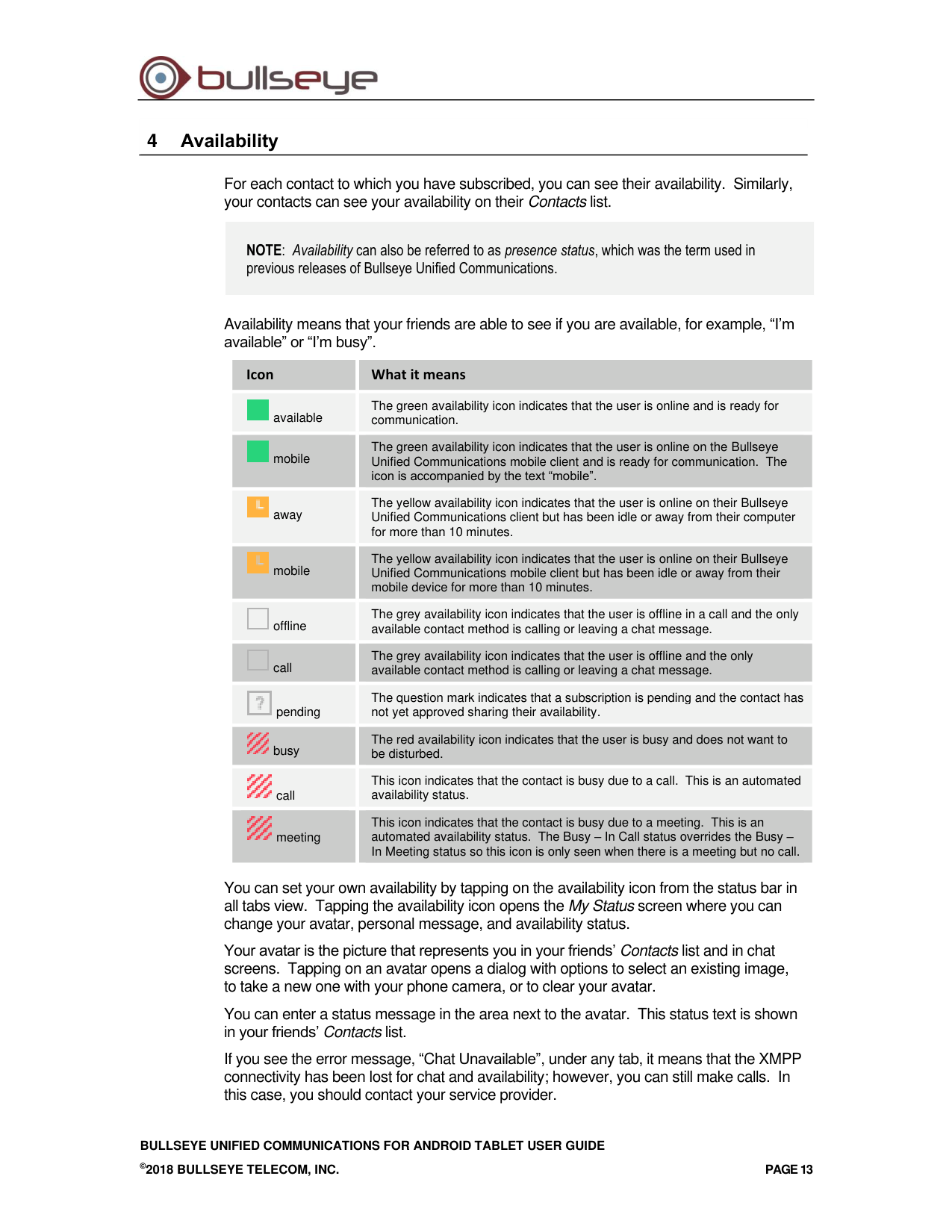
Availability means that your friends are able to see if you are available, for example, “I’m
available” or “I’m busy”.
Icon
What it means
available
The green availability icon indicates that the user is online and is ready for
communication.
mobile
The green availability icon indicates that the user is online on the Bullseye
Unified Communications mobile client and is ready for communication. The
icon is accompanied by the text “mobile”.
away
The yellow availability icon indicates that the user is online on their Bullseye
Unified Communications client but has been idle or away from their computer
for more than 10 minutes.
mobile
The yellow availability icon indicates that the user is online on their Bullseye
Unified Communications mobile client but has been idle or away from their
mobile device for more than 10 minutes.
offline
The grey availability icon indicates that the user is offline in a call and the only
available contact method is calling or leaving a chat message.
call
The grey availability icon indicates that the user is offline and the only
available contact method is calling or leaving a chat message.
pending
The question mark indicates that a subscription is pending and the contact has
not yet approved sharing their availability.
busy
The red availability icon indicates that the user is busy and does not want to
be disturbed.
call
This icon indicates that the contact is busy due to a call. This is an automated
availability status.
meeting
This icon indicates that the contact is busy due to a meeting. This is an
automated availability status. The Busy – In Call status overrides the Busy –
In Meeting status so this icon is only seen when there is a meeting but no call.
You can set your own availability by tapping on the availability icon from the status bar in
all tabs view. Tapping the availability icon opens the My Status screen where you can
change your avatar, personal message, and availability status.
Your avatar is the picture that represents you in your friends’ Contacts list and in chat
screens. Tapping on an avatar opens a dialog with options to select an existing image,
to take a new one with your phone camera, or to clear your avatar.
You can enter a status message in the area next to the avatar. This status text is shown
in your friends’ Contacts list.
If you see the error message, “Chat Unavailable”, under any tab, it means that the XMPP
connectivity has been lost for chat and availability; however, you can still make calls. In
this case, you should contact your service provider.
BULLSEYE UNIFIED COMMUNICATIONS FOR ANDROID TABLET USER GUIDE
©2018 BULLSEYE TELECOM, INC.
PAGE 14
The availability update is only triggered by appointments and meetings that are either
accepted by the user or made by them. Note that all-day meetings do not trigger an
availability change to Busy – In Meeting.
BULLSEYE UNIFIED COMMUNICATIONS FOR ANDROID TABLET USER GUIDE
©2018 BULLSEYE TELECOM, INC.
PAGE 15
5
Instant Messaging
5.1
Chat Tab
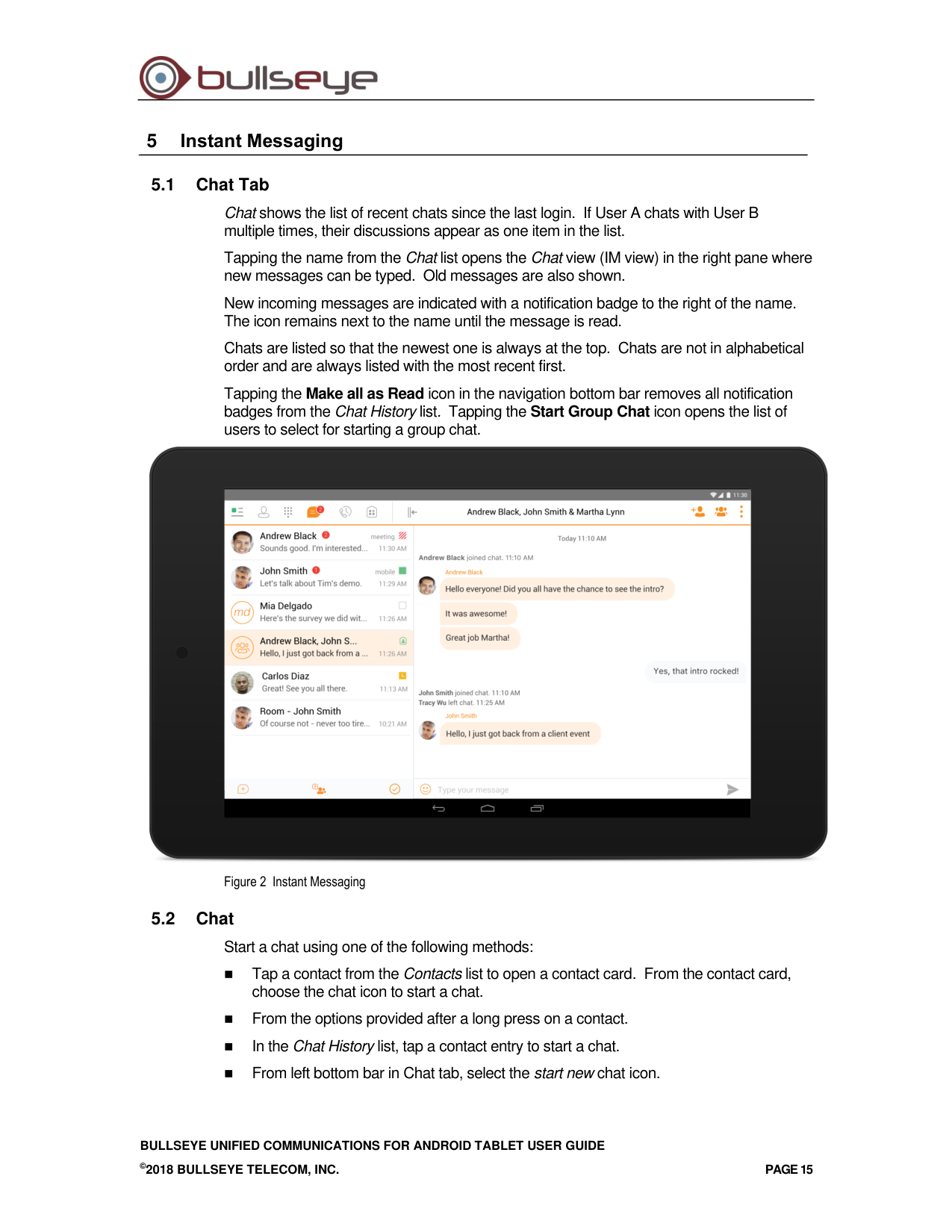
Chat shows the list of recent chats since the last login. If User A chats with User B
multiple times, their discussions appear as one item in the list.
Tapping the name from the Chat list opens the Chat view (IM view) in the right pane where
new messages can be typed. Old messages are also shown.
New incoming messages are indicated with a notification badge to the right of the name.
The icon remains next to the name until the message is read.
Chats are listed so that the newest one is always at the top. Chats are not in alphabetical
order and are always listed with the most recent first.
Tapping the Make all as Read icon in the navigation bottom bar removes all notification
badges from the Chat History list. Tapping the Start Group Chat icon opens the list of
users to select for starting a group chat.
Figure 2 Instant Messaging
5.2
Chat
Start a chat using one of the following methods:
◼
Tap a contact from the Contacts list to open a contact card. From the contact card,
choose the chat icon to start a chat.
◼
From the options provided after a long press on a contact.
◼
In the Chat History list, tap a contact entry to start a chat.
◼
From left bottom bar in Chat tab, select the start new chat icon.
BULLSEYE UNIFIED COMMUNICATIONS FOR ANDROID TABLET USER GUIDE
©2018 BULLSEYE TELECOM, INC.
PAGE 16
◼
From search results, tap a contact to open the contact card and then choose the chat
icon.
When you initiate a chat, the Chat view opens in the right pane. To open chat in full
screen, tap the collapse icon
to hide the left pane. Selecting any tab from the tab bar
or tapping on the expand icon
opens the left pane view. Chatting with a contact is
possible only when you are both online. If your contact initiates a chat, you see a
notification badge on the Chat tab and the entry appears on the top of Chat History list.
When the chat opens, the name of the recipient is on the top bar and there is a presence
icon flag before the name. The recipient messages are presented in the orange
background and the user is presented in white background.
A smiley can be added to a message by typing the corresponding character codes or by
selecting a smiley icon (the smiley is displayed graphically in the message area).
The text input field in Chat uses auto-correct, auto-cap, and spell check based on system
settings. Use the system settings to enable or disable these features.
Starting with Release 22.4.1, Mobile and Tablet clients support setting an IM retention
policy at the client level. The feature allows the client to be configured to store messages
for a specified number of days. Once the timeframe has passed, the client purges all
messages older than the timeframe specified.
5.3
Group Chat (Ad Hoc Rooms)
Start a group chat using one of the following methods:
◼
In single chat session, tap the add participant icon to escalate from a single to a group
chat.
◼
From left bottom bar in the Chat tab, select the Start Group Chat icon.
◼
In the Chat History list, tap a group communication entry to start a group chat.
When you initiate a group chat, the Chat screen opens. More participants can be added
later to the chat using the add participant icon. Anyone in the group chat can add
participants. The owner can dismiss participants from participant’s list options.
A group chat works the same way as a one-on-one chat. All messages from anyone are
sent to everyone else. All contacts must be online to be able to participate in a group chat.
A Group Chat History is saved and is available to view later from the Chat tab.
A user can leave a group chat by selecting the Leave chat option from action overflow
menu. The chat is marked as “offline” and the user no longer receives messages from the
chat. When tapping on the “offline” chat, the user re-joins the room and starts receiving
messages. However, the user does not receive the messages that were sent in the chat
while the user was outside of the room.
The Clear History menu item behaves the same way as the corresponding option in the
one-on-one chat and removes the local history.
The View Participants button opens a dialog that shows the list of participants in the
group chat.
Note that deleting a chat room is supported.
BULLSEYE UNIFIED COMMUNICATIONS FOR ANDROID TABLET USER GUIDE
©2018 BULLSEYE TELECOM, INC.
PAGE 17
6
Audio and Video Calls
6.1
Dial Pad Tab
The Dial Pad tab displays a dial pad and a text field used to enter numbers. The dial pad
is one of the options used to make audio or video calls. There are three buttons below the
dial pad: Call, Video call, and Dial Pad menu that are configurable by the service provider.
The top text field also has a delete button that, when pressed, deletes one character at a
time.
A badge notification appears on the Dial Pad tab when there are messages in the voice
mail box. The voice mail icon under digit one becomes orange when there are voice mail
messages. A long press on digit one connects you with your voice mail box. When there
are no voice mail messages in your voice mail box the icon is grey.
The dial pad menu contains two options: Pull call and Retrieve call.
6.2
Make Audio or Video Calls
You can make an audio or video call using one of the following methods:
◼
Choose a contact from the Contact List to open the contact card and tap on the
headset icon for an audio call or the video icon for a video call.
◼
From search results, open a contact card and tap on the headset icon for an audio call
or the video icon for a video call.
◼
Open the dial pad, enter a phone number, and then tap the Call or Video button.
◼
On the Call History list, tap a call entry.
◼
On the Chat screen, tap the headset icon for an audio call or the video icon for a video
call.
6.3
Answer Call
An incoming call is indicated with a ringtone. There are two options on the Incoming Call
screen: Accept and Decline. If you decline the call, it causes the line to sound busy at the
caller’s end and they know that you rejected the call.
6.4
In Call Actions
You can perform the following actions from the In Call screen:
◼
End a call
◼
Mute the microphone
◼
Open the key pad
◼
Adjust the volume
◼
Escalate from an audio to video call
◼
Downgrade from a video to audio call
◼
Place a call on hold
◼
Make a new call
◼
Transfer a call – Attended
◼
Transfer a call – Unattended
BULLSEYE UNIFIED COMMUNICATIONS FOR ANDROID TABLET USER GUIDE
©2018 BULLSEYE TELECOM, INC.
PAGE 18
◼
Make a conference
◼
Transfer a call to a circuit-switched call
◼
Add more participants (on conference call only)
◼
Merge two separate calls
◼
Swap two separate calls
◼
View participants (on a conference call)
6.5
Missed Calls and New Messages
Notifications (for example, for missed calls or new messages) are shown as badges on
the tab icons.
Starting with Release 22.4.1, the Mobile and Tablet clients also display local visual
notification for unanswered calls and new voice mail messages.
The notification for unanswered call is displayed when there is call delivered to the device,
and the application is alerted for the call but the call is not answered by the user. The
feature does not provide indication for missed calls on other endpoints.
The notification for new voice mail message is displayed when there is a new voice mail
message deposited on the server. The notification is accompanied with audio and
vibration.
6.6
Message Waiting Indicator and Voice Mail Access
If you have pending voice mail messages, then the notification bar on the Android device
displays an icon and the message, “You have XX pending voice mail messages”. By
tapping the voice mail notification, the application dials the voice mail access number
directly and you can listen to the voice mail messages.
Voice mail is also accessible with a long press of the dial pad “1” key (similar to how it is
on a regular mobile dial pad). If voice mail messages are available, then the “1” key
changes color. In addition, a voice mail notification is displayed as a badge on the Call tab
icon.
The number for new voice mails changes depending on how many are open or are new.
The voice mail icon in the notification area has an associated badge that shows the
number of new messages.
6.7
Business Line Call Back
Bullseye Unified Communications allows you to originate a call using your desk phone or
another configured phone or device. This is done using the Call Back functionality on
Bullseye Unified Communications.
When you select Call Back, your other devices ring based on your service provider
configuration.
BULLSEYE UNIFIED COMMUNICATIONS FOR ANDROID TABLET USER GUIDE
©2018 BULLSEYE TELECOM, INC.
PAGE 19
6.8
Contact Name Lookup for Incoming Calls and Call Logs
When receiving a call, Bullseye Unified Communications searches for the name in the
following sources and in the following order: XMPP contact name, Enterprise directories,
Local Contact,
P-Identifier header (SIP), and From header (SIP). If the number matches one of the
contacts, the name is shown on the Incoming Call screen.
6.9
N-Way Calling (Conference)
Bullseye Unified Communications Mobile supports network SIP-based conference calls.
While on a two-way audio or video call, you can add more participants by using the
Conference button. Bullseye Unified Communications opens the Address Book on the
device to search for and select the new participant. Once the conference is established,
the participants are shown on the Device screen.
The other way to create conference call or to add participants in an existing conference is
to make a new second call and select the merge option.
6.10 Call Waiting
You can have one active call at any one time if you receive a new incoming call and
accept it. There is a dedicated Swap button. Also, tapping a call from the left-side list
does the same.
6.11 New Call
The client supports starting a new call while in an ongoing call. To establish a call tap on a
new call button or choose one of the options in section 6.2 Make Audio or Video Calls.
After the new call is established, the first call is put on hold. You can swap the two calls or
merge them into a conference.
6.12 Call Transfer
The client supports transferring VoIP calls to another party. Two modes of transfer are
supported:
◼
Attended Transfer – Establish a call with remote party. Select a contact then choose
a number. Select the call first option. If the call is successfully established, you can
talk with the third party privately before completing the transfer by pressing the
complete button.
◼
Unattended Transfer – Establish a call with remote party. Select a contact then
choose a number. Select the Transfer option and the transfer is completed.
6.13 Call Pull
Call Pull can be used in scenarios where a user has two endpoints, for example, a VoIP
desk phone and a mobile phone with Bullseye Unified Communications. If the user has
an active call on the desk phone, this call can be transferred seamlessly to the mobile
phone via the Call Pull button. Depending on the application, dialing settings, and service
configuration, the call can be pulled as a VoIP or circuit-switched call to the mobile phone.
There is no interruption to the voice call.
Call Pull button pulls audio only. The user can pull video calls directly by dialing the
feature access code *11 and then selecting the video call button.
BULLSEYE UNIFIED COMMUNICATIONS FOR ANDROID TABLET USER GUIDE
©2018 BULLSEYE TELECOM, INC.
PAGE 20
6.14 Call Park
The Call Park service allows a “parking” user to park a call against a “parked against”
extension. The “parked” user is placed on hold until a user retrieves the parked call. If the
call is not retrieved within the provisioned recall time, then the parked call is reverted and
presented to the “recall” user.
6.15 Swipe Between Chat, Audio/Video, and Screen Share Communication
Views
Bullseye Unified Communications provides the ability to switch between Chat and
Audio/Video communications sessions for own My Room, other users’ My Room, or two-
way chat. The ability to switch between sessions is indicated by the presence of dots at
the bottom of the screen. The user can perform a swipe to switch between the sessions.
6.16 Seamless Call Handover for VoIP Calls
Starting with Release 22.1, Bullseye Unified Communications for Android Mobile and
Tablet clients support seamless call handover for VoIP calls between WiFi and cellular
data networks.
If the data connection drops during an ongoing VoIP call, then the application tries to use
anther data connection, if available, or waits for a configurable period of time, (for
example, one minute) for the data connection to be re-established. At that point, the call is
retried on the new or re-established connection.
During the transition, there is a beeping sound played to the user and an indication in the
user interface that the application is trying to reconnect the call.
Note that if a user has multiple ongoing calls, only the active calls are retrieved after
restoring the data connection and the other calls are terminated. In which case, the user
is notified about the terminated calls.
A typical use case is when a call is started on a WiFi network in the office and the user
leaves the office while on the call. In this case, the call is transferred to the 4G/LTE data
network, if one is available.
Another use case is when the device loses data coverage for a brief period of time while
the user is on a VoIP call (for example, the user enters an elevator). In this case, the call
is recovered when the data connection is re-established, provided it is within the
configurable period of time, which is typically one minute.
BULLSEYE UNIFIED COMMUNICATIONS FOR ANDROID TABLET USER GUIDE
©2018 BULLSEYE TELECOM, INC.
PAGE 21
7
Call History
Call History can be accessed from the History tab. Bullseye Unified Communications
saves a call history for placed, received, and missed calls.
On the list of calls, there are icons indicating whether a call was incoming, outgoing, or
missed.
The list of the call items consists of an icon showing what kind of call it was (a green arrow
means incoming, a blue arrow means outgoing, and a red arrow means missed). It also
shows the name, number, Unavailable status for the caller, and below the name, it shows
the number, if available. To the right, is the date of the call and the time the call was
initiated.
Call History makes it easy for you to redial and call back when you miss a call or when you
want to dial a contact with whom you have recently spoken.
BULLSEYE UNIFIED COMMUNICATIONS FOR ANDROID TABLET USER GUIDE
©2018 BULLSEYE TELECOM, INC.
PAGE 22
8
Side Navigation
The side navigation contains the following items:
◼
My status
◼
Call settings
◼
Preferences
◼
Test call
◼
About
◼
Help
◼
Sign out
8.1
My Status
You can set your own availability status by tapping on your personal status from the side
navigation. It opens the My Status screen where you can change your avatar, personal
message, and status.
NOTE: Availability can also be referred to as presence status, which was the term used in
previous releases of Bullseye Unified Communications.
Your avatar is the picture that represents you in your friends’ Contacts lists and in chat
screens. Tapping on an avatar opens a dialog with options to select an existing image, to
take a new one with your device’s camera, or to clear your avatar.
NOTE: In order to set an avatar when Bullseye Unified Communications is working inside an
Android for Work profile, a camera application inside the Work profile should be installed on the
device. The system administrator should provision such an application for the given Work profile
and the user should install it prior to initiating an avatar change action.
You can enter a status message into the area next to the avatar. This status text is shown
in your friends’ Contacts lists.
If you see the error message “Chat Unavailable” under any tab, it means that XMPP
connectivity has been lost for chat and presence; however, you can still make calls. In this
case, you should contact your service provider.
8.2
Call Settings
The client supports the following Bullseye Unified Communications service management
features, allowing Bullseye Unified Communications supplementary services to be turned
on or off using the native client Preferences window:
◼
Do Not Disturb
◼
Always forward
◼
Forward when busy
◼
Forward when no answer
◼
Forward when not reachable
BULLSEYE UNIFIED COMMUNICATIONS FOR ANDROID TABLET USER GUIDE
©2018 BULLSEYE TELECOM, INC.
PAGE 23
◼
Remote Office
◼
Block my caller ID
◼
Bullseye Unified Communications Anywhere
◼
Dialing service
◼
VoIP calls
◼
Simultaneous Ring
◼
This phone number
8.2.1
Do Not Disturb
When you activate this service, all calls are typically blocked by the server and sent to
voice mail.
8.2.2
Call Forwarding
By tapping on a different Call Forward option, you can enter a number to forward your
calls as follows: Call Forward Always, Busy, or When Unreachable.
8.2.3
Remote Office
This service allows the use of any phone as the office phone from a charging and
numbering perspective. For instance, a hotel room phone can be used as the office
phone.
Enable Remote Office and specify a phone number to be used as the Remote Office
number.
8.2.4
Block My Caller ID
You can hide or display your number when calling or communicating with other parties or
contacts. To hide your number, set to “Enable”. To show your number, set to “Disable”.
8.2.5
Bullseye Unified Communications Anywhere
Bullseye Unified Communications Anywhere allows service providers to offer fixed-mobile
convergence (FMC) services without additional equipment.
Bullseye Unified Communications Anywhere simplifies communications for on-the-go
users and remote users by extending the features of a desk phone to any other fixed or
mobile device, regardless of the network or handset manufacturer. Callers dial one
number and can reach you on any phone the user chooses. A desk phone, cell phone,
and/or a soft phone can ring simultaneously.
Voice call continuity is possible with the ability to move live calls from one device to
another without hanging up.
Add locations (numbers) that can be used in the service using the Add New Location
button. Use the Alert all locations to activate parallel ringing.
Select Diversion inhibitor to prevent a call ending up as a voice mail, which can be
problematic, for example, in conference call situations.
Select Answer Confirmation to receive a separate audio prompt when answering a call
from that number (location). It may be useful in cases where, for example, mobile
numbers are being used to prevent incoming calls going to mobile voice mail since the call
will be ended without going to voice mail if the Answer Confirmation is not provided.
BULLSEYE UNIFIED COMMUNICATIONS FOR ANDROID TABLET USER GUIDE
©2018 BULLSEYE TELECOM, INC.
PAGE 24
Select Call Control to enable the server platform to provide mid-call services such as Call
Transfer and Conferencing for that number (location).
8.3
Preferences
The client supports the following Preferences:
◼
Language
◼
Device ID
◼
Automatic sign-in
◼
Troubleshooting
8.3.1
Language Support
The client is prepared for localization and can be delivered in any language. Currently, the
client is available in the following languages:
◼
U.S. English
◼
French
◼
French (Canadian)
◼
German
◼
Italian
◼
Spanish (European)
◼
Spanish (Latin America)
◼
Korean
◼
Japanese
◼
Chinese
Additional languages are available upon request as part of a customization project.
Starting with Release 22.4.1, Mobile and Tablet clients support automatic detection of the
device language. The client application detects and selects the language that is in use by
the operating system on the device.
NOTE: The legacy method for selecting the language from the application Preferences is still
available on the iOS clients. The Android clients support only the new mechanism for
automatically using the device language.
BULLSEYE UNIFIED COMMUNICATIONS FOR ANDROID TABLET USER GUIDE
©2018 BULLSEYE TELECOM, INC.
PAGE 25
8.3.2
Troubleshooting
The troubleshooting function can be used if there are issues encountered with the
application. It collects and sends diagnostic information to a predefined support email
address that is configurable via the branding process. This helps support personnel to
identify the issues. The information sent consists of the application and media engine
diagnostic logs.
Troubleshooting is managed by a menu entry in Settings. It can be accessed from two
places in the client:
◼
From the Settings button on the Sign In screen – This opens the screen that contains
the help and troubleshooting-related entries. This can be used before the user has
signed in, which is most often for cases when a user has issues with signing in or with
connectivity.
◼
From the Preferences screen, accessible from the side navigation. These are
available while the user is logged in.
8.3.3
Device ID
Bullseye Unified Communications has the ability to lock the user to a single desktop or
mobile device so that the software cannot be used on other hardware. The Android user
can copy the Device ID from Preferences before signing into the application and provide it
to the company administrator. The administrator locks Bullseye Unified Communications
to the reported device and the user can sign in only from this device.
8.3.4
Automatic Sign-in
The user can choose to sign in automatically with Bullseye Unified Communications client
with a default account when the client is started. Together with the functionality to start
Bullseye Unified Communications automatically at system startup, this makes it easier for
users to remember to sign in and be available for communication.
8.4
Test Call
The client provides the ability to perform an audio or video test call to an echo number.
Note that the echo service is provided and enabled by the service provider.
A common example of using an echo service is:
◼
Press Test Call to initiate a call to the echo service, then follow the operator’s
instructions until you hear back your recorded message.
8.5
About
The About screen includes three sub views:
◼
Info – The Info view contains short information text, version, copyright, website URL,
app ID, and build version.
◼
License – The License view contains the End User License Agreement.
◼
Legal Notices – The Legal Notices view contains third parties used by the application.
8.6
Help Page
The client provides web-based help that can be launched from the Settings view.
8.7
Sign Out
You can sign out at the bottom of the left-side navigation drawer.
BULLSEYE UNIFIED COMMUNICATIONS FOR ANDROID TABLET USER GUIDE
©2018 BULLSEYE TELECOM, INC.
PAGE 26
9
My Room
My Room is an always available and a permanent room that you can use to chat with
anyone that joins.
My Room is accessible using the My Room icon
in the Tab bar.
You can add more participants using the add participants icon or they can join your room
from your contact card. Once participants join the chat room, they can tap on the Call
button of that screen to automatically join the conference.
My Room uses your permanent chat room, permanent collaboration room, and a
conference bridge (audio or video). All My Room sessions start as chats but a call can be
added to the session while in progress.
Others join your room by clicking on your name in their Contacts list and by selecting Join
Room from the contact card.
You can dial into another contact's My Room audio bridge from the directory contact card.
9.1
Guest Client
This Guest Client feature is specifically intended for users outside of the company.
Bullseye Unified Communications users can invite Guest Client users to their My Room by
selecting Copy Guest Join Link from the My Room menu button on the top right corner.
The copied link delivery is outside the scope of UC-One (that is, email).
Guest users can join a session with audio in the web browser by requesting a Call Back
using the provided dial-in number and conference PIN. They can also use group chat and
sharing inside the web browser. However, guest clients do not have the private chat
possibility and they can see the Chat History of messages that occurred after they joined
the session.
The My Room owner is prompted to accept or reject Guest Client users joining My Room
sessions.
A Guest Client user invitation can be revoked by selecting Reset Guest Link from the My
Room menu button.
BULLSEYE UNIFIED COMMUNICATIONS FOR ANDROID TABLET USER GUIDE
©2018 BULLSEYE TELECOM, INC.
PAGE 27
10 Search Enterprise Directory
The client supports a directory search of the Bullseye Unified Communications enterprise
directory. The search is performed in a separate input field in the Contacts tab. Tapping
the search icon opens the search view and after a search, the enterprise directory search
results are displayed with the names and numbers.
The default starting screen for a search shows the screen when the user has pressed the
search icon. Typing in characters starts the filtering process through the contacts. The
search is performed in the directory list. Pressing the back key minimizes the keyboard,
hides the search bar, and empties the search result.
A long press on a name opens the context menu and hides the keyboard but keeps the
search bar with the characters. A short press opens the contact card.
The context menu contains the following options for the directory list:
◼
VoIP call
◼
Video call
◼
Contact details
NOTE: The clients do not perform directory searches, unless the user goes into the directory
section itself, otherwise, the search just filters the Contact List.
BULLSEYE UNIFIED COMMUNICATIONS FOR ANDROID TABLET USER GUIDE
©2018 BULLSEYE TELECOM, INC.
PAGE 28
11 Screen Share
Bullseye Unified Communications for Android Tablet supports viewing a Screen Share
session initiated on Desktop. When a Screen Share invitation is sent via Desktop
Bullseye Unified Communications, the badge notification appears on the main bar and in
the chat list view. Selecting the entry with screen sharing from chat list opens a
communication pane with the share by default. The user can return to the chat / call (if
present) with a swipe. When the share is paused, the Screen Share view remains active
showing the last image that was shared.
Viewing Screen Share is available in all communication modes:
◼
My Room
◼
One-to-one chat
◼
Ad Hoc group chat room (MUC)
BULLSEYE UNIFIED COMMUNICATIONS FOR ANDROID TABLET USER GUIDE
©2018 BULLSEYE TELECOM, INC.
PAGE 29
12 Multi-Device Support
Bullseye Unified Communications provides support for users with multiple devices. This
includes several features:
◼
Chat invitations are sent to all devices.
◼
Retrieving one’s own presence notifications, when another client updates the user’s
presence. The client updates its own status based on the information it receives from
the server.
◼
Accepting a shared presence invitation in one client is also recognized by another
client, and both clients start receiving presence updates.
◼
A new presence subscription made in one client is recognized in another. If the
contact blocks the invitation, there are presence notifications from the server to all of
the user’s clients indicating that the subscription was terminated, and this information
is shown to the user. If the client receives two presence authorization requests from
two or more devices for the same user, it only shows one request to the user.
◼
Removing a contact from a Contacts list in one device is recognized in another client,
and the Contacts list is updated (that is, the contact is removed) in the other client as
well.
BULLSEYE UNIFIED COMMUNICATIONS FOR ANDROID TABLET USER GUIDE
©2018 BULLSEYE TELECOM, INC.
PAGE 30
13 Push Notifications for Calls
Bullseye Unified Communications supports Push Notifications (PNs) for Incoming Calls.
This feature leverages support on the Bullseye Unified Communications Application
Server to send Push Notifications to mobile applications over Google Cloud Messaging
(GCM) services.
Mobile client applications use Push Notifications to get alerted for incoming calls and
accepting the call as VoIP.
When there is new call, Bullseye Unified Communications sends a Push Notification to the
client, which is presented to the user as either OS-specific visual notification or in the user
interface of the client application.
From a user experience standpoint, accepting a call works in the same way for both push-
enabled clients and non-push-enabled clients. On Android, the call is presented to the
user with an application-specific Incoming Call screen with Answer and Decline buttons.
Outgoing VoIP calls are performed with SIP registration on demand, which is transparent
to the user. The SIP registration is done only when the user initiates the VoIP call.
In addition to Push Notifications for new calls, the solution also supports Push Notifications
for new voice mail.
BULLSEYE UNIFIED COMMUNICATIONS FOR ANDROID TABLET USER GUIDE
©2018 BULLSEYE TELECOM, INC.
PAGE 31
14 Other Features
14.1 Version Control
Version control is supported using the Google Play mechanisms. When a new release is
available, the old version is removed from the store and users of the previous version are
notified about the update possibility.
14.2 Privacy Management
Bullseye Unified Communications supports authentication with a user name and password
for different services and servers requiring authentication. For convenience, the end user
can save a user name and password for different realms.
When the end user adds contacts to the Contacts list, these contacts receive a New
Subscriber dialog asking whether they allow the end user to see their presence. This
information is stored in this contact’s presence policies.
At any time, the user can edit the presence policies (which are stored on the server). The
user can see all contacts that are allowed to view the user’s presence (white list) and
users that are not allowed to view the user’s presence (blacklist). This feature requires a
compatible presence server.
14.3 Firewalls and Network Address Translations
The client supports rport (RFC 3581) for Network Address Translation (NAT) traversal and
using the client behind a firewall. However, it is assumed that the client is mainly used
with a session border controller (SBC), which also provides support for NAT traversal for
several key features, such as calling (that is, currently unlikely to work without an SBC).
14.4 Failover and Failback
The client supports failover and failback mechanisms for all of the used protocols: Xsi,
XMPP, and SIP. This feature adds the following:
◼
Detect multiple connection endpoints (per protocol)
◼
Order connection points by priority
◼
Connect to the highest priority connection point
◼
Reconnect to the next connection point by priority one (if there is a problem with the
primary connection point)
◼
Provide a failback mechanism to switch back to the primary, (which is the highest
priority connection point)
14.5 Secure VoIP Communication
The client supports secure VoIP communication, using encrypted call negotiation and
media streams. Mandatory, preferred, and optional secure modes are supported.
BULLSEYE UNIFIED COMMUNICATIONS FOR ANDROID TABLET USER GUIDE
©2018 BULLSEYE TELECOM, INC.
PAGE 32
14.6 Emergency Call Address Change Service
Depending on service provider settings, a special dialog can be shown at login asking if
the physical address should be updated. If not, login proceeds normally. If the user
replies “yes”, a web browser opens with the possibility to update the physical address for
emergency calls. Once the address update is complete, the user can return to the client
and continue with the login.
Depending on service provider settings, a separate Emergency Call Address Change
Service (ECACS) menu item may also be visible in the application. This menu item allows
the ECACS service to be invoked at any time after login.
BULLSEYE UNIFIED COMMUNICATIONS FOR ANDROID TABLET USER GUIDE
©2018 BULLSEYE TELECOM, INC.
PAGE 33
15 Acronyms and Abbreviations
This section lists the acronyms and abbreviations found in this document. The acronyms
and abbreviations are listed in alphabetical order along with their meanings.
CKJ
Chinese, Japanese, and Korean
CS
Circuit-Switched
ECACS
Emergency Call Address Change Service
FMC
Fixed-Mobile Convergence
GCM
Google Cloud Messaging
HTTP
Hypertext Transfer Protocol
HTTPS
Hypertext Transfer Protocol Secure Sockets
IdP
Identity Provider
IM
Instant Message
IM&P
Instant Messaging and Presence
IP
Internet Protocol
MWI
Message Waiting Indicator or Indication
NAT
Network Address Translation
PBX
Private Branch Exchange
PIN
Personal Identification Number
PN
Push Notification
QoS
Quality of Service
RCS
Rich Communication Suite
RTCP
Real-Time Control Protocol
SAML
Security Assertion Markup Language
SBC
Session Border Controller
SIP
Session Initiation Protocol
SSL
Secure Sockets Layer
SSO
Single Sign-On
TN
Telephone Number
ToS
Type of Service
UC
Unified Communication
UI
User Interface
URI
Uniform Resource Identifier
BULLSEYE UNIFIED COMMUNICATIONS FOR ANDROID TABLET USER GUIDE
©2018 BULLSEYE TELECOM, INC.
PAGE 34
URL
Uniform Resource Locator
VM
Voice Mail
VoIP
Voice Over IP
VPN
Virtual Private Network
WebRTC
Web Real-Time Communication
XMPP
Extensible Messaging and Presence Protocol
XR
Extended Report
Xsi
Xtended Services Interface
BULLSEYE UNIFIED COMMUNICATIONS FOR ANDROID TABLET USER GUIDE
©2018 BULLSEYE TELECOM, INC.
PAGE 35
16 Appendix A: Third Party Software
This software uses Smack (http://www.igniterealtime.org/projects/smack/), license:
http://download.igniterealtime.org/smack/docs/latest/README.html
This software uses DNSJava (http://www.dnsjava.org/), license:
http://www.dnsjava.org/dnsjava-current/README
This software uses libphonenumber (https://github.com/googlei18n/libphonenumber),
license: https://github.com/googlei18n/libphonenumber/blob/master/LICENSE
This software uses OpenSSL (http://www.openssl.org/), license:
http://www.openssl.org/source/license.html
This software uses libjpeg (http://sourceforge.net/projects/libjpeg-turbo/files/1.4.0/),
license: https://github.com/libjpeg-turbo/libjpeg-turbo/blob/master/LICENSE.md
This software uses libpng (http://sourceforge.net/projects/libpng/files/libpng16/1.6.17/),
license: http://www.libpng.org/pub/png/src/libpng-LICENSE.txt
This software uses libwebp (https://developers.google.com/speed/webp/download),
license: https://github.com/webmproject/libwebp/blob/master/PATENTS
This software uses libwebsockets (https://github.com/warmcat/libwebsockets/tree/v2.2-
stable), license: https://github.com/warmcat/libwebsockets/blob/v2.2-stable/LICENSE
This software uses libjson (http://sourceforge.net/projects/libjson/), license:
https://github.com/GerHobbelt/libjson/blob/master/License.txt
This software uses WebRTC (http://www.webrtc.org/), license: https://webrtc.org/license/
This software uses OpenH264 (https://github.com/cisco/openh264), license:
https://github.com/cisco/openh264/blob/openh264v1.6/LICENSE
This software uses SQLCipher (https://www.zetetic.net/sqlcipher/), license:
https://www.zetetic.net/sqlcipher/license/