
Setting Up Music On Hold
Summary: This document provides customers with instructions for setting up and managing music on hold.
Download article(s)
 21_Music On Hold UCEP.pdf
21_Music On Hold UCEP
Music On Hold
Music On Hold Instructions 05/09/23
1
Using BullsEye’s VoIP Portal, the Music On Hold feature allows music or any audio file to automatically
play for the caller when their call is either parked or held. There are three aspects to this:
1) Recording and uploading your announcement/audio to the Announcement Repository. Refer
to the Announcement Repository Quick Guide for more information.
2) Setting up this feature at the Group Level – detailed below.
3) Enabling this feature at the User Level – detailed below.
Note: For information regarding accessing and navigating BullsEye’s VoIP Portal, please refer to
Managing Your Hosted PBX Services.
Setup Procedure (Performed at the Group Level)
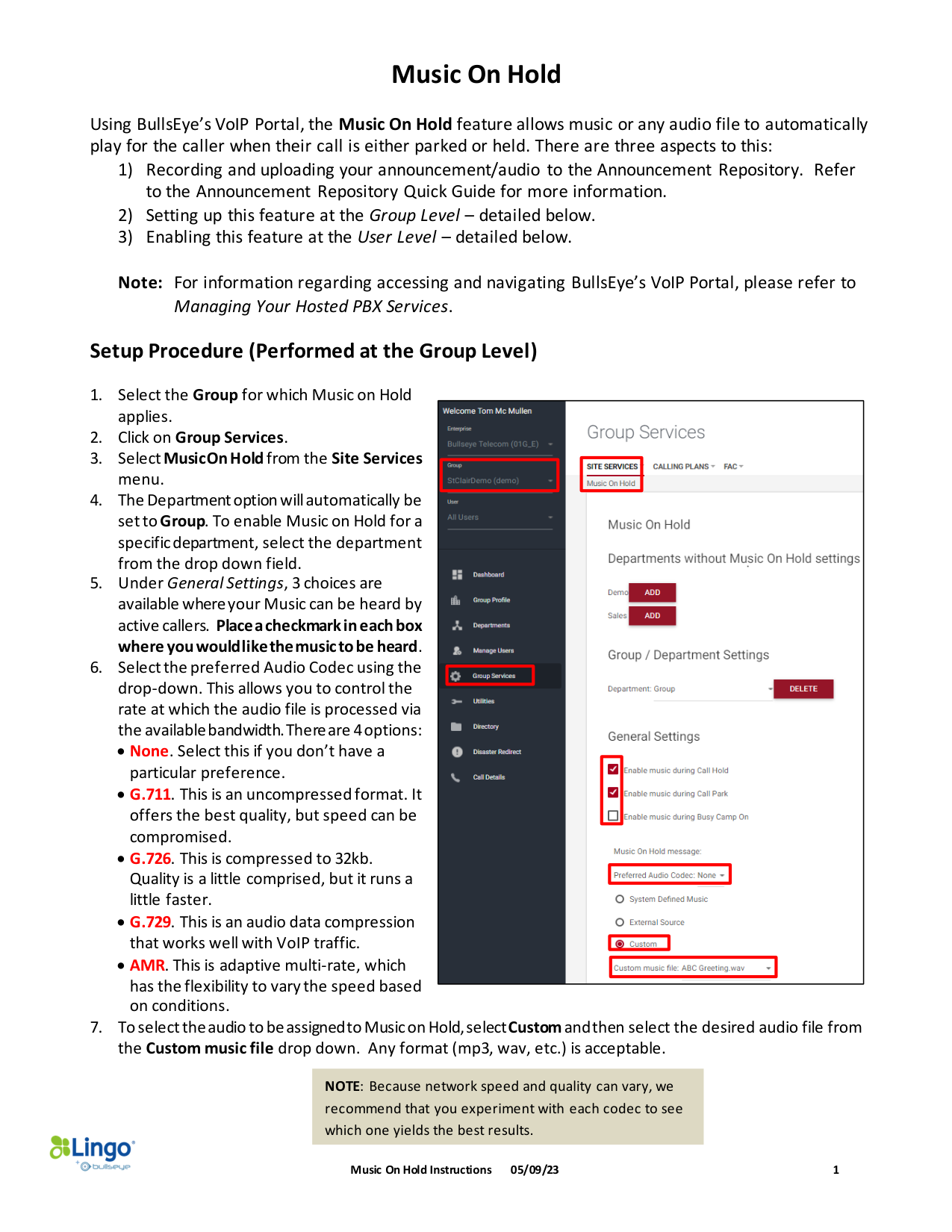
1. Select the Group for which Music on Hold
applies.
2. Click on Group Services.
3. Select Music On Hold from the Site Services
menu.
4. The Department option will automatically be
set to Group. To enable Music on Hold for a
specific department, select the department
from the drop down field.
5. Under General Settings, 3 choices are
available where your Music can be heard by
active callers. Place a checkmark in each box
where you would like the music to be heard.
6. Select the preferred Audio Codec using the
drop-down. This allows you to control the
rate at which the audio file is processed via
the available bandwidth. There are 4 options:
• None. Select this if you don’t have a
particular preference.
• G.711. This is an uncompressed format. It
offers the best quality, but speed can be
compromised.
• G.726. This is compressed to 32kb.
Quality is a little comprised, but it runs a
little faster.
• G.729. This is an audio data compression
that works well with VoIP traffic.
• AMR. This is adaptive multi-rate, which
has the flexibility to vary the speed based
on conditions.
7. To select the audio to be assigned to Music on Hold, select Custom and then select the desired audio file from
the Custom music file drop down. Any format (mp3, wav, etc.) is acceptable.
NOTE: Because network speed and quality can vary, we
recommend that you experiment with each codec to see
which one yields the best results.
Music On Hold
Music On Hold Instructions 05/09/23
2
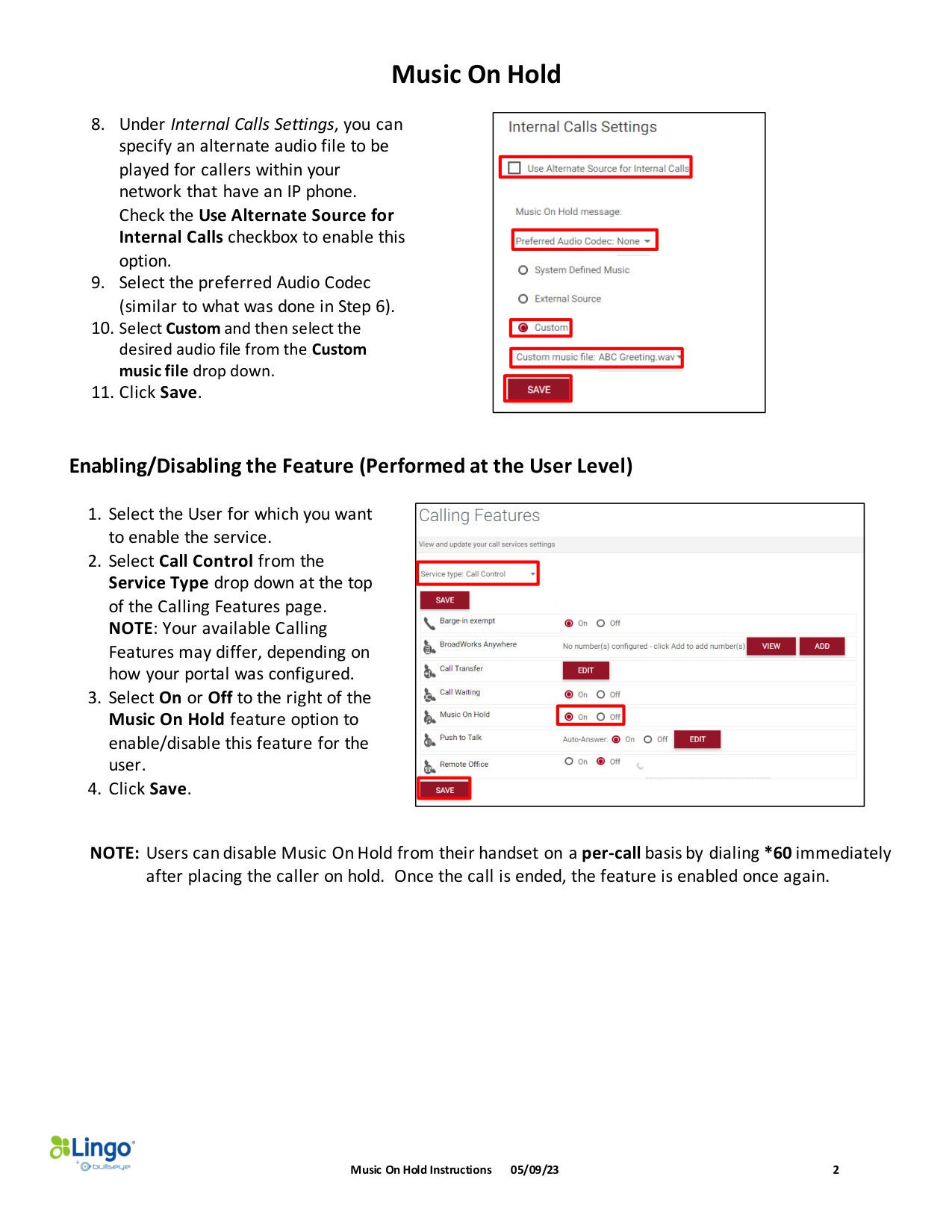
8. Under Internal Calls Settings, you can
specify an alternate audio file to be
played for callers within your
network that have an IP phone.
Check the Use Alternate Source for
Internal Calls checkbox to enable this
option.
9. Select the preferred Audio Codec
(similar to what was done in Step 6).
10. Select Custom and then select the
desired audio file from the Custom
music file drop down.
11. Click Save.
Enabling/Disabling the Feature (Performed at the User Level)
1. Select the User for which you want
to enable the service.
2. Select Call Control from the
Service Type drop down at the top
of the Calling Features page.
NOTE: Your available Calling
Features may differ, depending on
how your portal was configured.
3. Select On or Off to the right of the
Music On Hold feature option to
enable/disable this feature for the
user.
4. Click Save.
NOTE: Users can disable Music On Hold from their handset on a per-call basis by dialing *60 immediately
after placing the caller on hold. Once the call is ended, the feature is enabled once again.