
Virtual Receptionist User Guide
Summary: Virtual Receptionist User Guide
Download article(s)
 Virtual Receptionist User Guide.pdf
Virtual Receptionist User Guide
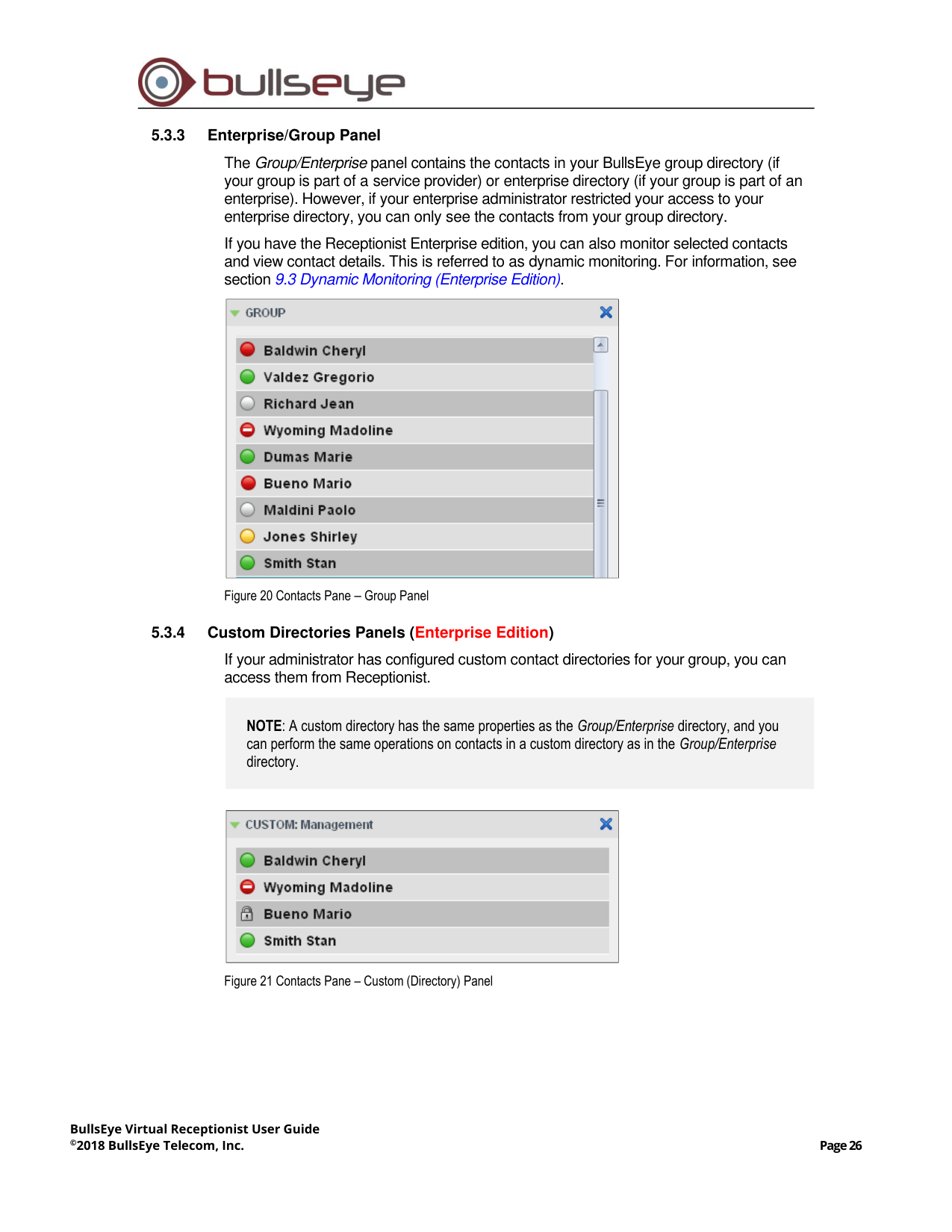
BullsEye Virtual Receptionist
User Guide
Release 17.sp2
Document Version 8
WWW.BULLSEYETELECOM.COM
BullsEye Virtual Receptionist User Guide
©2021 BullsEye Telecom, Inc.
Page 2
BullsEye Virtual Receptionist User Guide
Copyright Notice
Copyright© 2021 BullsEye Telecom, Inc.
All rights reserved.
Any technical documentation that is made available by BullsEye Telecom, Inc. is proprietary and
confidential and is considered the copyrighted work of BullsEye Telecom, Inc.
This publication is for distribution under BullsEye Telecom non-disclosure agreement only. No part
of this publication may be duplicated without the express written permission of BullsEye Telecom,
Inc., 25925 Telegraph Road, Southfield, MI 48033.
BullsEye Telecom reserves the right to make changes without prior notice.
Trademarks
Any product names mentioned in this document may be trademarks or registered trademarks of
BullsEye Telecom or their respective companies and are hereby acknowledged.
This document is printed in the United States of America.
BullsEye Virtual Receptionist User Guide
©2021 BullsEye Telecom, Inc.
Page 3
Table of Contents
1
About This Document .................................................................................................................. 7
1.1
How This Guide is Organized...................................................................................................... 7
2
Introduction to Virtual Receptionist ........................................................................................... 8
2.1
Receptionist Editions ................................................................................................................... 8
2.2
Receptionist Enterprise ............................................................................................................... 9
2.2.1 User Interface ...................................................................................................................... 9
2.2.2 Contact Directories ............................................................................................................ 10
2.2.3 Call Management Functions ............................................................................................. 11
3.3
Receptionist Small Business ..................................................................................................... 12
3.3.1 User Interface .................................................................................................................... 12
3.3.2 Contact Directories ............................................................................................................ 10
3.3.3 Call Management Functionality ......................................................................................... 10
3.4
Receptionist Office .................................................................................................................... 12
3.4.1 User Interface .................................................................................................................... 12
3.4.2 Contact Directories ............................................................................................................ 13
3.4.3 Call Management Functionality ......................................................................................... 13
4
Getting Started ............................................................................................................................ 15
4.1
Launch Receptionist from Web Portal ....................................................................................... 15
4.2
Sign in from Web Browser ......................................................................................................... 16
4.3
Get Help .................................................................................................................................... 17
4.4
Sign Out..................................................................................................................................... 17
4.5
Set Up Your Environment (Enterprise Edition) ......................................................................... 18
4.6
Change Your Password ............................................................................................................ 18
5
Explore Workspace .................................................................................................................... 19
5.1
Logo Pane ................................................................................................................................. 20
5.1.1 Global Message Area........................................................................................................ 20
5.1.2 Settings, Help, and Sign Out Links ................................................................................... 20
5.1.3 Signed-in User Information ............................................................................................... 20
5.2
Call Console .............................................................................................................................. 21
5.2.1 Header............................................................................................................................... 21
5.2.2 Dialer ................................................................................................................................. 21
5.2.3 Current Calls ..................................................................................................................... 22
5.2.4 Conference Call Panel ...................................................................................................... 22
5.2.5 Call States and Actions ..................................................................................................... 23
5.3
Contacts Pane ........................................................................................................................... 24
5.3.1 Search Panel ..................................................................................................................... 25
5.3.2 Favorites Panel ................................................................................................................. 25
5.3.3 Enterprise/Group Panel..................................................................................................... 26
5.3.4 Custom Directories Panels (Enterprise Edition) ............................................................... 26
5.3.5 Personal Panel .................................................................................................................. 27
BullsEye Virtual Receptionist User Guide
©2021 BullsEye Telecom, Inc.
Page 4
5.3.6 Speed Dial Panel .............................................................................................................. 27
5.3.7 Queues Panel (Enterprise Edition) ................................................................................... 27
5.3.8 Outlook Panel (Enterprise Edition) .................................................................................... 28
5.3.9 Directories Panel ............................................................................................................... 28
5.4
Queued Calls Pane (Enterprise Edition) ................................................................................... 29
5.5
Controls ..................................................................................................................................... 30
5.5.1 Call Action Buttons ............................................................................................................ 31
6
Manage Calls ............................................................................................................................... 33
6.1
Drag and Drop Call onto Contact .............................................................................................. 33
6.2
View Call Information ................................................................................................................ 34
6.2.1 View Current Calls ............................................................................................................ 34
6.2.2 View Incoming Call Details ............................................................................................... 34
6.2.3 Save vCard ....................................................................................................................... 35
6.2.4 Open URL ......................................................................................................................... 35
6.3
Answering Calls ......................................................................................................................... 35
6.3.1 Answer Call ....................................................................................................................... 35
6.3.2 Pick Up Call ....................................................................................................................... 36
6.4
Hold and Resume Calls............................................................................................................. 36
6.4.1 Put Call on Hold ................................................................................................................ 36
6.4.2 Resume Held Call ............................................................................................................. 36
6.5
Make and End Calls .................................................................................................................. 36
6.5.1 Dial Ad Hoc Number ......................................................................................................... 36
6.5.2 Redial Number .................................................................................................................. 37
6.5.3 Dial Contact ....................................................................................................................... 37
6.5.4 Speed Dial ......................................................................................................................... 38
6.5.5 Dial from History ................................................................................................................ 38
6.6
End Call ..................................................................................................................................... 39
6.7
Transferring Calls ...................................................................................................................... 39
6.7.1 Blind Transfer Call ............................................................................................................. 39
6.7.2 Conduct Supervised Transfer ........................................................................................... 39
6.7.3 Transfer with Consultation ................................................................................................ 40
6.7.4 Transfer to Voice Mail ....................................................................................................... 40
6.7.5 Transfer to Queue (Enterprise Edition) ............................................................................. 40
6.8
Parking and Camping Calls ....................................................................................................... 41
6.8.1 Conduct Busy Camp On (Enterprise and Small Business Editions) ................................. 41
6.8.2 Conduct Group Call Park (Enterprise Edition) .................................................................. 41
6.9
Manage Conference Calls ......................................................................................................... 42
6.9.1 Start Three-Way Conference ............................................................................................ 42
6.9.2 Add Participant to Conference .......................................................................................... 43
6.9.3 Hold Conference ............................................................................................................... 43
6.9.4 Resume Held Conference ................................................................................................. 43
6.9.5 Put Conference Participant on Hold .................................................................................. 43
6.9.6 Resume Conference Participant ....................................................................................... 43
BullsEye Virtual Receptionist User Guide
©2021 BullsEye Telecom, Inc.
Page 5
6.9.7 Leave Conference ............................................................................................................. 43
6.9.8 Remove Conference Participant ....................................................................................... 43
6.9.9 End Conference ................................................................................................................ 44
6.9.10 Barge in on Call ................................................................................................................. 44
7
Message Contacts (Enterprise Edition) ................................................................................... 45
7.1
Send E-mail to Contact ............................................................................................................. 45
8
Manage Contacts ........................................................................................................................ 46
8.1
Show/Hide Directories ............................................................................................................... 47
8.2
Show/Hide Directory Content .................................................................................................... 49
8.3
Search Contacts ........................................................................................................................ 49
8.4
Order Directory Entries .............................................................................................................. 50
8.5
View Contact Details and Make Notes (Enterprise Edition) ...................................................... 51
8.6
Manage Personal Contacts ....................................................................................................... 52
8.6.1 Add Personal Contact ....................................................................................................... 52
8.6.2 Delete Personal Contact ................................................................................................... 53
8.7
Manage Speed Dial Entries ...................................................................................................... 53
8.7.1 Add Speed Dial Entry ........................................................................................................ 54
8.7.2 Modify Speed Dial Entry .................................................................................................... 54
8.7.3 Delete Speed Dial Entry .................................................................................................... 55
9
Monitor Contacts ........................................................................................................................ 56
9.1
Phone States ............................................................................................................................. 56
9.2
Static Monitoring ........................................................................................................................ 57
9.3
Dynamic Monitoring (Enterprise Edition)................................................................................... 57
9.3.1 Request Contact Monitoring.............................................................................................. 58
10 Manage Call History ................................................................................................................... 59
10.1 View Call History ....................................................................................................................... 59
10.2 Delete Call History ..................................................................................................................... 59
11 Manage Queued Calls (Enterprise Edition).............................................................................. 60
11.1 Select Call Centers to Manage.................................................................................................. 61
11.2 Modify Number of Calls to Display ............................................................................................ 61
11.3 View Queued Calls .................................................................................................................... 62
11.4 Retrieve Call from Queue .......................................................................................................... 62
11.5 Transfer Call to Ad Hoc Number ............................................................................................... 62
11.6 Transfer Call Between Queues ................................................................................................. 62
11.7 Change Position of Call in Queue ............................................................................................. 62
11.8 Transfer Call to Top of Queue (Premium Call Center) .............................................................. 63
11.9 Promote Call in Queue (Premium Call Center) ......................................................................... 63
11.10 Group Calls ............................................................................................................................... 63
11.11 Order Queued Calls .................................................................................................................. 64
12 Configure Receptionist .............................................................................................................. 65
12.1 Settings – General ..................................................................................................................... 65
12.1.1 Account ............................................................................................................................. 66
12.1.2 Language .......................................................................................................................... 66
BullsEye Virtual Receptionist User Guide
©2021 BullsEye Telecom, Inc.
Page 6
12.1.3 Screen Pop ....................................................................................................................... 66
12.1.4 Theme ............................................................................................................................... 67
12.1.5 Workspace ........................................................................................................................ 67
12.2 Settings – Application ................................................................................................................ 68
12.2.1 Queue Membership ........................................................................................................... 68
12.2.2 Operator Policies ............................................................................................................... 69
12.3 Settings – Services .................................................................................................................... 70
12.4 Settings – Plug-ins ..................................................................................................................... 71
12.4.1 Notification ........................................................................................................................ 71
12.4.2 Microsoft Outlook .............................................................................................................. 72
12.4.3 LDAP v3 ............................................................................................................................ 72
12.4.4 Program Shortcuts ............................................................................................................ 73
12.4.5 Call Event Log ................................................................................................................... 73
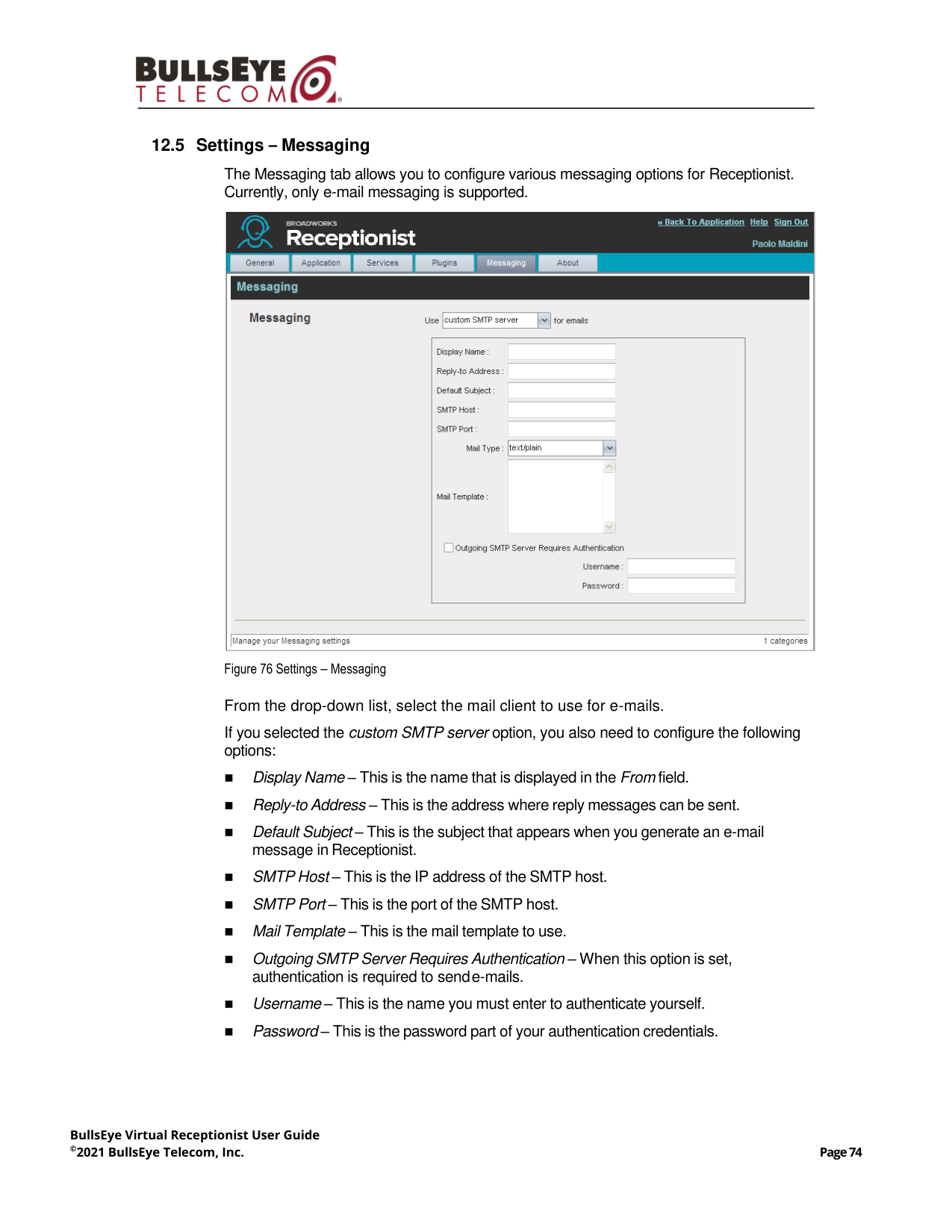
12.5 Settings – Messaging ................................................................................................................ 74
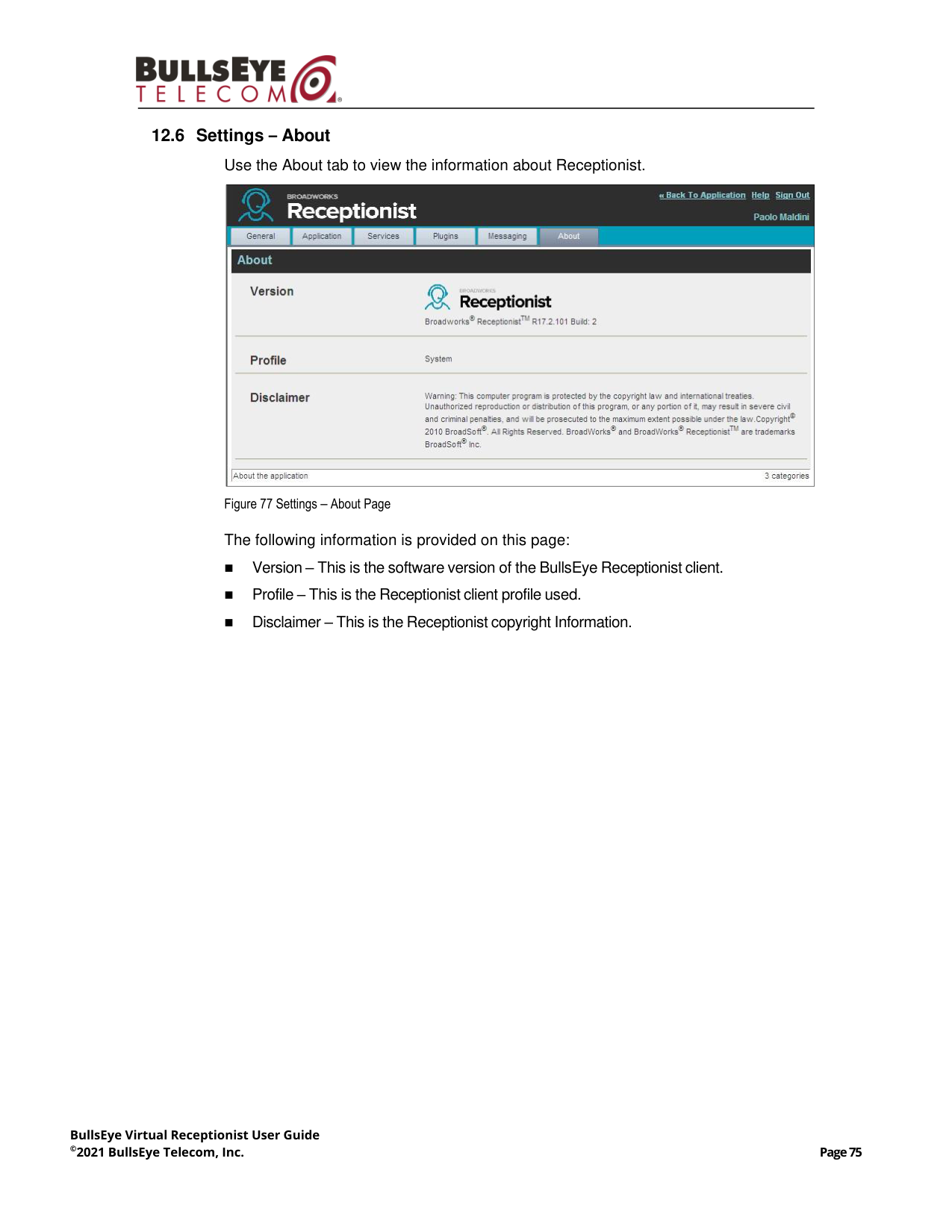
12.6 Settings – About ........................................................................................................................ 75
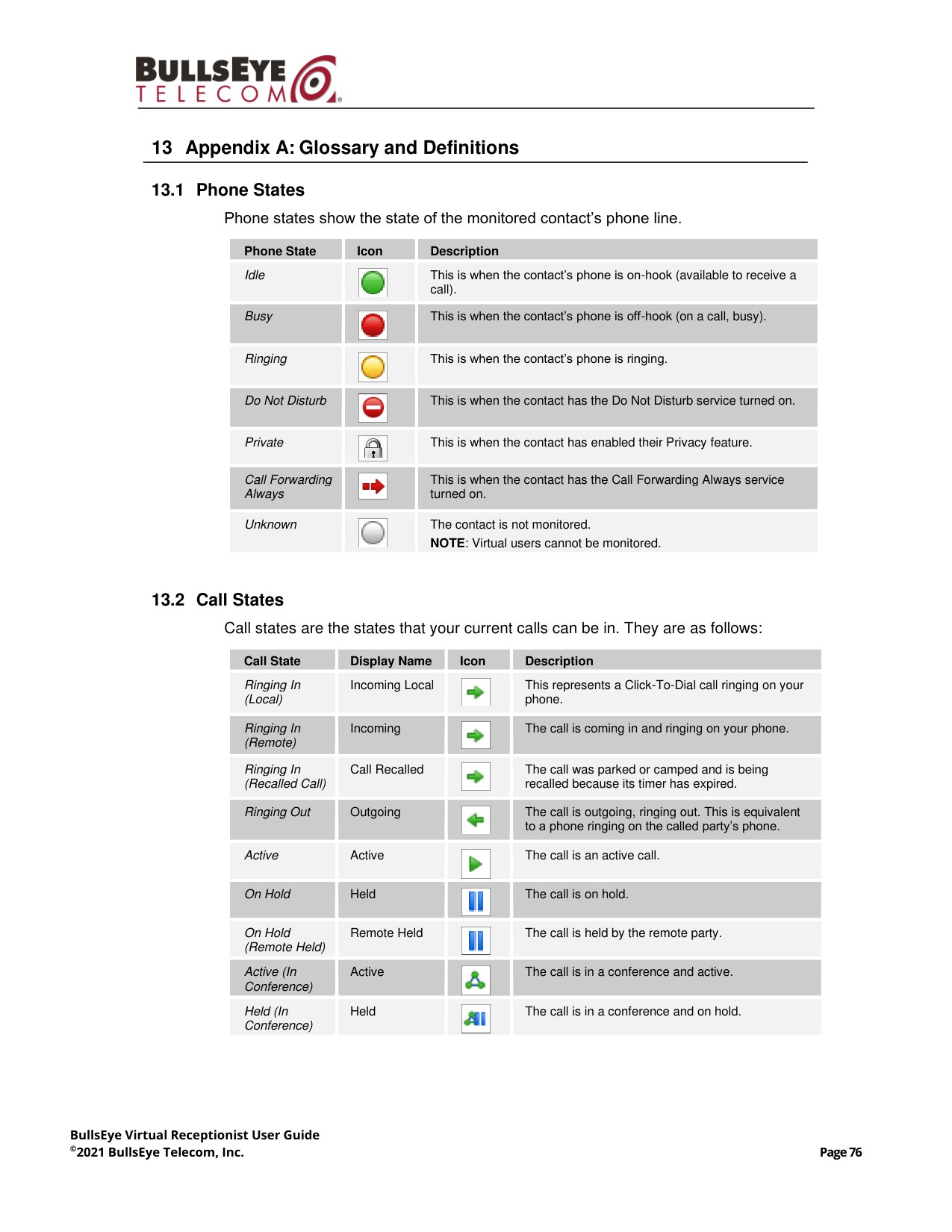
13 Appendix A: Glossary and Definitions ..................................................................................... 76
13.1 Phone States ............................................................................................................................. 76
13.2 Call States ................................................................................................................................. 76
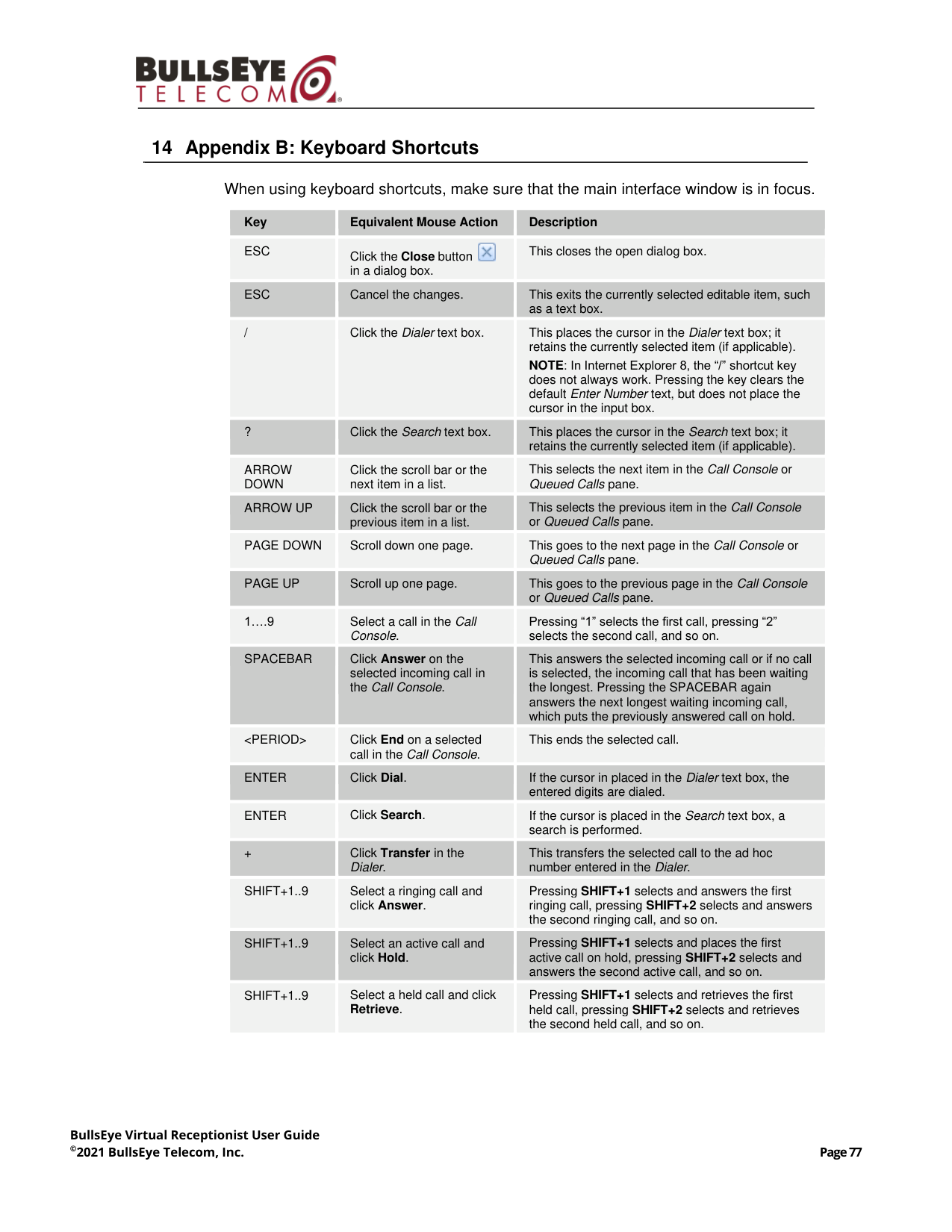
14 Appendix B: Keyboard Shortcuts ............................................................................................. 77
Index ................................................................................................................................................... 79
BullsEye Virtual Receptionist User Guide
©2021 BullsEye Telecom, Inc.
Page 7
1
About This Document
1.1
How This Guide is Organized
The following table identifies the sections to refer to for information about the functionality
provided by Receptionist.
Section
Overview
Introduction to Receptionist
This section provides an overview of Receptionist and its three
editions: Enterprise, Small Business, and Office.
Getting Started
This section describes how to sign in and out of Receptionist, perform
the initial setup, change password, and obtain help.
Explore Workspace
This section provides an overview of the user interface.
Manage Calls
This section provides information on how to make and manage calls.
This includes using your contacts to make calls or perform actions on
existing calls.
Message Contacts
(Enterprise Edition)
This section includes information on how to send e-mail messages to
contacts.
Manage Contacts
This section provides information on managing contact directories and
searching for contacts.
Monitor Contacts
This section describes static and dynamic monitoring and includes
information on how to select contacts to monitor.
Manage Call History
This section provides information on managing call logs.
Manage Queued Calls
(Enterprise Edition)
This section provides information on managing queued calls.
Configure Receptionist
This section describes the settings you can configure to set up and
customize Receptionist for improved usability.
Appendix A: Glossary and
Definitions
This appendix contains definitions of call states and phone states used
in Receptionist.
Appendix B: Keyboard
Shortcuts
This appendix describes keyboard shortcuts available in Receptionist.
BullsEye Virtual Receptionist User Guide
©2021 BullsEye Telecom, Inc.
Page 8
2
Introduction to Virtual Receptionist
Virtual Receptionist delivers the following real benefits to users:
◼
An elegant design that is aesthetically pleasing
◼
An ergonomic design that follows the natural work “flow” of a call from the left to the
right of the screen
◼
Improved business processes as only “valid” options are presented to the attendant
◼
Professional call handling as critical information is available in “real time”
◼
Accurate delivery of messages through a one-step process when people are
unavailable
◼
Web-based interface, accessible from a web browser
2.1
Receptionist Editions
Receptionist exists in three editions: Enterprise, Small Business, and Office, each tailored
to the specific needs of its target users.
The following sections provide an overview of the Receptionist Enterprise, Small
Business, and Office interface and functionality and refer you to other sections of the
document for more information.
NOTE: Features available in a specific version are identified and tagged with the edition’s name.
BullsEye Virtual Receptionist User Guide
©2021 BullsEye Telecom, Inc.
Page 9
2.2
Receptionist Enterprise
The Receptionist Enterprise edition is a BullsEye full-featured client, designed to
support the needs of front-office personnel in any environment. It supports the full set of
call control options, large-scale line monitoring, queuing, multiple directory options, and
views, Outlook integration, and other features required in large or distributed
organizations.
2.2.1
User Interface
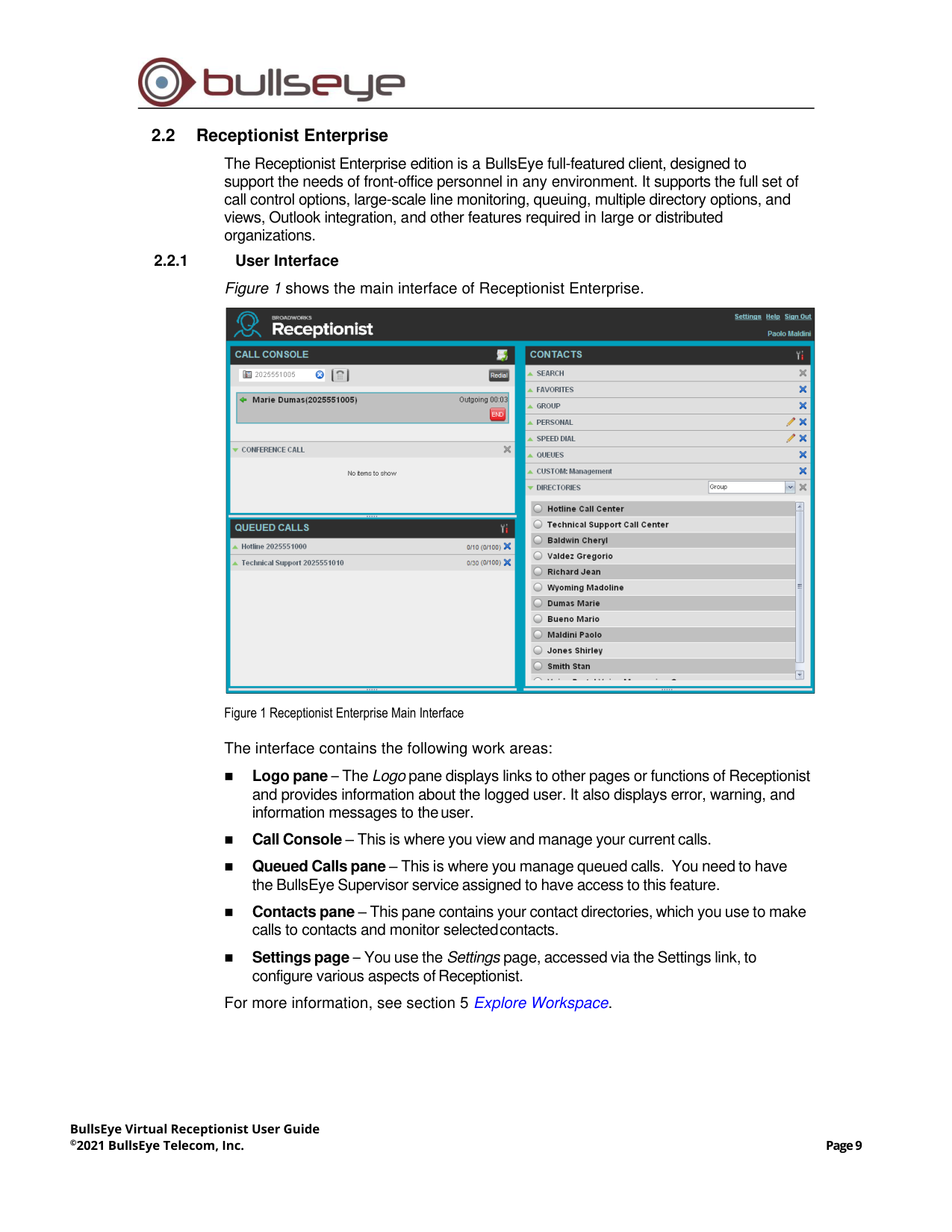
Figure 1 shows the main interface of Receptionist Enterprise.
Figure 1 Receptionist Enterprise Main Interface
The interface contains the following work areas:
◼
Logo pane – The Logo pane displays links to other pages or functions of Receptionist
and provides information about the logged user. It also displays error, warning, and
information messages to the user.
◼
Call Console – This is where you view and manage your current calls.
◼
Queued Calls pane – This is where you manage queued calls. You need to have
the BullsEye Supervisor service assigned to have access to this feature.
◼
Contacts pane – This pane contains your contact directories, which you use to make
calls to contacts and monitor selected contacts.
◼
Settings page – You use the Settings page, accessed via the Settings link, to
configure various aspects of Receptionist.
For more information, see section 5 Explore Workspace.
BullsEye Virtual Receptionist User Guide
©2021 BullsEye Telecom, Inc.
Page 10
2.2.2
Contact Directories
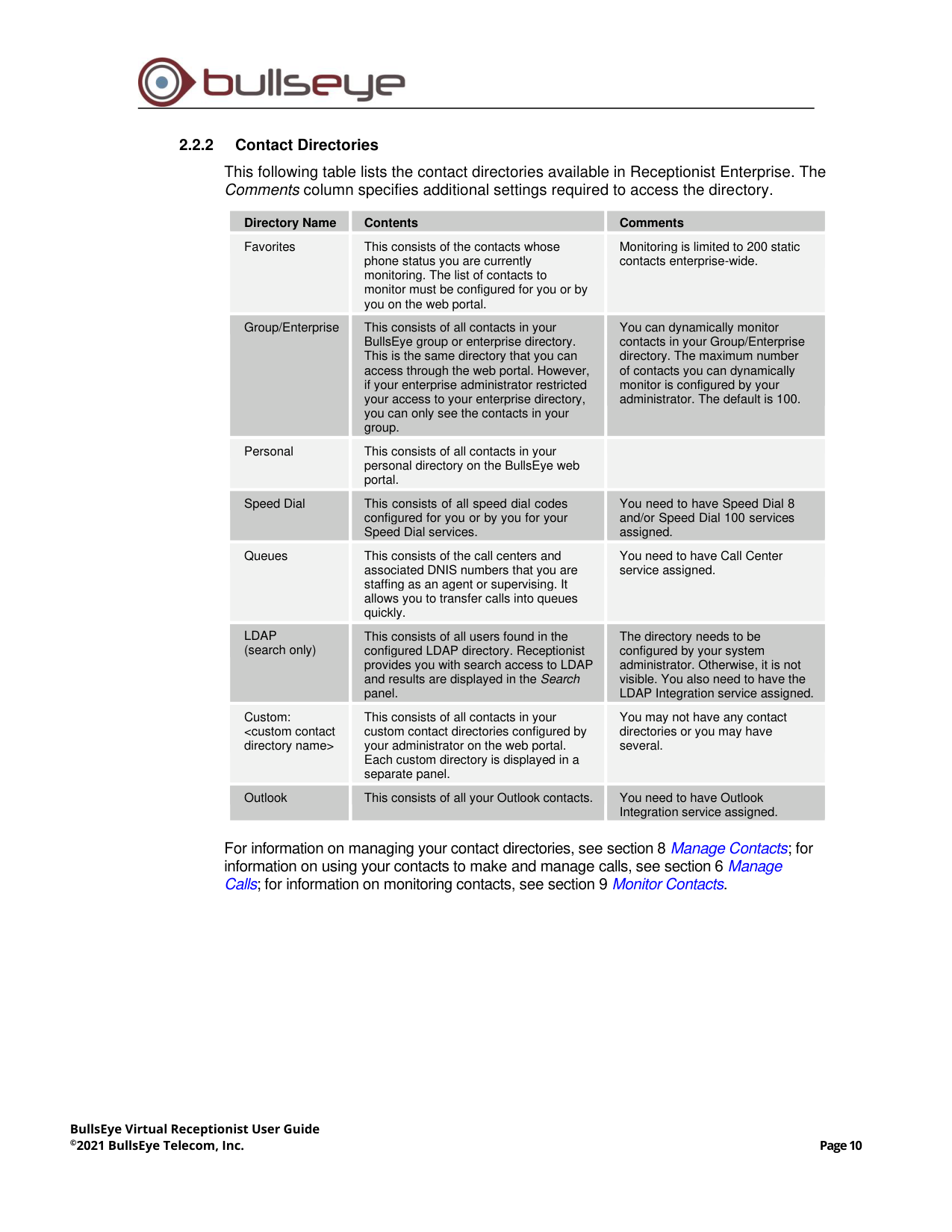
This following table lists the contact directories available in Receptionist Enterprise. The
Comments column specifies additional settings required to access the directory.
Directory Name
Contents
Comments
Favorites
This consists of the contacts whose
phone status you are currently
monitoring. The list of contacts to
monitor must be configured for you or by
you on the web portal.
Monitoring is limited to 200 static
contacts enterprise-wide.
Group/Enterprise
This consists of all contacts in your
BullsEye group or enterprise directory.
This is the same directory that you can
access through the web portal. However,
if your enterprise administrator restricted
your access to your enterprise directory,
you can only see the contacts in your
group.
You can dynamically monitor
contacts in your Group/Enterprise
directory. The maximum number
of contacts you can dynamically
monitor is configured by your
administrator. The default is 100.
Personal
This consists of all contacts in your
personal directory on the BullsEye web
portal.
Speed Dial
This consists of all speed dial codes
configured for you or by you for your
Speed Dial services.
You need to have Speed Dial 8
and/or Speed Dial 100 services
assigned.
Queues
This consists of the call centers and
associated DNIS numbers that you are
staffing as an agent or supervising. It
allows you to transfer calls into queues
quickly.
You need to have Call Center
service assigned.
LDAP
(search only)
This consists of all users found in the
configured LDAP directory. Receptionist
provides you with search access to LDAP
and results are displayed in the Search
panel.
The directory needs to be
configured by your system
administrator. Otherwise, it is not
visible. You also need to have the
LDAP Integration service assigned.
Custom:
<custom contact
directory name>
This consists of all contacts in your
custom contact directories configured by
your administrator on the web portal.
Each custom directory is displayed in a
separate panel.
You may not have any contact
directories or you may have
several.
Outlook
This consists of all your Outlook contacts.
You need to have Outlook
Integration service assigned.
For information on managing your contact directories, see section 8 Manage Contacts; for
information on using your contacts to make and manage calls, see section 6 Manage
Calls; for information on monitoring contacts, see section 9 Monitor Contacts.
BullsEye Virtual Receptionist User Guide
©2021 BullsEye Telecom, Inc.
Page 11
2.2.3
Call Management Functions
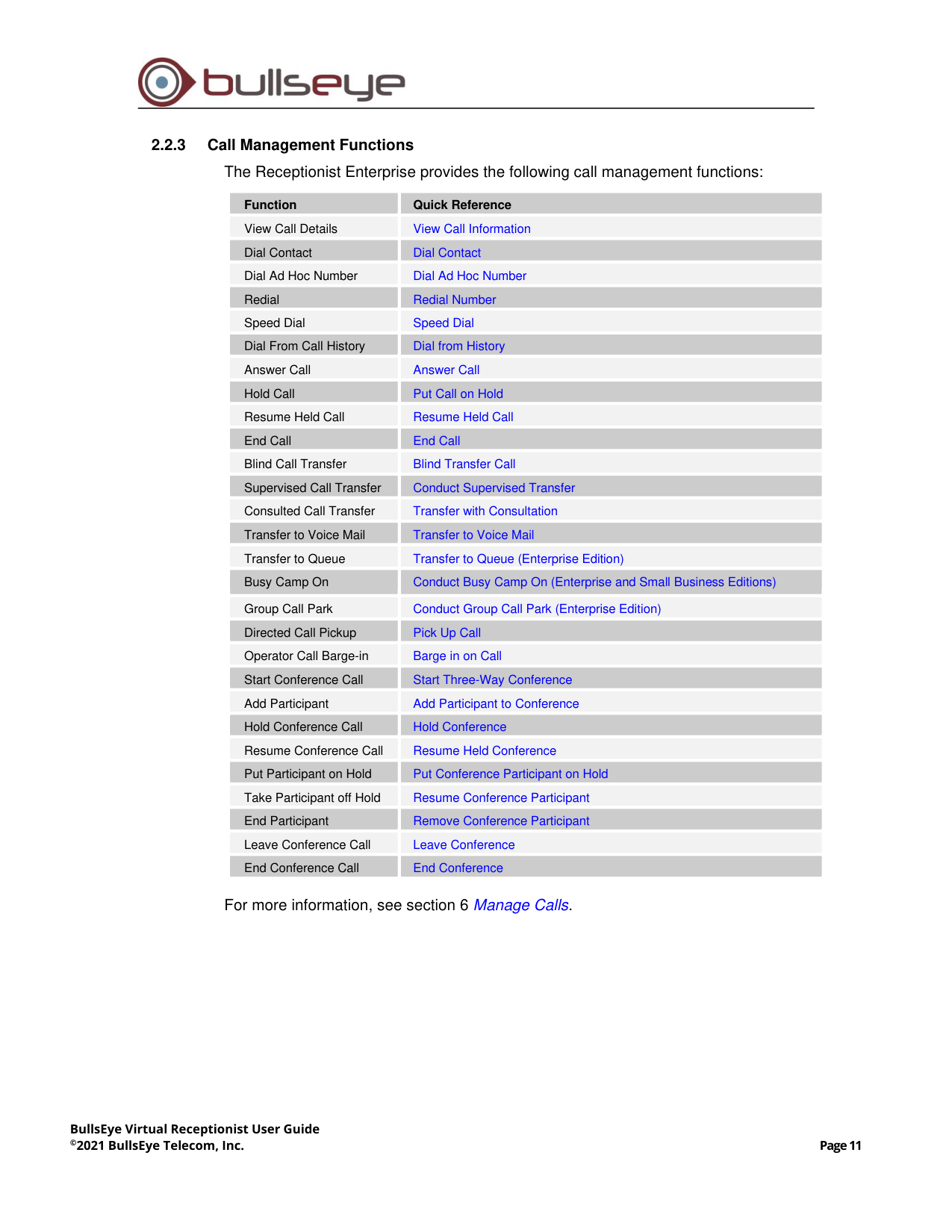
The Receptionist Enterprise provides the following call management functions:
Function
Quick Reference
View Call Details
View Call Information
Dial Contact
Dial Contact
Dial Ad Hoc Number
Dial Ad Hoc Number
Redial
Redial Number
Speed Dial
Speed Dial
Dial From Call History
Dial from History
Answer Call
Answer Call
Hold Call
Put Call on Hold
Resume Held Call
Resume Held Call
End Call
End Call
Blind Call Transfer
Blind Transfer Call
Supervised Call Transfer
Conduct Supervised Transfer
Consulted Call Transfer
Transfer with Consultation
Transfer to Voice Mail
Transfer to Voice Mail
Transfer to Queue
Transfer to Queue (Enterprise Edition)
Busy Camp On
Conduct Busy Camp On (Enterprise and Small Business Editions)
Group Call Park
Conduct Group Call Park (Enterprise Edition)
Directed Call Pickup
Pick Up Call
Operator Call Barge-in
Barge in on Call
Start Conference Call
Start Three-Way Conference
Add Participant
Add Participant to Conference
Hold Conference Call
Hold Conference
Resume Conference Call
Resume Held Conference
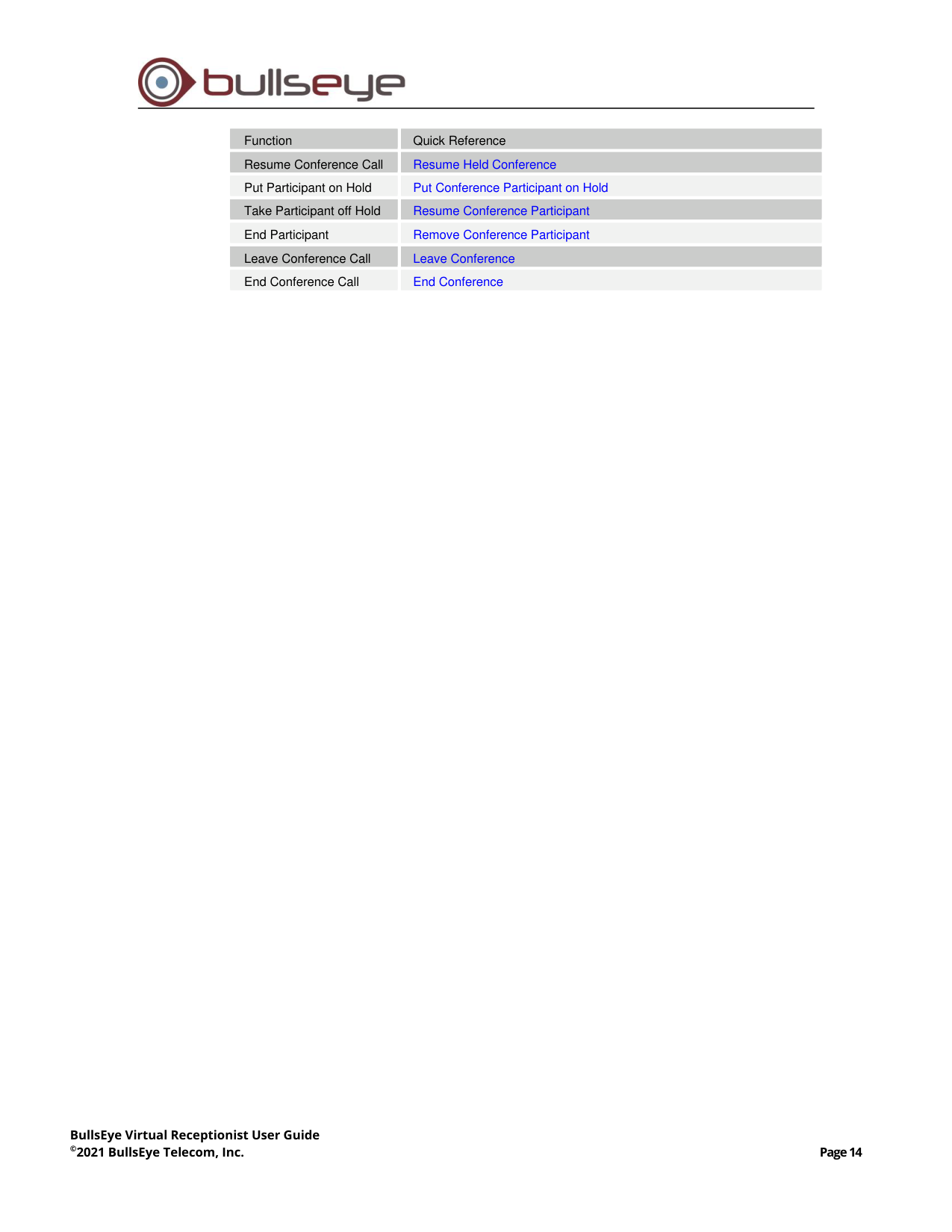
Put Participant on Hold
Put Conference Participant on Hold
Take Participant off Hold
Resume Conference Participant
End Participant
Remove Conference Participant
Leave Conference Call
Leave Conference
End Conference Call
End Conference
For more information, see section 6 Manage Calls.
BullsEye Virtual Receptionist User Guide
©2021 BullsEye Telecom, Inc.
Page 12
3.3
Receptionist Small Business
The Receptionist Small Business edition is a lower-priced version of the client, targeted at
front-office personnel in small and mid-sized organizations that do not require multiple
directories, call queuing, or other advanced features. It supports a full set of call control
functions and monitoring of up to 30 lines in the directory.
3.3.1
User Interface
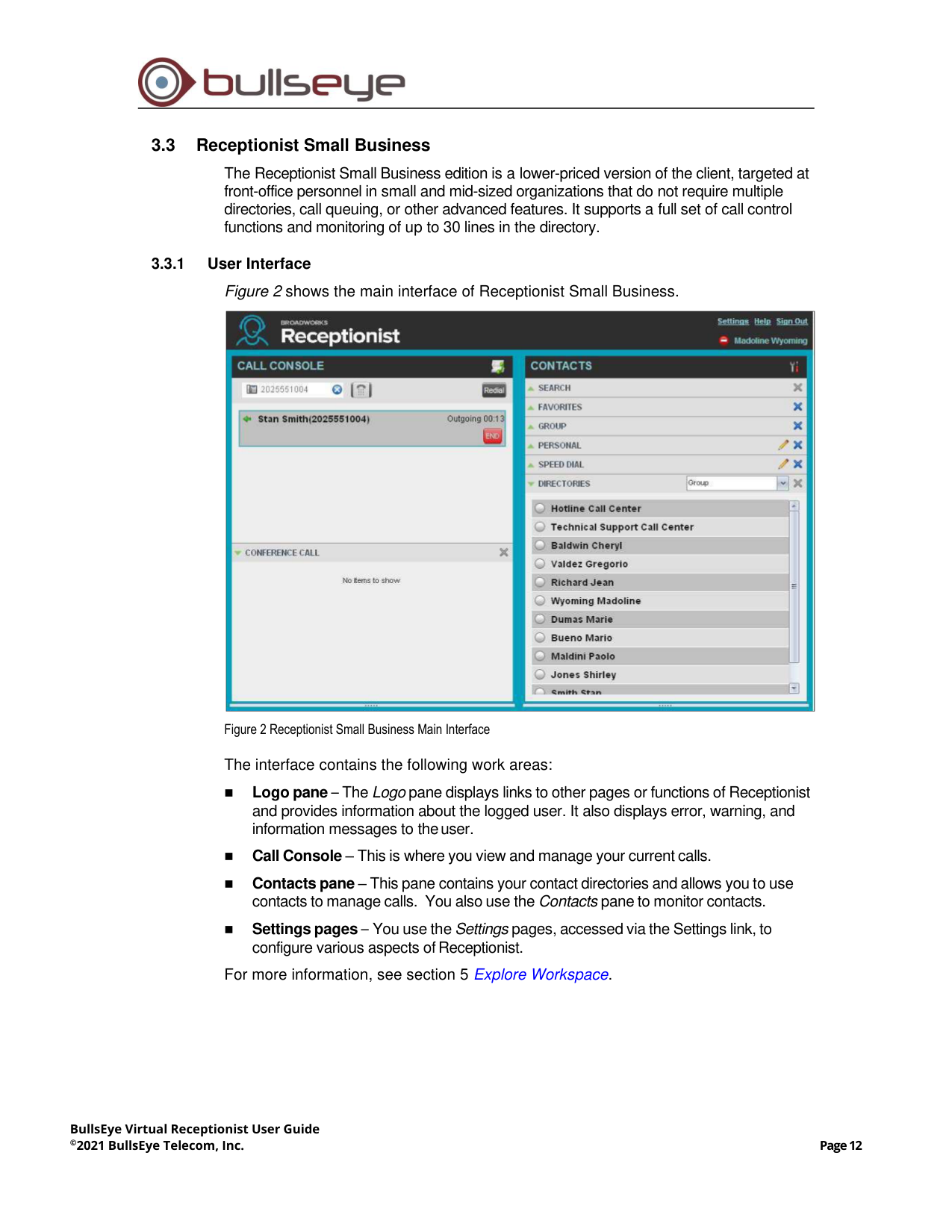
Figure 2 shows the main interface of Receptionist Small Business.
Figure 2 Receptionist Small Business Main Interface
The interface contains the following work areas:
◼
Logo pane – The Logo pane displays links to other pages or functions of Receptionist
and provides information about the logged user. It also displays error, warning, and
information messages to the user.
◼
Call Console – This is where you view and manage your current calls.
◼
Contacts pane – This pane contains your contact directories and allows you to use
contacts to manage calls. You also use the Contacts pane to monitor contacts.
◼
Settings pages – You use the Settings pages, accessed via the Settings link, to
configure various aspects of Receptionist.
For more information, see section 5 Explore Workspace.
BullsEye Virtual Receptionist User Guide
©2021 BullsEye Telecom, Inc.
Page 10
3.3.2
Contact Directories
This following table lists the contact directories available in Receptionist Small Business.
The Comments column specifies additional settings required to access a directory.
Directory Name
Contents
Comments
Favorites
This consists of the contacts whose phone
status you are currently monitoring. The list of
contacts to monitor must be configured for you
or by you on the web portal.
Monitoring is limited to 30
static users company-wide.
Group/Enterprise
This consists of all contacts in your BullsEye
group or enterprise directory. This is the same
directory that you can access through the web
portal. However, if your enterprise
administrator restricted your access to your
enterprise directory, you can only see the
contacts in your group.
Personal
This consists of all contacts in your personal
directory on the BullsEye web portal.
Speed Dial
This consists of all speed dial codes
configured for you or by you for your Speed
Dial services.
You need to have Speed Dial
8 and/or Speed Dial 100
services assigned.
For information on managing your contact directories, see section 8 Manage Contacts; for
information on using your contacts to make and manage calls, see section 6 Manage
Calls; for information about monitoring contacts, see section 9 Monitor Contacts.
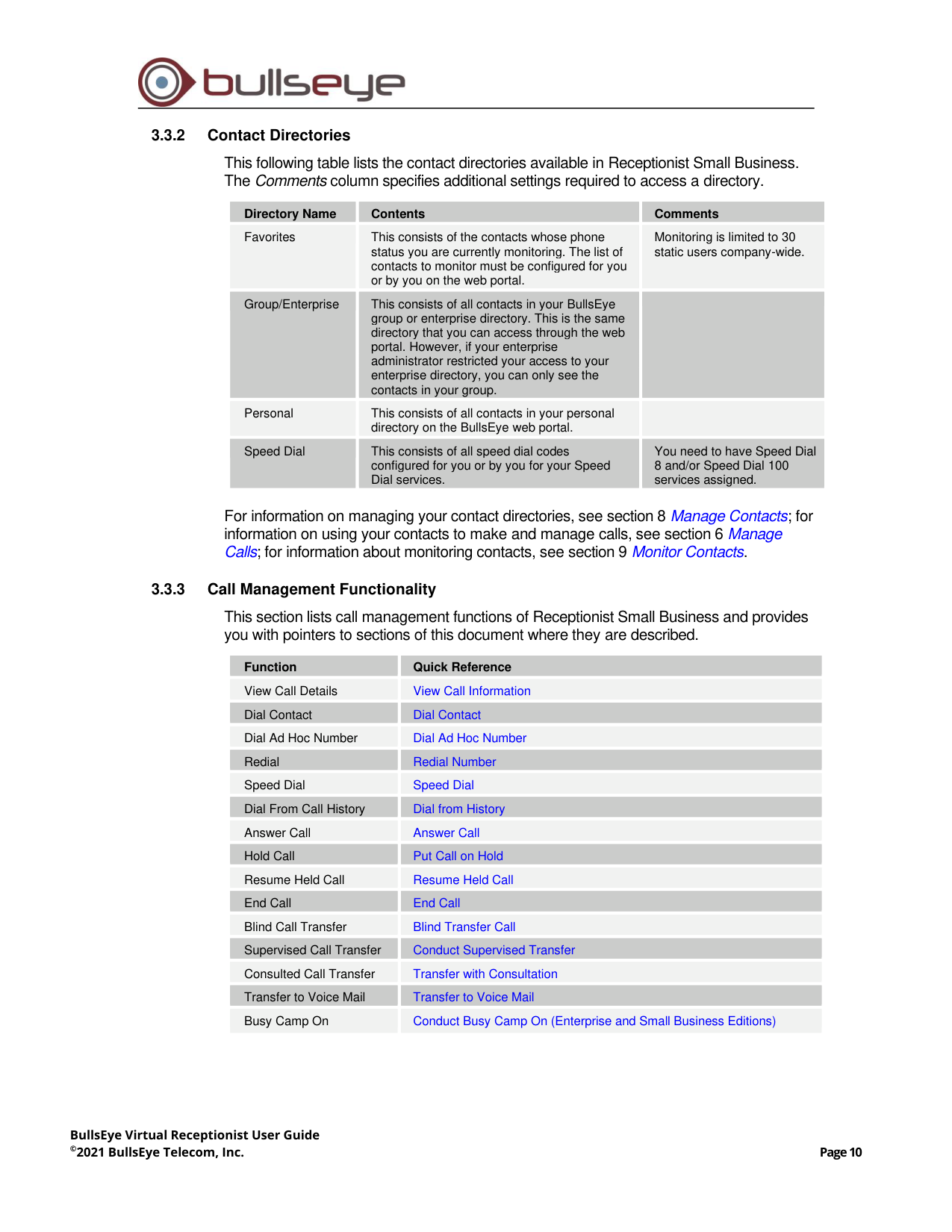
3.3.3
Call Management Functionality
This section lists call management functions of Receptionist Small Business and provides
you with pointers to sections of this document where they are described.
Function
Quick Reference
View Call Details
View Call Information
Dial Contact
Dial Contact
Dial Ad Hoc Number
Dial Ad Hoc Number
Redial
Redial Number
Speed Dial
Speed Dial
Dial From Call History
Dial from History
Answer Call
Answer Call
Hold Call
Put Call on Hold
Resume Held Call
Resume Held Call
End Call
End Call
Blind Call Transfer
Blind Transfer Call
Supervised Call Transfer
Conduct Supervised Transfer
Consulted Call Transfer
Transfer with Consultation
Transfer to Voice Mail
Transfer to Voice Mail
Busy Camp On
Conduct Busy Camp On (Enterprise and Small Business Editions)
BullsEye Virtual Receptionist User Guide
©2021 BullsEye Telecom, Inc.
Page 11
Function
Quick Reference
Directed Call Pickup
Pick Up Call
Operator Call Barge-in
Barge in on Call
Start Conference Call
Start Three-Way Conference
Add Participant
Add Participant to Conference
Hold Conference Call
Hold Conference
Resume Conference Call
Resume Held Conference
Put Participant on Hold
Put Conference Participant on Hold
Take Participant off Hold
Resume Conference Participant
End Participant
Remove Conference Participant
Leave Conference Call
Leave Conference
End Conference Call
End Conference
BullsEye Virtual Receptionist User Guide
©2021 BullsEye Telecom, Inc.
Page 12
3.4
Receptionist Office
The Receptionist Office edition is targeted at a small office environment with a limited
number of employees. It supports the standard set of Call Control features and the
monitoring of up to eight lines in the directory.
3.4.1
User Interface
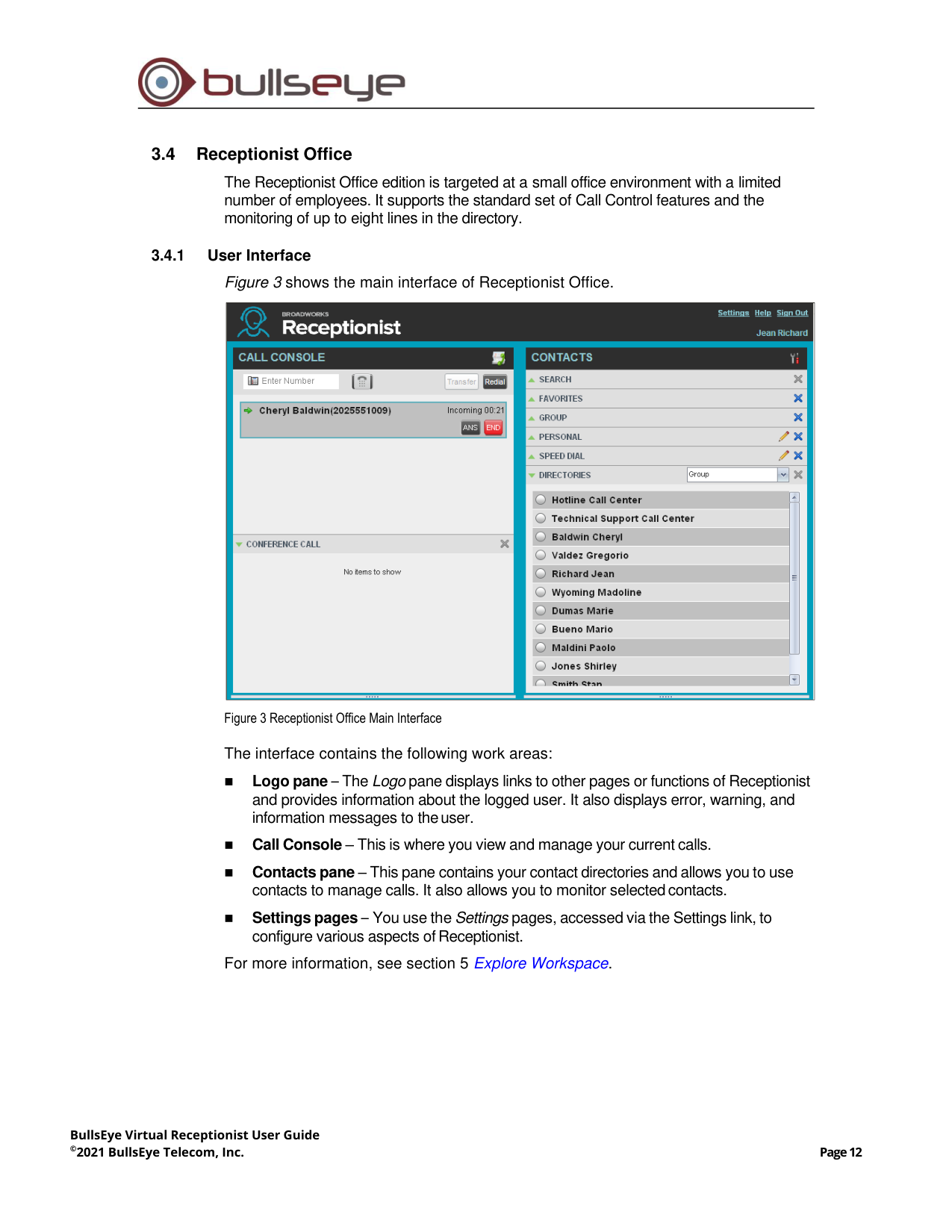
Figure 3 shows the main interface of Receptionist Office.
Figure 3 Receptionist Office Main Interface
The interface contains the following work areas:
◼
Logo pane – The Logo pane displays links to other pages or functions of Receptionist
and provides information about the logged user. It also displays error, warning, and
information messages to the user.
◼
Call Console – This is where you view and manage your current calls.
◼
Contacts pane – This pane contains your contact directories and allows you to use
contacts to manage calls. It also allows you to monitor selected contacts.
◼
Settings pages – You use the Settings pages, accessed via the Settings link, to
configure various aspects of Receptionist.
For more information, see section 5 Explore Workspace.
BullsEye Virtual Receptionist User Guide
©2021 BullsEye Telecom, Inc.
Page 13
3.4.2
Contact Directories
This following table lists the contact directories available in Receptionist Office. The
Comments column specifies any additional settings required to have access to a directory.
Directory Name
Contents
Comments
Favorites
This consists of the contacts whose phone
status you are currently monitoring. The list
of contacts to monitor must be configured for
you or by you on the web portal.
Monitoring is limited to eight
static users group-wide.
Group/Enterprise
This consists of all contacts in your group.
Personal
This consists of all contacts in your personal
directory on the BullsEye web portal.
Speed Dial
This consists of all speed dial codes
configured for you or by you for your Speed
Dial services.
You need to have Speed Dial 8
and/or Speed Dial 100 services
assigned.
For information on managing your contact directories, see section 8 Manage Contacts; for
information on using your contacts to make and manage calls, see section 6 Manage
Calls; for information about monitoring contacts, see section 9 Monitor Contacts.
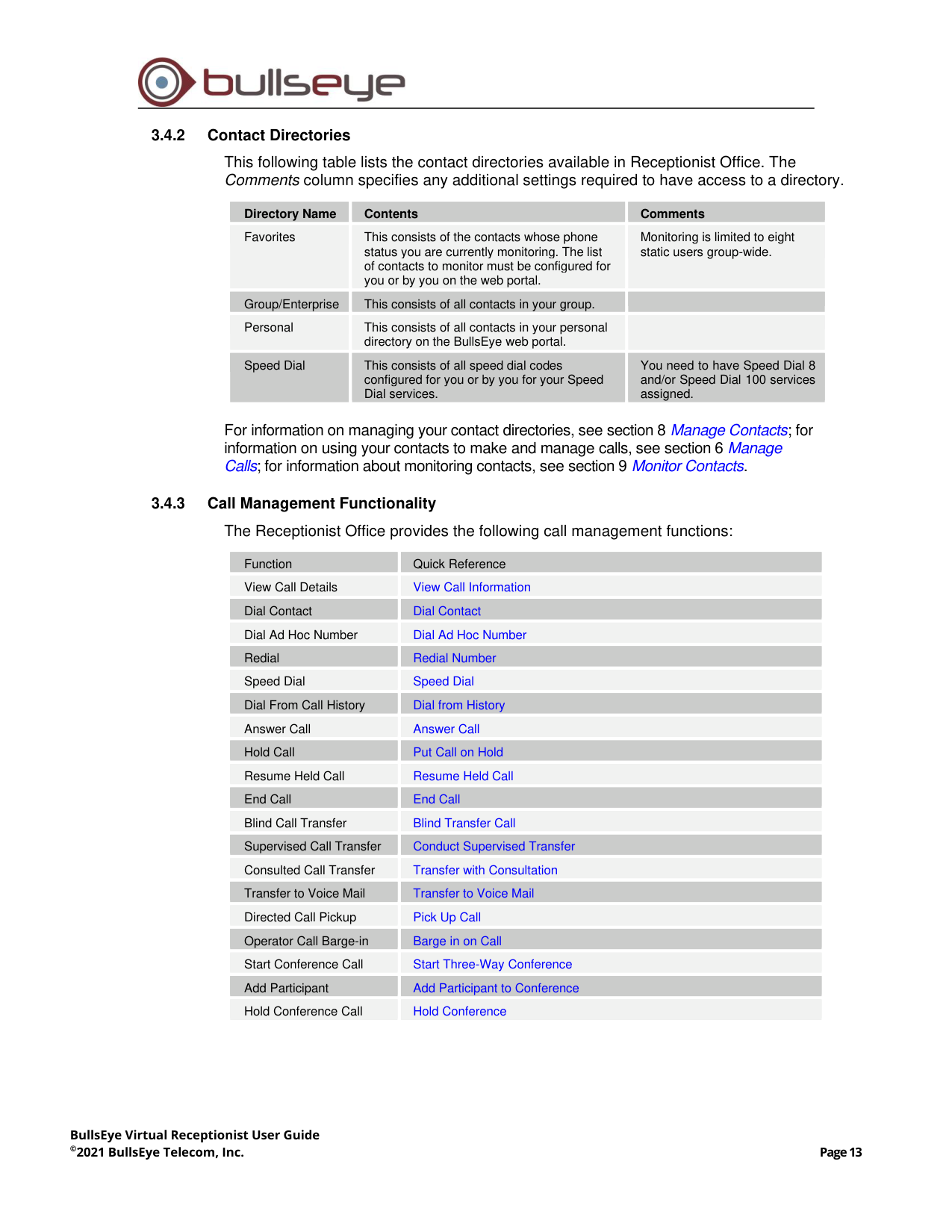
3.4.3
Call Management Functionality
The Receptionist Office provides the following call management functions:
Function
Quick Reference
View Call Details
View Call Information
Dial Contact
Dial Contact
Dial Ad Hoc Number
Dial Ad Hoc Number
Redial
Redial Number
Speed Dial
Speed Dial
Dial From Call History
Dial from History
Answer Call
Answer Call
Hold Call
Put Call on Hold
Resume Held Call
Resume Held Call
End Call
End Call
Blind Call Transfer
Blind Transfer Call
Supervised Call Transfer
Conduct Supervised Transfer
Consulted Call Transfer
Transfer with Consultation
Transfer to Voice Mail
Transfer to Voice Mail
Directed Call Pickup
Pick Up Call
Operator Call Barge-in
Barge in on Call
Start Conference Call
Start Three-Way Conference
Add Participant
Add Participant to Conference
Hold Conference Call
Hold Conference
BullsEye Virtual Receptionist User Guide
©2021 BullsEye Telecom, Inc.
Page 14
Function
Quick Reference
Resume Conference Call
Resume Held Conference
Put Participant on Hold
Put Conference Participant on Hold
Take Participant off Hold
Resume Conference Participant
End Participant
Remove Conference Participant
Leave Conference Call
Leave Conference
End Conference Call
End Conference
BullsEye Virtual Receptionist User Guide
©2021 BullsEye Telecom, Inc.
Page 15
4
Getting Started
Receptionist is hosted on BullsEye and you access it over the network either from your
web portal or from a web browser. The sign-in procedure is the same for all Receptionist
editions.
4.1
Launch Receptionist from Web Portal
BullsEye has a Single Sign-On feature. When you access the Receptionist client from the
web portal, you do not need to provide your credentials since you are already logged in to
the web portal.
To access Receptionist from the web portal:
1)
Log in to your BullsEye web portal.
2)
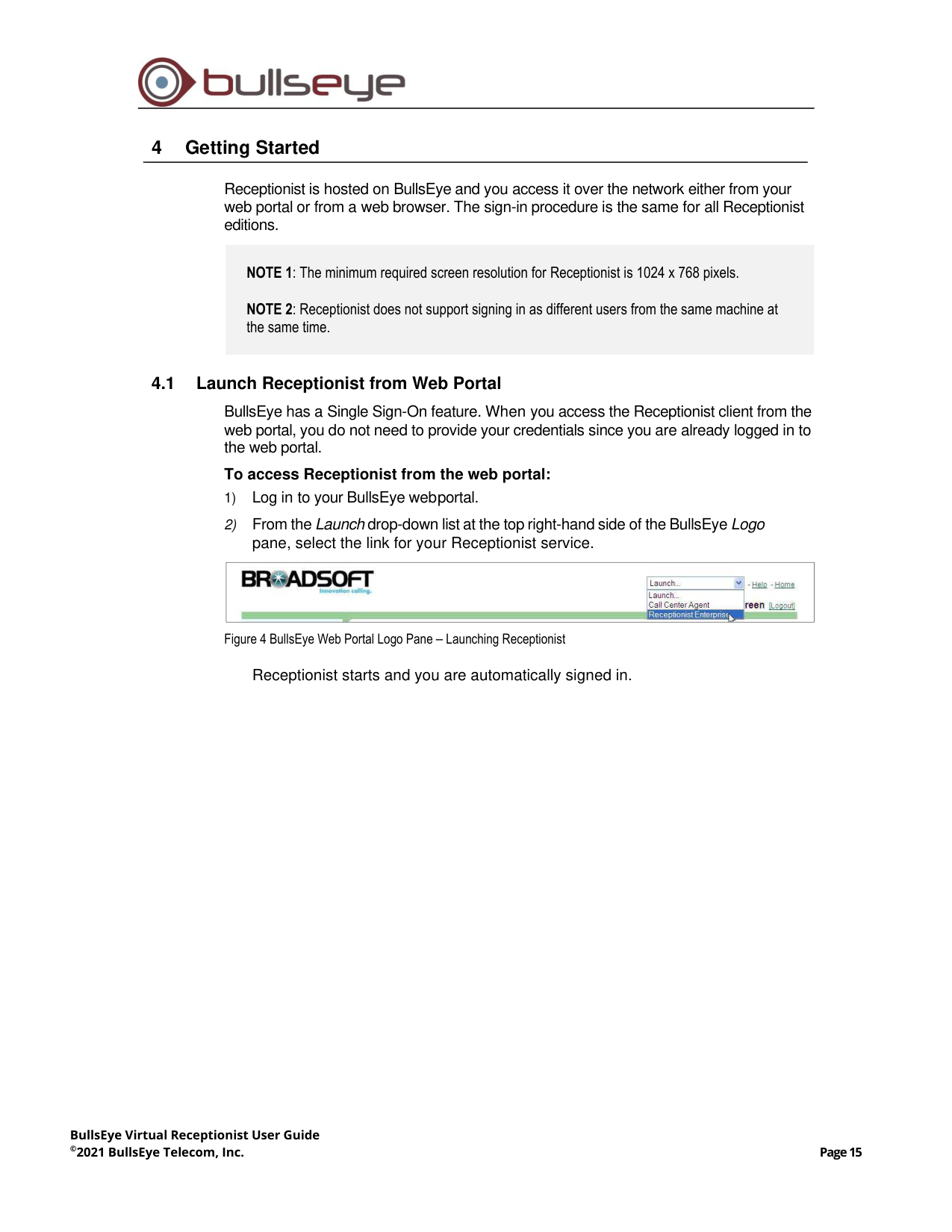
From the Launch drop-down list at the top right-hand side of the BullsEye Logo
pane, select the link for your Receptionist service.
Figure 4 BullsEye Web Portal Logo Pane – Launching Receptionist
Receptionist starts and you are automatically signed in.
NOTE 1: The minimum required screen resolution for Receptionist is 1024 x 768 pixels.
NOTE 2: Receptionist does not support signing in as different users from the same machine at
the same time.
BullsEye Virtual Receptionist User Guide
©2021 BullsEye Telecom, Inc.
Page 16
4.2
Sign in from Web Browser
When signing in to the client, use the same credentials you use to connect to the web
portal.
To access Receptionist from a web browser:
1)
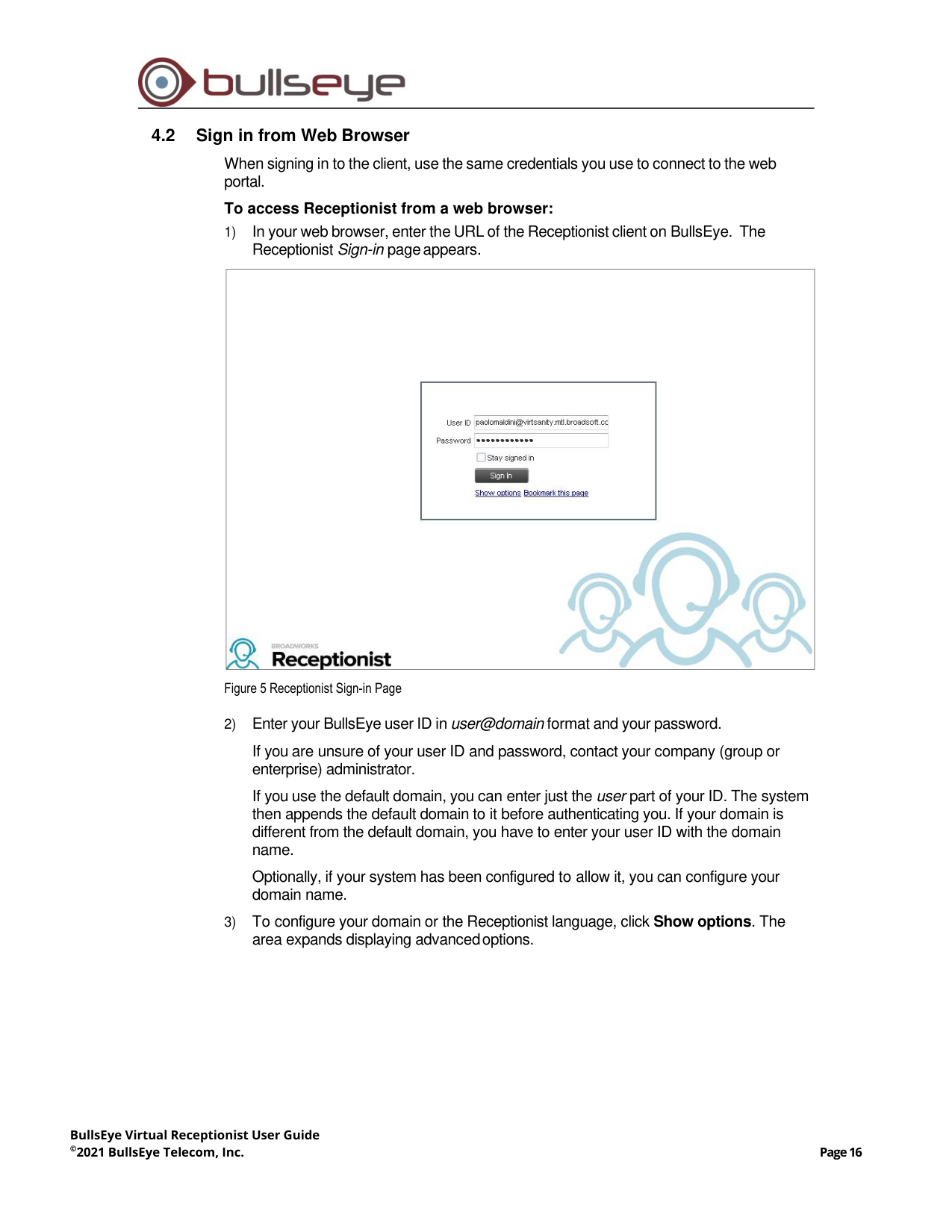
In your web browser, enter the URL of the Receptionist client on BullsEye. The
Receptionist Sign-in page appears.
Figure 5 Receptionist Sign-in Page
2)
Enter your BullsEye user ID in user@domain format and your password.
If you are unsure of your user ID and password, contact your company (group or
enterprise) administrator.
If you use the default domain, you can enter just the user part of your ID. The system
then appends the default domain to it before authenticating you. If your domain is
different from the default domain, you have to enter your user ID with the domain
name.
Optionally, if your system has been configured to allow it, you can configure your
domain name.
3)
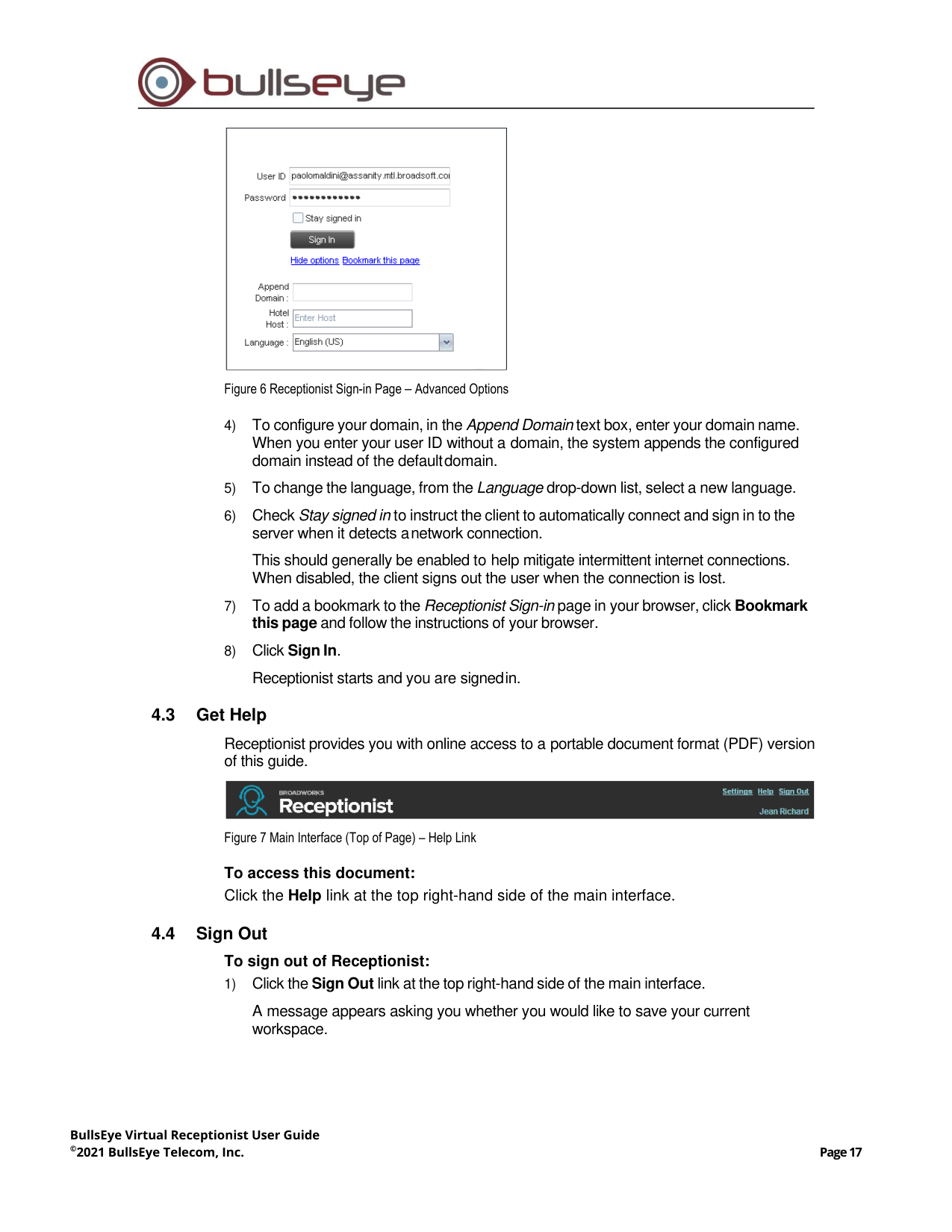
To configure your domain or the Receptionist language, click Show options. The
area expands displaying advanced options.
BullsEye Virtual Receptionist User Guide
©2021 BullsEye Telecom, Inc.
Page 17
Figure 6 Receptionist Sign-in Page – Advanced Options
4)
To configure your domain, in the Append Domain text box, enter your domain name.
When you enter your user ID without a domain, the system appends the configured
domain instead of the default domain.
5)
To change the language, from the Language drop-down list, select a new language.
6)
Check Stay signed in to instruct the client to automatically connect and sign in to the
server when it detects a network connection.
This should generally be enabled to help mitigate intermittent internet connections.
When disabled, the client signs out the user when the connection is lost.
7)
To add a bookmark to the Receptionist Sign-in page in your browser, click Bookmark
this page and follow the instructions of your browser.
8)
Click Sign In.
Receptionist starts and you are signed in.
4.3
Get Help
Receptionist provides you with online access to a portable document format (PDF) version
of this guide.
Figure 7 Main Interface (Top of Page) – Help Link
To access this document:
Click the Help link at the top right-hand side of the main interface.
4.4
Sign Out
To sign out of Receptionist:
1)
Click the Sign Out link at the top right-hand side of the main interface.
A message appears asking you whether you would like to save your current
workspace.
BullsEye Virtual Receptionist User Guide
©2021 BullsEye Telecom, Inc.
Page 18
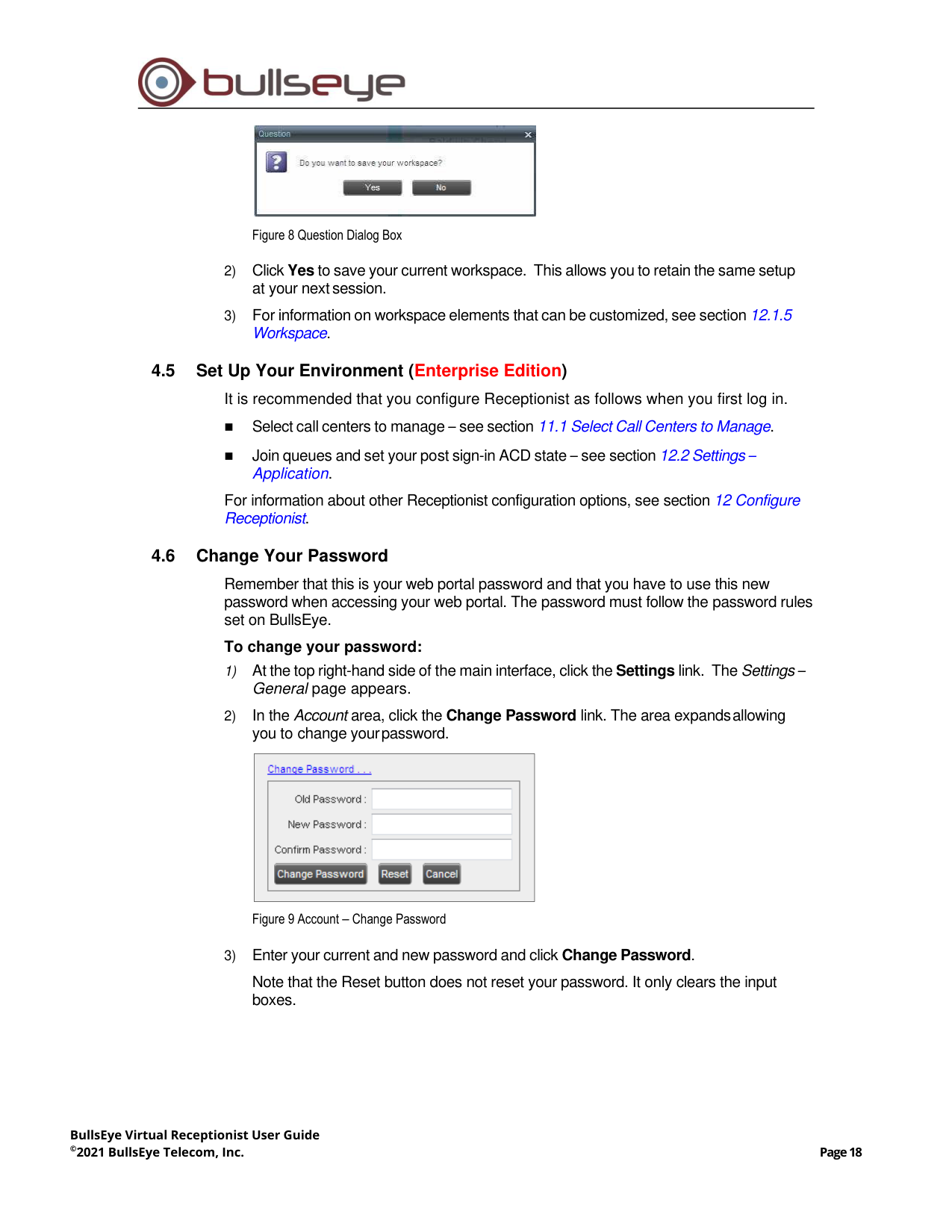
Figure 8 Question Dialog Box
2)
Click Yes to save your current workspace. This allows you to retain the same setup
at your next session.
3)
For information on workspace elements that can be customized, see section 12.1.5
Workspace.
4.5
Set Up Your Environment (Enterprise Edition)
It is recommended that you configure Receptionist as follows when you first log in.
◼
Select call centers to manage – see section 11.1 Select Call Centers to Manage.
◼
Join queues and set your post sign-in ACD state – see section 12.2 Settings –
Application.
For information about other Receptionist configuration options, see section 12 Configure
Receptionist.
4.6
Change Your Password
Remember that this is your web portal password and that you have to use this new
password when accessing your web portal. The password must follow the password rules
set on BullsEye.
To change your password:
1)
At the top right-hand side of the main interface, click the Settings link. The Settings –
General page appears.
2)
In the Account area, click the Change Password link. The area expands allowing
you to change your password.
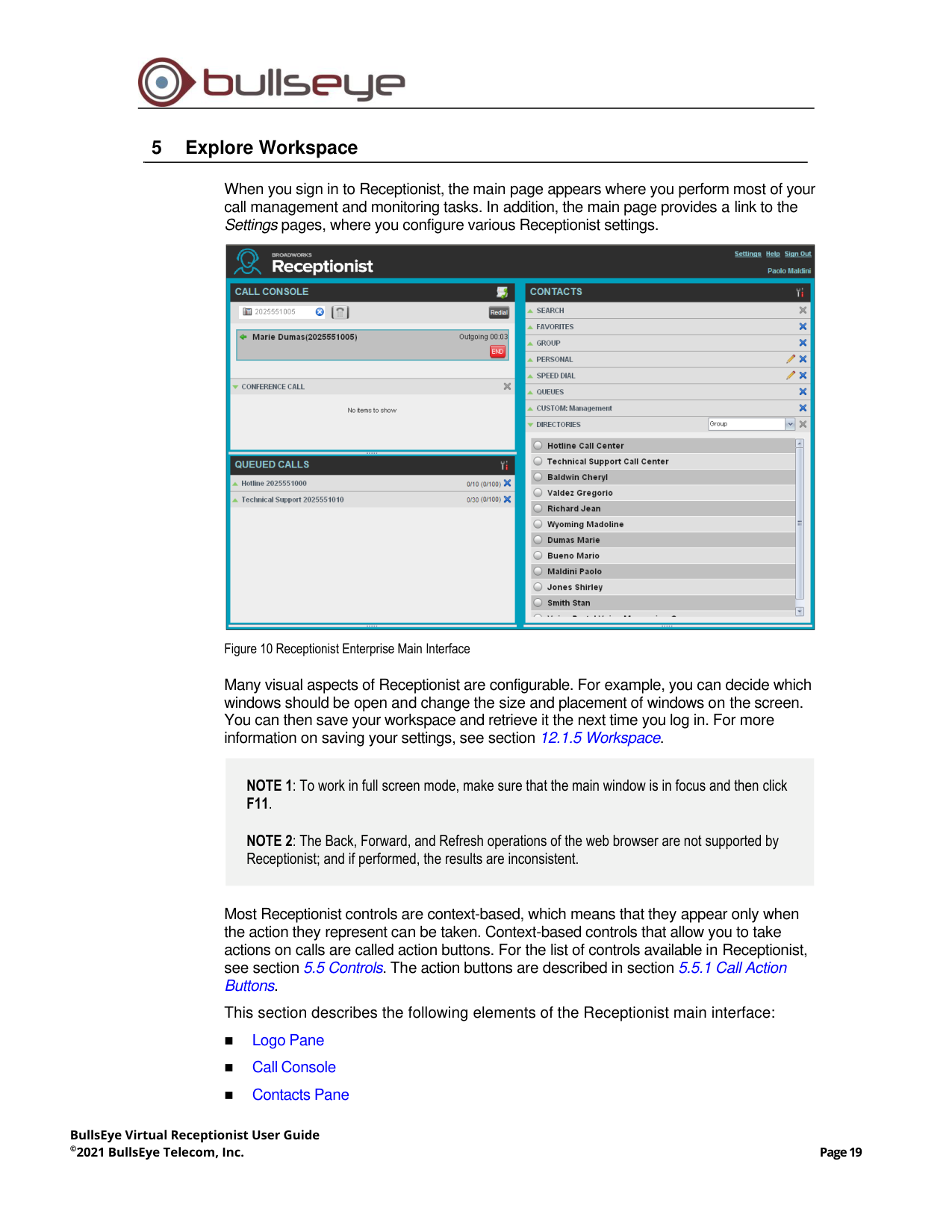
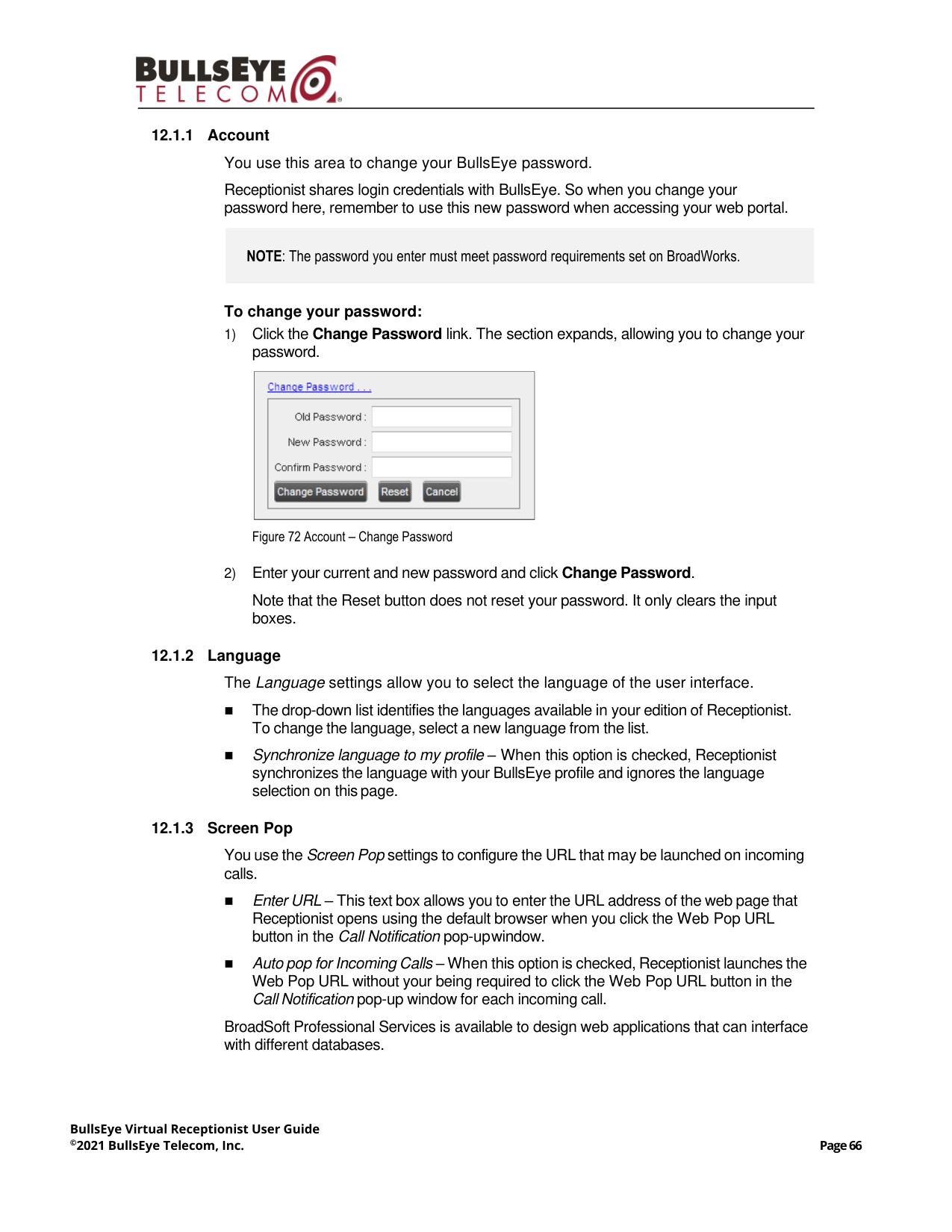
Figure 9 Account – Change Password
3)
Enter your current and new password and click Change Password.
Note that the Reset button does not reset your password. It only clears the input
boxes.
BullsEye Virtual Receptionist User Guide
©2021 BullsEye Telecom, Inc.
Page 19
5
Explore Workspace
When you sign in to Receptionist, the main page appears where you perform most of your
call management and monitoring tasks. In addition, the main page provides a link to the
Settings pages, where you configure various Receptionist settings.
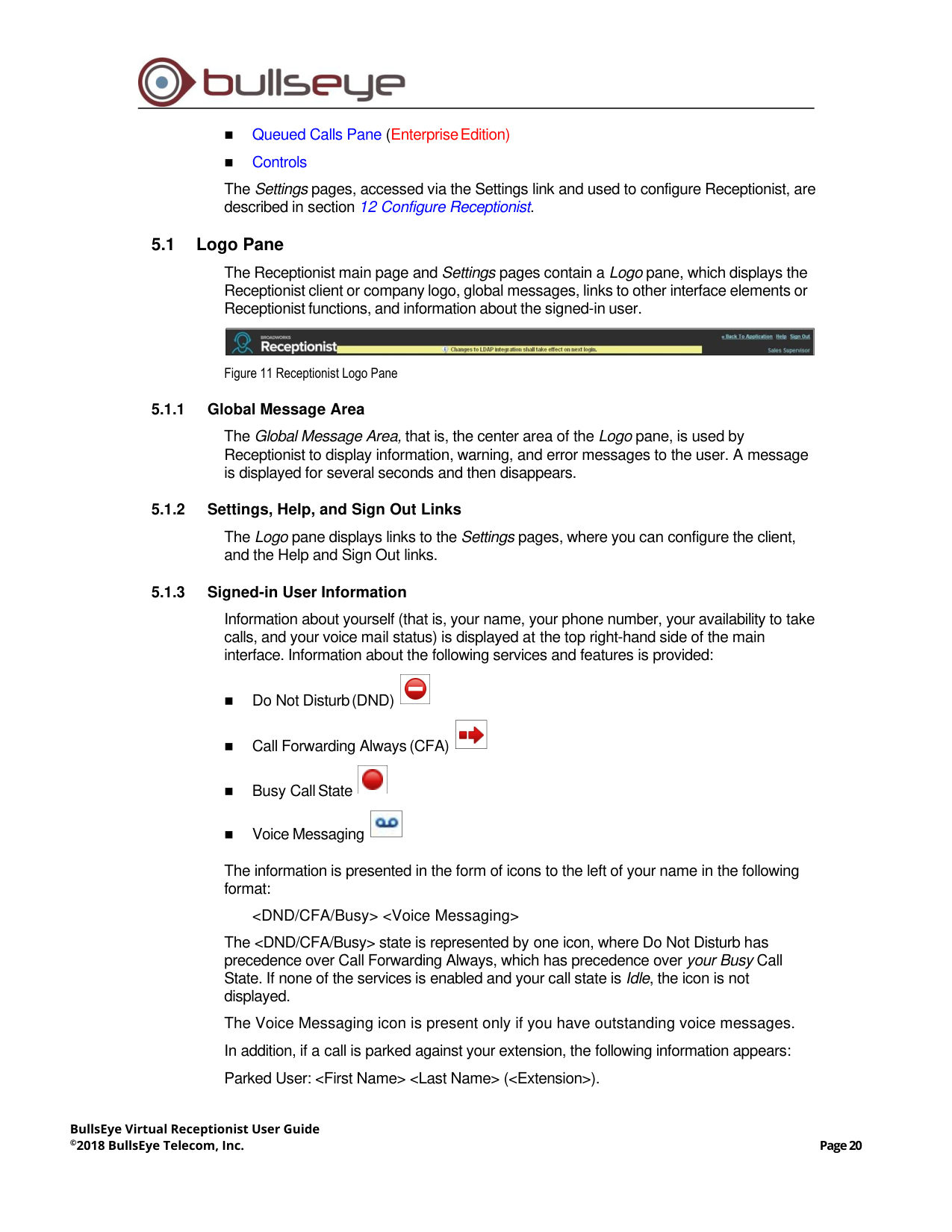
Figure 10 Receptionist Enterprise Main Interface
Many visual aspects of Receptionist are configurable. For example, you can decide which
windows should be open and change the size and placement of windows on the screen.
You can then save your workspace and retrieve it the next time you log in. For more
information on saving your settings, see section 12.1.5 Workspace.
Most Receptionist controls are context-based, which means that they appear only when
the action they represent can be taken. Context-based controls that allow you to take
actions on calls are called action buttons. For the list of controls available in Receptionist,
see section 5.5 Controls. The action buttons are described in section 5.5.1 Call Action
Buttons.
This section describes the following elements of the Receptionist main interface:
◼
Logo Pane
◼
Call Console
◼
Contacts Pane
NOTE 1: To work in full screen mode, make sure that the main window is in focus and then click
F11.
NOTE 2: The Back, Forward, and Refresh operations of the web browser are not supported by
Receptionist; and if performed, the results are inconsistent.
BullsEye Virtual Receptionist User Guide
©2018 BullsEye Telecom, Inc.
Page 20
◼
Queued Calls Pane (Enterprise Edition)
◼
Controls
The Settings pages, accessed via the Settings link and used to configure Receptionist, are
described in section 12 Configure Receptionist.
5.1
Logo Pane
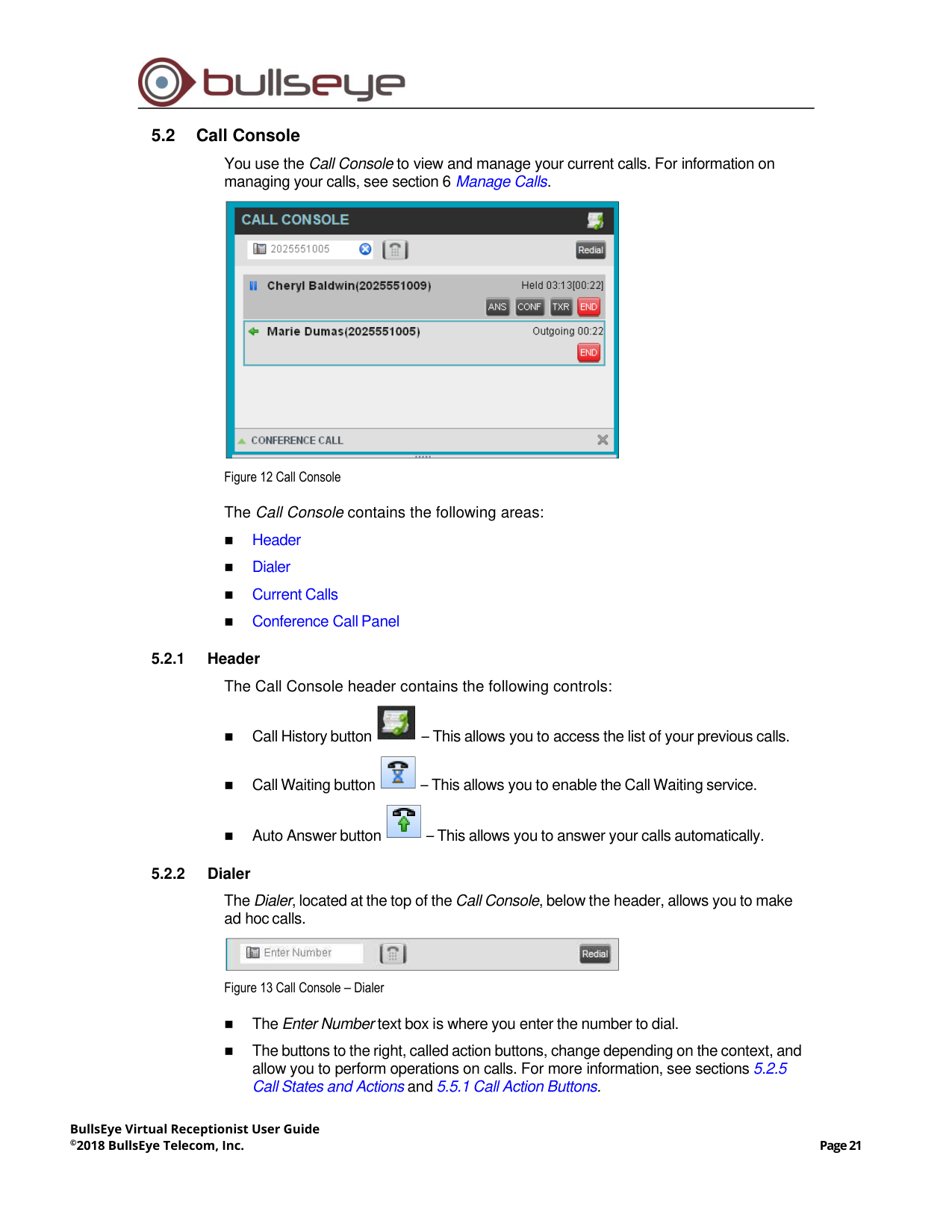
The Receptionist main page and Settings pages contain a Logo pane, which displays the
Receptionist client or company logo, global messages, links to other interface elements or
Receptionist functions, and information about the signed-in user.
Figure 11 Receptionist Logo Pane
5.1.1
Global Message Area
The Global Message Area, that is, the center area of the Logo pane, is used by
Receptionist to display information, warning, and error messages to the user. A message
is displayed for several seconds and then disappears.
5.1.2
Settings, Help, and Sign Out Links
The Logo pane displays links to the Settings pages, where you can configure the client,
and the Help and Sign Out links.
5.1.3
Signed-in User Information
Information about yourself (that is, your name, your phone number, your availability to take
calls, and your voice mail status) is displayed at the top right-hand side of the main
interface. Information about the following services and features is provided:
◼
Do Not Disturb (DND)
◼
Call Forwarding Always (CFA)
◼
Busy Call State
◼
Voice Messaging
The information is presented in the form of icons to the left of your name in the following
format:
<DND/CFA/Busy> <Voice Messaging>
The <DND/CFA/Busy> state is represented by one icon, where Do Not Disturb has
precedence over Call Forwarding Always, which has precedence over your Busy Call
State. If none of the services is enabled and your call state is Idle, the icon is not
displayed.
The Voice Messaging icon is present only if you have outstanding voice messages.
In addition, if a call is parked against your extension, the following information appears:
Parked User: <First Name> <Last Name> (<Extension>).
BullsEye Virtual Receptionist User Guide
©2018 BullsEye Telecom, Inc.
Page 21
5.2
Call Console
You use the Call Console to view and manage your current calls. For information on
managing your calls, see section 6 Manage Calls.
Figure 12 Call Console
The Call Console contains the following areas:
◼
Header
◼
Dialer
◼
Current Calls
◼
Conference Call Panel
5.2.1
Header
The Call Console header contains the following controls:
◼
Call History button
– This allows you to access the list of your previous calls.
◼
Call Waiting button
– This allows you to enable the Call Waiting service.
◼
Auto Answer button
– This allows you to answer your calls automatically.
5.2.2
Dialer
The Dialer, located at the top of the Call Console, below the header, allows you to make
ad hoc calls.
Figure 13 Call Console – Dialer
◼
The Enter Number text box is where you enter the number to dial.
◼
The buttons to the right, called action buttons, change depending on the context, and
allow you to perform operations on calls. For more information, see sections 5.2.5
Call States and Actions and 5.5.1 Call Action Buttons.
BullsEye Virtual Receptionist User Guide
©2018 BullsEye Telecom, Inc.
Page 22
5.2.3
Current Calls
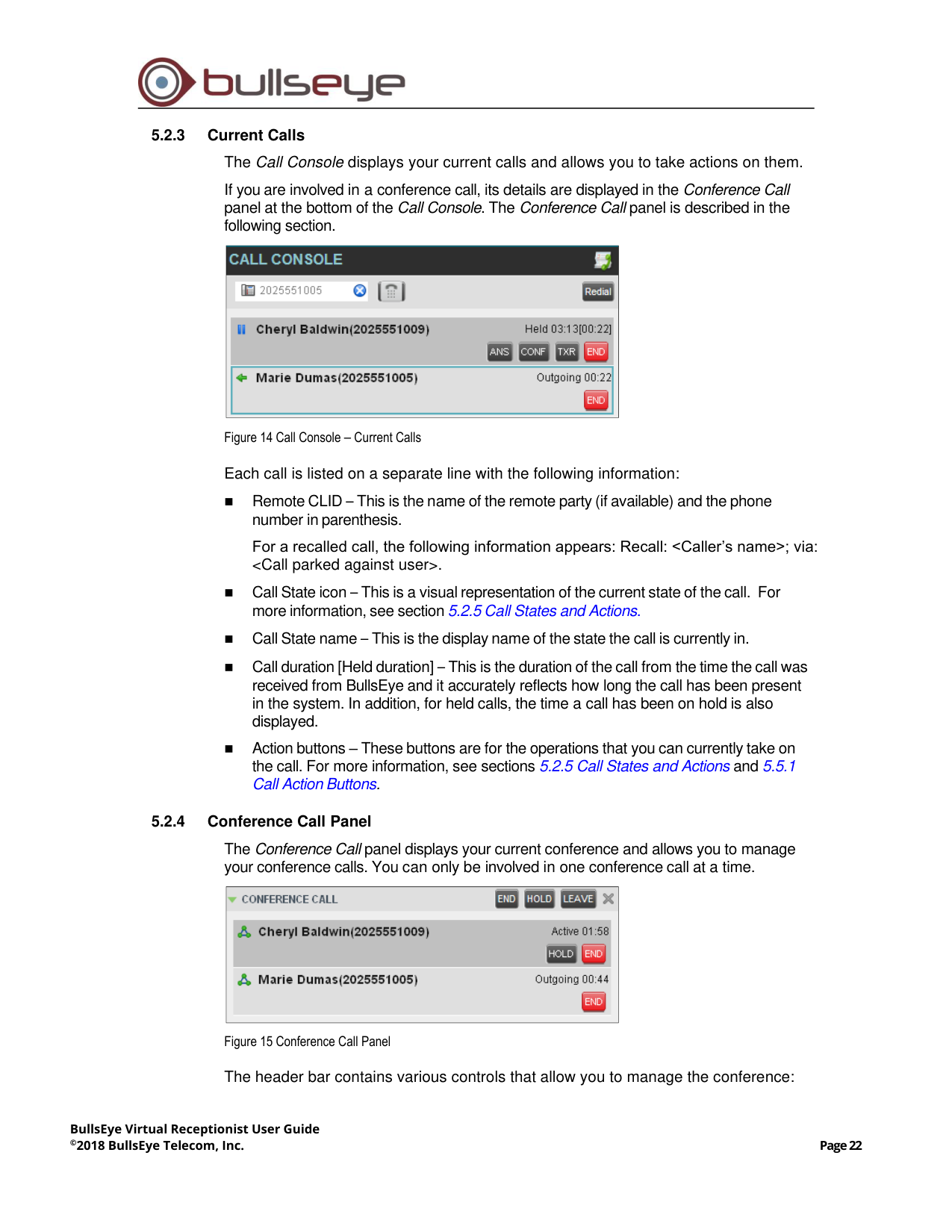
The Call Console displays your current calls and allows you to take actions on them.
If you are involved in a conference call, its details are displayed in the Conference Call
panel at the bottom of the Call Console. The Conference Call panel is described in the
following section.
Figure 14 Call Console – Current Calls
Each call is listed on a separate line with the following information:
◼
Remote CLID – This is the name of the remote party (if available) and the phone
number in parenthesis.
For a recalled call, the following information appears: Recall: <Caller’s name>; via:
<Call parked against user>.
◼
Call State icon – This is a visual representation of the current state of the call. For
more information, see section 5.2.5 Call States and Actions.
◼
Call State name – This is the display name of the state the call is currently in.
◼
Call duration [Held duration] – This is the duration of the call from the time the call was
received from BullsEye and it accurately reflects how long the call has been present
in the system. In addition, for held calls, the time a call has been on hold is also
displayed.
◼
Action buttons – These buttons are for the operations that you can currently take on
the call. For more information, see sections 5.2.5 Call States and Actions and 5.5.1
Call Action Buttons.
5.2.4
Conference Call Panel
The Conference Call panel displays your current conference and allows you to manage
your conference calls. You can only be involved in one conference call at a time.
Figure 15 Conference Call Panel
The header bar contains various controls that allow you to manage the conference:
BullsEye Virtual Receptionist User Guide
©2018 BullsEye Telecom, Inc.
Page 23
◼
Hold Conference button
– This allows you to place the conference on hold.
◼
Resume Conference button
– This allows you to resume a held conference.
◼
Leave Conference button
– This allows you to leave the conference.
◼
End Conference button
– This allows you to end the conference.
The panel lists the call legs that make up your current conference. Each two-way call is
displayed on a separate line. The information displayed for each call leg is the same as
the information displayed for a two-way call. For information, see section 5.2.3 Current
Calls.
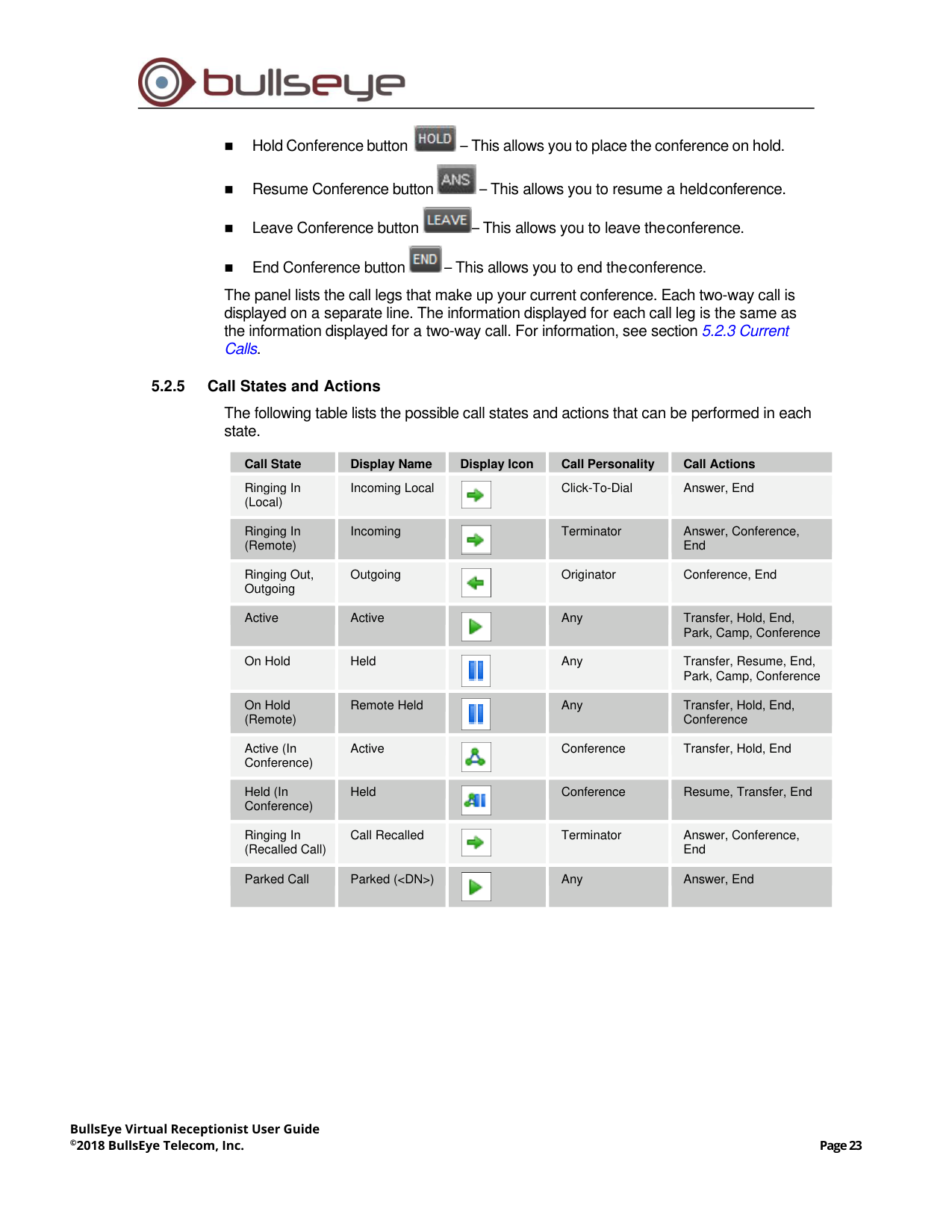
5.2.5
Call States and Actions
The following table lists the possible call states and actions that can be performed in each
state.
Call State
Display Name
Display Icon
Call Personality
Call Actions
Ringing In
(Local)
Incoming Local
Click-To-Dial
Answer, End
Ringing In
(Remote)
Incoming
Terminator
Answer, Conference,
End
Ringing Out,
Outgoing
Outgoing
Originator
Conference, End
Active
Active
Any
Transfer, Hold, End,
Park, Camp, Conference
On Hold
Held
Any
Transfer, Resume, End,
Park, Camp, Conference
On Hold
(Remote)
Remote Held
Any
Transfer, Hold, End,
Conference
Active (In
Conference)
Active
Conference
Transfer, Hold, End
Held (In
Conference)
Held
Conference
Resume, Transfer, End
Ringing In
(Recalled Call)
Call Recalled
Terminator
Answer, Conference,
End
Parked Call
Parked (<DN>)
Any
Answer, End
BullsEye Virtual Receptionist User Guide
©2018 BullsEye Telecom, Inc.
Page 24
5.3
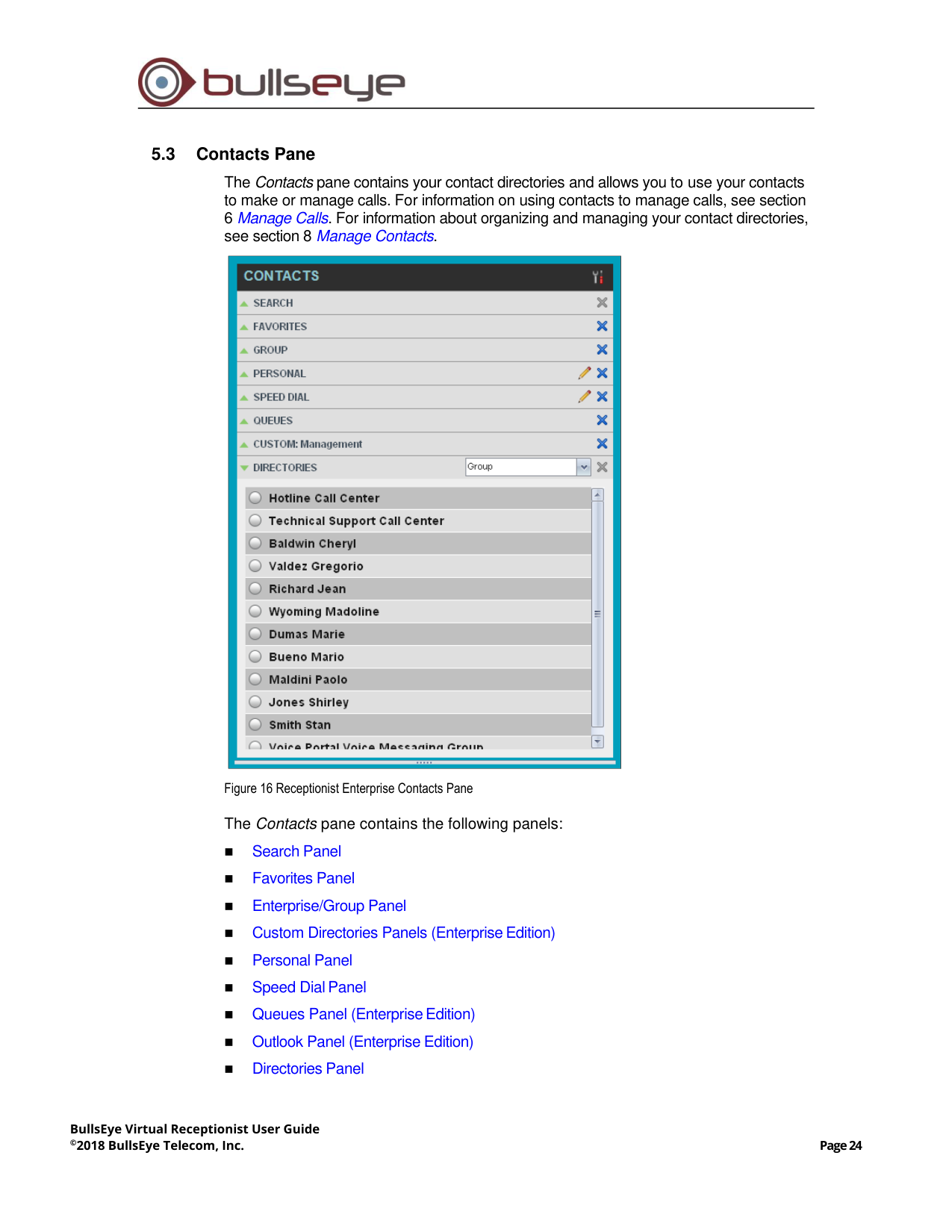
Contacts Pane
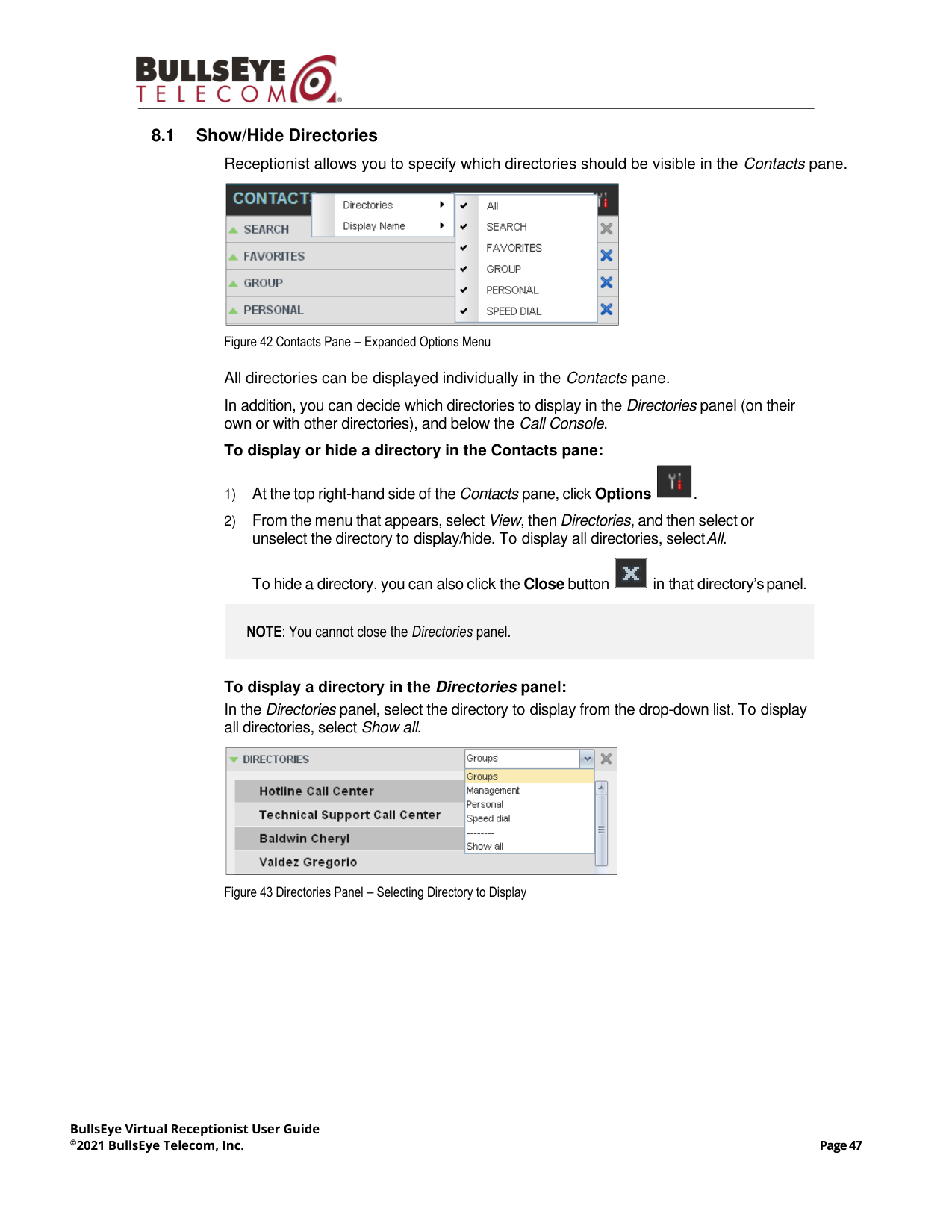
The Contacts pane contains your contact directories and allows you to use your contacts
to make or manage calls. For information on using contacts to manage calls, see section
6 Manage Calls. For information about organizing and managing your contact directories,
see section 8 Manage Contacts.
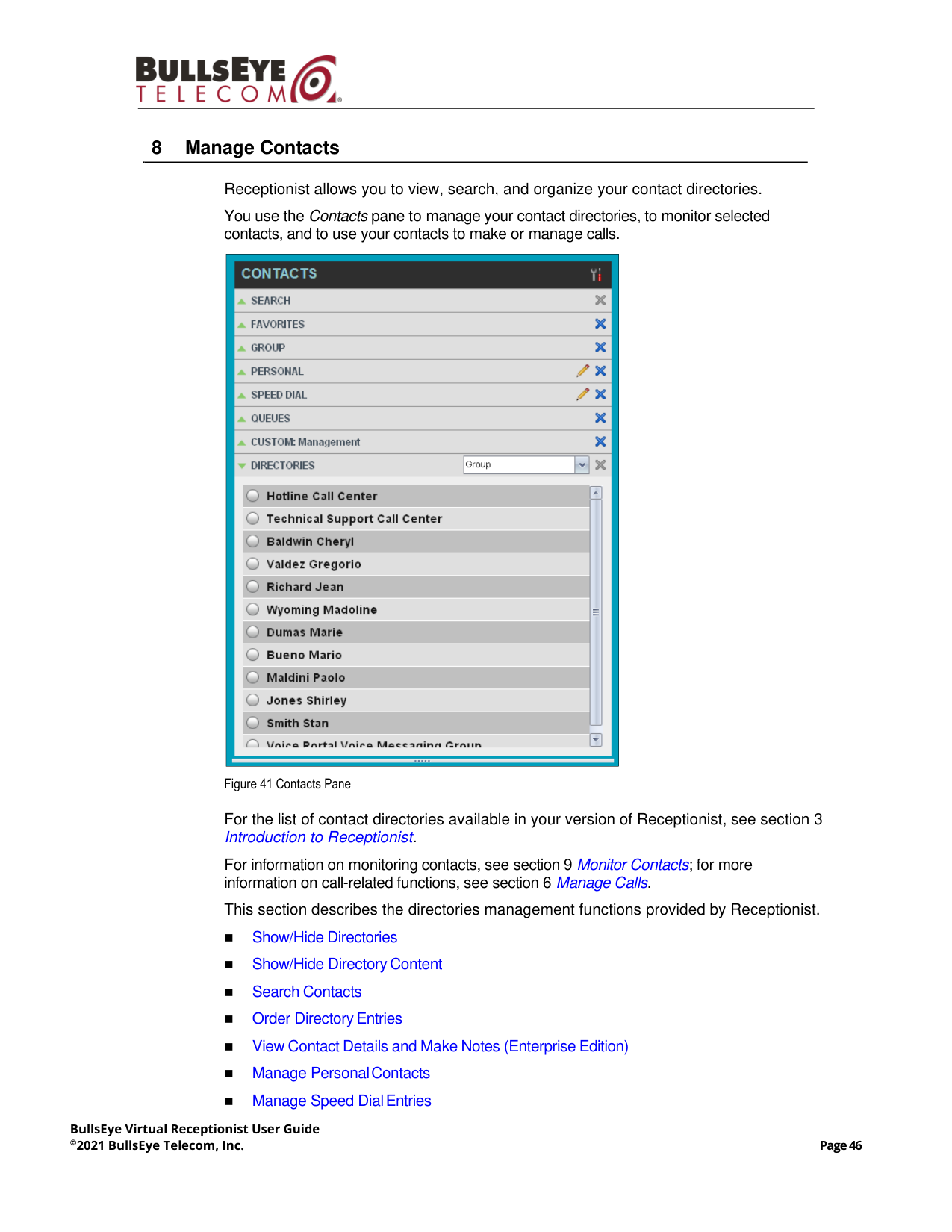
Figure 16 Receptionist Enterprise Contacts Pane
The Contacts pane contains the following panels:
◼
Search Panel
◼
Favorites Panel
◼
Enterprise/Group Panel
◼
Custom Directories Panels (Enterprise Edition)
◼
Personal Panel
◼
Speed Dial Panel
◼
Queues Panel (Enterprise Edition)
◼
Outlook Panel (Enterprise Edition)
◼
Directories Panel
BullsEye Virtual Receptionist User Guide
©2018 BullsEye Telecom, Inc.
Page 25
The panels you see depend on your Receptionist edition, system configuration, as well as
the services assigned to you. For information, see section 3 Introduction to Receptionist
or see your administrator.
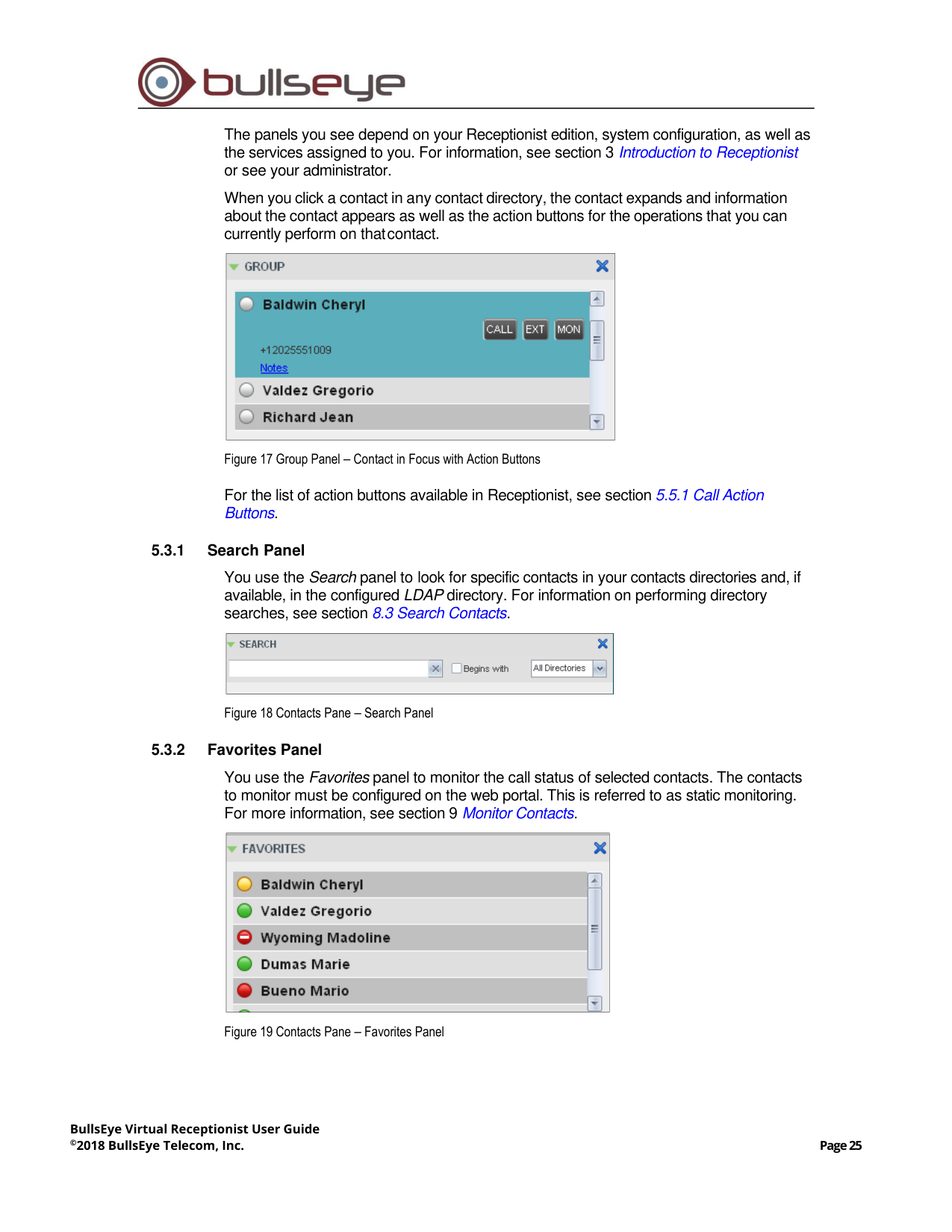
When you click a contact in any contact directory, the contact expands and information
about the contact appears as well as the action buttons for the operations that you can
currently perform on that contact.
Figure 17 Group Panel – Contact in Focus with Action Buttons
For the list of action buttons available in Receptionist, see section 5.5.1 Call Action
Buttons.
5.3.1
Search Panel
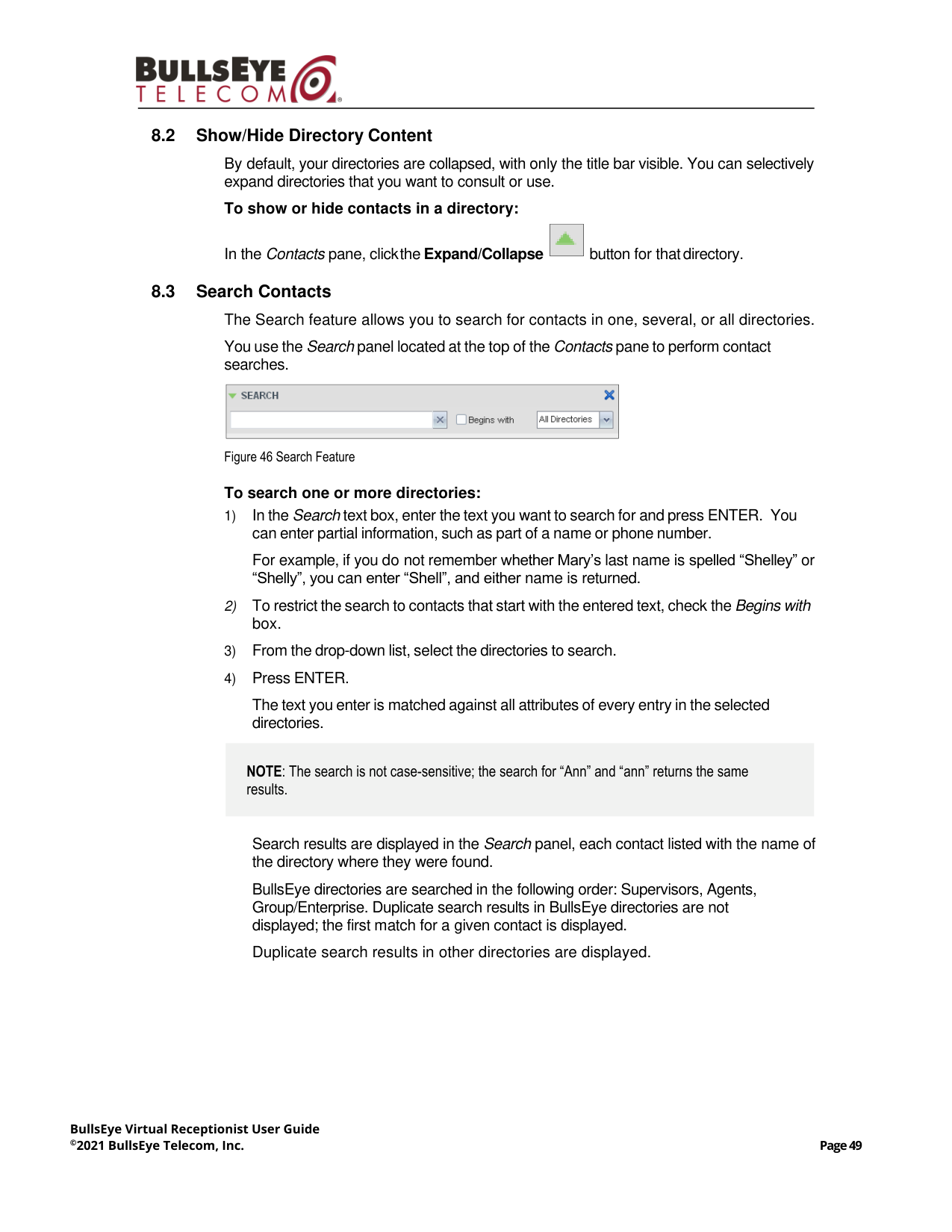
You use the Search panel to look for specific contacts in your contacts directories and, if
available, in the configured LDAP directory. For information on performing directory
searches, see section 8.3 Search Contacts.
Figure 18 Contacts Pane – Search Panel
5.3.2
Favorites Panel
You use the Favorites panel to monitor the call status of selected contacts. The contacts
to monitor must be configured on the web portal. This is referred to as static monitoring.
For more information, see section 9 Monitor Contacts.
Figure 19 Contacts Pane – Favorites Panel
BullsEye Virtual Receptionist User Guide
©2018 BullsEye Telecom, Inc.
Page 26
5.3.3
Enterprise/Group Panel
The Group/Enterprise panel contains the contacts in your BullsEye group directory (if
your group is part of a service provider) or enterprise directory (if your group is part of an
enterprise). However, if your enterprise administrator restricted your access to your
enterprise directory, you can only see the contacts from your group directory.
If you have the Receptionist Enterprise edition, you can also monitor selected contacts
and view contact details. This is referred to as dynamic monitoring. For information, see
section 9.3 Dynamic Monitoring (Enterprise Edition).
Figure 20 Contacts Pane – Group Panel
5.3.4
Custom Directories Panels (Enterprise Edition)
If your administrator has configured custom contact directories for your group, you can
access them from Receptionist.
Figure 21 Contacts Pane – Custom (Directory) Panel
NOTE: A custom directory has the same properties as the Group/Enterprise directory, and you
can perform the same operations on contacts in a custom directory as in the Group/Enterprise
directory.
BullsEye Virtual Receptionist User Guide
©2018 BullsEye Telecom, Inc.
Page 27
5.3.5
Personal Panel
The Personal panel contains the contacts from your personal phone list on the
BullsEye web portal.
You can edit your personal contacts in Receptionist. For information about managing your
personal contacts, see section 8.6 Manage Personal Contacts
Figure 22 Contacts Pane – Personal Panel
5.3.6
Speed Dial Panel
The Speed Dial panel displays your Speed Dial 8 and Speed Dial 100 contacts. It is
available to users who have been assigned Speed Dial 8 and/or Speed Dial 100 services.
If you only have one of these services, you only see the contacts for that service in your
Speed Dial directory.
You can edit your speed dial entries in Receptionist. For information about managing your
speed dial entries, see section 8.7 Manage Speed Dial Entries.
Figure 23 Contacts Pane – Speed Dial Panel
5.3.7
Queues Panel (Enterprise Edition)
The Queues panel displays the list of call centers and associated DNIS numbers that a
call center agent or supervisor is staffing and/or supervising. The primary purpose of this
directory is to provide you with a quick way to transfer calls to queues.
Figure 24 Contacts Pane – Queues Panel
BullsEye Virtual Receptionist User Guide
©2018 BullsEye Telecom, Inc.
Page 28
5.3.8
Outlook Panel (Enterprise Edition)
The Outlook panel contains your Outlook contacts. This feature is available to you if you
have the Outlook Integration service enabled and configured. For more information, see
section 12.4 Settings – Plug-ins.
Figure 25 Contacts Pane – Outlook Panel
5.3.9
Directories Panel
The Directories panel consolidates the contacts from the following directories:
Enterprise/Group directory, Custom directories, Personal directory, Outlook directory, and
Speed Dial directory. The Directories panel is always visible. You can choose which
directories to view in the Directories panel and you can collapse the panel, but you cannot
close it.
Figure 26 Contacts Pane – Directories Panel
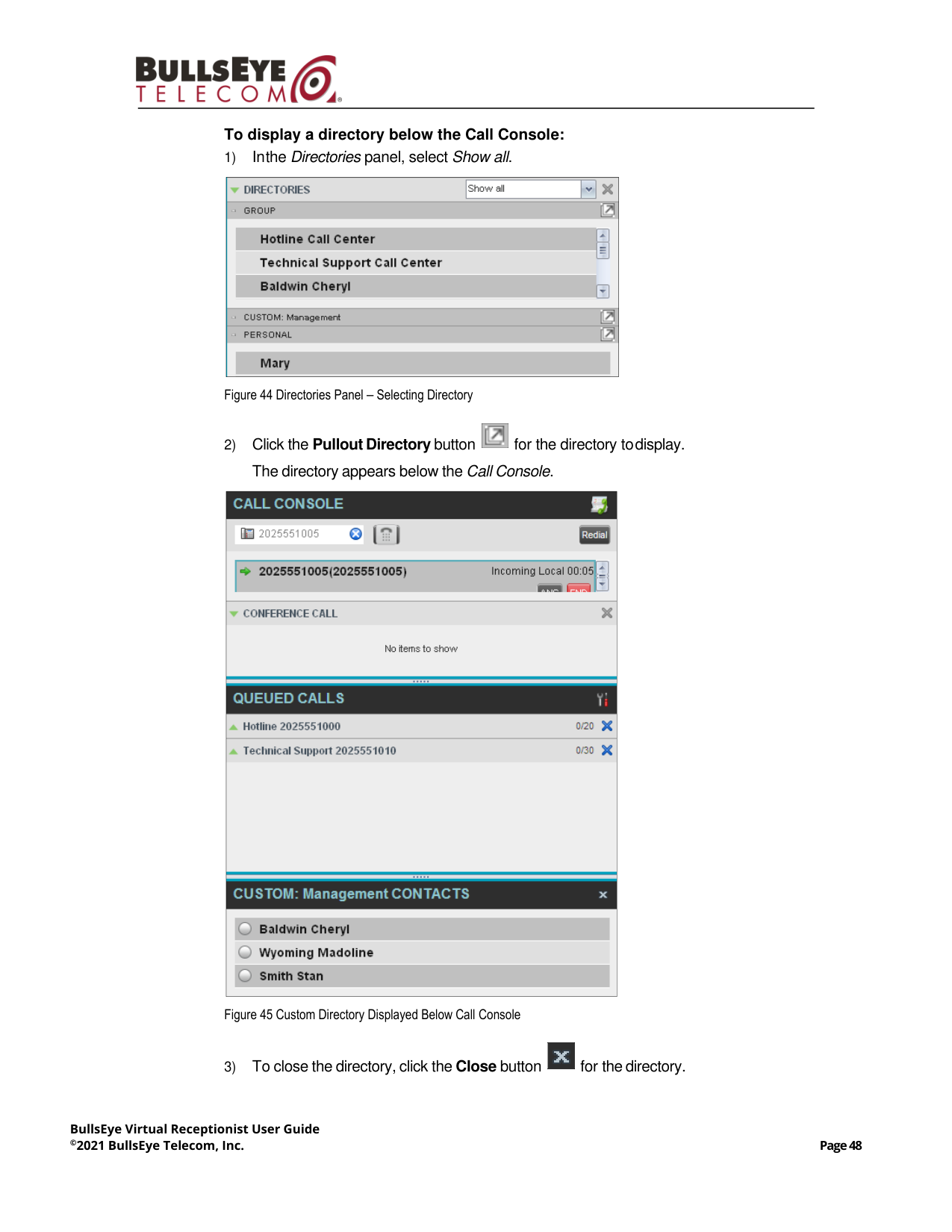
You can also place a copy of a directory below the Call Console. This allows you to view
more than one directory at a time easily. For more information, see section 8 Manage
Contacts.
BullsEye Virtual Receptionist User Guide
©2018 BullsEye Telecom, Inc.
Page 29
5.4
Queued Calls Pane (Enterprise Edition)
You use the Queued Calls pane to manage queued calls in the selected call centers. For
more information about managing queued calls, see section 11 Manage Queued Calls
(Enterprise Edition).
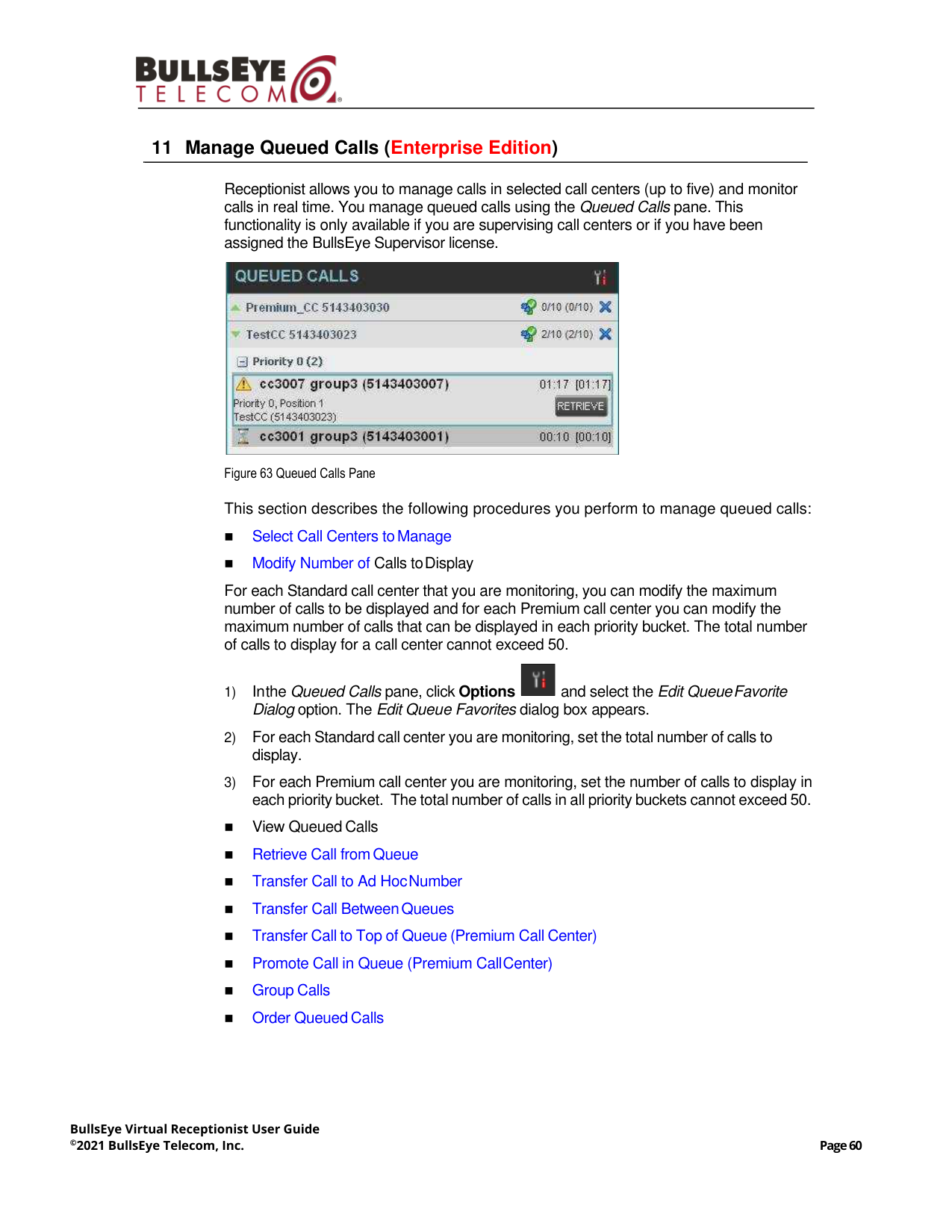
Figure 27 Queued Calls Pane
The pane lists queued calls for the selected call centers. For information on selecting call
centers to display, see section 11.1 Select Call Centers to Manage.
Each call center is displayed in a separate panel. The panel’s header displays the
following information:
◼
The name of the call center.
◼
The primary phone number of the call center.
◼
The number of calls currently displayed for the queue against the maximum number
of calls that can be displayed for a queue.
◼
The number of calls in queue against the queue length.
A Message Waiting icon
indicates that there are outstanding messages for the call
center.
When you expand the panel for a call center, the list of calls queued in that call center
appears, with calls listed according to their position in the queue.
Figure 28 Queued Calls Pane – Call Center Panel (Expanded)
The following information is provided for each call:
◼
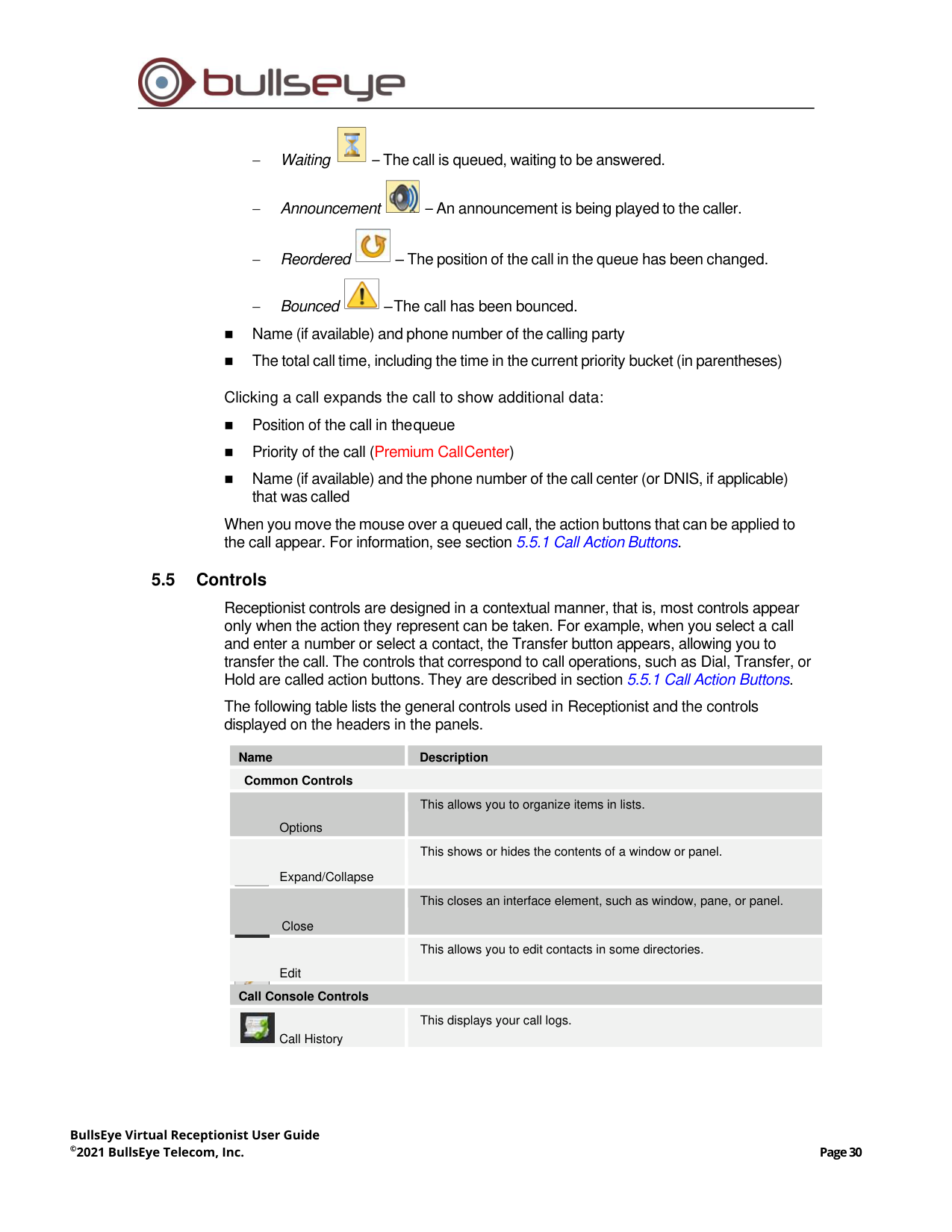
Call Status icon – A graphic representation of the state of the queued call, which can
be one of the following:
BullsEye Virtual Receptionist User Guide
©2021 BullsEye Telecom, Inc.
Page 30
−
Waiting
– The call is queued, waiting to be answered.
−
Announcement
– An announcement is being played to the caller.
−
Reordered
– The position of the call in the queue has been changed.
−
Bounced
– The call has been bounced.
◼
Name (if available) and phone number of the calling party
◼
The total call time, including the time in the current priority bucket (in parentheses)
Clicking a call expands the call to show additional data:
◼
Position of the call in the queue
◼
Priority of the call (Premium Call Center)
◼
Name (if available) and the phone number of the call center (or DNIS, if applicable)
that was called
When you move the mouse over a queued call, the action buttons that can be applied to
the call appear. For information, see section 5.5.1 Call Action Buttons.
5.5
Controls
Receptionist controls are designed in a contextual manner, that is, most controls appear
only when the action they represent can be taken. For example, when you select a call
and enter a number or select a contact, the Transfer button appears, allowing you to
transfer the call. The controls that correspond to call operations, such as Dial, Transfer, or
Hold are called action buttons. They are described in section 5.5.1 Call Action Buttons.
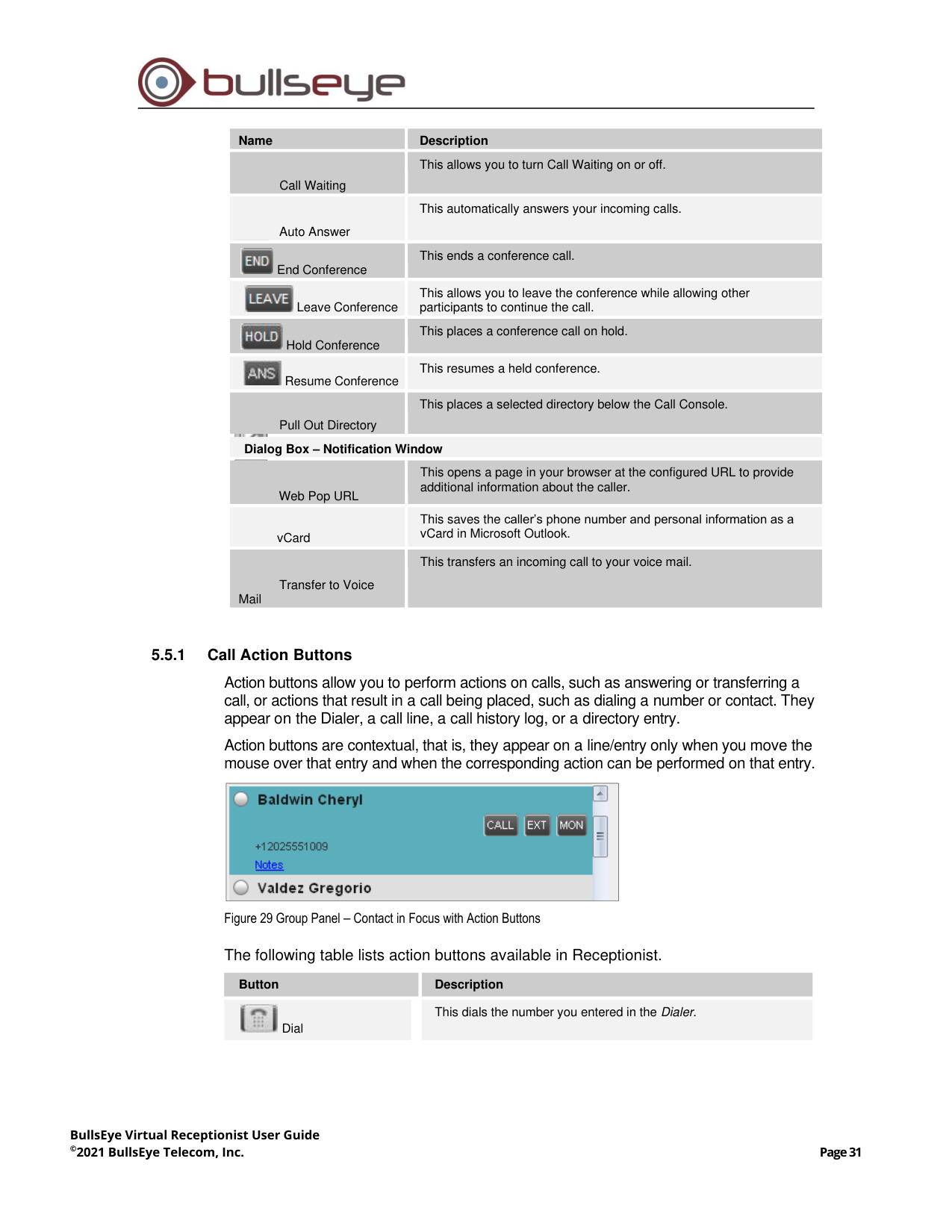
The following table lists the general controls used in Receptionist and the controls
displayed on the headers in the panels.
Name
Description
Common Controls
Options
This allows you to organize items in lists.
Expand/Collapse
This shows or hides the contents of a window or panel.
Close
This closes an interface element, such as window, pane, or panel.
Edit
This allows you to edit contacts in some directories.
Call Console Controls
Call History
This displays your call logs.
BullsEye Virtual Receptionist User Guide
©2021 BullsEye Telecom, Inc.
Page 31
Name
Description
Call Waiting
This allows you to turn Call Waiting on or off.
Auto Answer
This automatically answers your incoming calls.
End Conference
This ends a conference call.
Leave Conference
This allows you to leave the conference while allowing other
participants to continue the call.
Hold Conference
This places a conference call on hold.
Resume Conference
This resumes a held conference.
Pull Out Directory
This places a selected directory below the Call Console.
Dialog Box – Notification Window
Web Pop URL
This opens a page in your browser at the configured URL to provide
additional information about the caller.
vCard
This saves the caller’s phone number and personal information as a
vCard in Microsoft Outlook.
Transfer to Voice
Mail
This transfers an incoming call to your voice mail.
5.5.1
Call Action Buttons
Action buttons allow you to perform actions on calls, such as answering or transferring a
call, or actions that result in a call being placed, such as dialing a number or contact. They
appear on the Dialer, a call line, a call history log, or a directory entry.
Action buttons are contextual, that is, they appear on a line/entry only when you move the
mouse over that entry and when the corresponding action can be performed on that entry.
Figure 29 Group Panel – Contact in Focus with Action Buttons
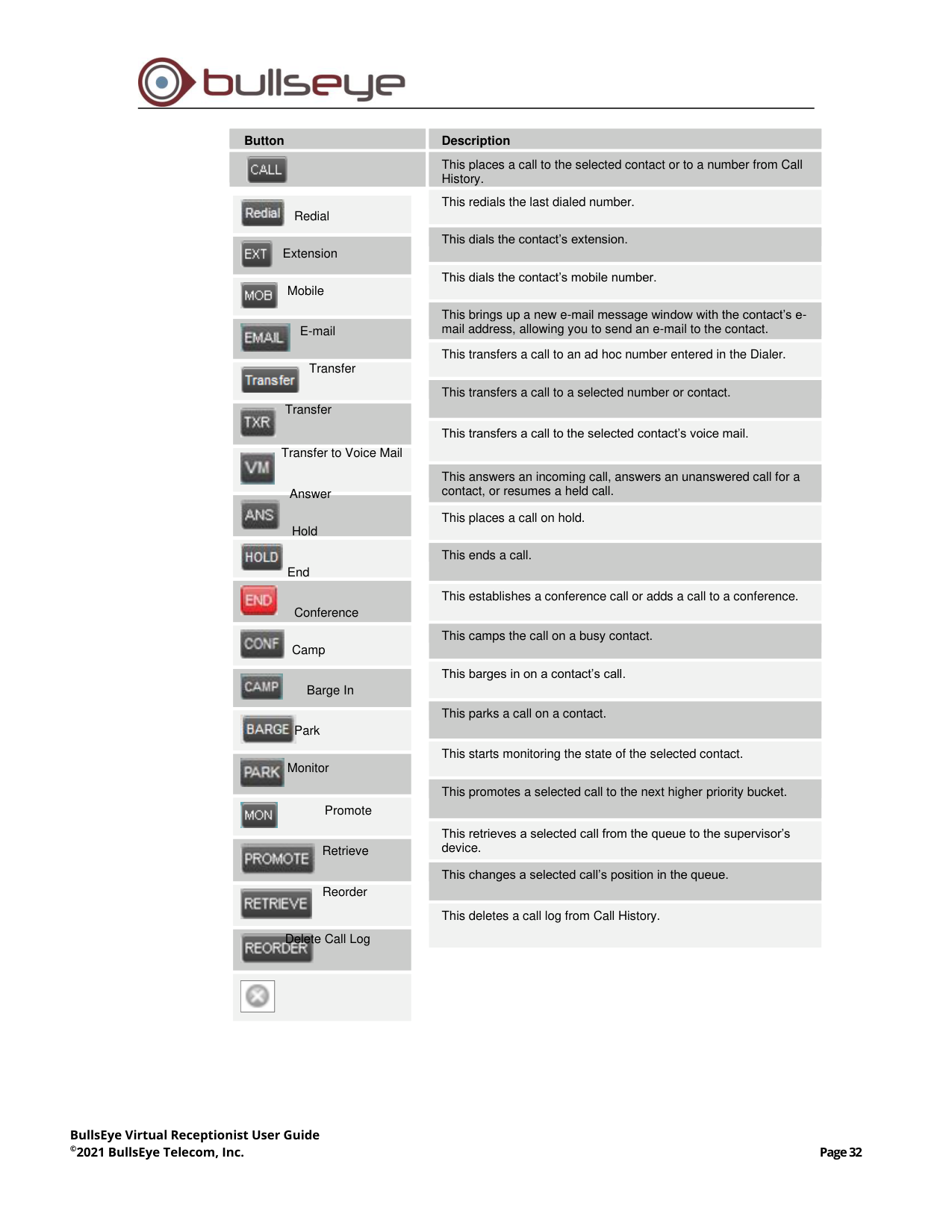
The following table lists action buttons available in Receptionist.
Button
Description
Dial
This dials the number you entered in the Dialer.
BullsEye Virtual Receptionist User Guide
©2021 BullsEye Telecom, Inc.
Page 32
Button
Description
This places a call to the selected contact or to a number from Call
History.
Redial
This redials the last dialed number.
Extension
This dials the contact’s extension.
Mobile
This dials the contact’s mobile number.
E-mail
This brings up a new e-mail message window with the contact’s e-
mail address, allowing you to send an e-mail to the contact.
Transfer
This transfers a call to an ad hoc number entered in the Dialer.
Transfer
This transfers a call to a selected number or contact.
Transfer to Voice Mail
This transfers a call to the selected contact’s voice mail.
Answer
This answers an incoming call, answers an unanswered call for a
contact, or resumes a held call.
Hold
This places a call on hold.
End
This ends a call.
Conference
This establishes a conference call or adds a call to a conference.
Camp
This camps the call on a busy contact.
Barge In
This barges in on a contact’s call.
Park
This parks a call on a contact.
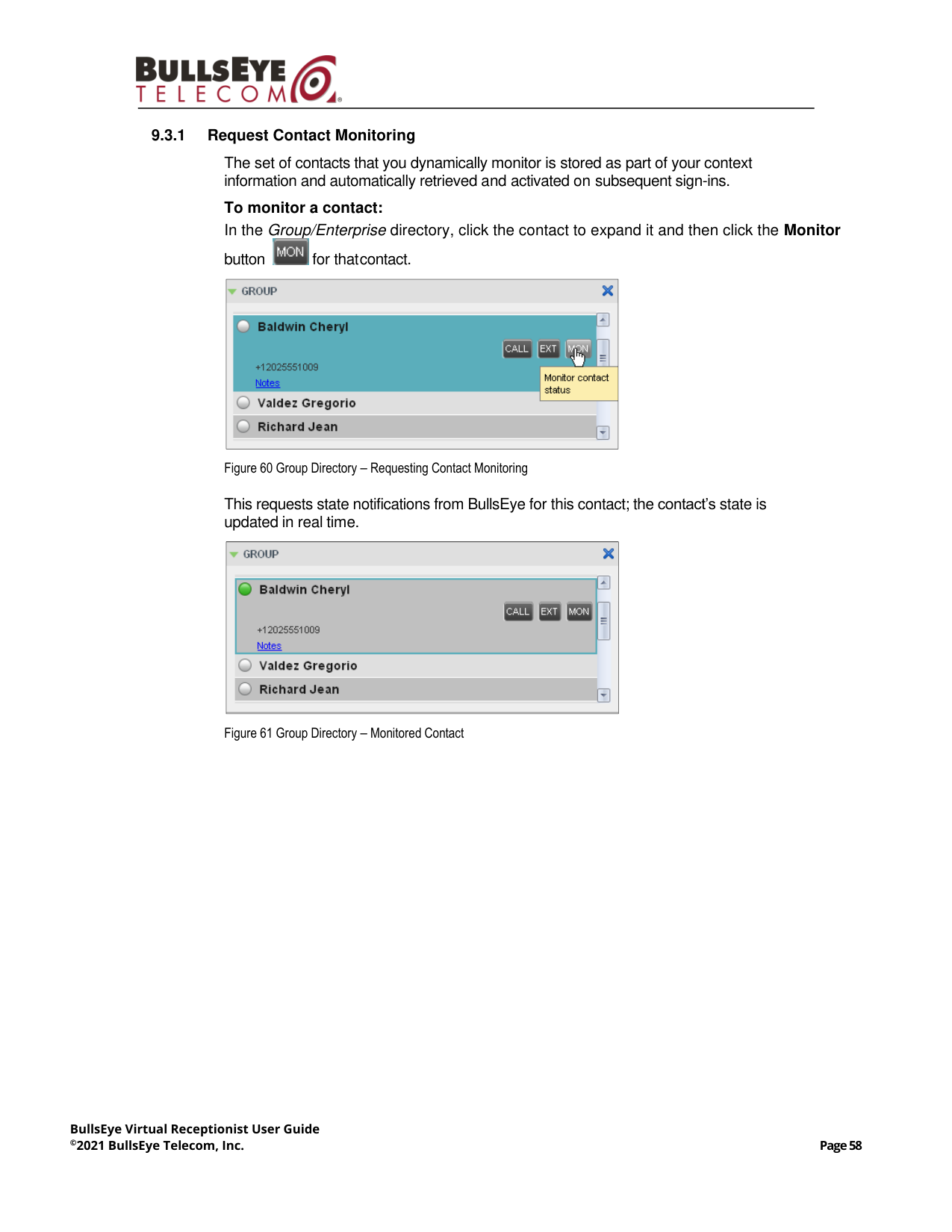
Monitor
This starts monitoring the state of the selected contact.
Promote
This promotes a selected call to the next higher priority bucket.
Retrieve
This retrieves a selected call from the queue to the supervisor’s
device.
Reorder
This changes a selected call’s position in the queue.
Delete Call Log
This deletes a call log from Call History.
BullsEye Virtual Receptionist User Guide
©2021 BullsEye Telecom, Inc.
Page 33
6
Manage Calls
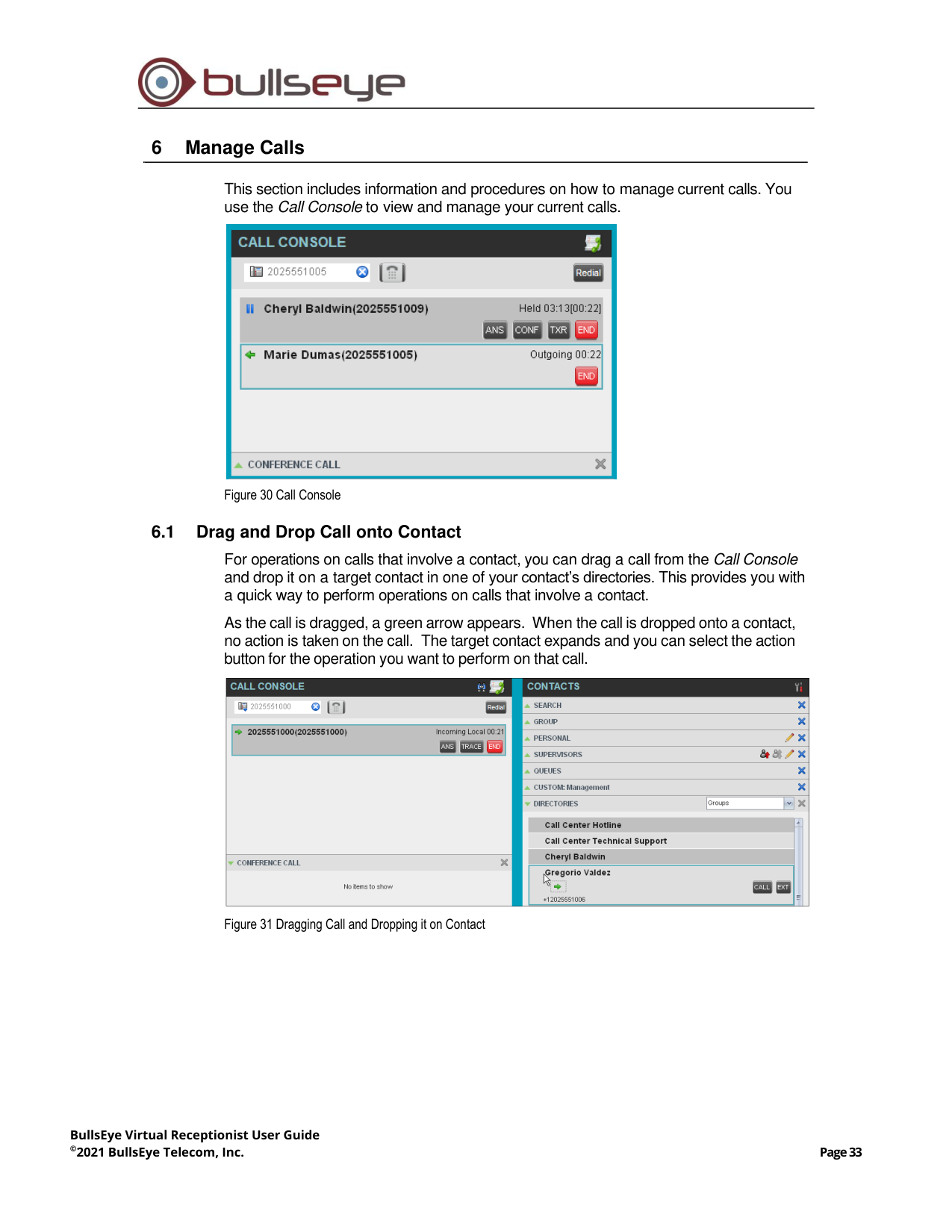
This section includes information and procedures on how to manage current calls. You
use the Call Console to view and manage your current calls.
Figure 30 Call Console
6.1
Drag and Drop Call onto Contact
For operations on calls that involve a contact, you can drag a call from the Call Console
and drop it on a target contact in one of your contact’s directories. This provides you with
a quick way to perform operations on calls that involve a contact.
As the call is dragged, a green arrow appears. When the call is dropped onto a contact,
no action is taken on the call. The target contact expands and you can select the action
button for the operation you want to perform on that call.
Figure 31 Dragging Call and Dropping it on Contact
BullsEye Virtual Receptionist User Guide
©2021 BullsEye Telecom, Inc.
Page 34
6.2
View Call Information
Call information is provided in the Call Console and in the Call Notification pop-up window
that appears on top of the system tray for incoming calls.
6.2.1
View Current Calls
Your current calls are always visible in the Call Console.
To view your conference call:
In the Conference Call panel, click the Expand button
.
6.2.2
View Incoming Call Details
If the Call Notification feature is enabled, a Call Notification pop-up window appears on top
of the system tray when an inbound call is received.
◼
Direct inbound calls – For calls to your direct number or extension, the following
information is displayed:
−
Calling party name
−
Calling party number
Figure 32 Call Notification Pop-up Window for Non-ACD Call
◼
Calls from a call center (Enterprise Edition) – For calls from a call center, the call
center name is displayed in addition to the caller’s name and phone number.
Figure 33 Call Notification Pop-up Window − Call from Call Center
NOTE 1: You must have only one tab open in the browser running Receptionist to receive call
notifications.
NOTE 2: If calls come within eight seconds of each other, the Call Notification pop-up window
only appears for the first call of that series.
BullsEye Virtual Receptionist User Guide
©2021 BullsEye Telecom, Inc.
Page 35
6.2.3
Save vCard
When you receive a call, a Call Notification pop-up window is visible on top of the system
tray. From this window, you can save the caller’s phone number and personal information
as a vCard in Microsoft Outlook.
To save caller’s information as a vCard:
In the Call Notification pop-up window, click the Add vCard button
.
This button is present only when Outlook is running.
6.2.4
Open URL
When you receive a call, a Call Notification pop-up window appears on top of the system
tray. From this window, you can open a page in your browser. This page contains
information about the calling party encoded in its URL.
To configure this feature, see section 12.1 Settings – General.
To open a URL in your browser:
In the Call Notification pop-up window, click the Web Pop URL button
.
6.3
Answering Calls
You can answer your own incoming calls and calls for other users in your group. If you
have the Auto Answer service, you can also answer calls automatically.
6.3.1
Answer Call
Your incoming calls appear in the Call Console. To answer a call, the call state must be
Incoming.
To answer an incoming call:
Move the mouse over the call and click Answer
. The call state changes to Active.
To answer an incoming call from a Call Notification pop-up window:
Click anywhere on the text in the window.
To answer calls automatically:
In the Call Console, click the Auto Answer
button. The button changes to this
to indicate that Auto Answer is on.
When Auto Answer is enabled, your phone automatically goes off-hook when it is alerted.
This applies to both inbound and Click-To-Dial calls.
The Auto Answer feature may be enabled manually in the client or by the administrator on
the server.
NOTE: Double-clicking a call, does not answer it.
BullsEye Virtual Receptionist User Guide
©2021 BullsEye Telecom, Inc.
Page 36
6.3.2
Pick Up Call
The Directed Call Pickup service allows you to answer a call that is incoming on another
user. Depending on your setup, you can answer calls for users in your group or in the
entire enterprise. This is useful when the user is currently not on hand to answer the call.
To answer a call for a contact:
1)
Expand your Group/Enterprise or Favorites directory and click the target contact to
expand it. The contact’s state must be Ringing.
2)
Move the mouse over the contact and click Answer
.
The call appears as Incoming in the Call Console.
6.4
Hold and Resume Calls
You can only put an active call on hold.
6.4.1
Put Call on Hold
To put a call on hold:
Move the mouse over the call and click Hold
.
6.4.2
Resume Held Call
To resume a held call:
Move the mouse over the call and click Answer
.
6.5
Make and End Calls
Receptionist provides you with several ways in which you can make calls. When you dial
a number or contact, the call appears in the Call Console as Incoming Local.
6.5.1
Dial Ad Hoc Number
You use the Dialer to place a call to an ad hoc number.
Figure 34 Dialer
NOTE: If this feature is enabled by your administrator, you must not enable the client-based
Auto Answer using the Auto Answer button.
NOTE: To pick up a contact’s call, you need to have the Directed Call Pickup service assigned.
NOTE: Double-clicking a call does not take the call off hold.
BullsEye Virtual Receptionist User Guide
©2021 BullsEye Telecom, Inc.
Page 37
To dial an ad hoc number:
1)
In the Dialer, enter the phone number and click Dial
. The call appears in the
Call Console as Incoming Local and your phone rings.
2)
Click Answer
for that call. An outbound call is placed and the call state
changes to Outgoing.
6.5.2
Redial Number
Receptionist keeps up to ten most recently dialed numbers.
To redial one of the recently dialed numbers:
1)
In the Dialer, place the cursor in the text box and start entering a number. A list of
recently called numbers that start with the entered digits appears.
Figure 35 Dialer – Select Recently Dialed Number
2)
Select the number to dial and click Dial
.
The client issues a Click-To-Dial attempt to the selected number.
Alternatively, click the Redial
button and select the number from the list that
appears.
Figure 36 Dialer – Redialing Number
6.5.3
Dial Contact
You can dial contacts from any directory available in Receptionist.
To dial a contact:
1)
In the Contacts pane, expand the directory from which you want to dial a contact.
2)
Click the contact to expand it and click Call
for that contact. A Click-To-Dial
action is initiated and your phone rings.
BullsEye Virtual Receptionist User Guide
©2021 BullsEye Telecom, Inc.
Page 38
Figure 37 Group Panel – Contact in Focus with Call, Extension, and Mobile Buttons
3)
Answer the phone. An outbound call is placed.
4)
Alternatively, to dial the contact’s extension, click Extension
or to dial the
contact’s mobile number, click Mobile
.
6.5.4
Speed Dial
To speed dial a contact:
1)
In the Contacts pane, expand the Speed Dial panel.
2)
Click the contact to expand it and click Call
.
6.5.5
Dial from History
You can dial any number that is available in Call History.
To dial from Call History:
1)
In the Call Console, click the Call History button
. The Call History dialog box
appears.
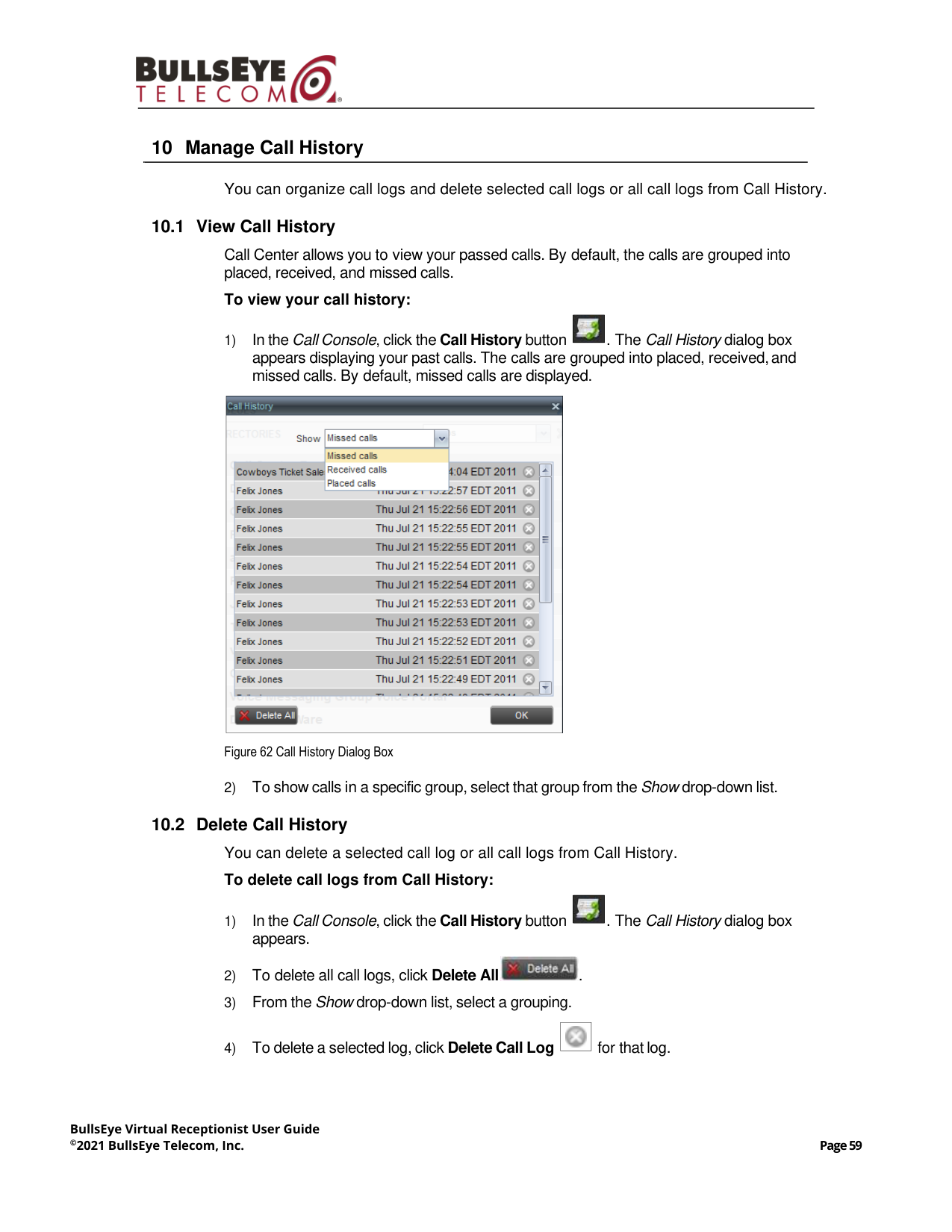
Figure 38 Call History Dialog Box
BullsEye Virtual Receptionist User Guide
©2021 BullsEye Telecom, Inc.
Page 39
2)
From the Show drop-down list, select the grouping you want.
3)
Scroll through the list of call logs to find the entry you need.
4)
Click the entry to expand it and click Call
.
6.6
End Call
To end a call:
Click End
for that call.
6.7
Transferring Calls
There are a number of ways in which you can transfer a call. You can blind transfer calls
or transfer calls with consultation or supervision. You can also transfer calls directly to
voice mail or to a queue.
6.7.1
Blind Transfer Call
A blind transfer occurs when a call is transferred without an introduction. Calls may be
blind transferred while active, held, or ringing (in) on your phone. If a call is ringing (in),
blind transfer allows the call to be redirected before it is answered. You can blind transfer
a call to an ad hoc number or to a contact.
To blind transfer a call to an ad hoc number:
1)
In the Call Console, select the call to transfer.
2)
In the Dialer, enter the destination number and click Transfer
. The call is
transferred and removed from the Call Console.
To blind transfer a call to a contact:
1)
In the Call Console, select the call to transfer.
2)
In the Contacts pane, expand the panel from which you want to select a contact.
3)
Click the destination contact to expand it, and click Transfer
for that contact.
The call is transferred and removed from the Call Console.
Alternatively, drag the call onto the target contact and click Transfer
for that contact.
6.7.2
Conduct Supervised Transfer
When you have an active inbound call that you want to transfer, you can follow this
procedure.
To conduct a supervised transfer:
1)
In the Call Console, select the call to transfer.
2)
Dial the number or contact to whom you want to transfer the call.
3)
If the dialed contact is busy, either retry or dial another contact.
4)
Move the mouse over the new, non-selected call and click Transfer
.
BullsEye Virtual Receptionist User Guide
©2021 BullsEye Telecom, Inc.
Page 40
6.7.3
Transfer with Consultation
Use this method to transfer a call with an introduction to the destination party. Calls may
be transferred this way while active, held, or ringing (in) on your phone. In the latter case,
the system redirects the call before it is answered.
To transfer a call with consultation:
1)
Make a call to the person to whom you want to transfer the call. If the first call was
active, it is put on hold. The new call appears in the Call Console.
2)
Wait until the called party accepts your call and speak to the party.
3)
When ready to transfer, in the Call Console, select one of the two calls.
4)
Move the mouse over the non-selected call and click Transfer
.
The calls are connected and removed from the Call Console.
6.7.4
Transfer to Voice Mail
You can transfer a call to a monitored contact’s voice mail or to your own voice mail. Calls
may be transferred while active, held, or ringing (in) on your phone.
To transfer a call to voice mail:
1)
In the Call Console, select the call to transfer.
2)
In the Contacts pane, expand the Group/Enterprise or Favorites directory and find the
contact. Find yourself if you want to transfer the call to your voice mail.
3)
Click the contact and click Transfer to Voice Mail
for that contact.
Alternatively, drag the call onto the target contact and click Transfer to Voice Mail
for that contact.
You can also transfer an incoming call to voice mail from the Call Notification pop-up
window.
To transfer an incoming call to your voice mail:
In the Call Notification pop-up window that appears when you receive a call, click Transfer
to Voice Mail
.
6.7.5
Transfer to Queue (Enterprise Edition)
You can transfer a current call to any queue that appears in your Queues panel. The call
is placed at the bottom of the new queue.
To transfer a call to a queue:
1)
In the Call Console, select the call to transfer.
2)
Expand the Queues panel.
3)
Click the destination queue and click Transfer
.
NOTE: This option is only available if the contact has the Voice Messaging service assigned
and enabled.
BullsEye Virtual Receptionist User Guide
©2021 BullsEye Telecom, Inc.
Page 41
The call is transferred and removed from the Call Console.
Alternatively, drag the call onto the target queue and click Transfer
for that queue.
6.8
Parking and Camping Calls
Call parking or camping allows you to find a temporary parking place for the call. If the
parked or camped call is not answered within the predefined time, the call is recalled and
reappears in your Call Console.
6.8.1
Conduct Busy Camp On (Enterprise and Small Business Editions)
Busy Camp On allows you to place a call at a busy contact. The call is automatically
transferred to the destination when the contact becomes available to take the call. A call
to camp must be active or held, and the destination contact must be either Busy or
Ringing.
To camp a call on a busy contact:
1)
In the Call Console, select the call to camp.
2)
In your Group/Enterprise or Favorites directory, click a Busy or Ringing contact and
click Camp
. Once the call is camped, it is removed from the Call Console.
If the call reaches the designated expiration timer before the call is answered, the call is
recalled to your device and reappears in the Call Console.
6.8.2
Conduct Group Call Park (Enterprise Edition)
Group Call Park searches within a predefined hunt group for an available line on which to
park a call. After a designated time, the call returns to the originating operator or a
specified hunt group (depending on how the service is configured). If the parking attempt
fails for any reason, the call remains in your Call Console.
To perform a Group Call Park:
In the Call Console, move the mouse over an active or held call and click Park
.
The call is parked on an available extension and removed from the Call Console.
If the call reaches the designated expiration timer before the call is answered, the call may
be recalled to your device and reappear in your Call Console.
NOTE: To use the feature, you need to have the Busy Camp On service assigned and active.
BullsEye Virtual Receptionist User Guide
©2021 BullsEye Telecom, Inc.
Page 42
6.9
Manage Conference Calls
You manage your conferences in the Call Console.
◼
You use the top area of the Call Console to establish a conference and add
participants to it.
◼
You use the Conference Call panel to manage or end an active conference.
You can only have one active conference at a time.
Figure 39 Call Console – Conference Call Panel
To conduct an N-Way conference you must first start a Three-Way conference and then
add participants to it.
6.9.1
Start Three-Way Conference
To start a conference you need to have at least two current calls.
To start a conference:
1)
If necessary, place calls to participants using any of the methods described in section
6.5 Make and End Calls.
2)
In the Call Console, select one of the two calls.
Figure 40 Starting Conference
3)
Move the mouse over the non-selected call and click Conference
. A Three-
Way Conference is established and the connected calls are moved to the Conference
Call panel.
NOTE: To conduct a conference you must have the Three-Way Call or N-Way Call service
assigned.
BullsEye Virtual Receptionist User Guide
©2021 BullsEye Telecom, Inc.
Page 43
6.9.2
Add Participant to Conference
To perform this operation, you need to have the N-Way Call service assigned.
To add participants to a conference:
1)
If the call you want to conference in is not yet established, place the call using any of
the methods described in section 6.5 Make and End Calls.
2)
In the Call Console, move the mouse over the call to add and click Conference
. The caller is added to the conference.
6.9.3
Hold Conference
To put an active conference on hold:
In the Conference Call panel, click Hold Conference
. This allows other
conference participants to continue their conversation.
6.9.4
Resume Held Conference
To resume a held conference:
In the Conference Call panel, click Resume Conference
. All the calls in the
conference become active.
6.9.5
Put Conference Participant on Hold
To put a specific conference participant on hold:
1)
Expand the Conference Call panel.
2)
Move the mouse over the target call and click Hold
.
6.9.6
Resume Conference Participant
To resume a conference participant:
1)
Expand the Conference Call panel.
2)
Move the mouse over the target call and click Answer
.
6.9.7
Leave Conference
To leave the conference:
In the Conference Call panel, click the Leave Conference
button.
6.9.8
Remove Conference Participant
To end a selected call in the conference:
1) Expand the Conference Call panel.
2) Move the mouse over the call and click End
.
NOTE: This function is only available for Three-Way Conferences.
BullsEye Virtual Receptionist User Guide
©2021 BullsEye Telecom, Inc.
Page 44
6.9.9
End Conference
To end the conference:
In the Conference Call panel, click End Conference
. This releases all the calls that
participate in the conference.
6.9.10 Barge in on Call
Call Barge-in allows you to barge in on a contact’s call. This is useful when you want to
enter a call that is already established between two other people.
Depending on your setup, you can barge in on contacts in your group or enterprise.
To barge in on a call:
1)
Expand the Group/Enterprise or Favorites directory.
2)
Click the target contact and click Barge In
. The contact’s status must be
Busy.
You enter an ongoing call, thereby establishing a Three-Way Conference. The calls
appear in the Conference Call panel.
Alternatively, drag the call onto the target contact and click Barge In
for that
contact.
You can now perform any conference operation on the call.
NOTE: This functionality is only available if you have been assigned this service by your
administrator.
BullsEye Virtual Receptionist User Guide
©2021 BullsEye Telecom, Inc.
Page 45
7
Message Contacts (Enterprise Edition)
Receptionist allows you to send e-mail messages to contacts who have messaging
configured in the system. You must also have the Messaging feature enabled within
Receptionist. For information, see section 12.5 Settings – Messaging.
7.1
Send E-mail to Contact
To sent an e-mail message to a contact:
1)
In the Group/Enterprise or Favorites directory, click the contact who has an e-mail
address configured.
2)
Click the E-mail button
for the contact. This brings up a new e-mail window
for the configured Messaging service.
3)
Write your message and click Send.
BullsEye Virtual Receptionist User Guide
©2021 BullsEye Telecom, Inc.
Page 46
8
Manage Contacts
Receptionist allows you to view, search, and organize your contact directories.
You use the Contacts pane to manage your contact directories, to monitor selected
contacts, and to use your contacts to make or manage calls.
Figure 41 Contacts Pane
For the list of contact directories available in your version of Receptionist, see section 3
Introduction to Receptionist.
For information on monitoring contacts, see section 9 Monitor Contacts; for more
information on call-related functions, see section 6 Manage Calls.
This section describes the directories management functions provided by Receptionist.
◼
Show/Hide Directories
◼
Show/Hide Directory Content
◼
Search Contacts
◼
Order Directory Entries
◼
View Contact Details and Make Notes (Enterprise Edition)
◼
Manage Personal Contacts
◼
Manage Speed Dial Entries
BullsEye Virtual Receptionist User Guide
©2021 BullsEye Telecom, Inc.
Page 47
8.1
Show/Hide Directories
Receptionist allows you to specify which directories should be visible in the Contacts pane.
Figure 42 Contacts Pane – Expanded Options Menu
All directories can be displayed individually in the Contacts pane.
In addition, you can decide which directories to display in the Directories panel (on their
own or with other directories), and below the Call Console.
To display or hide a directory in the Contacts pane:
1)
At the top right-hand side of the Contacts pane, click Options
.
2)
From the menu that appears, select View, then Directories, and then select or
unselect the directory to display/hide. To display all directories, select All.
To hide a directory, you can also click the Close button
in that directory’s panel.
To display a directory in the Directories panel:
In the Directories panel, select the directory to display from the drop-down list. To display
all directories, select Show all.
Figure 43 Directories Panel – Selecting Directory to Display
NOTE: You cannot close the Directories panel.
BullsEye Virtual Receptionist User Guide
©2021 BullsEye Telecom, Inc.
Page 48
To display a directory below the Call Console:
1)
In the Directories panel, select Show all.
Figure 44 Directories Panel – Selecting Directory
2)
Click the Pullout Directory button
for the directory to display.
The directory appears below the Call Console.
Figure 45 Custom Directory Displayed Below Call Console
3)
To close the directory, click the Close button
for the directory.
BullsEye Virtual Receptionist User Guide
©2021 BullsEye Telecom, Inc.
Page 49
8.2
Show/Hide Directory Content
By default, your directories are collapsed, with only the title bar visible. You can selectively
expand directories that you want to consult or use.
To show or hide contacts in a directory:
In the Contacts pane, click the Expand/Collapse
button for that directory.
8.3
Search Contacts
The Search feature allows you to search for contacts in one, several, or all directories.
You use the Search panel located at the top of the Contacts pane to perform contact
searches.
Figure 46 Search Feature
To search one or more directories:
1)
In the Search text box, enter the text you want to search for and press ENTER. You
can enter partial information, such as part of a name or phone number.
For example, if you do not remember whether Mary’s last name is spelled “Shelley” or
“Shelly”, you can enter “Shell”, and either name is returned.
2)
To restrict the search to contacts that start with the entered text, check the Begins with
box.
3)
From the drop-down list, select the directories to search.
4)
Press ENTER.
The text you enter is matched against all attributes of every entry in the selected
directories.
Search results are displayed in the Search panel, each contact listed with the name of
the directory where they were found.
BullsEye directories are searched in the following order: Supervisors, Agents,
Group/Enterprise. Duplicate search results in BullsEye directories are not
displayed; the first match for a given contact is displayed.
Duplicate search results in other directories are displayed.
NOTE: The search is not case-sensitive; the search for “Ann” and “ann” returns the same
results.
BullsEye Virtual Receptionist User Guide
©2021 BullsEye Telecom, Inc.
Page 50
Figure 47 Contacts Pane – Search Results
The search returns either all the contacts (in the selected directories) that contain the
entered keyword or all the contacts that start with the entered keyword.
In the first case (Contains), entering “Ann” returns all contacts with the name “Ann”,
but it also returns all contacts with names such as “Anne”, “Marianne”, “Marie Ann”,
“Ann Marie”, and so on.
In the second case (Starts With), entering “Ann” returns all contacts with names such
as “Ann”, Anne”, and Ann Marie”, but not “Marianne” or “Mary Ann”.
5)
To clear the search results, click Reset
.
8.4
Order Directory Entries
Receptionist allows you to order directory entries. This setting takes effect immediately.
The directories that can be ordered are Enterprise/Group and Favorites (by first or last
name) and Queue (by name).
To order a directory:
1)
At the top of the Contacts pane, click Options
.
2)
From the drop-down list, select Sort, then the directory to order, and then the field to
sort by.
Figure 48 Sort Directory
The contacts in the selected directory are reordered based on the selected field.
3)
To view the contacts, click Expand
for that directory.
NOTE: Contact entries displayed in search results follow the same rules as if that entry was
accessed in its own directory. This allows you to perform any operations directly from the search
results.
BullsEye Virtual Receptionist User Guide
©2021 BullsEye Telecom, Inc.
Page 51
8.5
View Contact Details and Make Notes (Enterprise Edition)
Receptionist Enterprise allows you to view contact information. You can also make notes
about the contacts in your Group/Enterprise directory.
To view contact details:
1)
Expand the target directory panel.
2)
Click the contact to view. This expands the row for the contact displaying additional
information about the contact, which includes the contact’s phone numbers (as
provisioned). If a call is parked against the contact and if you are monitoring, the
information about the parked call is also displayed.
Figure 49 Group/Enterprise Contact Details and Notes
Only one contact per directory can be expanded at a time. When you click a contact, the
system automatically hides the details of the previously expanded contact.
To view or make a note about a contact:
1)
In the Group/Enterprise directory, click the contact.
2)
Click the Notes link. The Notes for <Contact Name> dialog box appears.
Figure 50 Notes for Cheryl Baldwin Dialog Box
3)
Enter the desired text or view or modify the existing text in the Notes text box.
4)
To save your changes and close the dialog box, click OK.
To close the dialog box without saving, click Cancel.
BullsEye Virtual Receptionist User Guide
©2021 BullsEye Telecom, Inc.
Page 52
8.6
Manage Personal Contacts
You can add or remove personal contacts via the web portal or in Receptionist, and the
updates appear in both places. However, the updates that you make via the web portal
appear in Receptionist at the next sign-in.
Figure 51 Personal Panel
You can perform the following operations on personal contacts:
◼
Add Personal Contact
◼
Delete Personal Contact
You cannot modify a personal contact entry in Receptionist. To modify information for a
personal contact, delete the entry and add it again.
8.6.1
Add Personal Contact
To add a personal contact:
1)
In the Personal panel, click Edit
. The Edit Personal Contacts dialog box
appears.
2)
Click Add. A new line is added below the existing entries, allowing you to define a
new entry.
Figure 52 Edit Personal Contacts Dialog Box – Add Entry
3)
In the Name text box, enter the contact’s name or description, as you want it to
appear.
4)
In the Number text box, enter the phone number of the contact.
5)
To save the changes, click anywhere in the dialog box outside the entry.
BullsEye Virtual Receptionist User Guide
©2021 BullsEye Telecom, Inc.
Page 53
8.6.2
Delete Personal Contact
To delete a speed dial entry:
1)
In the Personal panel, click Edit
. The Edit Personal Contacts dialog box
appears.
2)
Select the entry to delete and click Delete.
Figure 53 Edit Personal Contacts Dialog Box – Delete Entry
8.7
Manage Speed Dial Entries
This directory is available in all editions of Receptionist. It allows you to manage and use
your Speed Dial 8 and Speed Dial 100 entries. To use this feature, you need to have
Speed Dial 8 and/or Speed Dial 100 service assigned. If you only have one of these
services, you see the entries for that service only in your Speed Dial panel.
Figure 54 Speed Dial Panel
You can add or remove entries via the web portal or the Receptionist client, and the
updates appear in both places. However, the updates that you make via the web portal
appear only at the next sign-in to Receptionist.
To update speed dial entries using the client, perform the following operations:
◼
Add Speed Dial Entry
◼
Modify Speed Dial Entry
◼
Delete Speed Dial Entry
BullsEye Virtual Receptionist User Guide
©2021 BullsEye Telecom, Inc.
Page 54
8.7.1
Add Speed Dial Entry
To add a speed dial entry:
1)
In the Speed Dial panel, click Edit
. The Edit Speed Dials dialog box appears.
2)
Click Add. A new line is added below the existing entries, allowing you to define a
new entry.
Figure 55 Edit Speed Dials Dialog Box – Add Entry
3)
From the Code drop-down list on the left, select a speed dial code.
4)
In the Phone Number text box, enter the phone number to assign to the code.
5)
In the Description text box, enter a description that allows you to identify the entry.
6)
To save the entry, click anywhere in the dialog box outside the entry.
8.7.2
Modify Speed Dial Entry
To modify a speed dial entry:
1)
In the Speed Dial panel, click the Edit
button. The Edit Speed Dials dialog box
appears.
2)
Double-click the entry to modify. The entry becomes modifiable.
Figure 56 Edit Speed Dials Dialog Box – Modify Entry
BullsEye Virtual Receptionist User Guide
©2021 BullsEye Telecom, Inc.
Page 55
3)
Modify information as required.
4)
To save the changes, click anywhere in the dialog box outside the entry.
8.7.3
Delete Speed Dial Entry
To delete a speed dial entry:
1)
In the Speed Dial panel, click Edit
. The Edit Speed Dials dialog box appears.
2)
Select the entry to delete and click Delete.
Figure 57 Edit Speed Dials Dialog Box – Delete Entry
BullsEye Virtual Receptionist User Guide
©2021 BullsEye Telecom, Inc.
Page 56
9
Monitor Contacts
Receptionist allows you to monitor the call status of selected contacts. All editions of
Receptionist allow you to monitor contacts configured through the web portal. This is
referred to as static monitoring. In addition, Receptionist Enterprise allows you to monitor
selected contacts dynamically.
The following table summarizes the monitoring capabilities of the different editions of
Receptionist:
Call Status
Description
Enterprise
This is the static monitoring of up to 200 contacts and the dynamic
monitoring of a configurable number of contacts enterprise-wide.
The maximum number of contacts you can dynamically monitor is
configured by your administrator. The default is 100.
Small Business
This is the static monitoring of up to 30 contacts enterprise-wide.
Office
This is the static monitoring of up to 8 contacts group-wide.
You use the Favorites panel to view the phone state of statically monitored contacts and
the Group/Enterprise panel to view the phone state of dynamically monitored contacts.
9.1
Phone States
The phone state of a contact, that is, the state of the contact’s phone line, is represented
by an icon located to the left of the contact’s name. The following table lists the possible
phone states for a contact:
Phone State
Icon
Description
Idle
The contact’s phone is on-hook (available to receive a
call).
Busy
The contact’s phone is off-hook (on a call, busy).
Ringing
The contact’s phone is ringing.
Do Not Disturb
The contact has the Do Not Disturb service turned on.
Private
The contact has enabled their Privacy feature.
Call Forwarding Always
The contact has the Call Forwarding Always service
turned on.
Unknown
The contact is not monitored.
NOTE: Virtual users cannot be monitored.
BullsEye Virtual Receptionist User Guide
©2021 BullsEye Telecom, Inc.
Page 57
9.2
Static Monitoring
To statically monitor contacts, the list of contacts to monitor must be configured on your
web portal. The selected contacts appear in your Favorites directory. However, the
updates that you make to the list of contacts to monitor appear in Receptionist at the next
sign-in.
Figure 58 Favorites Directory with Monitored Contacts
9.3
Dynamic Monitoring (Enterprise Edition)
Dynamic Monitoring allows you to view the call status of selected contacts in your
Group/Enterprise directory. You must request that a contact be monitored. Selected
contacts cannot be unselected. When the number of monitored contacts reaches the
maximum limit (the default is 100), the first contact that was selected to be monitored is
unselected and stops being monitored. The status of a contact that is not monitored is
shown as Unknown.
Figure 59 Group Directory with Monitored Contacts
NOTE: If a contact in your Enterprise/Group directory is statically monitored, then their phone
state is displayed without the need to explicitly request dynamic monitoring; however, it counts
toward the total number of dynamically monitored contacts.
BullsEye Virtual Receptionist User Guide
©2021 BullsEye Telecom, Inc.
Page 58
9.3.1
Request Contact Monitoring
The set of contacts that you dynamically monitor is stored as part of your context
information and automatically retrieved and activated on subsequent sign-ins.
To monitor a contact:
In the Group/Enterprise directory, click the contact to expand it and then click the Monitor
button
for that contact.
Figure 60 Group Directory – Requesting Contact Monitoring
This requests state notifications from BullsEye for this contact; the contact’s state is
updated in real time.
Figure 61 Group Directory – Monitored Contact
BullsEye Virtual Receptionist User Guide
©2021 BullsEye Telecom, Inc.
Page 59
10 Manage Call History
You can organize call logs and delete selected call logs or all call logs from Call History.
10.1 View Call History
Call Center allows you to view your passed calls. By default, the calls are grouped into
placed, received, and missed calls.
To view your call history:
1)
In the Call Console, click the Call History button
. The Call History dialog box
appears displaying your past calls. The calls are grouped into placed, received, and
missed calls. By default, missed calls are displayed.
Figure 62 Call History Dialog Box
2)
To show calls in a specific group, select that group from the Show drop-down list.
10.2 Delete Call History
You can delete a selected call log or all call logs from Call History.
To delete call logs from Call History:
1)
In the Call Console, click the Call History button
. The Call History dialog box
appears.
2)
To delete all call logs, click Delete All
.
3)
From the Show drop-down list, select a grouping.
4)
To delete a selected log, click Delete Call Log
for that log.
BullsEye Virtual Receptionist User Guide
©2021 BullsEye Telecom, Inc.
Page 60
11 Manage Queued Calls (Enterprise Edition)
Receptionist allows you to manage calls in selected call centers (up to five) and monitor
calls in real time. You manage queued calls using the Queued Calls pane. This
functionality is only available if you are supervising call centers or if you have been
assigned the BullsEye Supervisor license.
Figure 63 Queued Calls Pane
This section describes the following procedures you perform to manage queued calls:
◼
Select Call Centers to Manage
◼
Modify Number of Calls to Display
For each Standard call center that you are monitoring, you can modify the maximum
number of calls to be displayed and for each Premium call center you can modify the
maximum number of calls that can be displayed in each priority bucket. The total number
of calls to display for a call center cannot exceed 50.
1)
In the Queued Calls pane, click Options
and select the Edit Queue Favorite
Dialog option. The Edit Queue Favorites dialog box appears.
2)
For each Standard call center you are monitoring, set the total number of calls to
display.
3)
For each Premium call center you are monitoring, set the number of calls to display in
each priority bucket. The total number of calls in all priority buckets cannot exceed 50.
◼
View Queued Calls
◼
Retrieve Call from Queue
◼
Transfer Call to Ad Hoc Number
◼
Transfer Call Between Queues
◼
Transfer Call to Top of Queue (Premium Call Center)
◼
Promote Call in Queue (Premium Call Center)
◼
Group Calls
◼
Order Queued Calls
BullsEye Virtual Receptionist User Guide
©2021 BullsEye Telecom, Inc.
Page 61
11.1 Select Call Centers to Manage
After you sign in to Receptionist, select the call centers you want to manage (up to five).
To select call centers:
1)
In the Queued Calls pane, click Options
and select the Edit Queue Favorite
Dialog option.
Figure 64 Queued Calls – Options – Edit Queue Favorite Dialogue.
The Edit Queue Favorites dialog box appears.
Figure 65 Edit Queue Favorites Dialog Box
2)
Select the check boxes for the call centers you want to monitor.
3)
Click Save.
The selected call centers appear in your Queued Calls pane.
11.2 Modify Number of Calls to Display
For each Standard call center that you are monitoring, you can modify the maximum
number of calls to be displayed and for each Premium call center you can modify the
maximum number of calls that can be displayed in each priority bucket. The total number
of calls to display for a call center cannot exceed 50.
4)
In the Queued Calls pane, click Options
and select the Edit Queue Favorite
Dialog option. The Edit Queue Favorites dialog box appears.
5)
For each Standard call center you are monitoring, set the total number of calls to
display.
6)
For each Premium call center you are monitoring, set the number of calls to display in
each priority bucket. The total number of calls in all priority buckets cannot exceed 50.
BullsEye Virtual Receptionist User Guide
©2021 BullsEye Telecom, Inc.
Page 62
11.3 View Queued Calls
To view calls in a queue:
Click the Expand button
for that queue.
11.4 Retrieve Call from Queue
You can retrieve a call from a queue to your phone device.
To retrieve a call from the queue:
In the Queued Calls pane, click the call to expand it and click Retrieve
for that
call.
Once you retrieve the call, the call appears in the Call Console, and you treat it as any
other call.
11.5 Transfer Call to Ad Hoc Number
To transfer a call to an ad hoc number:
1)
In the Queued Calls pane, select the call.
2)
In the Dialer, enter the destination number and click Transfer
.
Figure 66 Ad Hoc Queue Transfer
The call is transferred and removed from the queue.
11.6 Transfer Call Between Queues
To transfer a call to another queue:
1)
In the Queued Calls pane, select the call.
2)
In the Contacts pane, expand the Queues panel.
3)
Click the target queue and click Transfer
for that queue.
The call is transferred and removed from the original queue.
11.7 Change Position of Call in Queue
To change the position of a call in the queue:
1)
In the Queued Calls pane, click the call and click Reorder
.
Figure 67 Reordering Queued Call
BullsEye Virtual Receptionist User Guide
©2021 BullsEye Telecom, Inc.
Page 63
2)
In the drop-down box that appears, select the new position in the queue.
The call is placed at the new position.
11.8 Transfer Call to Top of Queue (Premium Call Center)
If your administrator has configured the call center with the Transfer to Top feature, follow
this procedure to transfer the call to the top of the queue.
You can only transfer a call to the top of the highest priority bucket (bucket with priority
“0”). There need to be at least two calls in the target queue.
1)
In the Queued Calls pane, click the target call to expand it.
Figure 68 Queued Calls – Transferring Call to Top of Queue
2)
Click Reorder
and select Send to Front from the list that appears.
11.9 Promote Call in Queue (Premium Call Center)
In Premium call centers, a priority is attached to an incoming call based on the DNIS
number on which the call is received. You can manually promote calls from a lower
priority bucket to a higher priority bucket. A promoted call ends up as the last call in the
higher priority bucket with a wait time of zero seconds.
To promote a call, that is, to change its priority:
In the Queued Calls pane, select the call to promote and click Promote
.
The queued call is promoted to the end of the next highest priority bucket.
11.10 Group Calls
You can group queued calls by their priority bucket.
To group or ungroup queued calls:
1)
In the Queued Calls pane, click Options
, select Group, and then select or
deselect Group by priority. This action applies to all monitored call centers.
NOTE: The list can contain a maximum of 24 reorder positions you can choose from to reorder
a call in queue, in addition to Send to Back and Sent to Front options.
BullsEye Virtual Receptionist User Guide
©2021 BullsEye Telecom, Inc.
Page 64
Figure 69 Queued Calls – Options – Group
2)
To ungroup calls, unselect the Group by priority option.
11.11 Order Queued Calls
Queued calls can be ordered according to their total waiting time or according to their
waiting time in the current priority bucket.
To order queued calls:
1)
In the Queued Calls pane, click Options
.
2)
Select Sort and then the ordering option you want. This operation applies to all
monitored call centers.
Figure 70 Queued Calls – Options – Sort
NOTE: The ordering does not work when calls are grouped. If needed, first ungroup the calls.
BullsEye Virtual Receptionist User Guide
©2021 BullsEye Telecom, Inc.
Page 65
12 Configure Receptionist
You use the Settings link at the top right-hand corner of the main page to access the
Settings page where you can configure various aspects of the Receptionist application.
This section describes the Settings pages that you use to configure Receptionist:
◼
Settings – General
◼
Settings – Application
◼
Settings – Services
◼
Settings – Plug-ins
◼
Settings – Messaging
◼
Settings – About
12.1 Settings – General
You use the General tab to configure miscellaneous settings that improve the usability of
Receptionist.
Figure 71 Setting – General
The following subsections describe the settings that can be configured on this page.
NOTE: Do not use the internet browser’s Back button to return to the main interface.
BullsEye Virtual Receptionist User Guide
©2021 BullsEye Telecom, Inc.
Page 66
12.1.1 Account
You use this area to change your BullsEye password.
Receptionist shares login credentials with BullsEye. So when you change your
password here, remember to use this new password when accessing your web portal.
To change your password:
1)
Click the Change Password link. The section expands, allowing you to change your
password.
Figure 72 Account – Change Password
2)
Enter your current and new password and click Change Password.
Note that the Reset button does not reset your password. It only clears the input
boxes.
12.1.2 Language
The Language settings allow you to select the language of the user interface.
◼
The drop-down list identifies the languages available in your edition of Receptionist.
To change the language, select a new language from the list.
◼
Synchronize language to my profile – When this option is checked, Receptionist
synchronizes the language with your BullsEye profile and ignores the language
selection on this page.
12.1.3 Screen Pop
You use the Screen Pop settings to configure the URL that may be launched on incoming
calls.
◼
Enter URL – This text box allows you to enter the URL address of the web page that
Receptionist opens using the default browser when you click the Web Pop URL
button in the Call Notification pop-up window.
◼
Auto pop for Incoming Calls – When this option is checked, Receptionist launches the
Web Pop URL without your being required to click the Web Pop URL button in the
Call Notification pop-up window for each incoming call.
BroadSoft Professional Services is available to design web applications that can interface
with different databases.
NOTE: The password you enter must meet password requirements set on BroadWorks.
BullsEye Virtual Receptionist User Guide
©2021 BullsEye Telecom, Inc.
Page 67
The URL can point to any URL address, but typically points to a web application that
parses optional call parameters and passes them to a Customer Relationship
Management (CRM) application or other database. For example:
This URL passes the incoming calling number and the service provider ID to the web
application at www.mysite.com. The web application formats the data for the applicable
database and launches the web page on your PC.
There are a number of optional parameters that the client can pass to the browser. The
following list summarizes these parameters:
◼
USER : The user’s BullsEye ID (Note that in this case, the “user” is the
BullsEye subscriber.)
◼
FIRST : The first name of the user
◼
LAST : The last name of the user
◼
EMAIL : The e-mail address of the user
◼
GROUP : The name of the BullsEye group to which the user belongs
◼
SERVICE_PROVIDER : The name of the BullsEye service provider to which the
user belongs
◼
PHONE : The phone number of the user
◼
REMOTE_PHONE : The phone number of the remote party
◼
REMOTE_NAME : The name of the remote party (when available)
◼
CALL_TYPE : “Incoming” or “Outgoing”
◼
DNIS_NAME : The name of the DNIS on which the call was received
◼
DNIS_PHONE : The phone number of the DNIS on which the call was received
12.1.4 Theme
This setting allows you to modify the look and feel of the client. To change the theme,
select a new theme from the drop-down list.
12.1.5 Workspace
Receptionist allows you to customize elements of your workspace, such as the size and
placement of the main window on the desktop. The system remembers the setup
between sessions.
The following elements can be customized:
◼
The size and position of the web browser window in which the main interface is
displayed
◼
The size of the panes (Call Console, Contacts, and Queued Calls)
http://www.mysite.com/webapp.php?remoteNumber= REMOTE_PHONE &sp= S
ERVICE_PROVIDER
NOTE: This functionality does not work in Internet Explorer, due to a technical limitation of
Internet Explorer.
BullsEye Virtual Receptionist User Guide
©2021 BullsEye Telecom, Inc.
Page 68
Buttons:
◼
Save Workspace – This button, when clicked, saves the current workspace.
◼
Load Workspace – This button, when clicked, arranges your workspace according to
the last saved configuration.
◼
Restore To Default – This button, when clicked, restores the workspace to the system
default configuration.
◼
Always save workspace on signout – When you sign out from the client, Receptionist
asks you whether you want to save your current workspace. To save your workspace
automatically when signing out without being asked, check the Always save
workspace on signout box.
To customize your workspace:
1)
Arrange the windows the way you like.
2)
Click the Save Workspace button to save the current configuration. To restore the
system default, click Restore To Default.
3)
At any time to return to the last saved configuration, click the Load Workspace
button.
12.2 Settings – Application
You use the Application tab to configure your availability to take calls as well as the
policies used to process calls.
Figure 73 Settings – Application
The settings can be configured on this page and are described in the following
subsections.
12.2.1 Queue Membership
These settings allow you to select which queues you want to join.
To join queues:
1)
To join a specific queue, select the check box on the line for the queue.
2)
To join all queues, select the check box in the column header.
BullsEye Virtual Receptionist User Guide
©2021 BullsEye Telecom, Inc.
Page 69
For queues on this page, you can select columns to appear and you can sort and group
queues by any column.
12.2.2 Operator Policies
The Operator Policies setting allows you to select your post sign-in state in your queues.
Sign-In State – This drop-down list allows you to select your availability to receive calls
from queues upon signing in to Receptionist.
NOTE: If you are not allowed to join/leave a queue, the line for the queue is dimmed and you
can only view your join status in the queue. To change your join status in a queue if you are not
allowed to do it yourself, contact your administrator.
BullsEye Virtual Receptionist User Guide
©2021 BullsEye Telecom, Inc.
Page 70
12.3 Settings – Services
You use the Services tab to configure various services assigned to you by your
administrator on BullsEye, which are applicable to Receptionist. These settings are only
available if you have been assigned such services. For more information, see your
administrator.
The services are grouped into two categories: Active and Inactive.
Figure 74 Settings – Services
The services that you can configure (if you have been assigned the services) are:
◼
Do Not Disturb – When you activate this service, you are not available to take calls,
and all your calls are automatically sent to your voice mail.
◼
Call Forwarding Always – When you activate this service, you need to provide the
phone number to forward your calls to. When the service is active, all your calls are
forwarded to the specified number.
To activate a service:
1)
Select the service and check the is Active box. The service is moved from the
Inactive to Active category.
2)
If you enabled the Call Forwarding Always service, in the Forward To text box that
appears, enter the phone number to forward the calls to.
3)
To generate a ring splash for incoming calls, check the RingSplash option.
4)
To save your changes, click Save.
BullsEye Virtual Receptionist User Guide
©2021 BullsEye Telecom, Inc.
Page 71
12.4 Settings – Plug-ins
You use the Plugins tab to configure the plug-in software used by Receptionist to provide
functionality such as call notification, LDAP and Outlook directories, program shortcuts,
and call logs.
Figure 75 Settings – Plugins
12.4.1 Notification
These options control when and how incoming call notification “pop-up toasts” are
displayed. The options you can set are as follows:
◼
Focus window for incoming calls – When this option is checked and the browser
window running Receptionist is minimized, Receptionist automatically restores the
window on incoming calls.
BullsEye Virtual Receptionist User Guide
©2021 BullsEye Telecom, Inc.
Page 72
This does not work in Firefox. In Internet Explorer, there must be only one tab open in
the web browser running Receptionist.
◼
Show notifications for calls – When this option is checked, Receptionist displays the
Call Notification pop-up window on top of other applications’ windows when you
receive a call. When you check this box, you need to select an option from the drop-
down list to specify the condition under which notifications are displayed.
This does not work if there are other tabs open in the same web browser window as
Receptionist. In addition, if calls come within eight seconds of each other, the Call
Notification pop-up window only appears for the first call of that series.
12.4.2 Microsoft Outlook
The Microsoft Outlook options control Outlook integration with Receptionist. They are only
visible if Outlook integration is enabled in Receptionist.
The options you can set are as follows:
◼
Enable/Disable Outlook Integration – This determines whether Receptionist integrates
with Outlook to provide you with access to your Outlook contacts. If Outlook
integration is disabled, the corresponding desktop plug-in software components are
not downloaded from BullsEye.
◼
Retrieve contacts from – This option allows you to specify where to look for your
Outlook contacts.
◼
Use Outlook contacts as preferred CLID lookup – When this option is checked,
Receptionist uses Outlook to try to identify a caller, when the caller ID is unknown.
12.4.3 LDAP v3
LDAP settings allow you integrate an LDAP directory with Receptionist. These options are
only visible if LDAP integration is enabled in Receptionist. If you do not know the
appropriate settings, contact your system administrator.
Make sure you have correctly imported a valid certificate in the Java Keystore (JKS) with
the keytool.
To import a certificate:
1)
Click Start and then select Run…
2)
Type “cmd” and click OK.
3)
Type “<Java Runtime Path>\bin\keytool -import -alias <aliasname> -file
<path><certificate file name> -keystore %JAVA_HOME%\jre\lib\security\cacerts”.
To verify the certificate:
1)
Click Start and select Run…
2)
Type “cmd” and click OK.
3)
Type “<Java Runtime Path>\bin\keytool -printcert -file <path><certificate file name>”.
The LDAP directory options are as follows:
◼
Enable/Disable LDAP Integration – This determines whether Receptionist provides
LDAP directory lookup services. Clicking the Enable LDAP Integration button
enables the controls for LDAP settings.
◼
LDAP Hostname – This is the network address of the LDAP server.
BullsEye Virtual Receptionist User Guide
©2021 BullsEye Telecom, Inc.
Page 73
◼
LDAP Port – This is the port number for the LDAP server. This is compulsory and can
be obtained from your system administrator.
◼
Search Base – The text box determines the location in the LDAP server tree that
Receptionist looks in when executing a search. The check box, when checked,
searches all sub-trees within the search base until the specifications are found.
◼
Encrypt Connection – This option determines whether Receptionist uses encryption
when connecting to the LDAP server. Note that if encryption is enabled, you may
have to use of a different port.
◼
("cn=_ _Search_ _Text") – This option specifies an additional search filter to apply to
all directory searches. For example, to include the search criteria in the filter you must
include (cn=* SEARCH_TEXT *). Alternatively, in another example,
“(telephoneNumber=*)” restricts search results to users who have a telephone
number assigned.
◼
Attribute Mapping – This table controls the way that Receptionist maps attributes
returned from the directory server to columns displayed in the list of search results.
In each row of the table, enter an LDAP attribute in the Remote Attribute column.
Enter a corresponding local attribute in the Local Attribute column. Typical Remote
Attribute values are “cn”, “sn”, “telephoneNumber”, “mobile”, “homePhone”, and “mail”.
◼
Authentication Required – When this box is checked, Receptionist must provide a
user name and password to the directory server to conduct searches.
◼
DN – This is the user name Receptionist uses when connecting to the LDAP server
when Authentication Required is checked.
◼
Password – This is the password that corresponds to the authentication DN.
12.4.4 Program Shortcuts
You use the Program Shortcuts settings to create Receptionist shortcuts on your desktop
for convenient access to Receptionist.
The program shortcuts plug-in allows for the creation of a desktop shortcut on a Windows
platform, which when clicked, launches Receptionist in your default web browser.
◼
Add Shortcut – This button, when clicked, creates a Receptionist shortcut on your
desktop.
◼
Remove Shortcut – This button, when clicked, removes the previously created
Receptionist shortcut. If you did not create a shortcut using the Add Shortcut button,
the Remove Shortcut button has no effect.
12.4.5 Call Event Log
This plug-in software provides the ability to store call event statistics locally on your
computer.
◼
Enable/Disable Call Event Log Integration – This double-action button allows you to
enable or disable log archival on your computer.
◼
Rotate Log – This parameter allows you to specify the frequency with which the log is
rotated. You select the frequency from the drop-down list.
◼
Open Log Location – This link, when clicked, goes to the location on your computer
where the log is stored.
BullsEye Virtual Receptionist User Guide
©2021 BullsEye Telecom, Inc.
Page 74
12.5 Settings – Messaging
The Messaging tab allows you to configure various messaging options for Receptionist.
Currently, only e-mail messaging is supported.
Figure 76 Settings – Messaging
From the drop-down list, select the mail client to use for e-mails.
If you selected the custom SMTP server option, you also need to configure the following
options:
◼
Display Name – This is the name that is displayed in the From field.
◼
Reply-to Address – This is the address where reply messages can be sent.
◼
Default Subject – This is the subject that appears when you generate an e-mail
message in Receptionist.
◼
SMTP Host – This is the IP address of the SMTP host.
◼
SMTP Port – This is the port of the SMTP host.
◼
Mail Template – This is the mail template to use.
◼
Outgoing SMTP Server Requires Authentication – When this option is set,
authentication is required to send e-mails.
◼
Username – This is the name you must enter to authenticate yourself.
◼
Password – This is the password part of your authentication credentials.
BullsEye Virtual Receptionist User Guide
©2021 BullsEye Telecom, Inc.
Page 75
12.6 Settings – About
Use the About tab to view the information about Receptionist.
Figure 77 Settings – About Page
The following information is provided on this page:
◼
Version – This is the software version of the BullsEye Receptionist client.
◼
Profile – This is the Receptionist client profile used.
◼
Disclaimer – This is the Receptionist copyright Information.
BullsEye Virtual Receptionist User Guide
©2021 BullsEye Telecom, Inc.
Page 76
13 Appendix A: Glossary and Definitions
13.1 Phone States
Phone states show the state of the monitored contact’s phone line.
Phone State
Icon
Description
Idle
This is when the contact’s phone is on-hook (available to receive a
call).
Busy
This is when the contact’s phone is off-hook (on a call, busy).
Ringing
This is when the contact’s phone is ringing.
Do Not Disturb
This is when the contact has the Do Not Disturb service turned on.
Private
This is when the contact has enabled their Privacy feature.
Call Forwarding
Always
This is when the contact has the Call Forwarding Always service
turned on.
Unknown
The contact is not monitored.
NOTE: Virtual users cannot be monitored.
13.2 Call States
Call states are the states that your current calls can be in. They are as follows:
Call State
Display Name
Icon
Description
Ringing In
(Local)
Incoming Local
This represents a Click-To-Dial call ringing on your
phone.
Ringing In
(Remote)
Incoming
The call is coming in and ringing on your phone.
Ringing In
(Recalled Call)
Call Recalled
The call was parked or camped and is being
recalled because its timer has expired.
Ringing Out
Outgoing
The call is outgoing, ringing out. This is equivalent
to a phone ringing on the called party’s phone.
Active
Active
The call is an active call.
On Hold
Held
The call is on hold.
On Hold
(Remote Held)
Remote Held
The call is held by the remote party.
Active (In
Conference)
Active
The call is in a conference and active.
Held (In
Conference)
Held
The call is in a conference and on hold.
BullsEye Virtual Receptionist User Guide
©2021 BullsEye Telecom, Inc.
Page 77
14 Appendix B: Keyboard Shortcuts
When using keyboard shortcuts, make sure that the main interface window is in focus.
Key
Equivalent Mouse Action
Description
ESC
Click the Close button
in a dialog box.
This closes the open dialog box.
ESC
Cancel the changes.
This exits the currently selected editable item, such
as a text box.
/
Click the Dialer text box.
This places the cursor in the Dialer text box; it
retains the currently selected item (if applicable).
NOTE: In Internet Explorer 8, the “/” shortcut key
does not always work. Pressing the key clears the
default Enter Number text, but does not place the
cursor in the input box.
?
Click the Search text box.
This places the cursor in the Search text box; it
retains the currently selected item (if applicable).
ARROW
DOWN
Click the scroll bar or the
next item in a list.
This selects the next item in the Call Console or
Queued Calls pane.
ARROW UP
Click the scroll bar or the
previous item in a list.
This selects the previous item in the Call Console
or Queued Calls pane.
PAGE DOWN
Scroll down one page.
This goes to the next page in the Call Console or
Queued Calls pane.
PAGE UP
Scroll up one page.
This goes to the previous page in the Call Console
or Queued Calls pane.
1….9
Select a call in the Call
Console.
Pressing “1” selects the first call, pressing “2”
selects the second call, and so on.
SPACEBAR
Click Answer on the
selected incoming call in
the Call Console.
This answers the selected incoming call or if no call
is selected, the incoming call that has been waiting
the longest. Pressing the SPACEBAR again
answers the next longest waiting incoming call,
which puts the previously answered call on hold.
<PERIOD>
Click End on a selected
call in the Call Console.
This ends the selected call.
ENTER
Click Dial.
If the cursor in placed in the Dialer text box, the
entered digits are dialed.
ENTER
Click Search.
If the cursor is placed in the Search text box, a
search is performed.
+
Click Transfer in the
Dialer.
This transfers the selected call to the ad hoc
number entered in the Dialer.
SHIFT+1..9
Select a ringing call and
click Answer.
Pressing SHIFT+1 selects and answers the first
ringing call, pressing SHIFT+2 selects and answers
the second ringing call, and so on.
SHIFT+1..9
Select an active call and
click Hold.
Pressing SHIFT+1 selects and places the first
active call on hold, pressing SHIFT+2 selects and
answers the second active call, and so on.
SHIFT+1..9
Select a held call and click
Retrieve.
Pressing SHIFT+1 selects and retrieves the first
held call, pressing SHIFT+2 selects and retrieves
the second held call, and so on.
BullsEye Virtual Receptionist User Guide
©2021 BullsEye Telecom, Inc.
Page 78
Key
Equivalent Mouse Action
Description
S or s
Click on Settings link.
This opens the Settings page if main window is in
focus.
B or b
Click on Back to
Application link.
This goes back to the main page from the Settings
page.
R or r
Click the Call History
button.
This opens the Call History dialog box.
H or h
Click the Help link.
This opens this guide in a PDF format.
SHIFT+L or
SHIFT+l
Click the Sign Out link.
This signs the user out of the application.
BullsEye Virtual Receptionist User Guide
©2021 BullsEye Telecom, Inc.
Page 79
Index
About Receptionist, 75
Action buttons, 30 Actions, in call
states, 21 Ad hoc number
Dialing, 35
Transferring queued call to, 62
Adding
Conference participant, 43
Personal contact, 53 Speed dial
entry, 56
Answering call, 35
Application settings, configuring, 69
Auto Answer, 37
Barge in on call, 46 Blind transfer, 41
Busy Camp On, 43 Buttons, action, 33
Call center, selecting to manage, 63
Call Console, 21, 22
Conference Call panel, 23
Current calls, 22
Dialer, 22
Header, 21
Call event log, configuring, 76
Call History
Deleting, 62
Dialing from, 40
Managing, 62
Viewing, 62
Call information, viewing, 36 Call
management functionality
Enterprise edition, 8
Office edition, 13
Small Business edition, 10 Call
states, 23, 79
Calls
Answering, 37
Answering automatically, 37
Barging in, 46 Busy
Camp On, 43 Current,
36
Dialing
Ad hoc number, 38
Contact, 39
History, 40
Speed dial, 40 Dragging
and dropping, 35 Ending, 41
Holding and resuming, 38
Incoming, 36
Managing, 35 Number
to modify, 64 Opening
URL for, 37
Parking, 44
Picking up, 38
Redialing number, 39 Saving vCard for, 37 Speed
dial, 40
Transferring, 41 Transferring to queue, 43
Transferring to top of queue, 66 Transferring to voice
mail, 42 Transferring with consultation, 42
Transferring with supervision, 42 Transferring, blind,
41
Camping calls, 43
Changing password, 18, 69
Conference
Adding participant to, 45
Ending, 46
Ending participant, 46
Holding, 45
Holding participant, 46
Leaving, 46
Managing, 44
Resuming, 45
Resuming participant, 46
Starting Three-Way Conference, 45
Conference Call, panel, 23
Configuring
Application settings, 71
Call event log, 76
Call notification settings, 74
General settings, 68
Language, 69
LDAP v3 settings, 75 Messaging, 77
Operator policies, 72
Outlook integration, 75
Plug-ins, 74
Program shortcuts, 76
Queue membership, 72
Receptionist client, 68
Screen Pop, 69
Services, 73
Theme, 70
Workspace settings, 70
Consultative transfer of calls, 42
Contact directories
Enterprise edition, 7
Office edition, 13
Small Business edition, 10
Contacts
Dialing, 39
Making notes about, 54 Managing, 49
Monitoring, 59
Dynamically, 60
Statically, 60
Phone states of, 59 Searching for, 52
Sending e-mail to, 48 Viewing details, 54
Contacts pane, 25, 49
Custom directories panels, 27 Directories panel, 29
Enterprise/Group panel, 27
BullsEye Virtual Receptionist User Guide
©2021 BullsEye Telecom, Inc.
Page 80
Favorites panel, 26
Outlook panel, 29
Personal panel, 28
Queues panel, 29
Search panel, 26
Speed Dial panel, 28
Controls, 32
Current calls, Call Console, 22
Custom directories panel, 27
Deleting
Call History, 62
Personal contact, 56
Speed dial entry, 58
Dial
Ad hoc number, 38
Call History, 40
Contact, 39
Dialer, 22 Directories
Enterprise edition, 7
Office edition, 13
Ordering, 53
Panel, 29
Searching, 52
Showing or hiding, 50
Small Business edition, 10
Dragging and dropping calls, 35
Dynamic monitoring, 60
Requesting contact monitoring, 61
Editing, Speed Dial entry, 57
E-mail, sending to contact, 48
Ending
Call, 41
Conference, 46
Conference participant, 46
Enterprise edition
Call management functionality,
8
Directories, 7
User interface, 6
Enterprise panel, 27
Enterprise, Receptionist, 6
Exploring workspace, 19
Favorites panel, 26
General settings, configuring, 68
Getting
Help, 17
Started, 15
Global Message Area, 20
Group Call Park, 44
Group panel, 27
Grouping, queued calls, 66 Header in Call Console, 21
Help, 20
Getting, 17
Holding
Call, 38
Conference, 45
Conference participant, 46
Initial setup, 18
Keyboard shortcuts, 80
Language, configuring, 69 Launch Receptionist
Web browser, 16
Web portal, 15 LDAP v3, configuring, 75 Leaving
conference, 46
Logo pane, 20
Global Message Area, 20
Settings, Help, and Sign Out links, 20
Signed-in user information, 20
Making notes about contact, 54
Managing
Call History, 62
Calls, 35
Conference calls, 44
Contacts, 49
Personal contacts, 55
Queued calls, 63
Messaging, configuring, 77
Modifying number of calls to display, 64
Modifying, Speed Dial entry, 57
Monitoring
Contacts, 59
Dynamically, 60
Statically, 60
Phone states, 59 Office edition
Call management functionality, 13
Directories, 13
User interface, 12
Office, Receptionist, 12
Operator policies, configuring, 72
Ordering
Contact directories, 53
Queued calls, 67
Outlook integration, configuring, 75
Outlook panel, 29
Pane
Call Console, 21
Contacts, 25
Logo, 20
Queued Calls, 30
Parking calls, 44 Participant
Adding to conference, 45
Ending in conference, 46 Holding in conference, 46
Resuming in conference, 46 Password, changing,
18, 69 Personal contacts, managing, 55 Personal panel,
28
Adding contacts, 55
Deleting contacts, 56
Phone states, 59, 79 Picking up call, 38
Plug-ins settings, configuring, 74 Position, changing call
BullsEye Virtual Receptionist User Guide
©2021 BullsEye Telecom, Inc.
Page 81
in queue, 65 Program shortcuts,
configuring, 76 Promoting calls in
queue, 66 Queue
Membership, configuring, 72
Transferring calls to, 43
Transferring calls to top, 66
Queued calls
Grouping, 66
Managing, 63
Ordering, 67
Promoting, 66
Reordering, 65
Retrieving, 65
Transferring between queues, 65
Transferring to ad hoc number, 65
Viewing, 64
Queued Calls pane, 30, 63
Queues panel, 29
Receptionist
Configuring, 68
Editions, 5
Enterprise, 6
Introduction, 5
Office, 12
Small Business, 9
Redialing number, 39
Reordering, calls in queue, 65
Requesting contact monitoring, 61
Resuming
Conference participant, 46
Held call, 38
Held conference, 45
Retrieving calls from queue, 65
Screen Pop, configuring, 69
Search panel, 26
Searching for contacts, 52
Selecting call centers to manage, 63
Sending e-mail to contact, 48
Services settings, configuring, 73
Settings
About, 78
Application, 71
Queue membership, 72
General, 68
Account, 69
Language, 69
Screen Pop, 69
Theme, 70
Workspace, 70
Messaging, 77
Operator policies, 72
Plug-ins, 74
Call event log, 76
LDAP v3, 75
Notification, 74
Outlook, 75
Program shortcuts, 76
Services, 73
Settings, Help, and Sign Out links, 20
Setup, initial, 18
Shortcuts, keyboard, 80
Showing or hiding directories, 50
Sign Out, 17
Links, 20
Signed-in user information, 20
Small Business edition
Call management functionality, 10
Directories, 10
User interface, 9
Small Business, Receptionist, 9
Speed Dial, 40
Speed Dial panel, 28
Adding entries, 57
Deleting entries, 58
Editing entries, 57
Managing entries, 56
Starting Three-Way Conference, 45
States
Call, 79
Phone, 59, 79
Static monitoring, 60
Supervised transfer of calls, 42
Theme, configuring, 70
Transferring calls, 41
Between queues, 65
Blind, 41
Consultation, 42
Queue, 43
Queue to ad hoc number, 65
Supervision, 42
To top of queue, 66
To voice mail, 42
Unholding call, 38
URL, opening for a call, 37
User interface
Action buttons, 33
Call Console, 21, 22
Call Console header, 21
Conference Call panel, 23
Contacts pane, 25
Controls, 32
Custom directories panels, 27
Dialer, 22
Directories panel, 29
Enterprise edition, 6
BullsEye Virtual Receptionist User Guide
©2021 BullsEye Telecom, Inc.
Page 82
Enterprise/Group panel, 27
Favorites panel, 26
Global Message Area, 20
Information about signed-in user, 20
Logo pane, 20
Office edition, 12
Outlook panel, 29
Personal panel, 28
Queued Calls pane, 30
Queues panel, 29
Search panel, 26
Small Business edition, 9
Speed Dial panel, 28
vCard, saving, 37
View
Call History, 62
Call information, 36
Contact details, 54
Current calls, 36
Incoming calls, 36
Queued calls, 64
vCard, 37
Voice mail, transferring calls to, 42
Web browser, launching
Receptionist from, 16 Web
portal, launching Receptionist
from, 15 Workspace
Configuring settings, 70
Exploring, 19