
Polycom VVX 500 Phone Quick Guide
Summary: This quick guide provides an overview of the Polycom VVX 500 handset and basic operations.
Download article(s)
 Polycom VVX 500 Phone Quick Guide.pdf
Polycom VVX 500 Phone Quick Guide
Polycom VVX 500 IP Phone User Guide
For more information, call us at 1-877-438-2855 or visit https://bullseyeresources.rightanswers.com/portal/ss
This
guide will help you to understand and operate your new IP
Phone. Please print this guide and keep it handy!
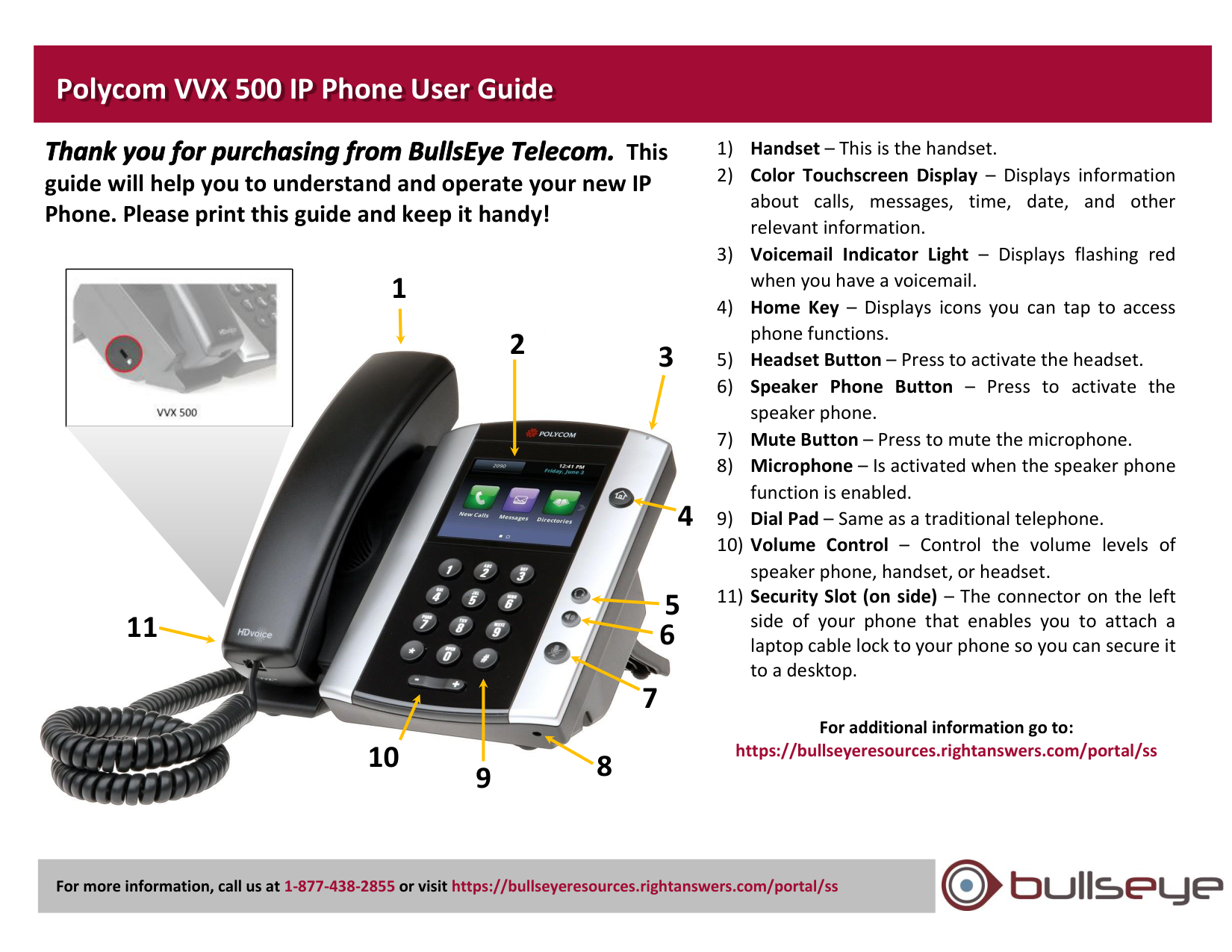
1) Handset – This is the handset.
2) Color Touchscreen Display – Displays information
about calls, messages, time, date, and other
relevant information.
3) Voicemail Indicator Light – Displays flashing red
when you have a voicemail.
4) Home Key – Displays icons you can tap to access
phone functions.
5) Headset Button – Press to activate the headset.
6) Speaker Phone Button – Press to activate the
speaker phone.
7) Mute Button – Press to mute the microphone.
8) Microphone – Is activated when the speaker phone
function is enabled.
9) Dial Pad – Same as a traditional telephone.
10) Volume Control – Control the volume levels of
speaker phone, handset, or headset.
11) Security Slot (on side) – The connector on the left
side of your phone that enables you to attach a
laptop cable lock to your phone so you can secure it
to a desktop.
For additional information go to:
https://bullseyeresources.rightanswers.com/portal/ss
1
2
3
4
10
5
6
7
11
8
9
Polycom VVX 500 IP Phone User Guide
For more information, call us at 1-877-438-2855 or visit https://bullseyeresources.rightanswers.com/portal/ss
Step 1: Enabling your Voicemail Box
1. Using your IP-phone, dial *62.
2. Pick up the handset or press the speaker button.
3. When asked for the passcode, enter 19992005 and then press #.
4. Enter a unique passcode then press #.
5. Enter the same unique passcode then press #.
6. At the main menu, press 3 to record your Personalized Name.
7. Press 1 to start recording. At the prompt, say your name and then press #.
Step 2: Recording your Outgoing Messages
1. Using your IP-phone, pick up the handset and dial *62.
2. Enter your passcode and then press #.
3. Press 1 to access your voicemail box.
4. Press 2 to create your Busy Greeting.
5. Press 1 to record. State out loud the message that will be heard when you are on the phone. Press
# when done.
6. Press 2 to listen to your recorded message. Press 1 to re-record. When finished, press *.
7. Press 3 to create your No Answer Greeting.
8. Press 1 to record. State out loud the message that will be heard when you are not able to answer
the phone. Press # when done.
9. Press 2 to listen to your recorded message. Press 1 to re-record. When finished, press *.
Accessing Your Voice Portal
You can access your personal voice portal using your own phone or another phone.
Using Your Phone
1. Using your IP-phone, pick up the handset and dial *62.
2. Enter your passcode and then press #. You will now be at the Voice Messaging Main Menu.
NOTE: Depending on the IP phone, hard key and soft key options are also available that allow easy
access your voicemail.
From Another Phone
1. Using any phone, pick up the handset and dial the telephone number or ext.
2. Let the phone ring until you engage your voicemail box.
3. When you begin to hear your No Answer greeting, press * to reach the login prompt.
4. Enter your passcode and then press #. You will now be at the Voice Messaging Main Menu.
Leaving Messages for Other Users
During greeting:
#
Interrupt the greeting and start recording a voice message.
*
Transfer out of greeting to Voice Portal password prompt.
0
Transfer out of greeting to another extension.
While recording message:
*
Cancel recording and transfer to Voice Portal password prompt.
0
Cancel recording and transfer to another extension.
#
Stop recording and review message.
While reviewing message:
1
Erase message and record again.
2
Listen or view current message.
3
This sends the message (OR you could just hang up).
6
Set or clear the urgent indicator.
7
Set or clear the confidential indicator.
*
Cancel recording and transfer to Voice Portal password prompt.
0
Cancel recording and transfer to configured number.
#
Repeat menu.
Voice Portal Main Menu Options
1
Access Voice Mailbox
2
Change CommPilot Express profile
3
Record Personalized Name.
4
Change Call Forwarding Options
8
Change Passcode
9
Exit
#
Repeat menu
+ Some of these options are provided only if they have been
assigned to you.
Polycom VVX 500 IP Phone User Guide
For more information, call us at 1-877-438-2855 or visit https://bullseyeresources.rightanswers.com/portal/ss
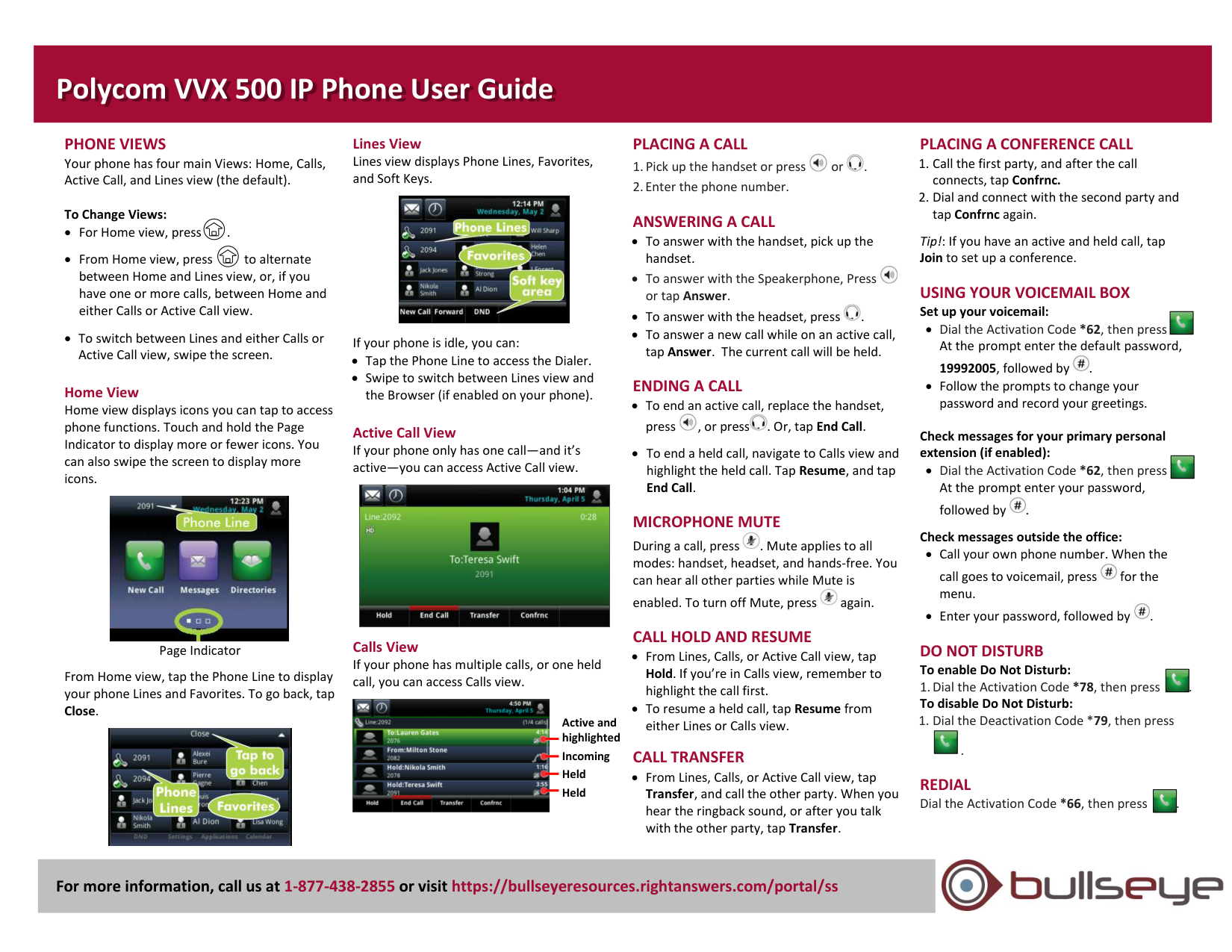
PHONE VIEWS
Your phone has four main Views: Home, Calls,
Active Call, and Lines view (the default).
To Change Views:
• For Home view, press .
• From Home view, press to alternate
between Home and Lines view, or, if you
have one or more calls, between Home and
either Calls or Active Call view.
• To switch between Lines and either Calls or
Active Call view, swipe the screen.
Home View
Home view displays icons you can tap to access
phone functions. Touch and hold the Page
Indicator to display more or fewer icons. You
can also swipe the screen to display more
icons.
Page Indicator
From Home view, tap the Phone Line to display
your phone Lines and Favorites. To go back, tap
Close.
Lines View
Lines view displays Phone Lines, Favorites,
and Soft Keys.
If your phone is idle, you can:
• Tap the Phone Line to access the Dialer.
• Swipe to switch between Lines view and
the Browser (if enabled on your phone).
Active Call View
If your phone only has one call—and it’s
active—you can access Active Call view.
Calls View
If your phone has multiple calls, or one held
call, you can access Calls view.
PLACING A CALL
1. Pick up the handset or press
or
.
2. Enter the phone number.
ANSWERING A CALL
• To answer with the handset, pick up the
handset.
• To answer with the Speakerphone, Press
or tap Answer.
• To answer with the headset, press
.
• To answer a new call while on an active call,
tap Answer. The current call will be held.
ENDING A CALL
• To end an active call, replace the handset,
press
, or press
. Or, tap End Call.
• To end a held call, navigate to Calls view and
highlight the held call. Tap Resume, and tap
End Call.
MICROPHONE MUTE
During a call, press
. Mute applies to all
modes: handset, headset, and hands-free. You
can hear all other parties while Mute is
enabled. To turn off Mute, press
again.
CALL HOLD AND RESUME
• From Lines, Calls, or Active Call view, tap
Hold. If you’re in Calls view, remember to
highlight the call first.
• To resume a held call, tap Resume from
either Lines or Calls view.
CALL TRANSFER
• From Lines, Calls, or Active Call view, tap
Transfer, and call the other party. When you
hear the ringback sound, or after you talk
with the other party, tap Transfer.
PLACING A CONFERENCE CALL
1. Call the first party, and after the call
connects, tap Confrnc.
2. Dial and connect with the second party and
tap Confrnc again.
Tip!: If you have an active and held call, tap
Join to set up a conference.
USING YOUR VOICEMAIL BOX
Set up your voicemail:
• Dial the Activation Code *62, then press
At the prompt enter the default password,
19992005, followed by
.
• Follow the prompts to change your
password and record your greetings.
Check messages for your primary personal
extension (if enabled):
• Dial the Activation Code *62, then press .
At the prompt enter your password,
followed by
.
Check messages outside the office:
• Call your own phone number. When the
call goes to voicemail, press
for the
menu.
• Enter your password, followed by
.
DO NOT DISTURB
To enable Do Not Disturb:
1. Dial the Activation Code *78, then press .
To disable Do Not Disturb:
1. Dial the Deactivation Code *79, then press
.
REDIAL
Dial the Activation Code *66, then press .
Active and
highlighted
Incoming
Held
Held
Polycom VVX 500 IP Phone User Guide
For more information, call us at 1-877-438-2855 or visit https://bullseyeresources.rightanswers.com/portal/ss
Call Forwarding Always
Automatically redirect all incoming calls to another number. When the service is active, a
reminder will be displayed on your phone. You can also set your phone to play a Ring
Reminder when a call is forwarded. The default setting for Call Forwarding Always is off.
To activate this feature:
1. Dial the Activation Code *72, then press Dial or
.
2. At the prompt, dial the phone number where you want your calls to be directed and
press #.
3. Once the system plays a confirmation message, hang up.
To turn this feature off:
1. Dial the Deactivation Code *73, then press Dial or
.
Call Forwarding Busy
Automatically redirect incoming calls to another number when your line is busy. The
default setting for Call Forwarding Busy is off.
To activate this feature:
1. Dial the Activation Code *90, then press Dial or
.
2. At the prompt, dial the phone number where you want your calls to be directed and
press #.
3. Once the system plays a confirmation message, hang up.
To turn this feature off:
1. Dial the Deactivation Code *91, then press Dial or
.
Call Forwarding No Answer
Automatically redirect incoming calls to another number when you do not answer your
phone after a certain number of rings. The default setting for Call Forwarding No Answer
is off. The default number of rings is 3.
To activate this feature:
1. Dial the Activation Code *92, then press Dial or
.
2. At the prompt, dial the phone number where you want your calls to be directed and
press #.
3. Once the system plays a confirmation message, hang up.
To turn this feature off:
1. Dial the Deactivation Code *93, then press Dial or
.
Call Forward Not Reachable
Automatically redirect incoming calls to another number if your number is
unreachable. The default setting for Call Forwarding Not Reachable is off.
To activate this feature:
1. Dial the Activation Code *94, then press Dial or
.
2. At the prompt, dial the phone number where you want your calls to be
directed and press #.
3. Once the system plays a confirmation message, hang up.
To turn this feature off:
1. Dial the Deactivation Code *95, then press Dial or
.
Call Pickup
Pick up (answer) any ringing line within your Call Pickup group. If more than one
line in the Call Pickup group is ringing, the call that has been ringing the longest is
picked up.
To pickup a call:
1. Dial the Activation Code *98, which will connect you to the ringing party.
• If only one other call, the call can be retrieved if it is active, held or remotely held
Call Return
Call the last party that called you. Both answered and unanswered calls can be
returned.
To return a call:
1. Without picking up the handset, dial the Activation Code *69, then press Dial or
. The last calling party will be called as if you dialed the number directly.
Note: can only return calls to numbers that are acceptable to your Outgoing
Direct Voice Mail Transfer
Transfer a caller on hold to your voice mail or someone else’s voicemail.
To activate this feature:
1. While on a call, press the Transfer soft key, then dial the Activation Code *55.
An announcement will play explaining how to transfer the held caller to your
voice mailbox (or anyone else’s voice mailbox).
2. To transfer to your own VM, press #.
-or-
To transfer to another user’s VM, dial the user’s extension and hit #. The call is
released from initiator’s handset and the person transferred to will get VM.
Polycom VVX 500 IP Phone User Guide
For more information, call us at 1-877-438-2855 or visit https://bullseyeresources.rightanswers.com/portal/ss
Call Park / Directed Call Park
Place a call on hold with the intent of retrieving it from another extension. The call can
be parked on your own extension or another within your group (groups are determined
by your administrator). While parked, the parked party hears audio on hold (if it is
configured). You can only park one call at a time against any single user extension.
When you park a call, a recall timer is started (45 seconds by default). If the timer expires
before the parked call is retrieved and your phone is idle, the call will appear as a held
call and your phone will ring. If the timer expires before the parked call is retrieved and
your phone is not idle, the timer is restarted for 10 seconds and the call remains parked.
This process will repeat until the parked call is retrieved or the parked call hangs up.
Note: You can only have one other active call when you try to park a call.
To park a call:
1. While on a call, press the Transfer key (or flash hook) and then dial the Call Park
Activation Code *68.
2. After the prompt, enter # to transfer the call to your own VM.
-or-
Enter the number you would like to park the call against. The call will be parked.
If no number is entered and you hang up immediately after dialing the Activation Code,
the call is parked against your line.
3. Once the call is parked against an available user, the service updates your display with
the extension where the call is parked.
Call Park Retrieve
Retrieve a call that has been parked.
To retrieve a parked call:
1. Dial Activation Code *88 , then press Dial or
.
2. After the prompt, enter the number where the call to be retrieved is currently
parked.
3. You will be reconnected to the parked party.
Note: If no numbers are dialed after the Activation Code, you will be reconnected with
the party parked against your line.
Speed Dial 100
Assign a two-digit code to a frequently dialed phone number. Quickly and easily
place a call by dialing the code, instead of the entire number. Two-digit codes that
are Feature Access Codes cannot be used.
Note: You can associate to 2 to 30 numeric digits, including x11 emergency and
repair call numbers. You can also associate to Feature Access Codes or even
multiple chained Feature Access Codes.
To assign a two-digit code:
1. Without picking up the handset, dial the Activation Code *75, then press Dial
or
. You will hear the recall dial tone (three quick beeps and then a dial
tone).
2. Dial the two-digit code to be created or modified, followed by the digits to be
associated with the code. End the programming by pressing #.
3. A confirmation message will play, and the speed dial number is programmed.
To use a two-digit speed dial:
1. Dial # followed by the two-digit code.
Group Paging/Push to Talk
This service allows you to call another user or group and have the call answered
automatically, either as a one-way call, or a two-way call. Also allows you to page
a group.
1. Pick up the handset and dial Activation Code *50. You will hear the recall dial
tone (three quick beeps and then a dial tone).
2. Dial the extension you wish to page and press #.
3. Speak into the handset. When done paging, hang up.
Voice Mail Waiting Indicator
Clears the audible (and visible for some devices) message waiting indicator on
your phone.
To clear the Waiting Indicator:
1. Without picking up the handset, dial the Activation Code *99, then press Dial or
.