
Yealink CP935W Conference Phone Quick Guide
Summary: The attached document provides instructions for common functions performed on the Yealink CP935W Conference Phone
Download article(s)
 Yealink CP935W Conference Phone.pdf
Yealink CP935W Conference Phone
Yealink CP935W Conference Phone Quick Guide
For more information, call us at 1-877-438-2855 or visit https://bullseyetelecom.my.site.com/BullsEyeCustomerCommunity/s/
This guide will help you to understand and operate your new IP Phone.
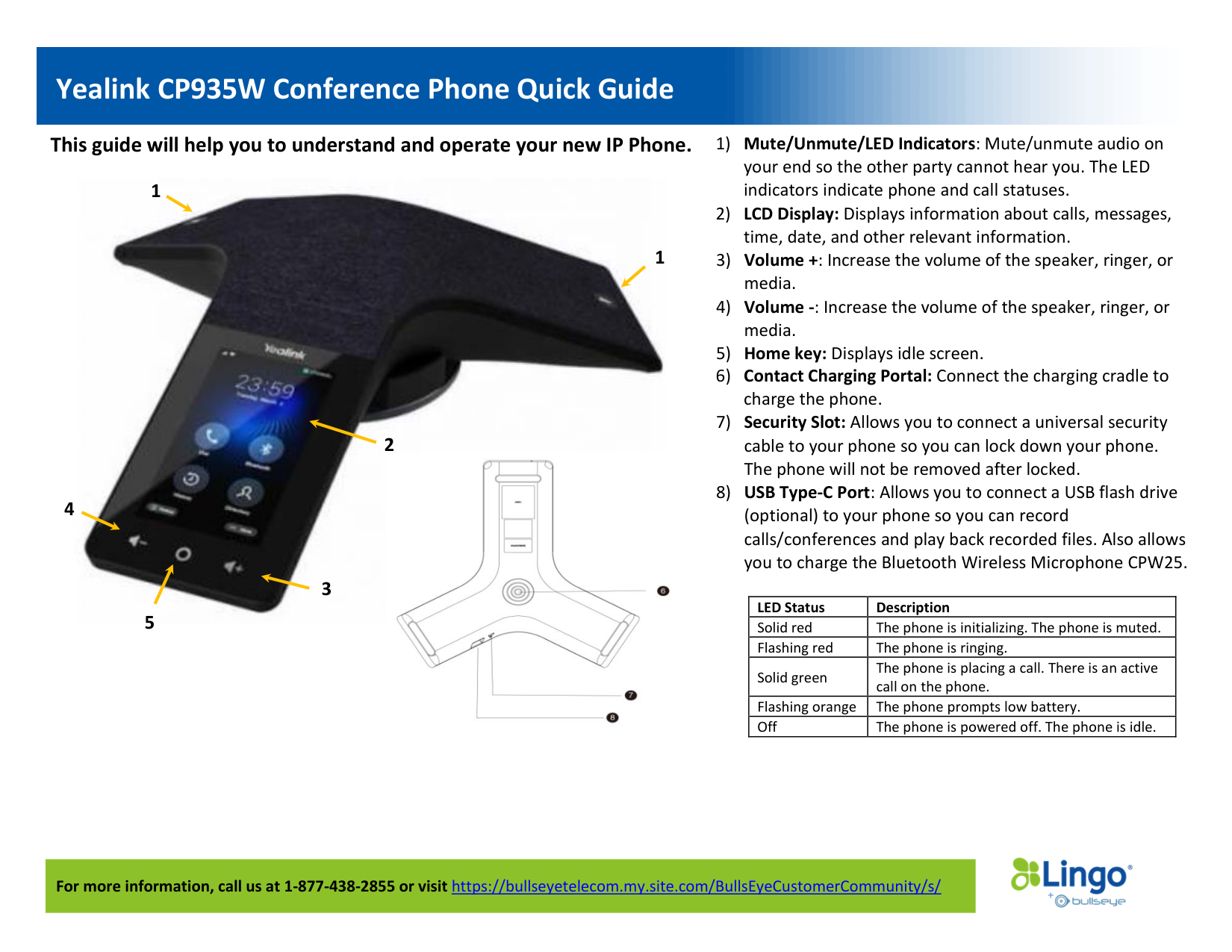
1) Mute/Unmute/LED Indicators: Mute/unmute audio on
your end so the other party cannot hear you. The LED
indicators indicate phone and call statuses.
2) LCD Display: Displays information about calls, messages,
time, date, and other relevant information.
3) Volume +: Increase the volume of the speaker, ringer, or
media.
4) Volume -: Increase the volume of the speaker, ringer, or
media.
5) Home key: Displays idle screen.
6) Contact Charging Portal: Connect the charging cradle to
charge the phone.
7) Security Slot: Allows you to connect a universal security
cable to your phone so you can lock down your phone.
The phone will not be removed after locked.
8) USB Type-C Port: Allows you to connect a USB flash drive
(optional) to your phone so you can record
calls/conferences and play back recorded files. Also allows
you to charge the Bluetooth Wireless Microphone CPW25.
LED Status
Description
Solid red
The phone is initializing. The phone is muted.
Flashing red
The phone is ringing.
Solid green
The phone is placing a call. There is an active
call on the phone.
Flashing orange
The phone prompts low battery.
Off
The phone is powered off. The phone is idle.
1
1
2
3
4
5
Yealink CP935W Conference Phone Quick Guide
For more information, call us at 1-877-438-2855 or visit https://bullseyetelecom.my.site.com/BullsEyeCustomerCommunity/s/
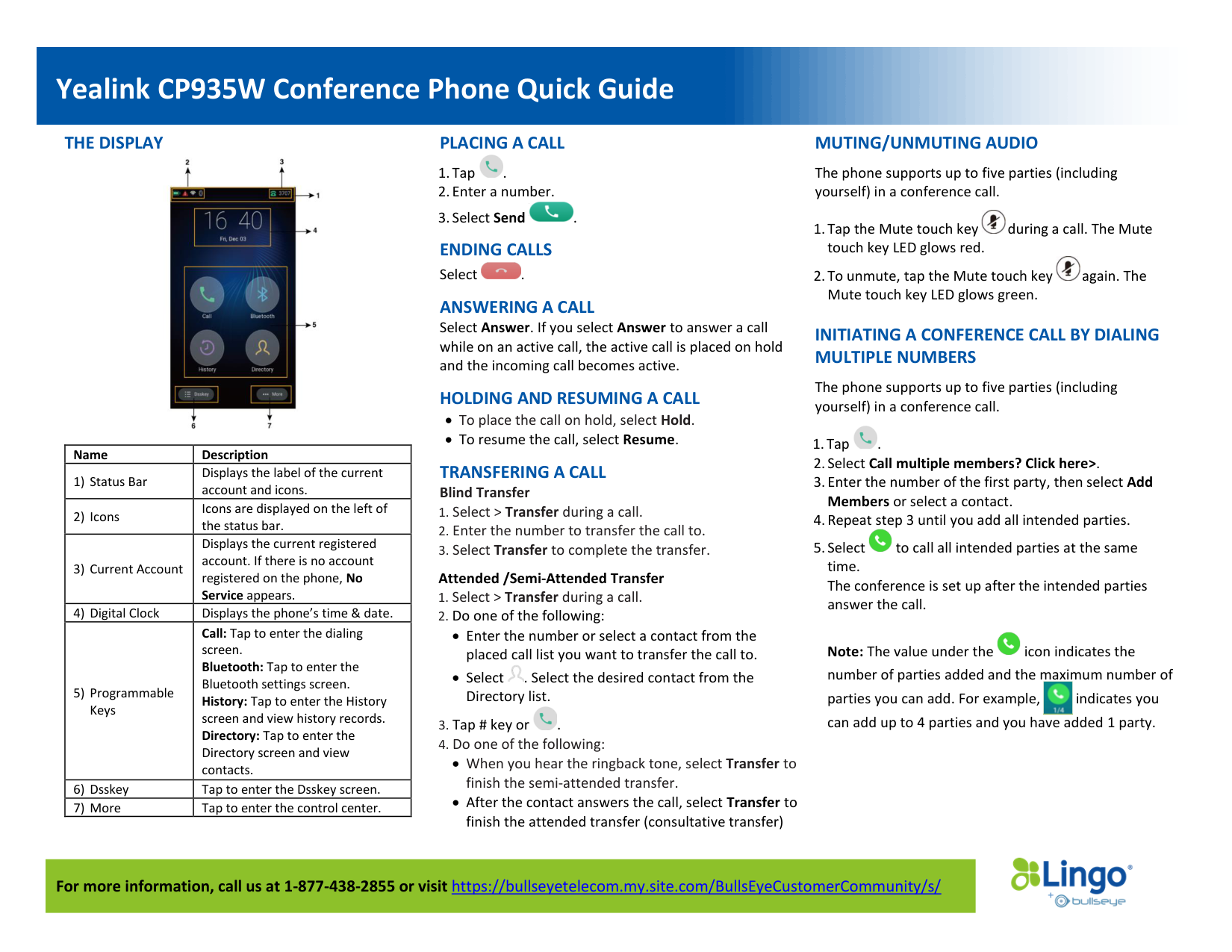
THE DISPLAY
Name
Description
1) Status Bar
Displays the label of the current
account and icons.
2) Icons
Icons are displayed on the left of
the status bar.
3) Current Account
Displays the current registered
account. If there is no account
registered on the phone, No
Service appears.
4) Digital Clock
Displays the phone’s time & date.
5) Programmable
Keys
Call: Tap to enter the dialing
screen.
Bluetooth: Tap to enter the
Bluetooth settings screen.
History: Tap to enter the History
screen and view history records.
Directory: Tap to enter the
Directory screen and view
contacts.
6) Dsskey
Tap to enter the Dsskey screen.
7) More
Tap to enter the control center.
PLACING A CALL
1. Tap
.
2. Enter a number.
3. Select Send
.
ENDING CALLS
Select
.
ANSWERING A CALL
Select Answer. If you select Answer to answer a call
while on an active call, the active call is placed on hold
and the incoming call becomes active.
HOLDING AND RESUMING A CALL
• To place the call on hold, select Hold.
• To resume the call, select Resume.
TRANSFERING A CALL
Blind Transfer
1. Select > Transfer during a call.
2. Enter the number to transfer the call to.
3. Select Transfer to complete the transfer.
Attended /Semi-Attended Transfer
1. Select > Transfer during a call.
2. Do one of the following:
• Enter the number or select a contact from the
placed call list you want to transfer the call to.
• Select
. Select the desired contact from the
Directory list.
3. Tap # key or
.
4. Do one of the following:
• When you hear the ringback tone, select Transfer to
finish the semi-attended transfer.
• After the contact answers the call, select Transfer to
finish the attended transfer (consultative transfer)
MUTING/UNMUTING AUDIO
The phone supports up to five parties (including
yourself) in a conference call.
1. Tap the Mute touch key
during a call. The Mute
touch key LED glows red.
2. To unmute, tap the Mute touch key
again. The
Mute touch key LED glows green.
INITIATING A CONFERENCE CALL BY DIALING
MULTIPLE NUMBERS
The phone supports up to five parties (including
yourself) in a conference call.
1. Tap
.
2. Select Call multiple members? Click here>.
3. Enter the number of the first party, then select Add
Members or select a contact.
4. Repeat step 3 until you add all intended parties.
5. Select
to call all intended parties at the same
time.
The conference is set up after the intended parties
answer the call.
Note: The value under the
icon indicates the
number of parties added and the maximum number of
parties you can add. For example, indicates you
can add up to 4 parties and you have added 1 party.