
Using VoIP Feature Access Codes
Summary: This guide's purpose is to inform the Customer about how to use VoIP Feature Access Codes.
Download article(s)
 Using VoIP Feature Access Codes.pdf
Using VoIP Feature Access Codes
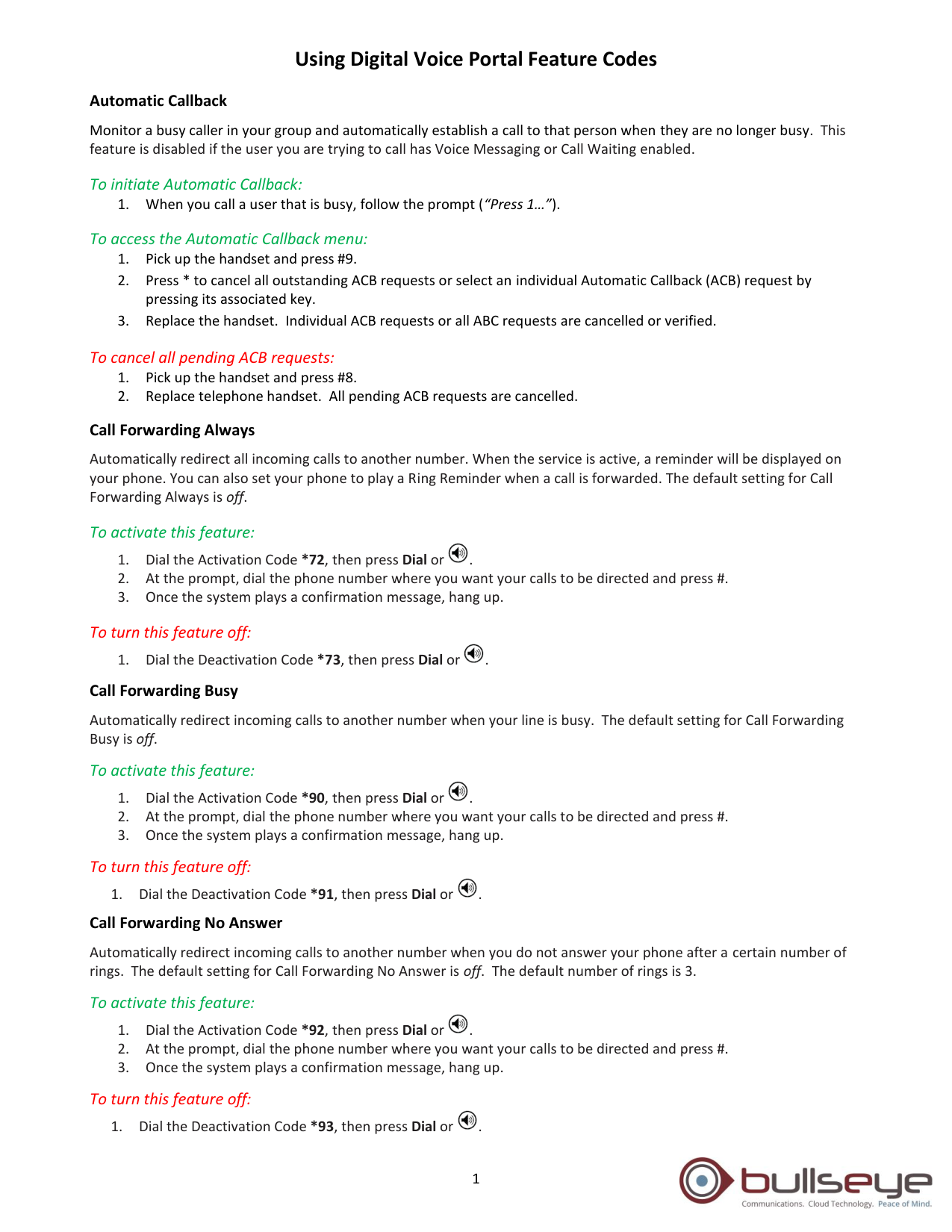
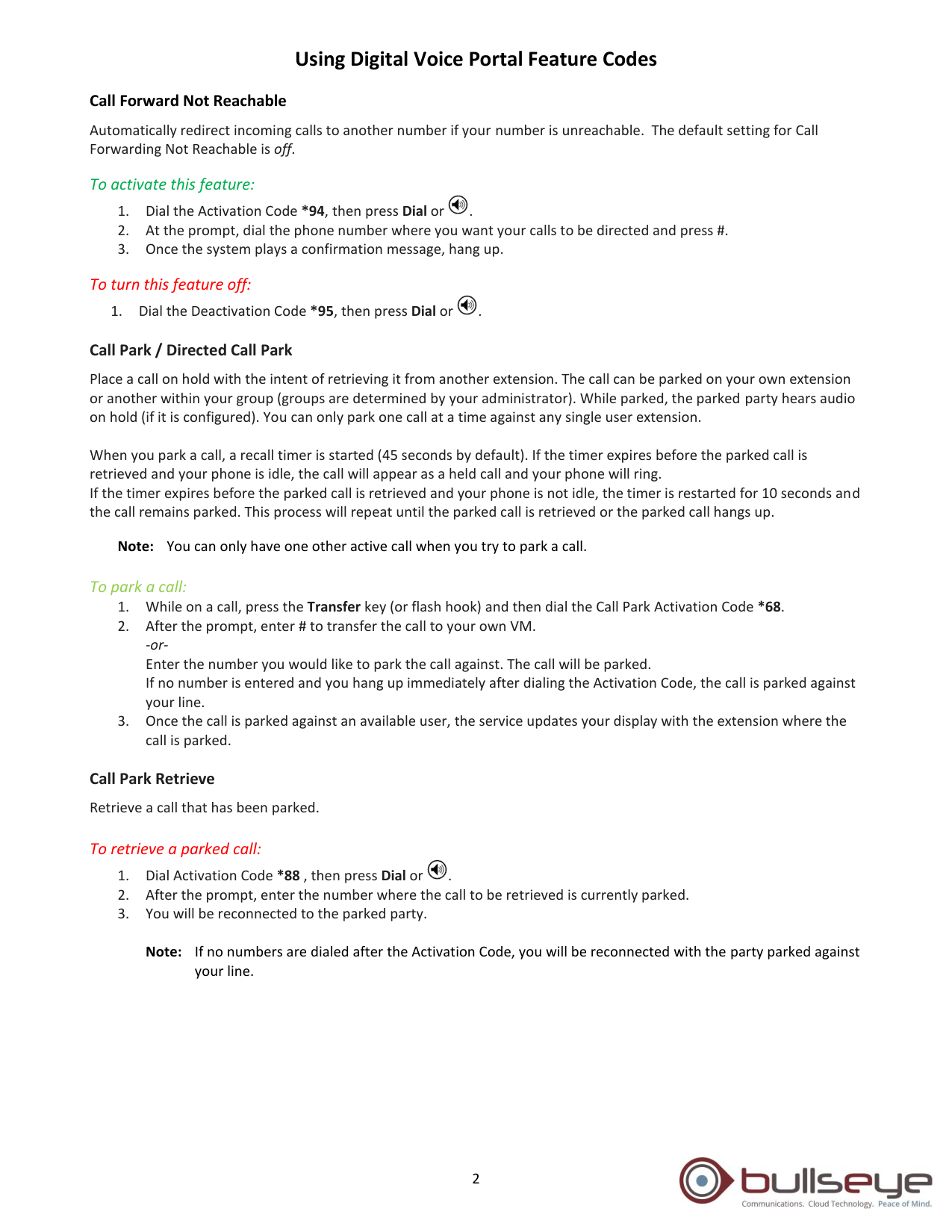
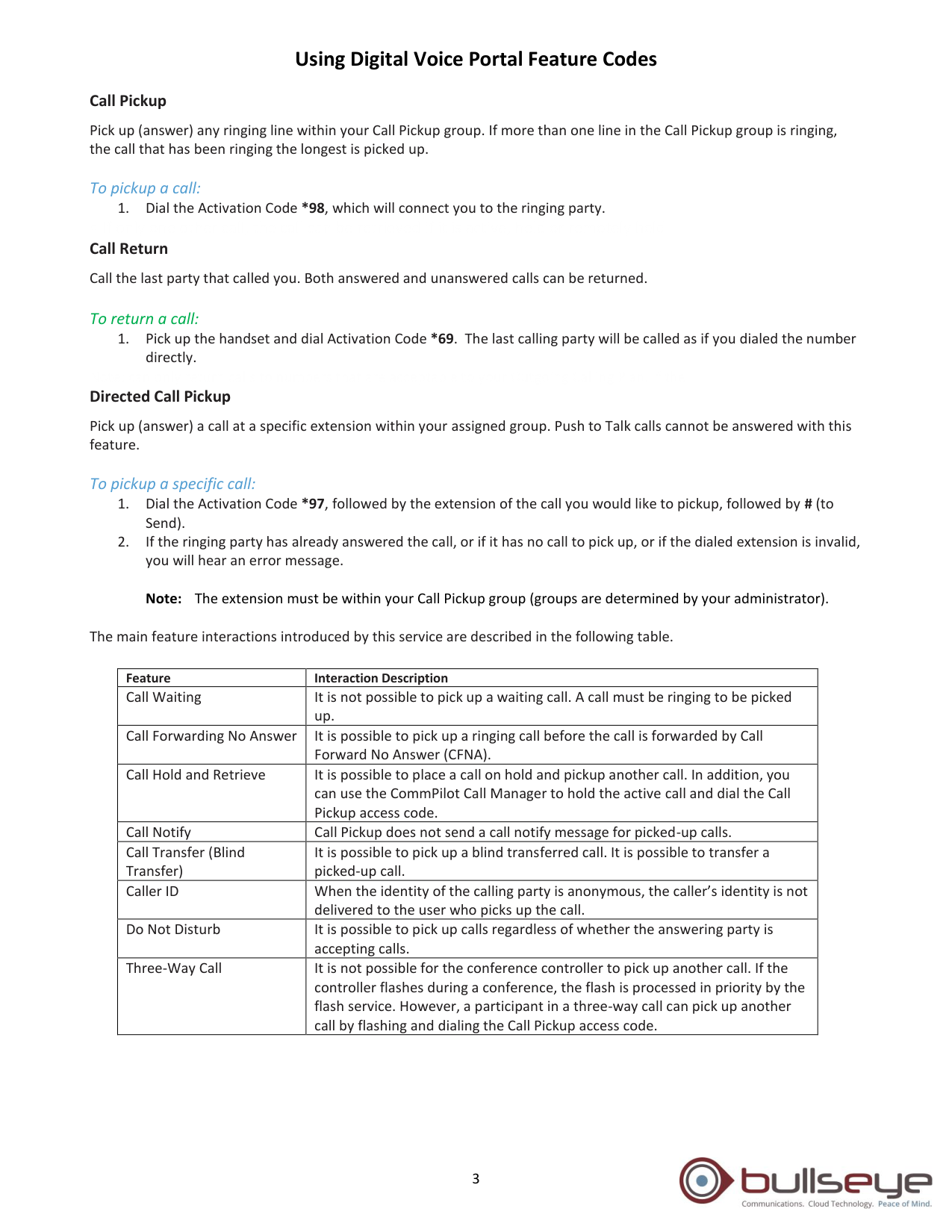
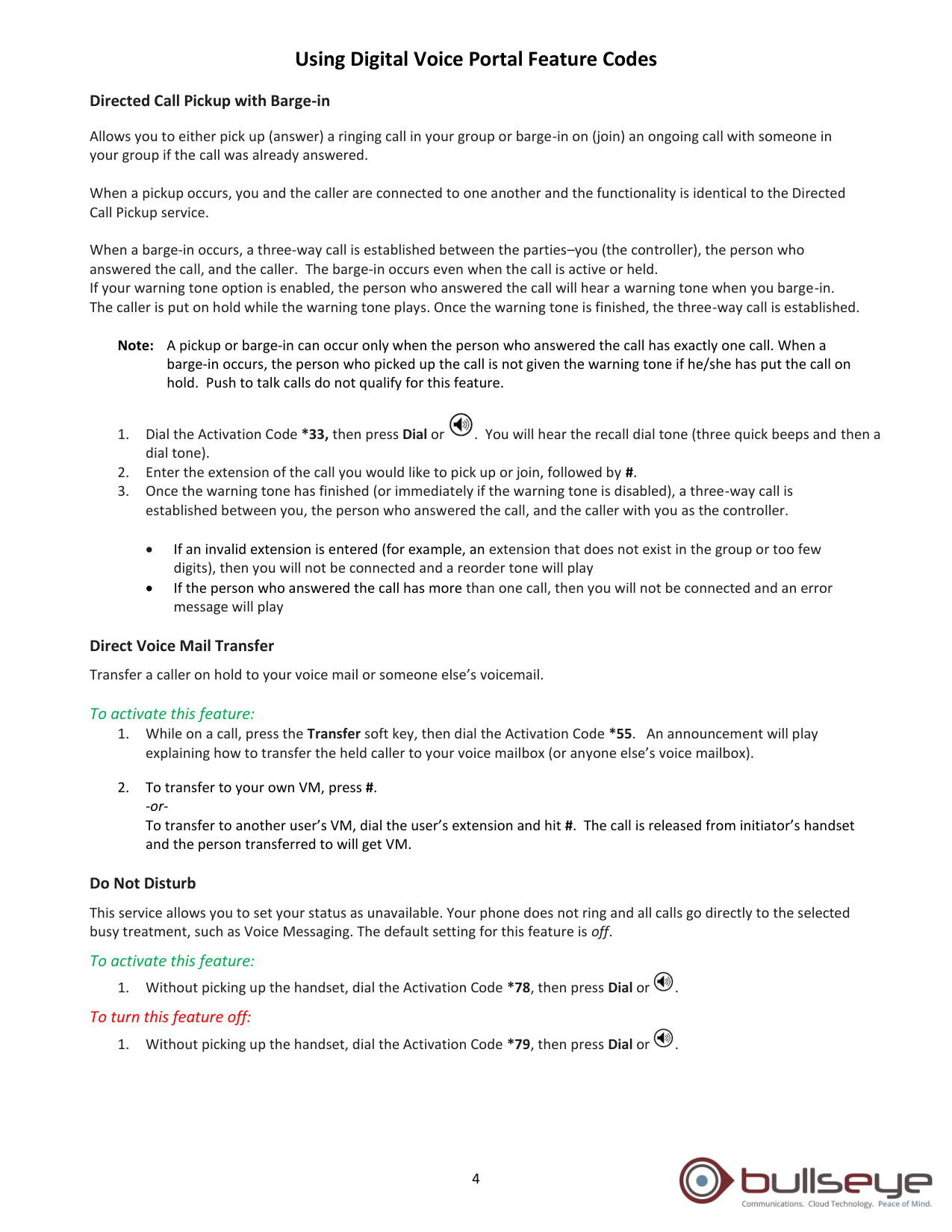
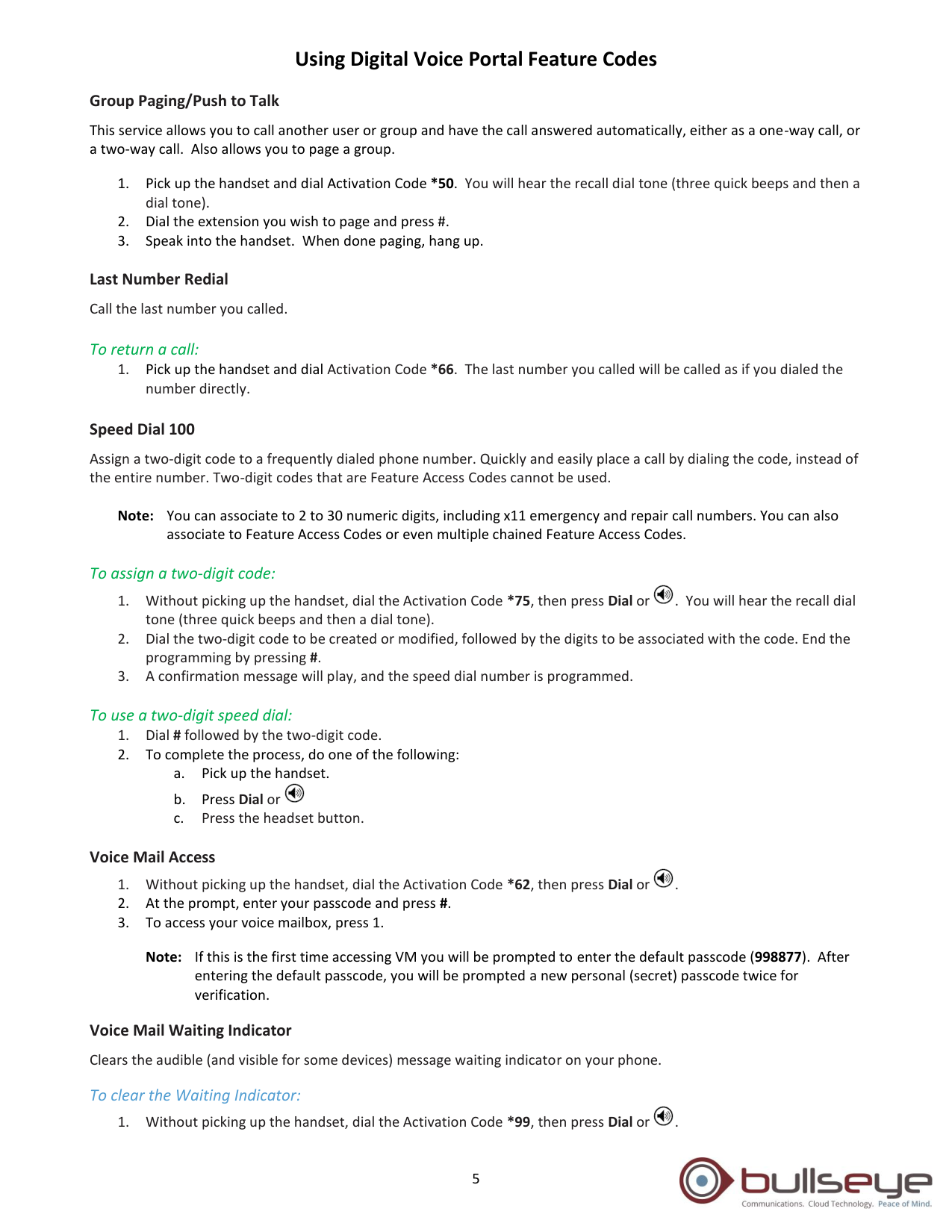
Using Digital Voice Portal Feature Codes
1
Automatic Callback
Monitor a busy caller in your group and automatically establish a call to that person when they are no longer busy. This
feature is disabled if the user you are trying to call has Voice Messaging or Call Waiting enabled.
To initiate Automatic Callback:
1. When you call a user that is busy, follow the prompt (“Press 1…”).
To access the Automatic Callback menu:
1. Pick up the handset and press #9.
2. Press * to cancel all outstanding ACB requests or select an individual Automatic Callback (ACB) request by
pressing its associated key.
3. Replace the handset. Individual ACB requests or all ABC requests are cancelled or verified.
To cancel all pending ACB requests:
1. Pick up the handset and press #8.
2. Replace telephone handset. All pending ACB requests are cancelled.
Call Forwarding Always
Automatically redirect all incoming calls to another number. When the service is active, a reminder will be displayed on
your phone. You can also set your phone to play a Ring Reminder when a call is forwarded. The default setting for Call
Forwarding Always is off.
To activate this feature:
1.
Dial the Activation Code *72, then press Dial or
.
2.
At the prompt, dial the phone number where you want your calls to be directed and press #.
3. Once the system plays a confirmation message, hang up.
To turn this feature off:
1. Dial the Deactivation Code *73, then press Dial or
.
Call Forwarding Busy
Automatically redirect incoming calls to another number when your line is busy. The default setting for Call Forwarding
Busy is off.
To activate this feature:
1.
Dial the Activation Code *90, then press Dial or
.
2.
At the prompt, dial the phone number where you want your calls to be directed and press #.
3. Once the system plays a confirmation message, hang up.
To turn this feature off:
1. Dial the Deactivation Code *91, then press Dial or
.
Call Forwarding No Answer
Automatically redirect incoming calls to another number when you do not answer your phone after a certain number of
rings. The default setting for Call Forwarding No Answer is off. The default number of rings is 3.
To activate this feature:
1.
Dial the Activation Code *92, then press Dial or
.
2.
At the prompt, dial the phone number where you want your calls to be directed and press #.
3. Once the system plays a confirmation message, hang up.
To turn this feature off:
1. Dial the Deactivation Code *93, then press Dial or
.
Using Digital Voice Portal Feature Codes
2
Call Forward Not Reachable
Automatically redirect incoming calls to another number if your number is unreachable. The default setting for Call
Forwarding Not Reachable is off.
To activate this feature:
1.
Dial the Activation Code *94, then press Dial or
.
2.
At the prompt, dial the phone number where you want your calls to be directed and press #.
3. Once the system plays a confirmation message, hang up.
To turn this feature off:
1. Dial the Deactivation Code *95, then press Dial or
.
Call Park / Directed Call Park
Place a call on hold with the intent of retrieving it from another extension. The call can be parked on your own extension
or another within your group (groups are determined by your administrator). While parked, the parked party hears audio
on hold (if it is configured). You can only park one call at a time against any single user extension.
When you park a call, a recall timer is started (45 seconds by default). If the timer expires before the parked call is
retrieved and your phone is idle, the call will appear as a held call and your phone will ring.
If the timer expires before the parked call is retrieved and your phone is not idle, the timer is restarted for 10 seconds and
the call remains parked. This process will repeat until the parked call is retrieved or the parked call hangs up.
Note: You can only have one other active call when you try to park a call.
To park a call:
1.
While on a call, press the Transfer key (or flash hook) and then dial the Call Park Activation Code *68.
2. After the prompt, enter # to transfer the call to your own VM.
-or-
Enter the number you would like to park the call against. The call will be parked.
If no number is entered and you hang up immediately after dialing the Activation Code, the call is parked against
your line.
3.
Once the call is parked against an available user, the service updates your display with the extension where the
call is parked.
Call Park Retrieve
Retrieve a call that has been parked.
To retrieve a parked call:
1. Dial Activation Code *88 , then press Dial or
.
2. After the prompt, enter the number where the call to be retrieved is currently parked.
3. You will be reconnected to the parked party.
Note: If no numbers are dialed after the Activation Code, you will be reconnected with the party parked against
your line.
Using Digital Voice Portal Feature Codes
3
Call Pickup
Pick up (answer) any ringing line within your Call Pickup group. If more than one line in the Call Pickup group is ringing,
the call that has been ringing the longest is picked up.
To pickup a call:
1.
Dial the Activation Code *98, which will connect you to the ringing party.
• If only one other call, the call can be retrieved if it is active, held or remotely held
Call Return
Call the last party that called you. Both answered and unanswered calls can be returned.
To return a call:
1.
Pick up the handset and dial Activation Code *69. The last calling party will be called as if you dialed the number
directly.
Note: can only return calls to numbers that are acceptable to your Outgoing Calling Plan. If the
Directed Call Pickup
Pick up (answer) a call at a specific extension within your assigned group. Push to Talk calls cannot be answered with this
feature.
To pickup a specific call:
1.
Dial the Activation Code *97, followed by the extension of the call you would like to pickup, followed by # (to
Send).
2.
If the ringing party has already answered the call, or if it has no call to pick up, or if the dialed extension is invalid,
you will hear an error message.
Note: The extension must be within your Call Pickup group (groups are determined by your administrator).
The main feature interactions introduced by this service are described in the following table.
Feature
Interaction Description
Call Waiting
It is not possible to pick up a waiting call. A call must be ringing to be picked
up.
Call Forwarding No Answer
It is possible to pick up a ringing call before the call is forwarded by Call
Forward No Answer (CFNA).
Call Hold and Retrieve
It is possible to place a call on hold and pickup another call. In addition, you
can use the CommPilot Call Manager to hold the active call and dial the Call
Pickup access code.
Call Notify
Call Pickup does not send a call notify message for picked-up calls.
Call Transfer (Blind
Transfer)
It is possible to pick up a blind transferred call. It is possible to transfer a
picked-up call.
Caller ID
When the identity of the calling party is anonymous, the caller’s identity is not
delivered to the user who picks up the call.
Do Not Disturb
It is possible to pick up calls regardless of whether the answering party is
accepting calls.
Three-Way Call
It is not possible for the conference controller to pick up another call. If the
controller flashes during a conference, the flash is processed in priority by the
flash service. However, a participant in a three-way call can pick up another
call by flashing and dialing the Call Pickup access code.
Using Digital Voice Portal Feature Codes
4
Directed Call Pickup with Barge-in
Allows you to either pick up (answer) a ringing call in your group or barge-in on (join) an ongoing call with someone in
your group if the call was already answered.
When a pickup occurs, you and the caller are connected to one another and the functionality is identical to the Directed
Call Pickup service.
When a barge-in occurs, a three-way call is established between the parties–you (the controller), the person who
answered the call, and the caller. The barge-in occurs even when the call is active or held.
If your warning tone option is enabled, the person who answered the call will hear a warning tone when you barge-in.
The caller is put on hold while the warning tone plays. Once the warning tone is finished, the three-way call is established.
Note: A pickup or barge-in can occur only when the person who answered the call has exactly one call. When a
barge-in occurs, the person who picked up the call is not given the warning tone if he/she has put the call on
hold. Push to talk calls do not qualify for this feature.
1.
Dial the Activation Code *33, then press Dial or
. You will hear the recall dial tone (three quick beeps and then a
dial tone).
2.
Enter the extension of the call you would like to pick up or join, followed by #.
3.
Once the warning tone has finished (or immediately if the warning tone is disabled), a three-way call is
established between you, the person who answered the call, and the caller with you as the controller.
•
If an invalid extension is entered (for example, an extension that does not exist in the group or too few
digits), then you will not be connected and a reorder tone will play
•
If the person who answered the call has more than one call, then you will not be connected and an error
message will play
Direct Voice Mail Transfer
Transfer a caller on hold to your voice mail or someone else’s voicemail.
To activate this feature:
1.
While on a call, press the Transfer soft key, then dial the Activation Code *55. An announcement will play
explaining how to transfer the held caller to your voice mailbox (or anyone else’s voice mailbox).
2.
To transfer to your own VM, press #.
-or-
To transfer to another user’s VM, dial the user’s extension and hit #. The call is released from initiator’s handset
and the person transferred to will get VM.
Do Not Disturb
This service allows you to set your status as unavailable. Your phone does not ring and all calls go directly to the selected
busy treatment, such as Voice Messaging. The default setting for this feature is off.
To activate this feature:
1. Without picking up the handset, dial the Activation Code *78, then press Dial or
.
To turn this feature off:
1. Without picking up the handset, dial the Activation Code *79, then press Dial or
.
Using Digital Voice Portal Feature Codes
5
Group Paging/Push to Talk
This service allows you to call another user or group and have the call answered automatically, either as a one-way call, or
a two-way call. Also allows you to page a group.
1.
Pick up the handset and dial Activation Code *50. You will hear the recall dial tone (three quick beeps and then a
dial tone).
2.
Dial the extension you wish to page and press #.
3.
Speak into the handset. When done paging, hang up.
Last Number Redial
Call the last number you called.
To return a call:
1.
Pick up the handset and dial Activation Code *66. The last number you called will be called as if you dialed the
number directly.
Speed Dial 100
Assign a two-digit code to a frequently dialed phone number. Quickly and easily place a call by dialing the code, instead of
the entire number. Two-digit codes that are Feature Access Codes cannot be used.
Note: You can associate to 2 to 30 numeric digits, including x11 emergency and repair call numbers. You can also
associate to Feature Access Codes or even multiple chained Feature Access Codes.
To assign a two-digit code:
1. Without picking up the handset, dial the Activation Code *75, then press Dial or
. You will hear the recall dial
tone (three quick beeps and then a dial tone).
2. Dial the two-digit code to be created or modified, followed by the digits to be associated with the code. End the
programming by pressing #.
3.
A confirmation message will play, and the speed dial number is programmed.
To use a two-digit speed dial:
1. Dial # followed by the two-digit code.
2. To complete the process, do one of the following:
a. Pick up the handset.
b. Press Dial or
c.
Press the headset button.
Voice Mail Access
1.
Without picking up the handset, dial the Activation Code *62, then press Dial or
.
2.
At the prompt, enter your passcode and press #.
3.
To access your voice mailbox, press 1.
Note: If this is the first time accessing VM you will be prompted to enter the default passcode (998877). After
entering the default passcode, you will be prompted a new personal (secret) passcode twice for
verification.
Voice Mail Waiting Indicator
Clears the audible (and visible for some devices) message waiting indicator on your phone.
To clear the Waiting Indicator:
1. Without picking up the handset, dial the Activation Code *99, then press Dial or
.