
BullsEye Unified Communications User Guide for Desktop
Summary: This is the detailed BullsEye Unified Communications (UC) User Guide for the desktop.
Download article(s)
 BullsEye Unified Communications User Guide for Desktop.pdf
BullsEye Unified Communications User Guide for Desktop











Unified Communications for Desktop
User Guide
Desktop Release 22.9.4
Document Version 3
BULLSEYE UC FOR DESKTOP USER GUIDE
©2020 BULLSEYE TELECOM, INC.
PAGE 2
BullsEye Unified Communications for Desktop ® User Guide
Copyright Notice
Copyright© 2020 BullsEye Telecom, Inc. All rights reserved.
Trademarks
Any product names mentioned in this document may be trademarks or registered
trademarks of BullsEye Telecom or their respective companies and are hereby
acknowledged.
BULLSEYE UC FOR DESKTOP USER GUIDE
©2020 BULLSEYE TELECOM, INC.
PAGE 3
BULLSEYE UC FOR DESKTOP USER GUIDE
©2020 BULLSEYE TELECOM, INC.
PAGE 4
Table of Contents
1
Summary of Changes ........................................................................................................... 14
1.1
Changes for Release 22 ....................................................................................................... 14
1.2
Changes for Release 21 ....................................................................................................... 18
1.3
Changes for Release 20 ....................................................................................................... 22
1.4
Changes for Release 10 ....................................................................................................... 24
2
About BullsEye UC for Desktop ........................................................................................... 26
3
Get Started ............................................................................................................................. 27
3.1
Installation ............................................................................................................................. 27
3.2
Sign In .................................................................................................................................. 27
3.3
Main Window ........................................................................................................................ 29
3.4
Communications View .......................................................................................................... 31
3.5
Start Chat.............................................................................................................................. 31
3.6
Send File .............................................................................................................................. 32
3.7
Send Email ........................................................................................................................... 32
3.8
Make Audio or Video Call ..................................................................................................... 32
3.9
Share Your Application or Desktop ....................................................................................... 32
3.10 Active Communications ........................................................................................................ 33
3.11 My Room .............................................................................................................................. 34
3.11.1 Select Audio Devices ................................................................................................... 34
4
Contacts ................................................................................................................................. 36
4.1
Add ....................................................................................................................................... 36
4.2
Edit ....................................................................................................................................... 37
4.3
Filters .................................................................................................................................... 37
5
Presence ................................................................................................................................. 38
5.1
Automated Presence ............................................................................................................ 39
6
Chat ......................................................................................................................................... 40
6.1
Chat View ............................................................................................................................. 40
6.2
File Transfer.......................................................................................................................... 40
6.3
Group Chat ........................................................................................................................... 41
6.4
Chat Recording ..................................................................................................................... 41
7
Audio and Video Calls........................................................................................................... 42
7.1
Call From Computer ............................................................................................................. 43
7.2
Call From Phone ................................................................................................................... 43
7.3
Answer Call .......................................................................................................................... 44
7.4
Priority Alert .......................................................................................................................... 44
7.5
Contact Name Lookup for Incoming Calls ............................................................................ 44
7.6
Missed Call or Communication ............................................................................................. 44
7.7
Full Screen in Video Call....................................................................................................... 44
BULLSEYE UC FOR DESKTOP USER GUIDE
©2020 BULLSEYE TELECOM, INC.
PAGE 5
7.8
Multiparty Sessions ............................................................................................................... 45
7.9
Call Waiting .......................................................................................................................... 45
7.10 Call Transfer ......................................................................................................................... 45
7.11 Message Waiting Indication and Visual Voice Mail ............................................................... 45
7.12 Call Park and Retrieve .......................................................................................................... 46
7.13 Call Pull ................................................................................................................................ 47
7.14 Call Recording Controls ........................................................................................................ 47
7.15 Moderator Controls ............................................................................................................... 47
7.16 Forced Logout ...................................................................................................................... 48
7.17 Echo (Test) Service .............................................................................................................. 48
7.18 Headset Support .................................................................................................................. 48
7.19 Team Telephony .................................................................................................................. 50
7.20 Executive-Assistant .............................................................................................................. 50
7.21 Presence Rules and Silent Alerting ...................................................................................... 50
7.22 Personal Assistant ................................................................................................................ 51
7.23 Call Center Agent Login........................................................................................................ 52
7.24 Remote Control Event Package ........................................................................................... 52
7.25 Auto-Answer ......................................................................................................................... 52
7.26 Web Pop............................................................................................................................... 52
7.27 Hide Communications Window Notifications and Tones ...................................................... 53
8
Application or Desktop Share .............................................................................................. 54
9
My Room ................................................................................................................................ 55
9.1
Guest Client .......................................................................................................................... 56
10 Universal Search ................................................................................................................... 57
11 Full Enterprise Directory ....................................................................................................... 60
12 Communications History ...................................................................................................... 61
13 Highlight to Call (Highlight Text) .......................................................................................... 62
14 Callto, Tel URL, and Other URL Schemes .......................................................................... 63
15 XMPP Security ....................................................................................................................... 64
16 Web Button ............................................................................................................................ 65
17 Outlook Plugin ....................................................................................................................... 66
17.1 Introduction ........................................................................................................................... 66
17.2 Supported Platforms ............................................................................................................. 66
17.3 Log Files ............................................................................................................................... 68
17.4 Windows Registry Entries ..................................................................................................... 68
17.5 Installation ............................................................................................................................. 68
17.6 Features ............................................................................................................................... 69
17.6.1 Presence in Outlook ..................................................................................................... 69
17.6.2 Contact Actions in Outlook ........................................................................................... 69
17.6.3 Call Multiple Phone Numbers Configured for BullsEye UC / Non-BullsEye UC Contacts
BULLSEYE UC FOR DESKTOP USER GUIDE
©2020 BULLSEYE TELECOM, INC.
PAGE 6
70
17.7 Uninstall Outlook Plugin for BullsEye UC .............................................................................. 71
17.8 End-User Configuration ........................................................................................................ 71
17.8.1 SIP Address in Microsoft Outlook Contacts ................................................................. 71
18 CC-One Integration................................................................................................................ 73
19 UC-One Add-In for Microsoft Skype for Business ............................................................. 74
20 Emergency Calls ................................................................................................................... 75
20.1 Emergency Call Address Change Service............................................................................ 75
21 UC-One Hub ........................................................................................................................... 76
21.1 Introduction ........................................................................................................................... 76
21.2 Hub Banner (Micro-app) View .............................................................................................. 77
21.2.1 Google Calendar .......................................................................................................... 77
21.2.2 Gmail ........................................................................................................................... 77
21.2.3 Google Drive ................................................................................................................ 78
21.2.4 Google Tasks ............................................................................................................... 78
21.2.5 Box............................................................................................................................... 78
21.2.6 Concur ......................................................................................................................... 78
21.2.7 Microsoft O365 Mail ..................................................................................................... 78
21.2.8 Microsoft O365 Calendar ............................................................................................. 78
21.2.9 Microsoft O365 OneDrive ............................................................................................ 79
21.2.10
Microsoft O365 Tasks ............................................................................................. 79
21.2.11
Microsoft Outlook Calendar ..................................................................................... 79
21.2.12
Microsoft Outlook Mail ............................................................................................. 79
21.2.13
Twitter ..................................................................................................................... 79
21.3 Contextual Gadget................................................................................................................ 79
21.3.1 Gmail ........................................................................................................................... 79
21.3.2 Gmail and Google Drive Files ...................................................................................... 80
21.3.3 Twitter .......................................................................................................................... 80
21.3.4 Google Calendar .......................................................................................................... 80
22 Forced Configuration Update ............................................................................................... 81
23 Password Change ................................................................................................................. 82
24 Privacy Policy ........................................................................................................................ 83
25 Accessibility Compliance ..................................................................................................... 84
26 Google Analytics ................................................................................................................... 85
27 Personal Identity Verification Support ................................................................................ 86
28 Federal Information Processing Standard Compliancy .................................................... 87
29 IPv6 Support........................................................................................................................... 88
30 Preferences ............................................................................................................................ 89
30.1 General ................................................................................................................................. 89
30.2 Audio/Video .......................................................................................................................... 90
BULLSEYE UC FOR DESKTOP USER GUIDE
©2020 BULLSEYE TELECOM, INC.
PAGE 7
30.2.1 Audio ............................................................................................................................ 90
30.2.2 Video ............................................................................................................................ 91
30.3 Incoming Calls ...................................................................................................................... 91
30.4 Outgoing Calls ...................................................................................................................... 91
30.5 Voice Mail ............................................................................................................................. 91
30.6 Services ................................................................................................................................ 91
30.7 Integrations ........................................................................................................................... 91
30.8 Advanced ............................................................................................................................. 92
31 Call Settings ........................................................................................................................... 93
31.1 BroadWorks Anywhere......................................................................................................... 93
31.2 BroadWorks Remote Office .................................................................................................. 94
31.3 Forward Calls ....................................................................................................................... 94
31.4 Do Not Disturb ...................................................................................................................... 94
31.5 Hide Number ........................................................................................................................ 94
31.6 Simultaneous Ring Personal ................................................................................................ 94
31.7 Voice Messaging .................................................................................................................. 94
31.8 Anonymous Call Rejection.................................................................................................... 95
31.9 Automatic Callback ............................................................................................................... 95
31.10 Call Waiting .......................................................................................................................... 95
32 Sign Out .................................................................................................................................. 96
32.1 Sign Out of BullsEye UC....................................................................................................... 96
32.2 Exit Application ..................................................................................................................... 96
33 Multi-Device Support............................................................................................................. 97
34 Installation .............................................................................................................................. 99
35 Uninstallation ....................................................................................................................... 100
35.1 Windows ............................................................................................................................. 100
35.2 Mac OS ................................................................................................................... 100
36 Version Control and Automatic Upgrade .......................................................................... 101
37 System Requirements......................................................................................................... 102
38 Troubleshooting .................................................................................................................. 103
Appendix A: Keyboard Shortcuts for Desktop ...................................................................... 109
Appendix B: Guest Client Usage ............................................................................................. 112
Appendix C: Skype for Business Integration ......................................................................... 115
Appendix D: Configure USB Headsets ................................................................................... 118
Appendix E: Multi-Device Presence ........................................................................................ 125
Appendix F: Third-Party Software and Copyright .................................................................. 126
Appendix G: Acronyms and Abbreviations ........................................................................... 127
BULLSEYE UC FOR DESKTOP USER GUIDE
©2020 BULLSEYE TELECOM, INC.
PAGE 13
Table of Figures
Figure 1 Tabbed Main Window ......................................................................................................... 29
Figure 2 Preferences – Services Tab – Add-in Settings .................................................................... 66
Figure 3 Presence Displayed in Office 365 ....................................................................................... 69
Figure 4 Contact Options in Outlook 2013 ........................................................................................ 69
Figure 5 Contact Card in Office 365 .................................................................................................. 70
Figure 6 Contact Card with Multiple Numbers in Outlook 2016 ......................................................... 70
Figure 7 Email Item Context Menu in Outlook 2016 .......................................................................... 71
Figure 8 Outlook 2016 Contact Profile – View Profile Menu ............................................................. 72
Figure 9 SIP Address for Outlook 2013 Contact ............................................................................... 72
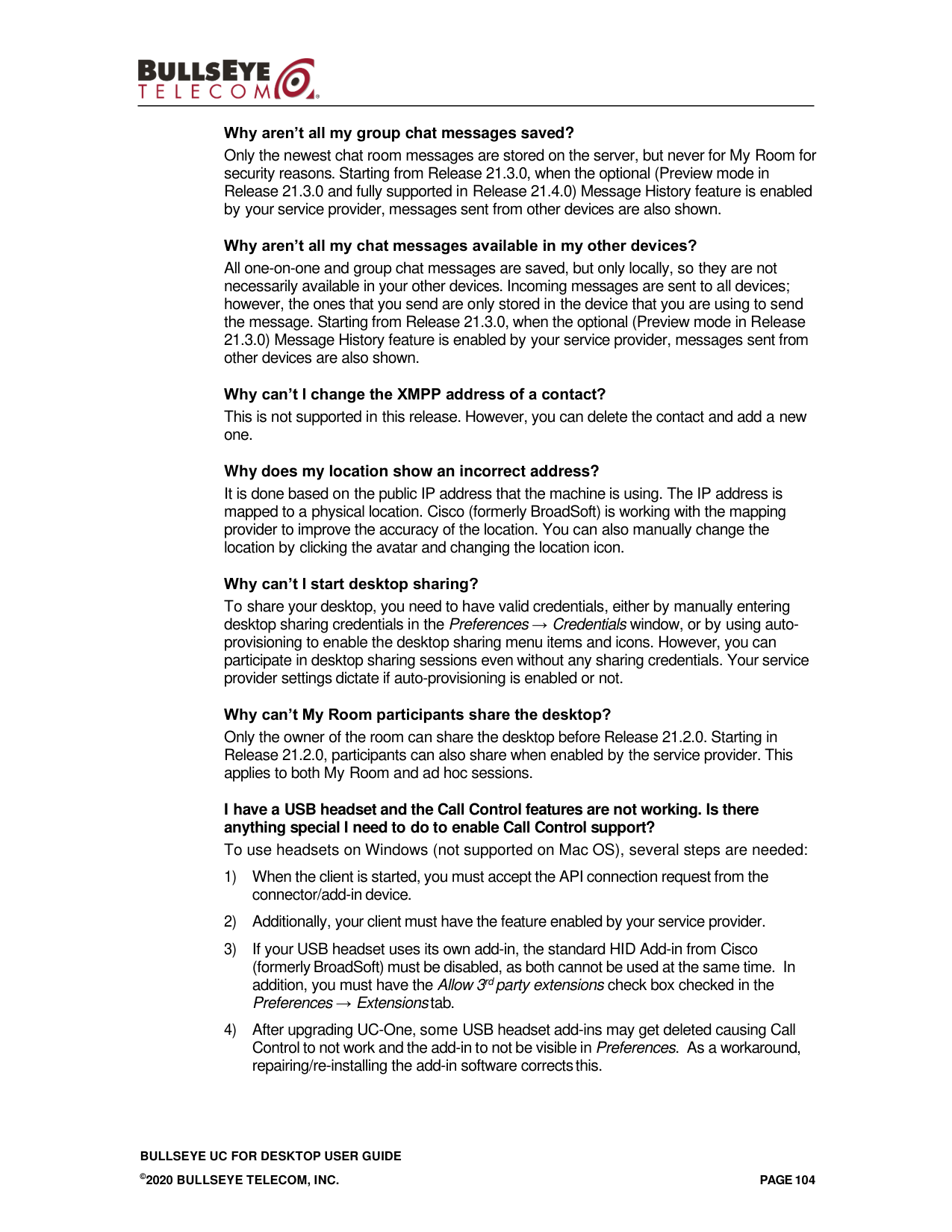
Figure 10 Microsoft Office Installation Example .............................................................................. 105
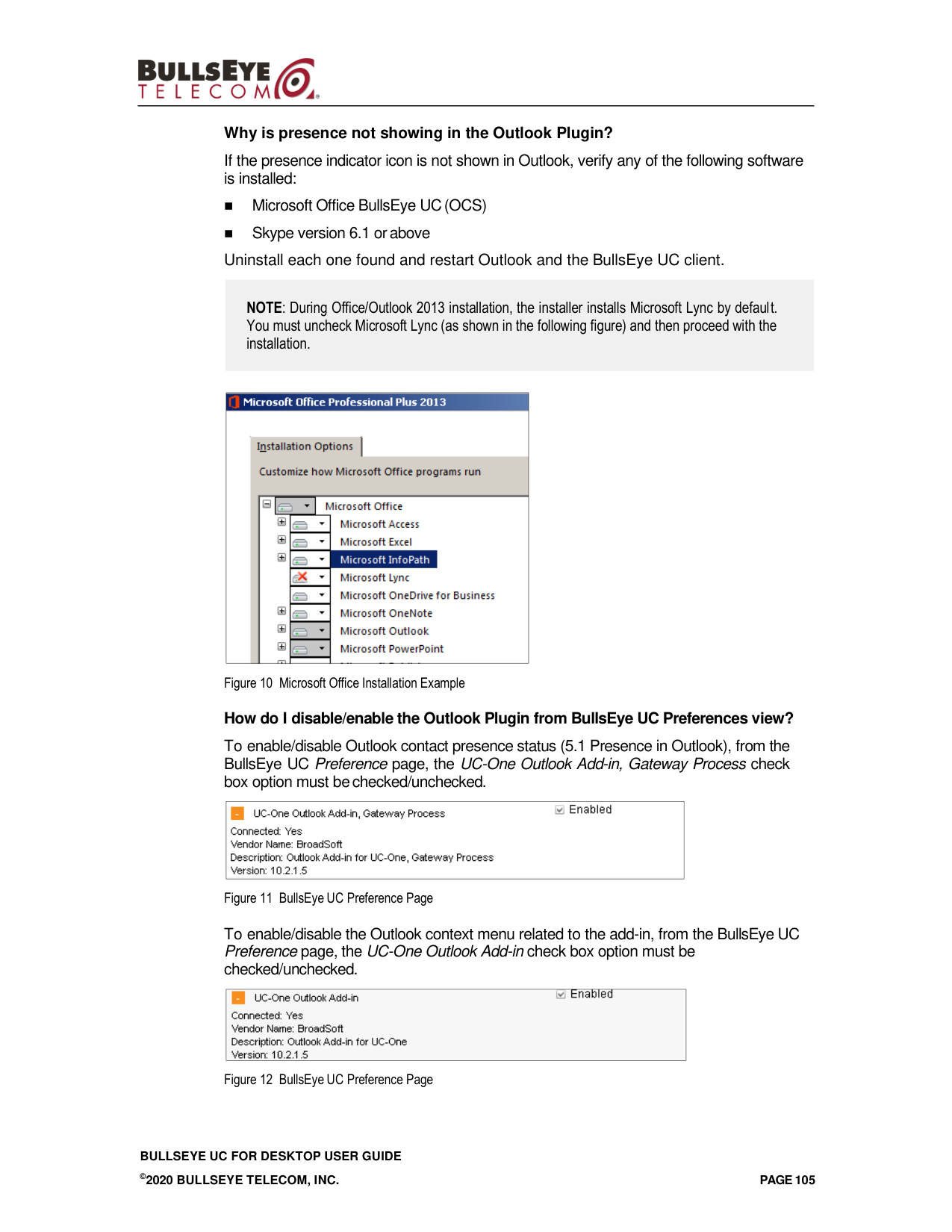
Figure 11 BullsEye UC Preference Page ........................................................................................ 105
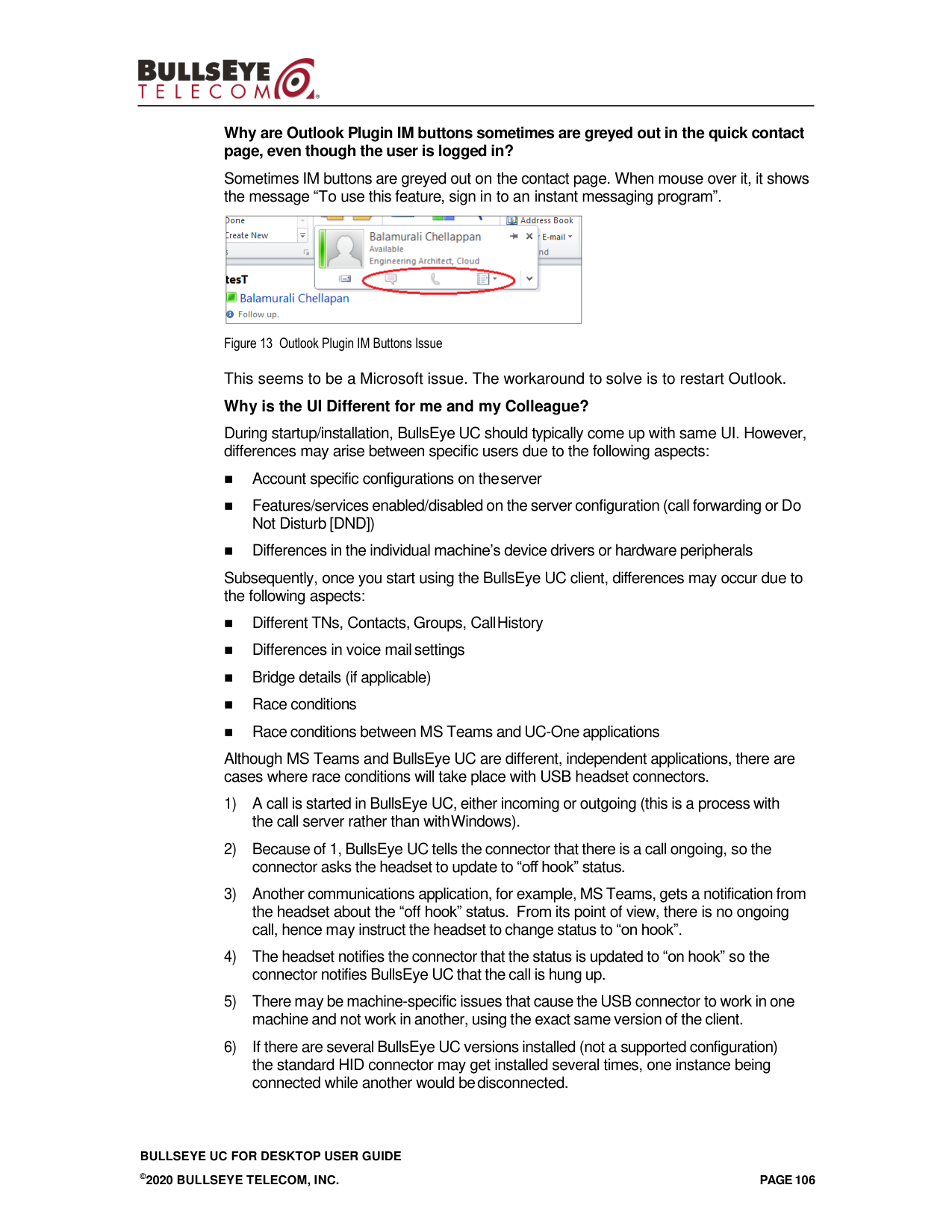
Figure 12 BullsEye UC Preference Page ........................................................................................ 105
Figure 13 Outlook Plugin IM Buttons Issue ..................................................................................... 106
Figure 14 BullsEye UC Screen ....................................................................................................... 107
Figure 15 BullsEye UC Integrations ................................................................................................ 107
Figure 16 Copy Guest Join Link Menu Option ................................................................................ 112
Figure 17 Login Screen for Join Room............................................................................................ 112
Figure 18 Deep Link for Join Room................................................................................................. 112
Figure 19 My Room Icon – Guest Request Badge ......................................................................... 113
Figure 20 My Room – Desktop Share with Video ........................................................................... 113
Figure 21 My Room – Desktop Share with Video Call .................................................................... 114
Figure 22 Making an On-Net Call .................................................................................................... 116
Figure 23 Ongoing On-Net Call....................................................................................................... 116
Figure 24 Making an Off-Net Call .................................................................................................... 117
Figure 25 Ongoing Off-Net Call ....................................................................................................... 117
Figure 26 Preferences Window ....................................................................................................... 118
Figure 27 Sound Window – Playback Tab ...................................................................................... 119
Figure 28 Sound Window – Playback Tab – Set Default ................................................................ 120
Figure 29 Sound Window – Playback Tab – Default Set ................................................................ 121
Figure 30 Sound Window – Recording Tab .................................................................................... 122
Figure 31 Sound Window – Recording Tab – Set Default ............................................................... 123
Figure 32 Sound Window – Recording Tab – Default Set ............................................................... 124
BULLSEYE UC FOR DESKTOP USER GUIDE
©2020 BULLSEYE TELECOM, INC.
PAGE 14
1
Summary of Changes
This section describes the changes to this document for each release and document
version.
1.1
Changes for Release 22
Changes for Release 22.9.4, Document Version 3
This version of the document includes the following changes:
◼
Added notes to troubleshooting section.
◼
Removed Windows 7 support.
◼
Added a note on team telephony window sorting order.
◼
Added a note on Search and Dial field.
Changes for Release 22.9.4, Document Version 2
This version of the document includes the following changes:
◼
Added clarifications to Outlook Plugin section for new User Experience (UX).
◼
Removed Outlook 2010 notes.
Changes for Release 22.9.4, Document Version 1
This version of the document includes the following changes:
◼
Removed deprecated keyboard shortcuts for highlight to call.
◼
Added Save Login check box.
◼
Added back Search and Dial field.
Changes for Release 22.9.2, Document Version 1
This version of the document includes the following changes:
◼
Added a note about multiple headsets.
◼
Added a note about Priority Alert to the call answer section.
◼
Added a note about S4B installation admin rights.
◼
Updated system requirements.
◼
Added a note about voice mail badge counts.
◼
Updated keyboard shortcuts.
◼
Updated images as per revised UX.
◼
Added the following new features:
−
Webex Teams UX
−
Internal browser for Single Sign-On (SSO) authentication
−
New Windows installer (WiX)
−
My Room cross-launch to Webex
−
Outlook 2019 support
BULLSEYE UC FOR DESKTOP USER GUIDE
©2020 BULLSEYE TELECOM, INC.
PAGE 15
This version of the document includes the following changes:
◼
Added an additional note about SSO and login check box.
◼
Updated Hub section for O365.
◼
Added a note about spell checking in US English.
◼
Added the following new features:
−
Brandable Uniform Resource Locator (URL) schemes
−
Silent alert setting configurability
−
Alert me first setting
−
Service name search results configurability
Changes for Release 22.6.1, Document Version 1
This version of the document includes the following changes:
◼
Added an additional note about automatic upgrade limitations.
◼
Added a note about OS locale for the Personal Assistant.
◼
Added a note about Call Waiting in ringing state.
◼
Added a note about My Room calls not supporting transfer or conference.
◼
Added a note about message storage on the server side in the history.
Changes for Release 22.6.0, Document Version 1
This version of the document includes the following changes:
◼
Added a note about toggling audio devices in calls.
◼
Added a note about clicking installer End-User License Agreement (EULA) two times.
◼
Added a note about managing (transfer and conference) My Room calls.
◼
Added note for Personal Assistant contact hover.
◼
Added note for Outlook Add-in duplicate contacts.
◼
Updated system requirements to add Mojave.
◼
Added the following new features:
−
Skype for Business (S4B) window minimizing
−
Urgent/confidential flag in Visual Voice Mail
Changes for Release 22.5.3, Document Version 1
This version of the document includes the following changes:
◼
Added a note about canceling My Room invitations sent by the user.
◼
Added a note about automatic upgrade.
◼
Added a note about USB headset add-ins.
◼
Added a note about location rules.
BULLSEYE UC FOR DESKTOP USER GUIDE
©2020 BULLSEYE TELECOM, INC.
PAGE 16
Changes for Release 22.5.0, Document Version 1
This version of the document includes the following changes:
◼
Added the following new features:
−
Alert info
−
Forced Device Management (DM) file update
−
Personal Assistant
−
Security Assertion Markup Language (SAML) SSO context
−
Call and chat history sync
−
No sub-support
−
Portuguese as an official language
−
Up to four web buttons
−
Windows Personal Identity Verification (PIV) and non-PIV support
−
Automatic presence
Changes for Release 22.4.0, Document Version 2
This version of the document includes the following changes:
◼
Added a note to the USB headset section about vendor-specific add-ins.
◼
Added a note about USB headsets to S4B section.
Changes for Release 22.4.0, Document Version 1
This version of the document includes the following changes:
◼
Added the following new features:
−
SSO enhancement
−
Login URL list (region)
−
Connect group messaging enhancements
−
Screen share zooming
−
Privacy policy link
−
Callto and Tel URL schemes
−
IPv6 support (preview)
−
Directory search result enhancement
−
Suppressing message notifications when sharing
◼
Added a further note about moderated My Room.
◼
Added examples about multi-part search enhancements.
◼
Updated system requirements to remove OS X 10.10.
◼
Added a note about DM URL clearing password.
◼
Added a note about EmojiOne library usage to EULA.
◼
Updated images.
◼
Updated FAQ.
BULLSEYE UC FOR DESKTOP USER GUIDE
©2020 BULLSEYE TELECOM, INC.
PAGE 17
◼
Updated Hub section.
◼
Updated guest client appendix.
Changes for Release 22.3.2, Document Version 1
This version of the document includes the following changes:
◼
Added a note about S4B submenu and minimizing behavior.
◼
Added more information on moderated My Room.
◼
Made editorial updates.
Changes for Release 22.3.0, Document Version 1
This version of the document includes the following changes:
◼
Added a note about uninstall string translations in Windows Start menu.
◼
Removed Outlook 2007 from supported list.
◼
Updated system requirements.
◼
Added a note about Emojis to Appendix A: Keyboard Shortcuts for Desktop and
section 6.1 Chat View.
◼
Added new features:
−
Single installer
−
S4B and Outlook Add-in co-existence
−
IM retention
−
Automatic upgrade
−
Secure call icon
−
Moderated My Room
Changes for Release 22.2.1, Document Version 1
This version of the document includes the following change:
◼
Added a note about the external web collaboration browser window used in older
environments.
Changes for Release 22.2.0, Document Version 1
This version of the document includes the following changes:
◼
Updated section 30 Preferences.
◼
Added a note about Outlook versions.
◼
Added a note about active speaker in My Room.
◼
Added the following new features:
−
Google analytics
−
Call transfer dialog search
−
Spell checking
−
Full Emoji support
−
Call Pull button in Xtended Services Interface (Xsi) calls
BULLSEYE UC FOR DESKTOP USER GUIDE
©2020 BULLSEYE TELECOM, INC.
PAGE 18
−
Export My Room attendee list
−
Revised attendee list
−
Ability to toggle audio device between headset and PC speakers/microphone
−
Web tab view
Changes for Release 22.1.0, Document Version 1
This version of the document includes the following changes:
◼
Added a note about vendor-specific USB headset add-ins.
◼
Added the following new feature:
−
S4B menu enhancement
◼
Revised USB headset appendix.
Changes for Release 22.0.1, Document Version 1
This version of the document includes the following changes:
◼
Added a note about LDAP credentials.
◼
Added a note about installing with different app names.
Changes for Release 22.0.0, Document Version 1
This version of the document includes the following changes:
◼
Modified notes about group chat when group messaging is used in section 3.8 Make
Audio or Video Call and 6.3 Group Chat.
◼
Added a note about Outlook Add-in installation when Outlook is
upgraded/downgraded.
◼
Added the following new features:
−
Federal Information Processing Standard (FIPS) compliancy
−
PIV support
−
UC-One Hub for BullsEye UC Desktop
−
Hiding Communications window notifications and tones
−
CC-One integration
◼
Removed Chrome.
1.2
Changes for Release 21
Changes for Release 21.6.0, Document Version 2
This version of the document includes the following change:
◼
Modified note about presence blocking.
Changes for Release 21.6.0, Document Version 1
This version of the document includes the following changes:
◼
Added the following new features:
−
Accessibility compliance:
BULLSEYE UC FOR DESKTOP USER GUIDE
©2020 BULLSEYE TELECOM, INC.
PAGE 19
−
Dictation
−
Screen reader
−
Keyboard navigation
−
Enhanced call logs
−
Web pop
−
Search enhancements
−
Display name matching enhancements
−
User interface (UI) update
◼
Added text for OS X uninstallation.
◼
Added Chrome updates.
◼
Added Outlook Add-in section.
◼
Added a note about Virtual Desktop Infrastructure (VDI) environments not being
supported.
Changes for Release 21.5.2, Document Version 1
This version of the document includes the following changes:
◼
Modified system requirements to remove OS X 10.9.
◼
Added text about calling from phone.
◼
Updated active communication menu option text.
◼
Updated standard HID text.
◼
Added highlight text note.
Changes for Release 21.5.0, Document Version 1
This version of the document includes the following changes:
◼
Added default call type text.
◼
Added the following new features:
−
Xsi incoming call notification
−
Auto-answer
−
Search enhancements
−
Click-to-Call (highlight text)
−
Call Settings enhancements
−
Contact card enhancements
−
Group messaging
−
Integrated Outlook Add-in installer
Changes for Release 21.4.0, Document Version 1
This version of the document includes the following changes:
◼
Added the following new features:
−
S4B integration
BULLSEYE UC FOR DESKTOP USER GUIDE
©2020 BULLSEYE TELECOM, INC.
PAGE 20
−
N-way participant list for owner in non-Video Server (UVS) case
◼
Changed in Busy – In Meeting presence triggering.
◼
Added Appendix C: Skype for Business Integration.
◼
Added Appendix D: Configure USB Headsets.
◼
Updated section 38 Troubleshooting.
Changes for Release 21.3.3, Document Version 1
This version of the document includes the following changes:
◼
Added Remote control event package support.
◼
Added note about terminating Xsi Call Control.
◼
Added note about typing in group chat.
◼
Added share selector text.
◼
Added note on passwords.
◼
Added note on Active Communications.
◼
Added note on Video Server (UVS) ad hoc session.
◼
Added headset text.
◼
Added note on installation.
Changes for Release 21.3.0, Document Version 1
This version of the document includes the following changes:
◼
Added OS X 10.11 support to system requirements and removed 10.8.
◼
Changed the application name to BullsEye UC and added the new application logo.
◼
Updated EULA text.
◼
Added UC-One Desktop for Chrome.
◼
Added S4B note on startup sequence.
◼
Modified keyboard shortcuts.
◼
Added the following new features:
−
Presence on demand
−
Message history and badge sync
−
Password change
−
Emoji support
−
Accessibility compliance – menus
−
Application sharing
−
Select screen to share
−
Suppress typing sound while in a call
Changes for Release 21.2.0, Document Version 2
This version of the document includes the following change:
◼
Added information about limits for active communication sessions.
BULLSEYE UC FOR DESKTOP USER GUIDE
©2020 BULLSEYE TELECOM, INC.
PAGE 21
Changes for Release 21.2.0, Document Version 1
This version of the document includes the following changes:
◼
Changed text for chat in presence table.
◼
Added section 35 Uninstallation.
◼
Changed share text to reflect the new implementation.
◼
Removed Vista and OS X 10.7 and added Windows 10.
◼
Added a note on Window management.
◼
Updated guest client system requirements.
◼
Updated headset list.
◼
Added the following new features:
−
Share passing
−
Presence rules and silent alerting
−
Password change
−
Visual voice mail (preview)
−
Call center login
−
SIP URI dialing
−
Skype for Business (S4B)
Changes for Release 21.1.0, Document Version 2
This version of the document includes the following changes:
◼
Changed text for My Room.
◼
Changed text for dial pad.
◼
Added a note about OS X ambient noise reduction.
◼
Changed text for audio devices.
◼
Changed text for multi-device chat.
◼
Changed test for contact profile edit.
◼
Removed Appendix B.
◼
Made editorial changes.
◼
Added Appendix G: Acronyms and Abbreviations.
Changes for Release 21.1.0, Document Version 1
This version of the document includes the following changes:
◼
Added the following new features:
−
Terminating Xsi Call Control
−
Web button
−
Extensible Messaging and Presence Protocol (XMPP) security enhancements
−
ECACS menu
−
UC-One Add-in for Microsoft Lync
BULLSEYE UC FOR DESKTOP USER GUIDE
©2020 BULLSEYE TELECOM, INC.
PAGE 22
−
Local Group chat history
◼
Added Appendix B: Guest Client Usage for guest client.
◼
Added guest client browser requirements.
◼
Updated audio devices list.
◼
Made editorial changes.
◼
Modified text about Plantronics Spokes installation in section 38 Troubleshooting.
◼
Added the Table of Figures section.
◼
Updated section 3.11 My Room and 9 My Room with a note on link limitations.
Changes for Release 21.0.0, Document Version 2
This version of the document includes the following changes:
◼
Added copyright text.
◼
Added note about contact list size.
◼
Added note about Feature Access Codes during calls.
◼
Added note about escape in full screen video.
Changes for Release 21.0.0, Document Version 1
This version of the document includes the following changes:
◼
Modified the text for preferences.
◼
Added text about new features: Team Telephony, Executive-Assistant, Guest Client,
search enhancements, ECACS, and display name for incoming calls.
◼
Made editorial changes.
◼
Updated images.
1.3
Changes for Release 20
Changes for Release 20.2.0, Document Version 2
This version of the document includes the following changes:
◼
Modified text for My Room Invitation.
◼
Made editorial changes.
Changes for Release 20.2.0, Document Version 1
This version of the document includes the following changes:
◼
Added text about new features: Meet-Me moderator controls and active
communication extra buttons.
◼
Added text to call recording.
◼
Modified voice mail text.
◼
Updated image.
◼
Updated text for preferences.
BULLSEYE UC FOR DESKTOP USER GUIDE
©2020 BULLSEYE TELECOM, INC.
PAGE 23
Changes for Release 20.1.1, Document Version 1
This version of the document includes the following changes:
◼
Added text about Plantronics Spokes installation to section 38 Troubleshooting.
◼
Modified section 37 System Requirements.
◼
Modified search text in section 10 Universal Search.
Changes for Release 20.1.0, Document Version 1
This version of the document includes the following changes:
◼
Added info about new features: echo service, forced logout, integrated call window,
configurable left pane order, silent dialing into Meet-Me conference, flexible contact
card configuration, and add-in enhancements.
◼
Added an appendix on USB devices.
◼
Added Outlook 2013 support.
Changes for Release 20.0.2, Document Version 2
This version of the document includes the following changes:
◼
Modified table in section 3 Get Started.
◼
Added more devices to the supported headsets list.
◼
Added a note to My Room section and to section 3.9 Share Your Application or
Desktop.
◼
Added a note to share section about the web link availability.
Changes for Release 20.0.2, Document Version 1
This version of the document includes the following changes:
◼
Modified icons in section 3 Get Started.
◼
Edited keyboard shortcut table in Appendix A: Keyboard Shortcuts for Desktop.
◼
Added text about headsets.
◼
Added BroadWorks Anywhere to supported toolbar services.
◼
Added note to automatic Busy – In Call presence for Xsi calls.
◼
Modified text for silencing incoming calls.
Changes for Release 20.0.1, Document Version 2
This version of the document includes the following change:
◼
Modified text in section 7.12 Call Park and Retrieve.
Changes for Release 20.0.1, Document Version 1
This version of the document includes the following changes:
◼
Modified text in section 12 Communications History.
◼
Modified text in section 3.10 Active Communications.
Changes for Release 20.0.0, Document Version 2
This version of the document includes the following change:
◼
Modified text in section 7.3 Answer Call.
BULLSEYE UC FOR DESKTOP USER GUIDE
©2020 BULLSEYE TELECOM, INC.
PAGE 24
Changes for Release 20.0.0, Document Version 1
This version of the document includes the following changes:
◼
Added new features: Security Classification, Attended Transfer, Call Pull, Call
Park/Retrieve, Chat Room Moderation, Call and Chat Recording, logging
enhancements, video enhancements, and emergency call enhancements.
◼
Updated images.
1.4
Changes for Release 10
Changes for Release 10.1.2, Document Version 1
This version of the document includes the following changes:
◼
Made minor modifications.
◼
Changed document-numbering scheme.
Changes for Release 10.1, Document Version 3
This version of the document includes the following changes:
◼
Added text for the login dialog.
◼
Added a list of keyboard shortcuts to Appendix A: Keyboard Shortcuts for Desktop.
Changes for Release 10.1, Document Version 2
This version of the document includes the following changes:
◼
Removed redundant text.
◼
Updated figures to reflect new icons.
Changes for Release 10.1, Document Version 1
This version of the document includes the following changes:
◼
Modified text regarding desktop sharing on dual screens and Xtended Services
Interface mid-call controls, Call Settings toolbar, new icons, and so on.
◼
Updated figures to reflect new “skin”.
Changes for Release 10.0.4, Document Version 1
This version of the document includes the following change:
◼
Modified section 37 System Requirements.
Changes for Release 10.0.3, Document Version 2
This version of the document includes the following change:
◼
Modified section 37 System Requirements.
Changes for Release 10.0.3, Document Version 1
This version of the document includes the following changes:
◼
Added section 3 Get Started.
◼
Added textual user guide of features.
◼
Updated hardware requirements to remove Mac OS 10.5.
BULLSEYE UC FOR DESKTOP USER GUIDE
©2020 BULLSEYE TELECOM, INC.
PAGE 25
Changes for Release 10.0.2, Document Version 1
This version of the document includes the following change:
◼
Added more FAQ entries on new features.
Changes for Release 10.0.1, Document Version 1
This version of the document includes the following change:
◼
Added more FAQ entries.
Changes for Release 10.0.0, Document Version 1
This is the first version of the document, introduced for Release 10.0.0.
BULLSEYE UC FOR DESKTOP USER GUIDE
©2020 BULLSEYE TELECOM, INC.
PAGE 26
2
About BullsEye UC for Desktop
BullsEye UC for Desktop is a native Windows or Mac OS client for Unified
Communications, providing the following communication features:
◼
Instant Messaging and Presence
◼
Voice Calling (VoIP)
◼
Voice Calling (Desk phone)
◼
Video Calling
◼
Desktop Sharing
◼
Cisco BroadWorks Call Settings
BULLSEYE UC FOR DESKTOP USER GUIDE
©2020 BULLSEYE TELECOM, INC.
PAGE 27
3
Get Started
This section contains the essential information for getting started with BullsEye UC. End
users must ensure they are using valid drivers for video (for example). Additionally, end
users must make sure to always use the latest OS version with latest security updates.
3.1
Installation
Log into MBA.
1) From the Help menu, select
Downloads.
2) Click the link for either the Microsoft
Windows or Apple OS Desktop
Application and follow the prompts
to install BullsEye UC Desktop.
3.2
Sign In
When you first launch the application, you are prompted to sign
in.
1) Enter the username and password you received via email.
2) Select whether you would like BullsEye UC to remember your
password.
3) Select whether you would like BullsEye UC to sign you in
automatically on subsequent launches.
NOTE: Make sure you have updated your default password and
are certain of the password before setting this option. If the
password entered is incorrect, the system will retry logging in until
it fails, and your account will be locked.
4) Click Sign In.
You can access Help and Options directly from the login window.
When SSO is enabled, the login flow is typically as follows:
If displayed, enter the login Uniform Resource Locator (URL) provided by the service
provider.
1) Click the correct Identity Provider (IdP) menu from the drop-down. In Release 22.4.0,
the default supported IdPs are Okta, Google G Suite, Enterprise hosted Active
Directory Federated Services, and Office 365. However, your service provider may
also have their own IdPs.
2) As a result, an internal or external web browser opens, a check box in the login view
can be used to choose between the two starting from Release 22.9.2. Provide the
SSO credentials in the web browser view and return to the BullsEye UC login view.
When logging in for the second time using SSO, your previously used IdP is
remembered automatically. With SSO, Remember Password and Sign In
Automatically check boxes are not visible. When using the Exit option, the password
does not have to be re-entered in SSO environments whereas with logout, the
password must be re-entered.
BULLSEYE UC FOR DESKTOP USER GUIDE
©2020 BULLSEYE TELECOM, INC.
PAGE 28
3) Select whether you would like BullsEye UC to sign you in automatically on
subsequent launches.
4) Click Sign In.
When login regions are enabled by your service provider, the login flow is typically as
follows:
1) Select your region from the drop-down menu.
2) Enter your Cisco BroadWorks username and password (in PIV mode, only a PIN is
needed).
3) Select whether you would like BullsEye UC to remember your password.
4) Select whether you would like BullsEye UC to sign you in automatically on
subsequent launches.
5) Click Sign In.
In Release 22.5.0 and later, depending on your service provider configuration, you may
also have to enter your email address or access code with username and password and
after that select the IdP.
You can also access Help, Preferences, and login URL change view directly from the
Login window.
The Login window offers the last used username, but the password shall be automatically
filled in only if you have checked the Save password check box. This check box is only
available in non-SSO deployments. In Release 22.9.4 and later, when your service
provider is utilizing long-lived tokens for login, the check box is called Save login to save
the token instead of the password. The purpose is to save you from re-typing the
password at login. If multiple people use the same machine, only the last password is
entered as a security measure. If you change the username in the Login window through
editing it, or using the drop-down list to pick another one, BullsEye UC will not fill in the
password; you are always expected to type it in. This also applies when re-selecting or re-
entering the last used username.
If the DM URL is changed, the password is not remembered as a security feature.
After logging in, a pop-up dialog may appear informing you about emergency calls, and
another about changing your location for emergency calls. You may also see a banner in
the Main window related to emergency calls. Depending on your service provider settings,
emergency calls may not be allowed. In this case, calling an emergency number displays
a pop-up dialog. A notification message in the Main window may also display. It is not a
supported configuration to run many Desktop clients at the same time with the same
account.
NOTE: If you choose automatic sign in, you are automatically signed in and taken to the Main
window upon subsequent BullsEye UC launches. Otherwise, you are presented with the Sign In
screen when launching the application. In the Main window, your default tab when signing in
depends on service provider configuration; otherwise, BullsEye UC remembers the tab you
were on at sign out and opens that same tab at sign in.
NOTE: It is possible to run several BullsEye UC instances at the same time, but headphone
connectors and Outlook integration may not work as expected.
BULLSEYE UC FOR DESKTOP USER GUIDE
©2020 BULLSEYE TELECOM, INC.
PAGE 29
3.3
Main Window
When you start BullsEye UC for the first time, your Contacts list is empty. Use the Search
and Dial field to find people and add them to your Contacts list. Contacts can also be
added manually by clicking the Add button. Note also, that depending on your service
provider settings, the order of the left pane icons can vary. The left pane Call Settings icon
and menus are visible depending on your service provider settings. The dial pad is also
integrated with the Main window history tab.
BullsEye UC uses tabs for new chat sessions. The Search field allows searching for
contacts. SIP URIs can be used in contact cards and must use the format user@domain
or sip:user@domain but cannot be used in the Search and Dial field. The table that
follows the images describes the key icons used in the Main window.
Figure 1 Tabbed Main Window
Icon
Usage
My Information – View and update your information, for example, your presence,
avatar, and location.
Contacts – View your contacts.
My Room – This is your permanent communication room. Participants can dial in to
your audio bridge.
Call History – View previous calls.
Chat History – View previous chats.
Dial Pad – Make calls (it is integrated with the Main window).
Web Button – Provides web content inside the Main window or browser.
BULLSEYE UC FOR DESKTOP USER GUIDE
©2020 BULLSEYE TELECOM, INC.
PAGE 30
Icon
Usage
UC-One Hub – Provides micro-apps and contextual intelligence to chat tabs.
Preferences – Use for quick access to preferences and Call Settings such as Call
Forwarding.
Chat – Start an instant message conversation with a selected contact.
Call – Make an IP audio call to a selected contact.
Call from Phone – Make a Click To Dial call from your desk phone (or secondary
device).
Video Call – Make a video call to a selected client (VoIP).
Share – Share either the whole screen or an individual application.
Menu – Open Communications options.
Add – Add a contact, group, or conference.
My Information
◼
Click the avatar to update your status or location and enter free text.
Presence
You can set your presence to one status indicated in the following table.
Icon
What it means
Automatic presence: This is the Available status where automated presence statuses
such as Busy–In Call override the Available status. Requires newer presence server
(aggregated presence) to show.
The green presence icon indicates that the user is online and ready for communication.
This status is used until you change it and automated presence statuses such as In Call
do not override.
The yellow presence icon indicates that the user is online but has been idle or away from
their computer for more than ten minutes.
The red presence icon indicates that the user is busy and does not want to be disturbed.
The grey presence icon indicates that the user is offline, and the only available contact
method is calling or leaving a chat message.
This icon indicates that the contact is busy on a call. This is an automated presence
status.
This icon indicates that the contact is busy in a meeting. This is an automated presence
status. The Busy – In Call status overrides the Busy – In Meeting status so this one is
only seen if there is a meeting but no call.
BULLSEYE UC FOR DESKTOP USER GUIDE
©2020 BULLSEYE TELECOM, INC.
PAGE 31
BullsEye UC can automatically update your presence to the following:
◼
Busy – In Call
◼
Busy – In Meeting (Windows only)
◼
Available (desk phone)
◼
Available (mobile)
◼
Away on mobile
◼
Offline and Busy – In Call
Location
Your location is automatically determined by your public IP address; however, you can
manually set the text to appear for your location and time zone using the location dialog
box.
3.4
Communications View
After starting communication with one or more contacts, a new tab is displayed for chat.
The call window is also integrated with the Main window chat tab by default. You can
separate a tab on to a different Communications window by using the pop-out button in
the Main window. From this view, you can perform the following actions:
◼
Escalate a chat to include audio, video, and desktop sharing
◼
End an audio or video call
◼
Open the dial pad
◼
Mute your microphone
◼
Adjust your speaker volume
◼
Place a call on hold
◼
Transfer a call
◼
Toggle between speaker and headset. You must specify different devices for a
speaker and a headset in Preferences to use this feature.
If you are using several monitors, BullsEye UC opens the Communications window as
well as notifications on the same monitor as the Main window.
Starting with Release 21.2.0, BullsEye UC limits the number of Active Communications to
spare resources. The limit is 20 Active Communications on Windows and on Mac OS. If
the maximum is reached, the Main window’s top section warns user with the following
message: “The maximum amount of communication windows has been reached. Please
close some to open new ones.”
If an incoming call is answered while this warning is shown, the client closes the chat
session that has the longest time since its last activity.
3.5
Start Chat
Start a chat tab using one of the following methods:
◼
Double-click a contact from the Contacts list or search results. This can be changed
to single click in preferences by changing to the single-click mode.
◼
Right-click one or more contacts from the Contacts list or search results and click the
Chat menu item.
BULLSEYE UC FOR DESKTOP USER GUIDE
©2020 BULLSEYE TELECOM, INC.
PAGE 32
◼
On the Chat History list, double-click a chat entry.
◼
In a Communications window, click the Chat button (this does not open a new tab).
◼
In the Main window, click the Add button and in the resulting tab click the Chat icon.
3.6
Send File
◼
In a one-to-one chat, transfer files by clicking the Send File button in the
Communications window or use the “drag and drop” method so that they are moved
to the Communications window.
3.7
Send Email
Right-click a contact from the Contacts list or search results and select the Email menu
option. The contact must have an email address defined for this feature.
3.8
Make Audio or Video Call
Make an audio or video call using one of the following methods:
◼
Right-click one or more contacts from the Contacts list or search results and select the
Call, Call from Phone, or Video menu item. The menu items depend on service
provider settings.
◼
Type the called number in the Search and Dial field and click the Call button that
appears underneath the field.
◼
Hover over the contact list avatar and select one of the audio or video call buttons.
◼
Open the dial pad, enter a phone number, and then click the Call, Call from Phone,
or Video button.
◼
On the Call History list, double-click a call entry.
◼
In the Communications window, click the Call, Call from Phone, or Video button.
◼
When viewing a contact’s profile, click the Call, Call from Phone, or Video button.
3.9
Share Your Application or Desktop
Share your desktop by following these steps:
1) Click the Start Sharing button in the top of the Communications window (if share
panel is not visible). The Share button is visible by default in My Room also. This
button is available when your service provider has enabled share on your account.
The share selector window opens.
2) Select the application to share or the entire screen of a particular display and click the
Start Sharing button.
In addition, participants can also share when enabled by their service provider.
NOTE: If dialing a phone number that requires additional dual-tone multi-frequency (DTMF)
tones (for example, a conference bridge), you can type the numbers on your keyboard while the
Communications tab has focus or open the dial pad in the Communications tab.
BULLSEYE UC FOR DESKTOP USER GUIDE
©2020 BULLSEYE TELECOM, INC.
PAGE 33
3.10 Active Communications
Active Communications appear at the top of the Contacts list in the Main window (native
Desktop only). This area provides an easy view to see the people with whom you are
communicating. By default, starting in Release 20.1.0, there is no separate call tab, but
call is shown in the Active Communications area in the Main window (where the call can
be fully controlled in the Desktop client). It reduces the number of Communications
windows; however, a separate call window can still be opened using an Active
Communications menu. The following is also available in this area:
◼
Double-click an active communication item to bring this Communications tab to focus
if the call window is separately shown. If the call window is integrated, you can use
the pop-out button to show it separately.
◼
End a call.
◼
Mute the microphone.
◼
Place a call on hold.
◼
Merge two calls or transfer by dragging and dropping calls onto each other.
◼
Transfer a call.
◼
Make conference calls.
◼
Park and retrieve calls.
◼
Set audio device to headset or speaker. For more information, see section
30 Preferences.
As a service provider option, more buttons can be added to the Active Communications
area:
◼
Conference
◼
Call Transfer
◼
Call Park
◼
Call Pull
When enabled, you can use these buttons for faster access to services.
You can right-click the “More” icon of an Active Communications item (icon with three
dots) for additional options while a left-click offers additional call management options for
this call as well as other options when available.
NOTE: To share your desktop, you must enter your web collaboration credentials in
Preferences → Credentials, unless your service provider has automated provisioning in use.
For more information, see section 30 Preferences. You can participate in desktop sharing
sessions by another user even without having your own sharing credentials.
BULLSEYE UC FOR DESKTOP USER GUIDE
©2020 BULLSEYE TELECOM, INC.
PAGE 34
3.11 My Room
My Room is an always available and permanent room you can use to chat with anyone
that joins.
If you assign a conference bridge to your profile in Preferences → Credentials, then in
your room, you and your attendees can click the Call or Video button to have BullsEye
UC automatically dial in to the conference and enter the appropriate entry codes. Note, if
your service provider has auto-provisioning enabled, then you cannot edit these details. If
your service provider has silent dialing enabled, then you cannot hear any DTMF tones
when dialing into My Room (the call is made automatically).
If a conference bridge is not specified, you cannot initiate a call in your room.
You can invite others to your room by dragging and dropping them from the Contacts list
into the My Room tab. You can also use the right-click menu on the My Room icon in the
top-right corner of the Main window or the My Room information area to copy an invitation
link for guest users (people without BullsEye UC). They can then click the link and join the
meeting through a web browser. Guest users must be separately accepted for each
session.
Contacts join your room by right-clicking your name on their contact list and selecting Join
Room or by an invitation you sent.
Email My Room Invitation menu results in working links for guest users and BullsEye
UC users if enabled by your service provider. BullsEye UC users are recommended to
use “Copy Guest Link” invitation links; however, the btbc link part links when enabled by
your service provider may not work in all applications as they were originally intended
for Outlook.
You can also export the attendee list using the related participant menu available via the
options icon (three dots).
In My Room calls, the owner can also see active speaker info with the Mute/Unmute icon.
My Room can also be moderated, for more information on moderation, see section
7.15 Moderator Controls.
My Room calls cannot be conferenced or transferred.
In Preferences → General tab, you can select to use an external Webex Meetings app for
your My Room sessions. In that case, there is no synchronization of events between
UC-One and Webex Meetings.
3.11.1 Select Audio Devices
If you have multiple audio devices available for your microphone or speakers, select the
preferred audio device before starting a call.
Windows
1) Click the BullsEye UC logo in the Main window title bar.
2) Select Preferences.
3) Select Audio.
4) Set a playback device (speakers).
5) Set a recording device (microphone).
6) Click OK.
BULLSEYE UC FOR DESKTOP USER GUIDE
©2020 BULLSEYE TELECOM, INC.
PAGE 35
Mac OS
1) Select BullsEye UC from the Main menu.
2) Select Preferences.
3) Select Audio.
4) Set a playback device (speakers).
5) Set a recording device (microphone).
6) Click OK.
If “Use default” is selected, then BullsEye UC uses the default device set in the
operating system preferences. For Windows, if “Default Communication Device” is
defined, it is selected over the “Default Device”. If you are using headsets, you can also
select a separate device than the headset for alerting incoming calls.
Note that on Mac OS, it is recommended to disable “Use ambient noise reduction” in
System Preferences to reduce echo. For more information on USB headset support and
settings details, see section 7.18 Headset Support.
BULLSEYE UC FOR DESKTOP USER GUIDE
©2020 BULLSEYE TELECOM, INC.
PAGE 36
4
Contacts
Contacts are the people with whom you communicate and, in most cases; you see their
presence and share your presence with them. There are three types of contacts:
◼
Contacts – Actual people with whom you communicate.
◼
Conferences – Audio or video conference bridges that you use to communicate with
others. Silent dialing into the bridge also applies to these contacts if enabled by your
service provider. Conference contacts are regular contacts and are added just like
regular contacts.
◼
Groups – Containers of contacts and/or conferences.
There is no hard-coded limit on the number of contacts. The more contacts are added the
more memory and processing is needed. The more contacts are added, the more difficult
it is to find people without searching. Live search can be used instead of a very large local
contact list while keeping memory and processing requirements to a minimum.
4.1
Add
When you sign in for the first time, there are no contacts on your contact list. Add a new
contact at any time by selecting the Add Contact item from the menu or choose the Add
button from the Main window (+ icon). In the resulting tab, you can select to add a contact,
group, or other items.
In the Add Contact tab, enter the contact’s information and then click Save. By default,
your presence information is always shared with a new contact if an Extensible Messaging
and Presence Protocol (XMPP) address is provided.
If you are accepting contacts via a buddy request, you may see the contact card after
accepting the buddy request, depending on the service provider settings. When receiving
a buddy request, there are two buttons for accepting and rejecting the request.
Dismissing the buddy request window only ignores the request for the duration of the login
session. It reappears after the next login.
However, you can always share your presence information later by selecting Subscribe on
the right-click menu for a specific contact in the contact / directory list. Note that the
contact must accept your subscription request for you to establish the presence
relationship successfully.
The newly added contact appears on your contact list.
Add a conference contact by clicking the same button you did for Add Contact. A
conference contact is a special contact used for conference bridges to avoid remembering
PIN codes and conference number, for example, recurring conferences. Just create a
contact for the weekly conference, add a conference bridge number and PIN, and join the
conference just by right-clicking the contact or choosing it and clicking the Call button.
Choose the Add Group menu option to add a new group to the contact list.
Contact card telephone number fields can also have SIP URIs (work, mobile, extension,
personal, and conference bridge). Release 21.5.0 added support for additional contact
card fields.
BULLSEYE UC FOR DESKTOP USER GUIDE
©2020 BULLSEYE TELECOM, INC.
PAGE 37
4.2
Edit
Edit a contact by selecting the contact first. After you select the contact, right-click
anywhere in the area of the selected contact and a menu of options appears which allows
you to either view or edit the contact profile. In View mode, click the Edit button to go to
Edit mode. This base principle is the same for normal contacts, conference contacts, and
groups. Note that depending on your service provider settings all or no contact card fields
may be editable. Depending on your service provider settings, you may also see a button
for synchronizing the contact card with the Telephony Directory or the synchronization
may take place automatically (native Desktop only). When the manual synchronization
button (cloud icon) is visible, there is no automated syncing of the contact card details with
server information. To synchronize the contact card data, click on the cloud icon.
◼
Unsubscribe removes the presence relationship between you and that contact. This
means you do not see the contact’s presence information and your contact does not
see yours. To re-establish the presence relationship, select Subscribe. An
unsubscribed contact remains on the contact list and is always shown without an icon.
Any contact that is not presence-enabled is shown in the same way.
◼
Delete contact removes the contact from your contact list.
◼
View Profile opens the Contact Information dialog box where you can add, edit, or
remove information. This works for both normal and conference contacts.
◼
For groups, choose the Edit menu option to rename a group.
Once done with all changes, click the Save button.
4.3
Filters
You can filter contacts in two ways:
◼
Use the filter field to search by contact name. The contact list is filtered in real time as
you type.
◼
Alternatively, use the filter menus available by right-clicking the Contacts icon in the
left pane to display only specific types of contacts such online contacts. You can also
sort contacts based on first or last name or choose whether to display the contact’s
avatar and availability status in the contact list.
Favorite filtering works slightly differently in Release 21.2.0 and later:
◼
When you make a contact your favorite, the favorite group shows on top of the
contact list and cannot be hidden.
◼
When you delete all your favorite contacts, the favorite group does not show
anywhere.
◼
When you have even one favorite marked, you see the group.
BULLSEYE UC FOR DESKTOP USER GUIDE
©2020 BULLSEYE TELECOM, INC.
PAGE 38
5
Presence
For each contact you have subscribed to, you can see their presence. Similarly, your
contacts can see your presence on their contact list.
Presence means that your friends can see whether you are available to communicate, for
example, “I’m busy” or “I’m available”.
Icon
What it means
Automatic presence: This is the Available status where automated presence statuses,
such as, In Call override the Available status. Requires newer presence server to show.
The green presence icon indicates that the user is online and ready for communication.
This status is used until you change it and automated presence statuses, such as, In Call
do not override.
The yellow presence icon indicates that the user is online but has been idle or away from
their computer for more than ten minutes.
The red presence icon indicates that the user is busy and does not want to be disturbed.
The grey presence icon indicates that the user is offline, and the only available contact
method is calling or chatting.
The question mark indicates that a subscription is pending, and the contact has not yet
approved sharing their presence.
This icon indicates that the contact is busy due to a call. This is an automated presence
status.
This icon indicates that the contact is busy due to a meeting. This is an automated
presence status. The Busy – In Call status overrides the Busy – In Meeting status so this
one is only seen if there is a meeting but no call.
This icon indicates that the contact is only available on mobile BullsEye UC.
This icon indicates that the contact is only available on a compatible desktop phone, and
not BullsEye UC.
This icon indicates that only the mobile client is online and in the away status.
This icon indicates that the user is in a call but is not logged in to XMPP (presence and
chat).
The avatar in this version is not completely in real time. The avatars are retrieved at login,
when the contact is added, and when the contact comes online. Double-click the avatar to
change your avatar. A File Explorer view opens.
If you see an error message at the top of the Main window “XMPP Unavailable”, it means
that the XMPP connectivity has been lost for chat and presence; however, you can still
make calls. You should contact your service provider.
Have the Outlook calendar automatically change your presence to Busy – In Meeting by
enabling this in the Preferences → General tab (native Desktop only).
The presence update is only triggered by appointments and meetings that are in the Show
me as busy state.
The XMPP address of a contact cannot be changed. Instead, you must delete the old
contact and create a new one.
BULLSEYE UC FOR DESKTOP USER GUIDE
©2020 BULLSEYE TELECOM, INC.
PAGE 39
Location in presence is done based on the IP address that the machine is using on
Windows. The IP address is mapped to a physical location. Cisco (formerly BroadSoft) is
working with the mapping provider to improve the accuracy of the location. On Mac OS,
the operating system location is utilized. You will be prompted to accept location usage.
Change the location manually by clicking the avatar (if presence controls are not already
expanded) and then the location icon to go to the manual location and change the view.
Snapshot of presence status is also available in search results and Communications
window for contacts who are not buddies. This presence status is not updated after the
search is done or after the communication session is set up.
5.1
Automated Presence
As a service provider option starting in Release 22.5.0, automated presence may be used.
When used, contact addition no longer uses a buddy request dialog instead all presence
subscriptions are automatically accepted by the network. This results in asymmetric
presence relationships where you see the presence of the contacts you have added but
they do not see your presence until they add you as a contact. This feature requires a
newer server version (aggregated presence) to show.
BULLSEYE UC FOR DESKTOP USER GUIDE
©2020 BULLSEYE TELECOM, INC.
PAGE 40
6
Chat
6.1
Chat View
When you initiate a chat, the Chat tab inside the Main window opens. Chatting with a
contact is possible only when you are both online. If your contact initiates a chat, you see
a pop-up notification in the bottom right-hand corner of the screen. If you close the Chat
tab and open it again, sent chat messages are shown in the tab as chat history. When
enabled by your service provider, a typing notification is also shown.
When the chat opens, you see the contact’s information at the top of the screen.
In the text field, you can add a smiley emoticon. Smiley emoticons can also be added by
manually entering the corresponding characters that represent that particular emoticon.
You can send text by pressing ENTER.
The full set of Emojis is also supported and they are rendered as ordinary emoticons when
received. Spell checking in US English is also supported and can be disabled in
Preferences. The implementation of Emojis is different between Releases 22.1 and 22.4
and later so sending Emojis between those may not fully work. For troubleshooting tips,
see section 38 Troubleshooting.
To enter a line break in the text field, you can use the following key commands:
◼
CTRL+ENTER (command+enter on Mac)
◼
SHIFT+ENTER
◼
ALT+ENTER
Use either one of the short commands, CTRL+C or CTRL+V, or right-click the selection
for a menu to copy or paste the text to or from the Chat tab.
It is also possible to chat with users in other domains. BroadCloud also supports Google
federation. Group chat is not supported in Google federation, so the group chat option
with these contacts is shown in grey.
All sent and received chats are stored locally in the chat history and an optional Message
History feature provides multi-device enhancements so that messages sent or received in
other own devices would also be shown.
Depending on your service provider settings, older chat messages may be automatically
deleted. In this case, the history links in the top area of the Chat view are automatically
adjusted.
6.2
File Transfer
File transfer functionality is only accessible through the Chat tab.
1) To open the File Selection dialog box, click the Send File button located to the side of
the text field.
2) From the dialog, select the file to be sent, and then click Open. You can also drag
and drop a file into the Chat tab.
3) Once the file offer is issued and during its transfer, you can cancel the transfer (at any
time) by clicking Cancel.
4) Accept an incoming file transfer by clicking the Accept button.
5) Reject the file transfer offer by clicking the Decline button.
BULLSEYE UC FOR DESKTOP USER GUIDE
©2020 BULLSEYE TELECOM, INC.
PAGE 41
After the file transfer has completed, the received files can be opened or viewed in the file
manager by using the File received, click to open, and Show in folder links.
In error situations, partially received files are not deleted automatically.
6.3
Group Chat
Start a group chat by “multi-selecting” and right-clicking the Main window contact list or by
expanding a 1-1 chat into a group chat using drag and drop or by having a multiparty call.
More people can be added later to the chat by drag and drop. Only the owner can add
more participants. However, these options depend on your service provider settings.
Depending on your service provider settings, the right-click menu items may differ. Newer
group chat deployments only have the My Room right-click menu item available for calls.
A group chat works the same way as a one-to-one chat in a tabbed view. All messages
from anyone are sent to everyone else. All contacts need to be online to be able to
participate in a group chat. You cannot invite an offline contact or a contact that is not on a
device that supports group chat. This does not affect the group chat in any way.
A group chat history is saved both in My Room and in ad hoc chat rooms and is available
to view later in the Messages tab of the Main window.
In the text field, the contacts’ names appear in different colors to easily distinguish
between who is writing.
Only the newest chat room messages are stored on the server. One-to-one chat
messages are only saved locally. When the optional Message History feature is enabled
by your service provider, messages sent from your other devices are also shown.
Deleting a chat room is not supported.
Chat rooms can be moderated by the owner. Use the right-click menu options to remove
a participant from your chat room. If needed, the removed participant can join later. The
removal also applies to desktop share sessions.
Typing notifications are not supported in group chats.
Release 21.5.0 added support for receiving group messages sent from UC-One Connect
while Release 22.4.0 added support for also initiating Connect group messaging sessions.
New Connect group message threads are created using the “New” button (+ icon in the
Main window) and in the opened view selecting chat discussion participants and then
sending at least one message to the selected participants. Alternatively, you can multi-
select contacts and start a Connect group messaging session in that way.
6.4
Chat Recording
Chats can also be recorded as a service provider option (native Desktop only). In this
case, the client shows a recording indicator. Note that there are no end-user controls for
chat recording.
BULLSEYE UC FOR DESKTOP USER GUIDE
©2020 BULLSEYE TELECOM, INC.
PAGE 42
7
Audio and Video Calls
The following table describes additional Communications window icons and explains what
you can do with them, for voice and video calls.
Icon
What you can do
Add or remove video from the call.
Mute your microphone by clicking the mute icon.
Put the call on hold. Note that if you hold the call, the other party cannot “unhold”. This
freezes a video call to the last frame of the video feed. In both voice and video calls, this is
communicated to all parties by a notification appearing in the middle of the screen.
Use this icon to access the Call Options menu. In the Call Options menu, you can find
different actions to use for a call depending on your settings and your service provider.
In the Options menu, there are the following options:
◼
Transfer a call to a third party.
◼
Put the call on hold. Note that if you hold the call, the other party cannot “unhold”.
This freezes a video call to the last frame of the video feed. In both voice and video
calls, this is communicated to all parties by a notification appearing in the middle of the
screen.
◼
Adjust the volume bar to adjust the volume. Dragging it all the way to the left mutes
your speakers.
◼
Enter additional digits using the dial pad at any time during the call (for example, to
insert a conference number). The dial pad is not movable.
◼
Toggle between the audio headset and speakers. You must specify a different device
for a headset and a speaker in Preferences to be able to use this feature.
◼
Add participants to the call.
As an alternative, in general, available Feature Access Codes (FACs) for call
management work during calls, for instance *55 for direct transfer to voice mail, but the
ongoing call must be put on hold and a new call must be made to the FAC number. Using
DTMF for the same purpose does not work.
When establishing a call to a contact, you can choose several ways to call. Right-click the
contact you want to call and select the Call menu item. You can choose the number to
call from a right-click menu. There can be several phone numbers available in the menu.
The work phone is the default and top-most number is followed by mobile and other
numbers. This also applies to the transfer and conference windows. However, in certain
cases, the transfer/conference default number can differ from other call options in other
menus.
The default call type can also be selected using accessibility menus (Calls → Dialing
service). This controls the default call type when using call buttons.
BULLSEYE UC FOR DESKTOP USER GUIDE
©2020 BULLSEYE TELECOM, INC.
PAGE 43
Dial a number in the combined Search and Dial field to make a call (native Desktop only)
in Release 22.9.4 and later and click the Call button underneath. SIP URIs are not
supported. Once you type your numbers, BullsEye UC searches for contacts on both the
local contact list and the enterprise directory.
You can also call circuit-switched network numbers such as Global System for Mobile
Communications (GSM); however, this depends on the service provider network you are
using; there is no technical limitation.
Choose your video size from the Preferences and the Video tab. Your selection is used
by default for future video calls. The available sizes are automatically presented based on
your camera.
You cannot have two simultaneous calls with the same person.
BullsEye UC does not add video to an audio call without end-user consent. This also
applies to blind video call transfer cases where audio-only music on hold is used; this may
result in the transferred call being reduced to audio.
You can also see a secure call icon when an encrypted call is taking place.
7.1
Call From Computer
Select a contact from your contact list to start communication and click the desired
communication button. To communicate with someone who is not on your contact list,
type a phone number in the Dial pad view.
7.2
Call From Phone
The second option to communicate in the row of communication buttons is the Call from
Phone. When you click this button, the desk phone instantly starts ringing and the call is
established from your desk phone. This depends on your service provider configuration
as other devices may also ring.
When your service provider is configured to also initiate a call from computer (SIP call) to
the same machine that initiated a call from phone, that incoming (SIP) call will be accepted
and will alert if it does not have the same identity as the call from phone.
For remote calls initiated using BullsEye UC, you can also have mid-call controls such as
hold/resume, transfer, and add participant.
Automatic Busy – In Call presence also works with the Call from Phone feature.
Depending on your service provider settings, it is also possible to control calls initiated
without BullsEye UC in the Active Communications view. The same mid-call controls are
also available in this case. In case of an incoming call, the actual answering action must
happen with the other device.
NOTE: There is sleep prevention during calls.
BULLSEYE UC FOR DESKTOP USER GUIDE
©2020 BULLSEYE TELECOM, INC.
PAGE 44
7.3
Answer Call
When someone is calling you, you see a pop-up notification on your screen. You can
choose to answer, silence the incoming call, and then open a chat session with the caller,
reject the call, or silence the incoming call by closing the pop-up notification window. If you
silence the call, the ringtone is silenced but the caller does not see anything on their end.
You can answer or reject the call after silencing it only if you have chosen the chat option.
If you close the incoming call pop-up notification to silence an incoming call, then you do
not have an option to answer or reject it anymore. When choosing the chat option, chat is
only enabled after the call has been answered or rejected.
If you reject the call, it causes the line to sound busy at the caller’s end and they know that
you rejected the call.
When someone is calling you with a video, you see the same pop-up notification;
however, the options are answer with video, answer as voice only, silence and chat,
reject, or silence (by closing the pop-up window). If you decide to answer as voice only,
the call is voice only.
7.4
Priority Alert
The Priority Alert feature is also supported depending on your service provider
preferences. Priority alerting/distinctive ringing allows you to provision call criteria in a web
portal to provide a distinctive ring or Call Waiting alert tone when a call is received that
meets the criteria. The criteria may include information such as the calling line
identification, time of day, day of week, and so on.
7.5
Contact Name Lookup for Incoming Calls
BullsEye UC performs a local contact search for incoming calls. If the number matches
one of the contacts on the BullsEye UC contact list, the name is shown on the incoming
call screen along with the alert. Both the display name and phone number are shown
when available.
If there is no match to a local contact, BullsEye UC looks for a match in the Telephony
Directory and other available directories, and if a match is found, the available information
is shown for the incoming call. If there is no match in the Telephony Directory, the display
name is taken from the available information in the incoming call.
Whenever you retrieve your call logs/history, BullsEye UC does a lookup in the local
contacts and populates the name if a match is found.
7.6
Missed Call or Communication
When you have one or more missed calls or other types of communications, there is a
notification on the left-hand side of the navigation pane in the Main window. Clicking the
icon takes you to the missed communication in the Communications History view.
7.7
Full Screen in Video Call
Full screen mode can be activated by clicking the Full Screen button or by double-clicking
anywhere on a video.
Exiting full screen mode is done by pressing the Esc key (on both Windows and Mac OS)
or by double-clicking the window. Exiting full screen makes the video call go back to its
original state (even if there was resizing of the window previously before going full screen).
In a full-size window, you can see a similar Options menu at the top. It has the same
functionality as it does in the normal view. When you move the mouse, the top bar and
lower communication buttons appear on top of the video.
BULLSEYE UC FOR DESKTOP USER GUIDE
©2020 BULLSEYE TELECOM, INC.
PAGE 45
7.8
Multiparty Sessions
You can have many participants in a call, either in a My Room or in an ad hoc multiparty
call (native Desktop only). Add more participants by dragging and dropping them on to the
Communications tab or by selecting the Conference menu item via the Communications
tab menu button. By choosing the menu item, you can also add participants with just a
telephone number. Starting with Release 22.2.0, ad hoc multiparty calling is slightly
different in that each call party must be separately merged onto the call to be able to
terminate failing calls to, for example, voice mail.
In contrast to using My Room, which uses your permanent chat and collaboration rooms
and conference bridge, you can start ad hoc multiparty sessions by either selecting
multiple contacts on the contact list and starting a chat, by calling them, or by expanding a
one-to-one session into a multiparty session by dragging and dropping a contact into the
Communications window. In an ad hoc session, the room used is a temporary one that is
deleted once the session ends (that is, when the last participant leaves). Voice
conferencing does not use a bridge but instead uses the Cisco BroadWorks N-Way
Calling supplementary service in a sequential fashion. BullsEye UC dials out to all
participants and takes everyone off hold after the last attendee answers.
In newer deployments with the Video Server (UVS), the ad hoc room created for the
session has a limited lifetime and becomes inactive when idle for too long. In this case,
participants can rejoin the ad hoc session if they drop out for some reason. A
consequence of this is that, in ad hoc group calls, participants who are no longer in the call
are still visible in the participant list.
If the XMPP service is not available, then ad hoc multiparty calls are not available.
7.9
Call Waiting
You can have one active call at any one time if you receive a new incoming call and
accept it. The existing call is put on hold and you can change between these two calls by
using the Hold and Unhold buttons.
If Call Waiting is in the ringing state then new incoming calls are rejected.
7.10 Call Transfer
Blind call transfer is available in the Communications window; choose the Transfer Call
menu item to transfer the call to someone else (native Desktop only). Attended call
transfer is also available in the same window, first call someone to check if the called party
can take the incoming call and then transfer the incoming call to the desired called party.
You can also search for the transferred-to party.
7.11 Message Waiting Indication and Visual Voice Mail
Depending on your service provider settings, you can have either Visual Voice Mail
(preview feature for video) or Message Waiting Indication (MWI) view in your client.
The MWI service allows you to receive a notification for a waiting voice mail or video mail.
By clicking on the message icon in the upper part of the Main window, BullsEye UC calls
the predefined mailbox number to allow you to listen to the voice mail or view the video
mail. With this view, you only have two history tabs: one for calls and another for chat.
It is also possible to call voice mail from the dialer by long pressing the “1” icon in the
dialer.
BULLSEYE UC FOR DESKTOP USER GUIDE
©2020 BULLSEYE TELECOM, INC.
PAGE 46
When Visual Voice Mail is enabled, a third tab is available, showing visual voice mails.
Click on individual mails to listen to them. Video mail is supported as a preview feature if
enabled by your service provider. The current design is that listening to the Visual Voice
Mail or marking it as read decreases the unread messages badge while just doing a single
click does not. Visual voice mail view also indicates if the message is urgent or
confidential.
Starting with Release 22.9.2, refreshing the voice mail view is also done when opening the
voice mail view. This is in addition to the currently supported usage of the voice mail
refresh at login and 24 hours after the last usage of the API if you are still logged in.
Missed calls are indicated by an icon in the Main window. Missed video and audio calls
are indicated with a different icon. Note that the MWI icon is in the same place when it
indicates a new voice mail.
Visual voice mail is also supported when enabled by your service provider. You can see
all voice mails in a list and play them inside the Main window.
The following settings are needed on CommPilot portal to have Visual Voice Mail:
◼
Voice messaging enabled
◼
“When message arrives, use unified messaging” option enabled
◼
“Use Phone Message Waiting Indicator” option enabled
Auto-deleted voice mails are cleaned once a day.
The voice mail counts in voice portal and UC-One are slightly different. Voice portal
messages can be either “New” or “Saved” whereas UC-One messages are either “New”
or “Viewed”. “Saved” in voice portal is the same state as “Viewed” in UC-One. When a
message is clicked in UC-One, it is automatically set to “Viewed” status, which is different
in the voice portal where messages can be skipped via DTMF to keep them in the “New”
status.
7.12 Call Park and Retrieve
Call Park is particularly suited for shared environments where one person can answer the
call, park it, do something else for a while and continue the call from another device or let
somebody else continue the call (supported on native Desktop only).
Transfer an ongoing VoIP call to a Call Park server and then retrieve it when needed.
An ongoing call can be parked against your own number or another number (an
extension). Call Retrieval works in the same way, the parked call can be retrieved from
your own number (an extension) or another number (an extension) to provide flexibility for
who is picking up the parked call.
A parked call is visible on your desktop in the Active Communications area so that you can
easily retrieve it, but only for the duration of the Cisco BroadWorks Call Park
announcement. After the announcement is over, the parked call disappears from the
Active Communications area (since the triggering call is disconnected). After the call
disappears from the Active Communications area, you must remember the extension to
which the call has been parked to retrieve it using the Main window menu (or feature
access code), unless the call was parked to the one’s “own” extension. If the call is not
retrieved after a certain time, then the server calls the parking user.
BULLSEYE UC FOR DESKTOP USER GUIDE
©2020 BULLSEYE TELECOM, INC.
PAGE 47
7.13 Call Pull
Call Pull allows you to pull an ongoing call from one of your devices to another one where
the Call Pull feature is used (native Desktop only). Call Pull can also be used with FACs,
in this case, *11. User interface support has been added to the Desktop so that an end
user does not have to remember FACs. Release 22.2.0 added support for the Call Pull
button for Xsi calls as well.
7.14 Call Recording Controls
You can use call recording controls in this release (native Desktop only). Depending on
your service provider’s configuration, call recording can be initiated when a call starts or
dynamically during a call (and start, stop, pause controls may be available). Additionally,
there is an audio indication that a call recording is ongoing as well as a visual indication.
FACs can also be used to control call recording when enabled in the configuration.
Recorded calls are accessed outside of BullsEye UC; that is, you cannot view them using
the client.
Depending on your service settings, call recording behavior is one of the following (this
cannot be controlled in the client but in the self-provisioning portal):
◼
Always – recording indication (icon) in the Communications window as well as the
Active Communications UI.
◼
Always with pause/resume – recording indication (icon) in the Communications
window as well as in the Active Communications UI (only pause/resume menus
available).
◼
On demand – recording indication (icon) in the Communications window as well as
the Active Communications UI (no stop menu available, only start and pause/resume).
After a call is established, call recording starts on the server. If you press the Start
Recording button during the call, the call recording is stored, and the server keeps
the recording of the whole call regardless of when the recording was started (except
for pauses). Otherwise, if you do not initiate start recording, the call recording is
deleted from the server.
◼
On demand with user-initiated start – recording indication (icon) in the
Communications window as well as the Active Communications UI (menu options
available for start, stop, and pause). Call recording can be initiated at any time and
several times during a call. There are separate call recordings for each call recording
startup.
◼
Never – no indicators or menu options present.
Pause/resume audio indication depends on your service provider settings. It is
recommended to log back in after changing the call recording mode in the self-
provisioning portal.
7.15 Moderator Controls
You can control the functionality available to participants if you are the owner of the
session in My Room. You can do the following:
◼
Dismiss one or more participants. This ends all sessions (group chat, audio, video,
and share) when the participant is using BullsEye UC for Desktop.
◼
Mute one or more participants.
◼
Lock or unlock the room (when locked, no additional participants can join).
◼
See active talker indication (room owner only).
BULLSEYE UC FOR DESKTOP USER GUIDE
©2020 BULLSEYE TELECOM, INC.
PAGE 48
◼
See full audio participant list.
◼
Choose who can join without separate authorization (moderated My Room):
−
Require only guests to request access
−
Require everyone to request access
−
Allow everyone to join automatically
To invoke the features, you can use the right-click menus, or you can click on the
moderator control icons of a participant. Note that most features are not available via
icons. To dismiss or mute all participants or lock the room, use the right-click menus
available for your own icon at the top of the participant list.
If you are not the owner, you can only see the XMPP (chat) participant list or the full
participant list along with mobile participants (depending on your service provider settings).
7.16 Forced Logout
Depending on your service provider settings, you may see a pop-up saying that you have
been logged out due to another instance of the client logging in (native Desktop only).
This feature allows Cisco BroadWorks to track similar online client instances and only
allow one of them to be online at the same time. When Cisco BroadWorks notifies the
client to log out, all connections are terminated, and client returns to the login window.
7.17 Echo (Test) Service
Use this Main window menu option to make a test call to verify voice and video quality.
The echo service asks you to record a message and plays that message back
immediately before hanging up. The echo service may be available in different languages
depending on your service provider settings.
7.18 Headset Support
You can control incoming and ongoing calls from a compatible headset. The feature set
supported is answer/hang up as well as mute/unmute. Volume control operations are not
reflected in the BullsEye UC UI. The following is a list of tested example devices,
although other devices should also work:
◼
Plantronics Voyager Edge UC
◼
Plantronics Savi 700 series
◼
Plantronics Blackwire C3xx, C4xx, C5xx, and C7xx
◼
Plantronics Calisto 620
◼
Plantronics Voyager Legend UC
◼
Logitech H570e Mono
◼
Logitech BCC950
◼
Logitech Conference Cam Connect
◼ Jabra Biz 2300/2400
◼
Jabra Speak 510
◼
Jabra Pro 930 (wireless)
◼
Sennheiser SC 230/260
◼
Sennheiser SP 20
BULLSEYE UC FOR DESKTOP USER GUIDE
©2020 BULLSEYE TELECOM, INC.
PAGE 49
◼
Sennheiser MB Pro1 UC
For a complete list of tested devices, see the Partner Equipment Interoperability Summary
available on Xchange:
https://xchange.broadsoft.com/node/464941
Headsets typically use an add-in of some kind to communicate with the rest of the client
while calls are made. Currently, installed add-ins are visible from the Preferences Add-ins
tab.
In addition to the standard HID Add-in developed by Cisco (formerly BroadSoft), headset
vendors can develop their own add-ins that can replace the Cisco (formerly BroadSoft)
Standard HID Add-in for all devices. Some of these add-ins (for example, Jabra or
Sennheiser) cannot be used at the same time with the standard HID Add-in so either the
Cisco (formerly BroadSoft) Standard HID Add-in or the vendor-specific add-in must be
disabled via Preferences in the BullsEye UC client if one of the two is not automatically
disconnected. Add-in installers should copy the required add-in DLLs into the UC-One
add-in folder, so they become visible in Preferences.
These vendor-specific add-ins are typically installed during new headset installation;
however, the Cisco (formerly BroadSoft) Standard HID Add-in should remain in the
preferences list. If for some reason it has disappeared, adding the respective .dll file back
to the add-in folder should make it visible again in the Preferences. If later you want to
change to another headset, the vendor-specific add-in could be disabled from Preferences
to again use the standard HID or some other new add-in by another headset provider.
Re-login is necessary to take the new add-in into use.
Some USB headsets may have additional functionality offered by the vendor-specific add-
in such as answering the call directly when taking the USB headset off dock. See the
USB headset documentation for details of such functionality.
If you are using many different headsets, the Cisco (formerly BroadSoft) Standard HID
Add-in offers a default add-in that can always be used.
If you want to use several devices, consider the following rules for audio device auto-
selection:
1) BullsEye UC has a list of five last selected audio devices per each audio device
selection control in BullsEye UC Preferences. Each audio device can exist in a list
once at most, that is, if a device becomes selected again before four other devices
have been selected, a duplicate item will not be created for the device in the list, but
the existing item will be moved to the beginning of the list. The order of items in the
list is significant in the sense that it defines the order in which other devices become
selected when a device is disconnected. In a laptop for instance, the native
microphone and speaker are one applicable device for the list of five devices. A
device can only end up to the list of five devices above during disconnection.
2) The “Use default” item is never put on the list as it will serve as a fallback if none of the
five devices on the list are available. The end user has a chance to specify the default
device and the default communications device.
3) When a device is reconnected, it becomes automatically selected only if it was
selected when it was disconnected. Disconnecting devices that are currently not
selected does not have any special behavior. Information on devices disconnected
while selected is not persisted in the database, that is, this behavior does not work
over different user sessions.
BULLSEYE UC FOR DESKTOP USER GUIDE
©2020 BULLSEYE TELECOM, INC.
PAGE 50
In a case with two devices involved (for example, a headset and the native
speaker/microphone) and end users sometimes selects both, the ability to automatically
fluctuate between built-in devices and third-party headset when plugging it in should be
obtainable by using the OS default device selection for the in-built devices and then
plugging in the headset.
7.19 Team Telephony
Team Telephony is comprised of a Team Telephony window showing the predefined
team members and their related call states (native Desktop only). For a ringing call, the
only action is to pick it up.
Each Team Telephony member can have four call states: Available, Busy – In Call,
Ringing, and Offline. The status for a Team Telephony member is shown in the Team
Telephony window. When a line is ringing, you can see the caller ID in the respective
lines tooltip if configured by your service provider. All team members can see the full list of
team members in the Team Telephony window. A double-click on the team member
performs the default action towards the contact. You can drag and drop people from the
contact list to the Team Telephony window or vice versa to transfer or conference calls.
The corresponding server-side service must be provisioned and assigned by the service
provider for the client to work. Usual call management options are available once the call
has been answered.
The sorting order of the contacts in the Team Telephony window depends on your service
provider configuration. In general, it would follow the same sorting order you have in your
contact list.
7.20 Executive-Assistant
The Executive-Assistant service allows an assistant to operate on behalf of an executive
to screen calls, answer calls, and place calls as the “executive” (the caller ID is the one of
the executives) (native Desktop only). The provisioning of the executive and assistant
roles takes place on the server side and cannot be modified on the client.
One assistant can have many executives and it is possible to:
◼
Select the desired role when making a call using a pull-down menu in the Main
window.
◼
Answer an incoming call on behalf of an executive and then push the call to the
executive. The incoming call is presented as a call to the executive. In addition, all
the usual call management options are available.
◼
See that an incoming call is for the executive.
The caller ID format is dependent on your service provider settings and cannot be
changed on the client side.
7.21 Presence Rules and Silent Alerting
Starting with Release 21.2.0, you can combine call processing with presence statuses
(native Desktop only). For instance, the “Busy” status can be combined with Call
Forwarding so that when the “Busy” presence status is used, calls are forwarded. It does
not matter how the presence status is invoked, via automation or manually.
All presence statuses can have presence rules:
◼
Available
◼
Busy
BULLSEYE UC FOR DESKTOP USER GUIDE
©2020 BULLSEYE TELECOM, INC.
PAGE 51
◼
Away
◼
Offline
The following Cisco BroadWorks call processing services can be used:
◼
Silent alerting
◼
Call forwarding to number
◼
No rules
If presence rules are used, all your client devices should have this service enabled to
avoid side effects. Silent Alerting is supported whenever an incoming call has that feature
enabled. Silent alerting can only be enabled via presence rules in BullsEye UC, but
various settings can also be altered via web provisioning.
7.22 Personal Assistant
Starting with Release 22.5.0, when enabled by your service provider, Personal Assistant
allows you to use and configure additional predefined presence status to specify how long
the status is enabled, what is the call transfer number for incoming calls during that status,
and if ring splash is used.
Ring splash (Silent alert) plays a short audio tone on your desk phone when an incoming
call is transferred. Your presence status with its duration is also played out to the caller
when these additional presence statuses are used.
Supported new statuses are:
◼
Business Trip
◼
Gone for the Day
◼
Training
◼
Lunch
◼
Meeting
◼
Temporarily out
◼
Out of Office
◼
Unavailable
◼
Vacation
When the duration for the selected presence state is set to last “End of day”, BullsEye
UC sets the expiration to the next day in the morning at 8 A.M. (0800 hours). Note that
your OS locale defines the language in which the day is shown in the Personal Assistant
status “Gone for the Day”.
The following table depicts the default validity times for the presence statuses.
Presence Status
Default Duration
Business Trip
End of the Day
Gone for the Day
Training
Lunch
1 hour
Meeting
BULLSEYE UC FOR DESKTOP USER GUIDE
©2020 BULLSEYE TELECOM, INC.
PAGE 52
Presence Status
Default Duration
Temporarily Out
Out of Office
Never
Unavailable
Vacation
Note that contact list entries do not show the end time, by default, but you can see the
information using ToolTips (that is, by hovering over the contact).
Release 22.7.0 added support for the “Alert me first” option where you can specify how
many rings the incoming call alerts in your BullsEye UC client before proceeding to
follow the Personal Assistant rules. Additionally, depending on your service provider
settings, the “Silent alert” setting (ring splash) may or may not be hidden when you are
managing Personal Assistant statuses such as “Gone for the day”.
7.23 Call Center Agent Login
Starting with Release 21.2.0, you can also log in to your call center queues if you are a call
center agent (native Desktop only). You can do the following:
◼
View your call queues.
◼
Join your call queues.
◼
Set the Automatic Call Distribution (ACD) status so that you get incoming call center
calls. However, this is dependent on your license settings.
With suitable ACD status such as “Available”, incoming calls to the queue are routed to
your client. With “Unavailable” ACD status, the Cisco BroadWorks Do Not Disturb (DND)
state can also be selected or “Personal Call”. Each ACD status indicates with text if you
are to receive incoming call center calls.
Dynamic ACD status updates are not supported if the ACD status is changed somewhere
else.
7.24 Remote Control Event Package
Remote Control allows you to answer a call, put it on hold from a receptionist, or call
center client while the results are seen in your BullsEye UC Desktop client. Answer and
hold/resume buttons are visible in the Receptionist Thin client to perform call management
operations.
This feature must be enabled by your service provider for it to be used.
7.25 Auto-Answer
Release 21.5.0 added support for auto-answering incoming SIP calls for call center
scenarios. The incoming call notification is identical to the usual incoming call notification.
7.26 Web Pop
Starting with Desktop Release 21.6.0, web pop allows you to get more information about
an incoming call by clicking on the web pop button of the incoming call toaster. You can
also do the same for outgoing calls using menus.
This opens your default web browser with a predefined URL that provides more
information about the other party.
BULLSEYE UC FOR DESKTOP USER GUIDE
©2020 BULLSEYE TELECOM, INC.
PAGE 53
You can also change this URL in Preferences, if allowed by the service provider.
This feature is not available for Team Telephony or the assistant in Executive-Assistant
calls.
7.27 Hide Communications Window Notifications and Tones
Depending on your service provider settings, BullsEye UC notifications and tones in the
Communications window can be hidden.
BULLSEYE UC FOR DESKTOP USER GUIDE
©2020 BULLSEYE TELECOM, INC.
PAGE 54
8
Application or Desktop Share
To share your desktop or individual application:
1) In the Communications tab, click the Start Share button. This does not yet start the
“share”.
2) Select either to share your entire display or one of your open applications and click
Start Sharing.
The share widget appears to let you control share settings such as Preview that
shows you what participants are seeing and Pause that pauses sharing.
3) To stop sharing, click the Stop icon. While sharing, all other communications
mechanisms are also available except for video calling and file transfer. Participants
cannot hide a share without closing the Communications window. Video call is also
available while sharing.
Desktop sharing works the same way in both My Room and in ad hoc sessions. For
participants without BullsEye UC, use the separate Desktop Share Invitation link, if
available, by right-clicking the My Room button. Share selector is not dynamically
updated while the selector is open and minimized applications are not available in the list
of applications to share.
As a participant, you can also zoom in and out during the share. As the share owner,
incoming message toasters are suppressed during share, but the missed message badge
is incremented, and the incoming message sound is played when enabled.
If you are first in a video call and then start share, your own video is not shown due to
limited space available, but you can make it visible using the Main window menu in the
bottom right-hand corner by selecting “Show Own Video”.
If you are using dual monitors, you can choose which monitor to share. You can check
the primary monitor in the operating system settings.
You can also remove desktop share participants. They are also removed from the group
chat at the same time. If needed, the removed participants can join later.
Depending on your service provider settings, you may have to provide desktop share
credentials manually.
In addition, participants can share when enabled by the service provider by clicking on the
Share button; however, the room owner can prevent this at any time. Only one person
can share at any one time in a session. Only one share at a time is supported if you have
sessions with many users at the same time. Share passing is only supported in My
Room.
Participants do not have to take any action to accept the share invitation. It is
automatically accepted. The same also applies to share passing. That is, the owner does
not have to act for the participant to start sharing.
When video and share are used at the same time, the different views cannot be resized.
Instead, the primary view can be selected from the bottom of the window via thumbnails.
In deployments using the older web collaboration solution, clicking the Share button opens
an external browser window where share can be viewed.
BULLSEYE UC FOR DESKTOP USER GUIDE
©2020 BULLSEYE TELECOM, INC.
PAGE 55
9
My Room
My Room is started by clicking on the My Room icon on the top right-hand side of the
Main window. My Room is started automatically using your permanent chat room. Add
more participants by dragging and dropping them into the Communications tab or the
Conference menu. Otherwise, they can join your room by right-clicking your name on their
contact list and choosing the Join Room menu option. Once people have joined the chat
room, they can click on the Call button of that window to join the conference. The room
owner can also share their desktop.
To use the full functionality of My Room (desktop sharing, conferencing, and chat
combined), you may have to manually enter your desktop sharing credentials, your
conferencing number, and your PIN in the Preferences → Credentials window. This
depends on your service provider settings.
In addition to the owner of the room, participants can also share the desktop but only the
owner can add more participants. This applies to both My Room and ad hoc sessions.
1) To see a Context menu, right-click the Options icon (three dots) on the right-hand
side of the My Room tab for Room Info.
2) To modify credentials and conference bridge information, select Configure to go to the
preferences. If your service provider has automatic provisioning enabled, then this
menu item is not present.
3) Select Copy Guest Link to copy an invitation link to the operating system clipboard
(depending on your service provider setup, this menu option may not be available).
Paste this link, for instance, to a meeting invitation email to allow BullsEye UC
participants to join the conference in one click from, for example, Outlook, or Office
applications. Note that some applications may not recognize the BullsEye UC (btbc:)
link. You can also copy the My Room Invitation to the default email client (this text
does not contain the BullsEye UC link) and go to the My Room preferences via a
right-click menu option.
The link has two parts: one for BullsEye UC users and another one for users with
some other client. Depending on your service provider settings, the invitation can also
contain a link to the desktop sharing session. The invitation always contains a dial-in
number and PIN for users who do not have BullsEye UC. The desktop share link,
when available, allows anyone to join a desktop share session from a standard web
browser. In addition, the BullsEye UC group chat session is supported with the web
collaboration session. For guest user links, see the next section.
The My Room info area indicates the conference bridge details of your My Room.
You can also export the attendee list using the related participant menu available via
the options icon (three dots).
The Communications window also has an icon that provides the same Context menu
previously discussed. The exact UI for My Room invitations may vary as some elements
may be hidden as per your service provider configuration.
For more information on desktop sharing, see section 8 Application or Desktop Share.
Desktop sharing works the same way for both My Room and ad hoc sessions.
My Room uses your permanent chat room, permanent collaboration room, and
conference bridge (audio or video). My Room is the only way to use the permanent
rooms. Any other multiparty communications, such as selecting multiple contacts, and
right-clicking for a conference call, or dragging and dropping for a one-to-one chat, is done
using ad hoc rooms. Ad hoc rooms are deleted once the session is over.
BULLSEYE UC FOR DESKTOP USER GUIDE
©2020 BULLSEYE TELECOM, INC.
PAGE 56
All My Room sessions start as chats but call and/or share can be added to the session
while in progress. File transfer and video conferencing are not supported in My Room or
ad hoc sessions, additionally, you cannot transfer or conference My Room calls.
You can also define that all users or only guest users need to be authorized to access My
Room or that all users can automatically join. My Room invitations sent by you cannot be
canceled in this release.
My Room calls cannot be conferenced or transferred.
In the Preferences → General tab, you can select to use an external Webex Meetings app
for your My Room sessions. In that case, there is no synchronization of events between
UC-One and Webex Meetings.
9.1
Guest Client
Previously it was not possible to join a full My Room session with a web browser. Guest
client allows you to do that.
This feature is especially intended for users outside of the company. Generate separate
invitations for guest users using My Room right-click menu items as described in the
previous section. My Room invitations are generated using separate menu items and are
intended for BullsEye UC users.
Guest users can join a session with audio in the web browser by requesting a callback
using the provided dial-in number and conference PIN as well as use group chat and
sharing inside the web browser. However, guest clients do not have private chat
possibility and they can see the chat history of messages that occurred after they joined
the session.
The invitations persist until reset via a separate right-click menu item. Individually accept
each joining guest participant. Not doing this in a predefined period results in the invitation
becoming obsolete and guests not being able to use the link to join. For more information,
see section 7.15 Moderator Controls.
After dismissing a guest user from share and chat, the audio/video portion can remain.
The following OS and browser combinations are supported if Web Real-Time
Communication (WebRTC) is disabled by your service provider:
◼
Latest Chrome on Windows (Windows 8/8.1 [Classic] and Windows 10 [Classic]) and
Mac OS (10.12,10.13, and 10.14)
◼
Internet Explorer 11 on Windows (Windows 8/8.1 [Classic] and Windows 10 [Classic])
◼ Safari 7 on Mac OS (10.12, 10.13, and 10.14)
The following OS and browser combinations are supported if WebRTC is enabled by your
service provider:
◼
Latest Chrome on Windows (Windows 8/8.1 [Classic] and Windows 10 [Classic]) and
Mac OS (10.12,10.13, and 10.14)
For more information on guest client usage, see Appendix B: Guest Client Usage.
BULLSEYE UC FOR DESKTOP USER GUIDE
©2020 BULLSEYE TELECOM, INC.
PAGE 57
10 Universal Search
UC-One supports a universal search of the enterprise directory, personal directory,
enterprise common directory, and group common directory as well as chat messages and
calls. This takes place in the same Search and Dial field that is used for calling and both a
local and presence-enabled contact list search, the results are separated onto their own
tabs:
◼
Chat messages
◼
Contacts
◼
Calls
To make a call click on the Call icon underneath the Search and Dial field after you have
provided the called number.
The various directories have different purposes with the enterprise directory having the
most data, and not all directories may be used in all deployments. All search results are
combined into one common set of results.
Personal directory, enterprise common, and group common directories cannot be
modified from the client side. Only read access is provided. A snapshot of the presence
status of the contact in the results list is shown, but this presence is not updated after the
search operation.
Personal directory provides your own special contacts that are not in the enterprise
directory, for instance, partner company’s numbers while group common contains, for
example, the group’s contacts such as favorite pizza taxi.
BullsEye UC automatically searches the local contacts and presence-enabled contact list
in addition to the enterprise and other directories at the same time. As soon as there are
results from the enterprise and other directories, these results are shown on a separate
list in the Main window. Additionally, there may be other search result groups from other
search sources such as LDAP or Outlook (native Desktop only).
In a search, BullsEye UC also supports Hiragana characters for the Japanese market.
Search results are displayed differently depending on the results of the contact list and
directory search:
◼
If LDAP search (Corporate directory) or Outlook search are enabled, there are more
result groups.
◼
If there are no results for a certain search source (for example, local contacts,
Outlook, LDAP, or Cisco BroadWorks Telephony Directory), then that group is
different in the UI.
The enterprise directory searches all available fields for the search string. By default, it
waits for 1.5 seconds before it sends the search request to the server to minimize
unnecessary load on the server.
Release 21.5.0 added support for showing phone number in the search results to better
distinguish similar search results. In addition, ToolTips are provided for search results.
BULLSEYE UC FOR DESKTOP USER GUIDE
©2020 BULLSEYE TELECOM, INC.
PAGE 58
Release 22.4.0 added support for department and title in directory search results as well
as multi-part search string enhancements depending on service provider configuration on
the server side. The server will apply the AND operation for each search string part, and
the order in which the individual parts are provided will not impact the search result. The
enhancement applies all Xsi directories (enterprise directory, personal directory, group
common, and enterprise common). For example:
◼
While looking for Philip Moorefield, the following search string can be used: “Phil
Moore”. An exact match of the first name is no longer required.
◼
Looking for Joe Gold and using “jo go” or “go jo” as a search string provides the same
results.
◼
If Gregory Evermoore has for instance an email address
“gevermoore@company.com”, he can be found using “ge” as a search string.
Typically, when adding a contact using directory search results, there are phone numbers
and first names in addition to last names available. In addition, the Extensible Messaging
and Presence Protocol (XMPP) address and other fields are imported when found to allow
presence and chat.
Release 22.7.0 added support for configurability of search results for virtual subscribers
such as call centers. Depending on your service provider settings, the search results may
look different in what kind of display name is shown for virtual subscribers.
LDAP search (Corporate directory) must be enabled by your service provider. In addition,
depending on your service provider settings, you may have to manually provide your
LDAP credentials in the Preferences → Security tab. LDAP search results are provided in
the corporate directory group in the search results.
Outlook integration (search and calendar integration) on Windows requires one of the
following versions installed on the desktop:
◼
Outlook 2013
◼
Outlook 2016
◼
Outlook 2019
Outlook search also works when several Outlook accounts are in use, but only one
account is used at a time (default selected, which can be changed in Outlook).
Additionally, other related considerations are as follows:
◼
The client searches for contacts and calendar entries in the default Outlook account.
The account is set to the default via File → Info (left pane) → Account Settings →
Account Settings → Data Files. Select an account and mark it as “Set as Default”.
After making this change, sign out and sign back into the client and it now searches
that account for contacts and calendar entries.
◼
The client searches the Outlook contacts only on the local machine (that is, the
Outlook Address Book). There is no Exchange server lookup performed. In addition,
all directories in Outlook are searched for contacts, even deleted folders. The
Contacts directory can also have multiple levels of subfolders.
Every minute, BullsEye UC reads Outlook appointments. If there is an appointment running
at the current time, then the presence is shown as Busy – In Meeting.
Overlapping appointments are also handled. Following are some examples of BullsEye UC
operation with Outlook when time is 9:10 A.M.
◼
There is meeting “A” 9 A.M. through 10 A.M. Presence is shown as Busy – In
Meeting.
BULLSEYE UC FOR DESKTOP USER GUIDE
©2020 BULLSEYE TELECOM, INC.
PAGE 59
◼
Presence is explicitly changed to Available at 9:15 A.M. Presence is shown as
Available.
◼
In the next minute, BullsEye UC again reads the appointments and sees that “A”
meeting is running; however, the presence was already explicitly marked as Available
and presence is not shown as Busy – In Meeting but Available.
◼
There is an overlapping meeting “B” 9:30 A.M. through 10:30 A.M. Presence is
shown as Busy – In Meeting when the time is 9:30 A.M.
When deleting a meeting that is currently ongoing in Outlook, the presence status remains
as Busy – In Meeting until the next time Outlook appointments are checked (once every
minute) and after that, presence is shown as Available. This change may be
instantaneous, or it may take a minute depending on how close the timer is to being
triggered.
The Outlook Object Security model was introduced in Outlook 2007; however, it is no
longer supported in UC-One. For Outlook versions prior to 2007, the Allow/Deny pop-up
window seen in previous releases should not be triggered. However, those versions are
not officially supported. For Outlook 2013, the behavior should be like 2010, meaning the
pop-up should not come up with Outlook 2010 and 2013 in Release 20.0.0 and onwards.
The presence update is only triggered by appointments and meetings that are either
accepted by the user or made by them. All day meetings do not trigger a presence
change to Busy – In Meeting.
BULLSEYE UC FOR DESKTOP USER GUIDE
©2020 BULLSEYE TELECOM, INC.
PAGE 60
11 Full Enterprise Directory
BullsEye UC allows for browsing of an entire Cisco BroadWorks enterprise directory.
To view the Cisco BroadWorks enterprise directory, click the Directory button on the left-
hand side of the navigation pane (if available). This feature depends on the service
provider configuration, so it may not be visible in all clients.
BULLSEYE UC FOR DESKTOP USER GUIDE
©2020 BULLSEYE TELECOM, INC.
PAGE 61
12 Communications History
The fourth icon from the top in the Main window on the left-hand side of the navigation
pane displays your Call History. History view is divided into one, two, or three tabs
depending on your service provider settings. Possible tabs are:
◼
Calls
◼
Visual voice mail
Clicking a Visual Voice Mail downloads the message so you can play it. BullsEye
UC saves a Call History for placed, received, and missed calls. The Call
History makes it easy for you to redial and call back when you have missed a call, or you
want to easily dial a contact with whom you have recently spoken. Each call has a
separate entry in the list.
Chat history for group chats, both in My Room and in instant group chat, are stored locally
on the Desktop client, just like in one-to-one chat, but only for the time the user is joined
into the session. Look at individual chats by double-clicking the contact in the contact list
or click the chat history icon in the left pane.
Double-click on a name in the list to call back directly (this calls back the same way you
previously spoke, for example, if you were in a video call, double-clicking starts a new
video call). Double-clicking an incoming call item in the Calls tab makes a call.
To clear the missed chat indicator, you must open the missed chat.
The Call History missed communications badges can be cleared by using the right-click
menu from the Call History button on the left pane (native Desktop only). The menu
provides options to mark “All as viewed”, “Voicemails as viewed”, and “Calls as viewed”.
Depending on your service provider configuration, Call History may also display call
duration as well as hunt group or other Call Forwarding information.
Release 22.5.0 added support for synchronizing the history items with configured
directories so that the display name shown is be as accurate as possible.
BULLSEYE UC FOR DESKTOP USER GUIDE
©2020 BULLSEYE TELECOM, INC.
PAGE 62
13 Highlight to Call (Highlight Text)
Release 21.5.0 added support for Click-to-Call using highlighted text and global keyboard
shortcuts. Users can highlight text anywhere in the desktop machine to make a call and
define the default call type used for making the call using the shortcut defined in
Preferences. On Mac OS, you must define the shortcuts on your own using the
instructions provided in Preferences. The order in which key combinations are pressed
may be significant in some cases if the operating system has reserved some key
combinations for other purposes.
Release 22.9.4 removed the following possible combinations:
◼
Ctrl + Alt + 1
◼
Ctrl + Alt + 6
BULLSEYE UC FOR DESKTOP USER GUIDE
©2020 BULLSEYE TELECOM, INC.
PAGE 63
14 Callto, Tel URL, and Other URL Schemes
You can use BullsEye UC to make calls using Callto and Tel URL links anywhere on
your machine, but you need to register BullsEye UC as the primary application for that
purpose in the operating system. Additionally, depending on your service provider
settings, other URL schemes may also work.
On Windows, at first login there is a dialog asking if you would like BullsEye UC to be the
primary calling application for Callto and Tel URL schemes. Answering yes will modify
Windows settings so that the next call using those links will use BullsEye UC. If another
application should afterwards take precedence in Windows settings, you can again make
BullsEye UC the primary calling application from the Preferences, Outgoing Calls tab.
On Mac OS, you must make the same selection in FaceTime preferences. You are
required to log in to FaceTime to change the preferred calling application.
BULLSEYE UC FOR DESKTOP USER GUIDE
©2020 BULLSEYE TELECOM, INC.
PAGE 64
15 XMPP Security
Depending on your service provider configuration, BullsEye UC supports blocking of
unauthorized file types in file transfer to support service provider IT policies (native
Desktop only). When sending a file with of an unauthorized type, there is an error
message showing the cause of the file transfer failure.
Similarly, clickable links in chat may be disabled; however, you can still copy the link into a
browser.
BULLSEYE UC FOR DESKTOP USER GUIDE
©2020 BULLSEYE TELECOM, INC.
PAGE 65
16 Web Button
As a service provider option for integrating third-party web content onto BullsEye UC
Desktop, up to four (Release 22.5.0 onwards) web button left pane icons may be visible.
When clicked, it opens predefined content either in the Main window or on a separate web
browser. Both single and multiple links may be present.
In addition, local applications can be used in the links, for instance, email. This depends
on your service provider configuration.
Starting with Release 21.3.0, cookies are supported. The saved cookies are stored in
cookies.dat that can be accessed from the Preferences → General tab by clicking on the
Open folder button and navigating one directory level up. To remove old cookies, first
exit UC-One, then remove the file and sign back in. Failing to exit the client will result in
recreating the cookies.dat with the cookies from memory.
Release 22.2.0 added support for opening web content onto a tab as well.
BULLSEYE UC FOR DESKTOP USER GUIDE
©2020 BULLSEYE TELECOM, INC.
PAGE 66
17 Outlook Plugin
17.1 Introduction
The Outlook Plugin for BullsEye UC provides integration between BullsEye UC Desktop
and Microsoft Outlook and Microsoft Skype for Business (S4B).
With this plugin, Microsoft Outlook displays BullsEye UC contact presence and you can also
use BullsEye UC functions, such as chat, call from computer, and video call from within
Outlook.
Depending on your service provider settings, Presence is either from BullsEye UC or
S4B. Additionally, chat and SIP calls are done with either S4B or BullsEye UC, depending
on your service provider settings.
Release 22.9.2 added support for a revised UX where the right-click context menus are
removed in favor of hovering actions and buttons on the Outlook side. Also, the Outlook
Add-in list no longer has an entry for Outlook Plugin as a DLL.
It is not supported for Release 22.9 clients to be installed on the same machine with earlier
BullsEye UC versions. Instead, you need to replace the older client installation with the
new Release 22.9 version to avoid potential side effects.
The Preferences → Services tab controls the availability of the Outlook Plugin as shown in
the following figure.
Figure 2 Preferences – Services Tab – Add-in Settings
The setting for the Outlook Plugin is based on your selection during installation. If you
selected the Outlook Plugin during installation, this setting is enabled when you open the
Preferences view, otherwise it is disabled. If you did not select the Outlook Plugin during
installation, the first time you change it from disabled to enabled you will need
administrator rights to do so and there is a confirmation pop-up that is only shown once.
17.2 Supported Platforms
The following platforms are supported:
◼
Microsoft Outlook 2013 (32 and 64-bit), Microsoft Outlook 2016 (32 and 64-bit),
Microsoft Outlook 2019 (32-bit and 64-bit), and Outlook Office 365. See the following
note for exceptions.
◼
Microsoft Windows 8, Microsoft Windows 8.1, and Microsoft Windows 10.
◼
BullsEye UC Release 20.2.0.x or higher officially supported version.
BULLSEYE UC FOR DESKTOP USER GUIDE
©2020 BULLSEYE TELECOM, INC.
PAGE 67
The following language and locale combinations are supported in the installer and the
plugin:
◼
Chinese (Simplified)
◼
English
◼
French
◼
French (Canada)
◼
German
◼
Italian
◼
Japanese
◼
Korean
◼
Spanish
◼
Spanish (CALA)
◼
Portuguese (European)
◼
Dutch
The following third-party components must be installed for the plugin to function correctly:
◼
Microsoft .NET Framework 4.7.2 Client Profile
This component is downloaded and installed by the installer if they are not found. They
should not be uninstalled, as the plugin cannot functional correctly without them.
Additionally, for Outlook 2016 and the Outlook Plugin there are further considerations as
follows:
◼
For a manual installation, the Outlook Plugin can only be installed by an administrator.
However, for an automatic upgrade, administrator rights are not required.
◼
BullsEye UC lists connected components as Integrations. If the connection status is
“NO” then an error has occurred. In Release 22.9, there is no add-in any longer that
can be seen in the Outlook add-in list since there is no longer a DLL in use.
◼
If presencegw.exe is listed and the connection status is “YES”, and the Outlook UI
does not work, then restart either Outlook or BullsEye UC.
◼
For Outlook upgrade requirements, see section 17.5 Installation.
◼
For Outlook 2013/2016, the following applies:
−
The SIP address does not have to be entered for contacts, if there is an email
address that matches the Outlook contact. The same value is looked for in the
SIP address field, however, it is probably more practical to have it in the email
address.
−
The Outlook Plugin allows you to choose which number to call.
−
Two Outlook or BullsEye UC contacts cannot have the same email address or
IM address, otherwise full functionality cannot be guaranteed.
NOTE: The current version of this plugin cannot be used if you have Microsoft Office BullsEye
UC or Skype installed. You must uninstall these products if you want to use this plugin. Skype
for Business can be used at the same time.
BULLSEYE UC FOR DESKTOP USER GUIDE
©2020 BULLSEYE TELECOM, INC.
PAGE 68
17.3 Log Files
Log files for the Plugin are in the BullsEye UC log directory. You can open the folder via
Preferences → Advanced by clicking on the Show logs button. Outlook Plugin logging is
turned on when BullsEye UC logging is enabled.
17.4 Windows Registry Entries
The following table lists all the registry entries added or modified by the installer.
Path
Key
Comment
HKEY CURRENT USER\Software\Broad
Example,
These keys affect where
Soft\InstalledBrandedBTBC
OutlookPluginPath,
the plugin is searched for
Can also exist in
HKEY_LOCAL_MACHINE (even under
CompanyName,
ProductName
when starting and where
log files are written.
Wow6432Node).
HKEY_CURRENT_USER\Software\IM
Providers
DefaultIMApp
BullsEye UC
HKEY_CURRENT_USER\Software\IM
Providers\BullsEye UC
UpAndRunning
0x00000002
HKEY_LOCAL_MACHINE\SOFTWARE\IM
Providers\BullsEye UC
FriendlyName
BroadsoftIMApp
HKEY_LOCAL_MACHINE\SOFTWARE\IM
Providers\BullsEye UC
GUID
{E3D1613A-93B2-4237-
B4B8-B50595462C25}
HKEY_LOCAL_MACHINE\SOFTWARE\IM
Providers\BullsEye UC
ProcessName
presencegw.exe
HKCU\Software\IM
UC-One Application name
Needs to be taken by
Providers\DefaultIMApp
BullsEye UC to be able
to call, for example, call
PSTN numbers from
Outlook.
17.5 Installation
The Outlook Plugin installation is integrated with the BullsEye UC installation. There is a
check box in the installer to enable the Outlook Plugin installation. If Outlook is upgraded,
the Outlook Plugin must be re-installed, since the plugin uses different files depending on
the Outlook version.
For a manual installation, the Outlook Plugin installation requires administrator rights to the
computer for all Outlook versions. For an automatic upgrade, administrator rights are not
required.
BULLSEYE UC FOR DESKTOP USER GUIDE
©2020 BULLSEYE TELECOM, INC.
PAGE 69
17.6 Features
17.6.1 Presence in Outlook
The Outlook Plugin displays the presence of a contact in Outlook. Presence information is
retrieved from BullsEye UC and is displayed as an icon next to the contact in emails and
calendar appointments. When BullsEye UC receives a presence update, it is also shown
on Outlook side, regardless if Connect or some other device has been used to update the
presence. The following figure shows an example of an email with the To field showing
presence for various contacts. When hovering over a contact, the communications
buttons and presence status are also shown.
Figure 3 Presence Displayed in Office 365
A contact’s presence can be Available, Away, Busy, or Offline.
17.6.2 Contact Actions in Outlook
The tab view of an email in your Inbox allows you to call or chat with the sender using
BullsEye UC. You have the option to Chat, Call (from Computer), or Video Call as shown
in the following figure where mouse hovering provides the result depicted. Call from
Phone is available in separate menus as the buttons are native to Outlook. The UX
differs between Outlook versions. This section contains some examples of various
versions.
Figure 4 Contact Options in Outlook 2013
NOTE: You must be signed into BullsEye UC for the presence to be displayed. Additionally,
presence is only shown for contacts that have a valid SIP address and are in your contacts list in
BullsEye UC.
BULLSEYE UC FOR DESKTOP USER GUIDE
©2020 BULLSEYE TELECOM, INC.
PAGE 70
These contact actions are also available on a contact card as shown in the following
figure.
Figure 5 Contact Card in Office 365
17.6.3 Call Multiple Phone Numbers Configured for BullsEye UC / Non-BullsEye UC
Contacts
You can call any of the multiple phone numbers present in the Outlook contact card. This
feature is available from received mail context menu, flagged mail context menu, and
Contact’s context menu. You can also call the selected phone number via Call, Call from
Phone, and Video Call.
However, you cannot call multiple numbers for contacts stored on the UC-One client or
contacts in LDAP (AD) directories; only numbers stored in Outlook.
See the following figure for an example of how to make the call from a contact card.
Figure 6 Contact Card with Multiple Numbers in Outlook 2016
NOTE: Some of these options may not be available for all contacts. The chat option is only
applicable to contacts that are in BullsEye UC. Call options are applicable to all contacts.
BULLSEYE UC FOR DESKTOP USER GUIDE
©2020 BULLSEYE TELECOM, INC.
PAGE 71
See the following figure for an example of how to make the call from the email item
context menu.
Figure 7 Email Item Context Menu in Outlook 2016
17.7 Uninstall Outlook Plugin for BullsEye UC
Uninstallation is done together with uninstallation of BullsEye UC. It requires administrator
rights.
17.8 End-User Configuration
17.8.1 SIP Address in Microsoft Outlook Contacts
For the Outlook Plugin to integrate with BullsEye UC, you must set a SIP address for
each contact so that they can be matched with the BullsEye UC contact list. The SIP
address for a contact in Outlook must match the SIP URI, Instant Messaging and
Presence (IM&P) address, or Email field in BullsEye UC. This is usually done by your
Microsoft Exchange or Active Directory administrator.
You can check if a SIP address has been configured for contacts by looking at the Outlook
profile for a contact.
NOTE: This section is only applicable if you use Microsoft Exchange with Outlook. You do not
need to configure the SIP address for SMTP-based accounts (for example, Google Mail).
BULLSEYE UC FOR DESKTOP USER GUIDE
©2020 BULLSEYE TELECOM, INC.
PAGE 72
Figure 8 Outlook 2016 Contact Profile – View Profile Menu
The contact card should have a SIP address, email address or IM address as shown in
the following figure.
Figure 9 SIP Address for Outlook 2013 Contact
Additionally, when adding contacts from Outlook to BullsEye UC, the IM address field can
be populated in Outlook so that the presence feature can work directly on the BullsEye
UC side as the information is imported to the BullsEye UC contact card.
BULLSEYE UC FOR DESKTOP USER GUIDE
©2020 BULLSEYE TELECOM, INC.
PAGE 73
18 CC-One Integration
BullsEye UC Desktop Communications window can be invoked from CC-One. The exact
appearance can be dictated by your service provider and in general UC-One can be
hidden with some tones and notifications disabled.
BULLSEYE UC FOR DESKTOP USER GUIDE
©2020 BULLSEYE TELECOM, INC.
PAGE 74
19 UC-One Add-In for Microsoft Skype for Business
BullsEye UC for Desktop supports integrating with Microsoft Skype for Business (S4B)
(native Desktop only). The intended main use case is using BullsEye UC for non-S4B
calls such as calls to mobile while presence, chat, and S4B-to-S4B calls still take place via
S4B although full BullsEye UC functionality can also be used. In Release 22.2.0 and later,
a custom menu is available on the S4B side used to make PSTN calls.
Existing S4B integration with, for example, SharePoint, Office 365, and Internet Explorer
can be used so that calls can be made from those applications.
Usual BullsEye UC Call Control features such as hang up, mute, transfer, conference,
and Call Park are supported. BullsEye UC call logs and Call Settings are also available
in this configuration.
BullsEye UC also updates phone presence on the S4B side. If USB headsets are used,
the Cisco (formerly BroadSoft) Standard HID Add-in cannot be used at the same time
when S4B is running but the standard HID will be automatically disabled. A vendor-
specific add-in can be used instead.
Release 22.6.0 added support by automatically closing the BullsEye UC window after a
PSTN call has been completed, (when enabled by your service provider).
For detailed calling examples, see Appendix C: Skype for Business Integration. For a
general overview of this feature, see the UC-One Add-in for Microsoft S4B Product Guide.
The very first S4B integration installation requires administration rights as some Windows
registry items need to be modified to have the dial pad visible in S4B side and to make the
calling submenu available on the S4B side.
BULLSEYE UC FOR DESKTOP USER GUIDE
©2020 BULLSEYE TELECOM, INC.
PAGE 75
20 Emergency Calls
Depending on your service provider configuration, several options are possible:
◼
Emergency Call Address Change Service (ECACS) is enabled.
◼
Emergency calls are disabled.
◼
Banner used for conveying your emergency call location.
◼
Login dialog shown at login to inform you about your service provider’s emergency
call procedures.
20.1 Emergency Call Address Change Service
Depending on service provider settings, a special dialog can be shown at login, asking if
the (physical) address needs to be updated (native Desktop only). If not, login proceeds
normally. If you reply “yes”, a web browser opens providing the possibility to update the
physical address for emergency calls. Once the address update is complete, login
continues.
Depending on service provider settings, a separate ECACS menu item may also be
visible in the Main window. This menu item allows ECACS to be invoked at any time after
login.
BULLSEYE UC FOR DESKTOP USER GUIDE
©2020 BULLSEYE TELECOM, INC.
PAGE 76
21 UC-One Hub
21.1 Introduction
BullsEye UC Desktop supports UC-One Hub. It allows you to be more efficient and
productive using various integrations with other applications such as:
◼
Google: Mail, Calendar, Drive, Tasks
◼
Office365: Mail, Drive, OneDrive, O365Tasks
◼
Outlook mail and calendar
◼
Box
◼
Concur
◼
Twitter
◼
Team-One
◼
Salesforce
You can use these applications without leaving BullsEye UC to avoid scattered
communications and fragmented workflows. A contextual gadget is available on the right-
hand side of the Desktop Main window to provide you with a timeline of communications,
emails, accessed attachments and files, locations, tasks, and meetings you have had with
a particular contact, providing you with an aggregated view on notifications and
interactions across various applications. You can also filter information stored in various
applications based on context such as people, topic, and information type.
In the Desktop Main window, you can also view integrated applications such as Google
Drive or Concur. See the following figure for an example. Contacts are in the left, real-
time communications in the middle, and application integration on the right. The icons for
enabled integrated applications are in the Hub banner of the bottom left-hand side.
Clicking on one of the application icons opens data from that application onto the Main
window in place of the contact list.
BroadSearch is available for all apps to search for content inside that app.
Before you start using UC-One Hub, you must select your applications:
◼
Click the UC-One Hub button to access the UC-One Hub service.
◼
Select applications for the micro-app view and the contextual pane from Settings.
◼
Upon first login, all applications will be disabled.
To authorize, enable, and configure an application:
1) Click on the slider next to an application. A browser window opens asking for your
application credentials (for example, Gmail).
2) Authorize UC-One Hub to link to the selected application.
3) Contextual information (Call Information check box) and notifications (Notifications
check box) are selected by default.
4) Hovering over an application in Settings shows your email address followed by a
Logout link and the Notifications check box.
5) You can enable/disable notifications by checking/unchecking the Notifications check
box.
BULLSEYE UC FOR DESKTOP USER GUIDE
©2020 BULLSEYE TELECOM, INC.
PAGE 77
6) Once notifications for an application are enabled, an application icon and a notification
count appear at the bottom of the Main window.
21.2 Hub Banner (Micro-app) View
UC-One Hub banner in the Main window provides quick access to favorite applications,
such as Gmail, Google Calendar, Google Drive, Twitter, and so on. You can take quick
actions on these applications directly from UC-One Hub’s banner view. Each micro-app in
the banner is enabled by a centralized authentication process described in the previous
section.
Each enabled micro-app is auto-refreshed with a built-in notification mechanism that
keeps track of updates such as new emails, upcoming calendar events, and so on, so that
you always have the most up-to-date information.
Some example applications are listed in the following subsections.
21.2.1 Google Calendar
Displays upcoming calendar events:
◼
Today
◼
This Week
Quick Actions are available when hovering over a calendar entry including:
◼
Accept
◼
Decline
◼
Tentative
◼
Launch in browser (actual Google Calendar)
The Notification counter shows the number of upcoming events in 30 minutes.
21.2.2 Gmail
Displays email filters based on:
◼
All
◼
Archived
◼
Unread
◼
Today
◼
Inbox
Quick Actions are available when hovering over an email. The following quick actions are
supported:
◼
Mark As Read
◼
Delete Email
◼
Archive
◼
Launch in browser (actual Google Gmail)
The Notification counter shows the unread emails counter.
BULLSEYE UC FOR DESKTOP USER GUIDE
©2020 BULLSEYE TELECOM, INC.
PAGE 78
21.2.3 Google Drive
Displays Google Drive’s Recent, Unread, and Shared with Me files.
Quick Actions include “Launch in Browser”.
The Notification counter indicates unviewed files.
21.2.4 Google Tasks
Displays your tasks.
21.2.5 Box
Displays, for example, access to your Box folders.
21.2.6 Concur
Displays your pending and approved Concur reports.
Quick Actions are available by hovering over a report on the list including:
◼
Launch report in browser
21.2.7 Microsoft O365 Mail
Displays email filters based on:
◼
All
◼
Archived
◼
Unread
◼
Today
◼
Inbox
Quick Actions are available when hovering over an email. The following quick actions are
supported:
◼
Mark As Read
◼
Delete Email
◼
Archive
◼
Launch in browser (actual Google Gmail)
The Notification counter shows the unread emails counter.
21.2.8 Microsoft O365 Calendar
Displays upcoming calendar events:
◼
Today
◼
This Week
The following quick actions are available:
◼
Cancel event
◼
Open in actual O365 Calendar
The Notification counter shows the number of upcoming events in 30 minutes.
BULLSEYE UC FOR DESKTOP USER GUIDE
©2020 BULLSEYE TELECOM, INC.
PAGE 79
21.2.9 Microsoft O365 OneDrive
Displays OneDrive All, Recent, or Shared with Me files. Quick Actions include “Share”
and “Open in OneDrive”.
21.2.10 Microsoft O365 Tasks
Displays your tasks.
21.2.11 Microsoft Outlook Calendar
Displays the same items as O365 calendar.
21.2.12 Microsoft Outlook Mail
Displays the same items as O365 mail.
21.2.13 Twitter
Displays filters for Twitter home view, My Tweets, Retweets, and Mentions.
Quick Actions are available by hovering over a tweet on the list including:
◼
Retweet
◼
Favorite
◼
Launch in browser
21.3 Contextual Gadget
Contextual intelligence helps find and filter relevant information to enhance your
productivity.
The contextual pane appears in collapsed form on the right side of the Main window when
a chat tab is opened. The pane is dynamic showing server-side content and changes
based on the remote user and any mutually shared information.
For example, you are in a UC-One Hub chat with remote user B, and you can see in the
contextual pane information shared between both users such as emails, files in cloud
storage, and so on.
The BroadSearch engine is available for all apps, providing instant refinement of
information shared with a remote user; it instantaneously executes its algorithm based on
every character entered in the search field. For example, with Gmail, it searches the
emails matching the search string.
It also inherits the search string and performs an auto-search when applications are
switched.
21.3.1 Gmail
Shows recently shared emails and attachments between you and a remote user in
communication. Emails can be viewed from the Emails or Attachments filters.
Provides same quick actions when hovering over an email as in micro-app:
◼
Mark As Read
◼
Archive
◼
Delete Email
◼
Launch in browser (actual Google Gmail)
BULLSEYE UC FOR DESKTOP USER GUIDE
©2020 BULLSEYE TELECOM, INC.
PAGE 80
21.3.2 Gmail and Google Drive Files
Google Drive and Gmail attachments are filtered in respective tabs. The Drive tab lists
Google Drive files shared between you and the remote user. The Gmail tab shows Gmail
attachments shared between you and the remote user.
21.3.3 Twitter
Twitter feeds are listed under the Social filter, showing recent tweets of the remote user.
The mechanism of fetching a remote user’s Twitter handler is based on the Google
Contacts custom field.
21.3.4 Google Calendar
A filter with upcoming meetings is provided. Additionally, it is possible to schedule a
meeting.
Same quick actions are available as in the micro-app:
◼
Accept
◼
Decline
◼
Tentative
◼
Launch in browser (actual Google Calendar)
BULLSEYE UC FOR DESKTOP USER GUIDE
©2020 BULLSEYE TELECOM, INC.
PAGE 81
22 Forced Configuration Update
Depending on your service provider configuration, forced configuration update can be
supported. When enabled, you will be prompted to log in again when the configuration
has changed. This will not happen however if you have ongoing calls, share, or group
chat sessions.
BULLSEYE UC FOR DESKTOP USER GUIDE
©2020 BULLSEYE TELECOM, INC.
PAGE 82
23 Password Change
A dialog box automatically opens when your login password must be changed. You must
provide the password two times for verification purposes. Using a menu in either the
bottom right-hand corner or the top of the Main window, your password can be changed at
any time.
BULLSEYE UC FOR DESKTOP USER GUIDE
©2020 BULLSEYE TELECOM, INC.
PAGE 83
24 Privacy Policy
If you want to read the service provider privacy policy that can be done by clicking the
privacy policy link available in the About view when enabled by your service provider. If
you service provider has not enabled the link, it will not be present in the About view.
BULLSEYE UC FOR DESKTOP USER GUIDE
©2020 BULLSEYE TELECOM, INC.
PAGE 84
25 Accessibility Compliance
BullsEye UC supports accessibility compliance starting with Release 21.3.0 by having all
client features available in menus at the top of the Main window (native Desktop only).
The menu items are also available using the keyboard shortcuts listed in Appendix A:
Keyboard Shortcuts for Desktop.
Release 21.6.0 added support for the following features:
◼
Dictation
◼
Screen reader (VoiceOver on Mac OS)
◼
Keyboard navigation
The following limitations apply:
◼
By default on Mac OS, the tab key moves the focus between text-inputs and lists.
This can be changed through System Preferences → Keyboard → Shortcuts. Under
Full Keyboard Access, select “All Controls” instead of “Text boxes and lists only”.
◼
Dictation on Mac OS: If WebRoot SecureAnywhere is used, Pause Secure Keyboard
Entry must be selected.
◼
Users must manually select the correct language in screen reader. UC-One does not
force screen reader's language according to the language selection in the client.
◼
On Mac OS, the VoiceOver focus follows the VoiceOver Cursor. When VoiceOver is
enabled, users are expected to navigate with the VoiceOver Cursor. That can be
enabled through System Preferences → Accessibility → VoiceOver → Open
VoiceOver Utility. In the opened window, open “Navigation” and check “Keyboard
focus follows VoiceOver Cursor”.
◼
When using VoiceOver on Mac OS with different languages, the OS language, client
language, and VoiceOver language must all be the same.
Recommended Preferences → General → Accessibility settings for screen
reader/VoiceOver are:
◼
ToolTips disabled
◼
Pop-up errors enabled
BULLSEYE UC FOR DESKTOP USER GUIDE
©2020 BULLSEYE TELECOM, INC.
PAGE 85
26 Google Analytics
UC-One BullsEye UC can send analytics data to your service provider and/or Cisco
(formerly BroadSoft) to improve the service. You can enable and disable this option in
Preferences.
BULLSEYE UC FOR DESKTOP USER GUIDE
©2020 BULLSEYE TELECOM, INC.
PAGE 86
27 Personal Identity Verification Support
BullsEye UC Desktop supports Personal Identity Verification (PIV) on Windows only. If you
have a PIV card and the associated card reader is attached to your PC, you can log in to
BullsEye UC by only providing a PIN related to your PIV card. However, this requires that
your service provider has enabled support for PIV.
It is possible to first use BullsEye UC in non-PIV mode and later in PIV mode if your
service provider has enabled this.
Other BullsEye UC functionality is not impacted.
BULLSEYE UC FOR DESKTOP USER GUIDE
©2020 BULLSEYE TELECOM, INC.
PAGE 87
28 Federal Information Processing Standard Compliancy
BullsEye UC can also be deployed in Federal Information Processing Standard (FIPS)
compliant mode if enabled by your service provider. In this mode, all encryption is done in
a FIPS-compliant way. All functionality except the following is available:
◼
UC-One Hub
◼
Banner
◼
Web button
BULLSEYE UC FOR DESKTOP USER GUIDE
©2020 BULLSEYE TELECOM, INC.
PAGE 88
29 IPv6 Support
Release 22.5.0 added support for IPv6. IPv6 usage depends on your service provider.
BULLSEYE UC FOR DESKTOP USER GUIDE
©2020 BULLSEYE TELECOM, INC.
PAGE 89
30 Preferences
Preferences provides access to available settings for BullsEye UC. Follow these steps to
access Preferences.
Windows and Mac OS
1) Click the Preferences logo in the Main window left pane.
2) Select the desired view from the drop-down.
or
Windows and Mac OS
1) Go to the BullsEye UC accessibility menu.
2) Select Preferences.
3) Select the desired view from the drop-down.
30.1 General
Language
Select your language then click OK or Apply and the change takes effect immediately.
Note that the number of languages depends on your service provider.
Login
Enable or disable automatic login when starting the application and control the remember
password feature as well as enable the Update Password feature.
Notifications
Usually there is a confirmation pop-up notification each time you remove a contact or chat
history record. By selecting one or all the check boxes, you can disable the confirmations
when deleting information. You can also control whether there is always a pop-up
notification for publishing location information. Typically, this is shown at login. You can
also select whether to receive a notification before ending communication or holding a call.
Accessibility
Enable pop-up errors allows BullsEye UC error pop-ups to be shown in addition to the
usual error text shown at the top of the Main window.
Enable ToolTips is enabled by default. For accessibility, screen reader/VoiceOver reads
all ToolTips, which may be frequent and hence disturbing. For this reason in accessibility
cases, it is recommended to disable ToolTips.
You can also enable spell checking and auto-capitalization.
BULLSEYE UC FOR DESKTOP USER GUIDE
©2020 BULLSEYE TELECOM, INC.
PAGE 90
30.2 Audio/Video
30.2.1 Audio
Headset
Here you can specify what are the output and input devices used for the headset when
toggling between the headset and speakers. Note that to be able to toggle between the
headset and speakers during calls, you must specify a different device for each. Using the
default for both results in the same device being assigned to both so toggling does not
work.
Output Device (Voice Playback)
Choose a headset, PC-integrated speakers, or external speakers for audio output. Your
external playback device is selected by default (if you have one connected).
Input Device (Voice Recording)
Choose a headset microphone, PC-integrated microphone, or external microphone for
voice during calls. Your external recording device is selected by default (if you have one
connected). You can also choose automatic gain control and test your recording device.
Speakers
Here you can specify what are the output and input devices used for speakers when
toggling between the headset and speakers.
Note that to be able to toggle between the headset and speakers during calls, you must
specify a different device for each. Using the default for both results in the same device
being assigned to both so toggling does not work.
Output Device (Voice Playback)
Choose a headset, PC-integrated speakers, or external speakers for audio output. Your
external playback device is selected by default (if you have one connected).
Input Device (Voice Recording)
Choose a headset microphone, PC-integrated microphone, or external microphone for
voice during calls. Your external recording device is selected by default (if you have one
connected). You can also choose automatic gain control and test your recording device.
Ring Device (Alert Signal)
Select the audio device that is played when you receive an incoming call.
Ring Signal
You can select your own ring signal. The same signal is used for both voice and video
calls. If the Alert Info service is used, the network may instruct a certain ringing tone to be
played.
You can also select an icon to play a tone for incoming messages. To disable the tone,
uncheck the icon. Select a sound event and then click Play to hear the sound. If the Alert
Info service is used, the network may instruct a certain ringing tone to be played.
BULLSEYE UC FOR DESKTOP USER GUIDE
©2020 BULLSEYE TELECOM, INC.
PAGE 91
30.2.2 Video
Capture Device (Video)
Select a camera that you want to use for video calls. Your external web cam is selected
by default (if you have one connected).
Video Size
Select one of the available sizes. Note, however, that higher sizes require more
bandwidth and a more capable central processing unit (CPU).
Click Test Call to make a test call to test voice quality.
30.3 Incoming Calls
For the list of available call management services for incoming calls, see section
31 Call Settings. If the Alert Info service is used, the network may instruct a certain ringing
tone to be played.
30.4 Outgoing Calls
For the list of available call management services for outgoing calls, see section
31 Call Settings. Release 22.7.0 added support for the Review feature that you can
enable in Preferences → Outgoing calls. Review brings you to the dial pad with the called
number pre-populated so that you can modify or review it when you are using the default
call type by for instance making a call from a web browser using UC-One. In addition,
highlight to call and Register to Call Settings are available in Outgoing calls.
30.5 Voice Mail
You can specify various voice mail settings, such as which calls are sent to voice mail,
what kinds of notifications you receive when voice mail arrives as well as controlling how
fast the voice mail greeting is played and if callers are allowed to leave voice mails. In
addition, you can control how callers can end up going to voice mail.
30.6 Services
This section is reserved for Team Telephony, call center integration, presence rules, and
Hub settings. For more information on presence rules, see section 7.21 Presence Rules
and Silent Alerting. For Team Telephony, see section 7.19 Team Telephony and for call
center integration, see section 7.23 Call Center Agent Login.
30.7 Integrations
Select how incoming add-in requests are handled, whether they are automatically
accepted or not or if incoming requests are allowed at all.
Depending on your service provider configuration, you can also manage extensions using
the BullsEye UC Application Programming Interface (API), which is used by third-party
applications such as the Outlook Plugin or compatible headsets. You can allow such
third-party applications to obtain information from BullsEye UC and enable or disable
confirmation pop-up notifications when third-party applications request information from
BullsEye UC. You can also choose default behavior to always reject or accept requests
from third-party applications and allow or reject individual third-party applications.
Starting with Release 22.0.0, the following logic applies for accepting application requests:
◼
Every new first-party application can connect without user interaction.
BULLSEYE UC FOR DESKTOP USER GUIDE
©2020 BULLSEYE TELECOM, INC.
PAGE 92
◼
Every new third-party application opens a dialog asking for permission to connect.
Your response is remembered (both negative and positive responses).
30.8 Advanced
The Advanced view contains three different subsections:
◼
Troubleshooting
◼
Proxy
◼
Credentials
Troubleshooting
Logging is used for troubleshooting. You may be asked by your service provider to turn
on logging and then send a log file directory contents. You can choose basic logging or
more detailed logging to be enabled. Detailed logging can consume memory resources,
so it is not recommended to have it enabled for a long period of time.
You can also clear the logs and open the logging folder as well as enable and disable
Google Analytics.
Proxy
Select how to handle HTTP proxies. By default, the system settings are used but you can
also choose not to use an HTTP proxy or to use the BullsEye UC (client) proxy settings.
Credentials
Credentials section in the Preferences may be empty depending on your service provider
configuration. If the Login window has an embedded configuration URL (see below), the
credentials or the configuration URL are not visible.
Configuration URL
If the Device Management configuration URL is available to be viewed, it appears here.
IM Address
If XMPP credentials are available to be viewed, they appear here.
BroadWorks ID
This is the username that you use to log in.
BULLSEYE UC FOR DESKTOP USER GUIDE
©2020 BULLSEYE TELECOM, INC.
PAGE 93
31 Call Settings
BullsEye UC supports the following service management features allowing
supplementary services to be managed using the Preferences and Incoming Calls and
Outgoing Calls view available in the Main window left pane by selecting the appropriate
sub-view in the drop-down:
◼
Incoming calls
−
BroadWorks Anywhere
−
BroadWorks Remote Office
−
Forward Calls
−
Do Not Disturb
−
Simultaneous Ring Personal
−
Anonymous Call Rejection
−
Call Waiting
◼
Voice Messaging
◼
Outgoing Calls
−
Block My Number (Calling Line Identification Presentation [CLIP]/Calling Line
Identification Restriction [CLIR])
−
Automatic Callback
−
Highlight to call
−
Register to call
You can also use the Call Settings with a Main window toolbar on the top of the window, if
this feature is enabled. When enabled, this feature allows BroadWorks Anywhere, Do Not
Disturb, Remote Office, and Call Forwarding to be managed in the Main window using
single clicks or right clicks. From Release 20.2 onwards, the Call Settings toolbar is an
icon in the left pane with right-click menus.
31.1 BroadWorks Anywhere
BroadWorks Anywhere allows service providers to offer fixed-mobile convergence (FMC)
services today without additional equipment.
BroadWorks Anywhere simplifies communications for on-the-go users and remote users
by extending the features of a desk phone to any other fixed or mobile device, regardless
of the network or handset manufacturer. Callers dial one number and can reach you on
any phone the user chooses. A desk phone, cell phone, and/or a soft phone may ring
simultaneously.
Experience voice call continuity with the ability to move live calls from one device to
another without hanging up.
Add locations (numbers) that can be used in the service via the Add Number field. Use
the Alert all locations simultaneously check box to activate parallel ringing. Click on the “+”
icon to see more options.
The Don’t divert check box prevents a call from ending up as a voice mail, which can be
problematic in, for example, conference call situations.
BULLSEYE UC FOR DESKTOP USER GUIDE
©2020 BULLSEYE TELECOM, INC.
PAGE 94
Select Answer Confirmation to receive a separate audio prompt when answering a call
from that number (location). It may be useful in cases where, for example, mobile
numbers are being used to prevent incoming calls going to mobile voice mail since the call
will be ended without going to voice mail if the Answer Confirmation is not provided.
Select the Call Control check box to enable the server platform to provide mid-call services
such as Call Transfer and Conferencing for that number (location).
31.2 BroadWorks Remote Office
This service allows the use of any phone as the office phone from a charging and
numbering perspective. For instance, a hotel room phone can be used as the office
phone.
Enable Remote Office by clicking the service icon and specifying a phone number to be
used as the Remote Office number.
31.3 Forward Calls
Enter a number to which your calls should be forwarded. Different variants of Call
Forwarding are supported, such as forwarding always, forwarding when busy, and
forwarding when you cannot answer or when you are unreachable. In addition, you can
specify the number of rings before Call Forwarding is triggered.
31.4 Do Not Disturb
When you activate this service, all calls are typically blocked by the server and are sent to
voice mail. Enable this service by enabling the service icon.
31.5 Hide Number
You can hide or display your number when calling or communicating with other parties or
contacts. Hide your number by enabling the service icon. To show your number, set this
to “Disable”.
31.6 Simultaneous Ring Personal
Add up to ten additional numbers or Session Initiation Protocol Uniform Resource
Identifier (SIP URI) addresses that you would like to ring in addition to your primary
number when you receive a call. In addition, specify whether you want answer
confirmations and if you would like to receive calls when already on another call. This
service is an older variant of BroadWorks Anywhere.
31.7 Voice Messaging
You can enable or disable voice messaging in the Preferences and Incoming Calls tab.
Several settings are available as follows:
◼
Send all calls to voice mail.
◼
Send busy calls to voice mail.
◼
Send unanswered calls to voice mail.
◼
Specify how voice mail messages are handled using an indicator in BullsEye UC or
forwarding to email.
◼
Enable notifications of new messages via email.
◼
Email a carbon copy of new voice mail.
BULLSEYE UC FOR DESKTOP USER GUIDE
©2020 BULLSEYE TELECOM, INC.
PAGE 95
◼
Transfer incoming calls to a specified number using “0” DTMF.
◼
Specify how many rings are used before sending an incoming call to voice mail.
◼
Allow/disallow callers to leave a message.
31.8 Anonymous Call Rejection
The Anonymous Call Rejection service allows you to reject calls from parties who have
explicitly restricted their identities.
You can enable or disable Anonymous Call Rejection in the Preferences and Incoming
Calls tab.
31.9 Automatic Callback
The Automatic Callback (ACB) service allows you to be notified when the previously called
busy party becomes idle and is connected without having to redial the phone number.
When you call another party and the call cannot be connected because the line is busy,
you are prompted to make an Automatic Callback request (for example, “The line you are
calling is busy. Press 1 if you would like to be notified when the line becomes available”).
If you select Automatic Callback, the system monitors the busy party and automatically
establishes a call when the busy party becomes available.
You can enable or disable Automatic Callback in the Preferences and Incoming Calls tab.
31.10 Call Waiting
The Call Waiting service allows you to answer a call while already engaged in another call.
You can enable or disable server-based Call Waiting in the Preferences and Outgoing
Calls tab. If you disable Call Waiting, the second incoming call is not connected, and the
caller hears an announcement that the call cannot be completed. Before you answer the
first incoming call, the second incoming call will be rejected.
BULLSEYE UC FOR DESKTOP USER GUIDE
©2020 BULLSEYE TELECOM, INC.
PAGE 96
32 Sign Out
Signing out of BullsEye UC sets your status to “Offline” for your contacts and displays the
Sign In screen.
32.1 Sign Out of BullsEye UC
To sign out, follow these steps.
Windows
1) Click the BullsEye UC logo in the Main window title bar.
2) Select Sign Out.
Mac OS
1) Select Actions from the Main menu.
2) Select Sign Out.
32.2 Exit Application
To exit the application completely, follow these steps.
Windows and Mac OS
Close the Sign In window.
Windows
1) Select the BullsEye UC logo in the Main window title bar.
2) Click Exit (a keyboard shortcut can also be used).
Mac OS
1) Select BullsEye UC from the Main menu.
2) Select Quit BullsEye UC (a keyboard shortcut can also be used).
NOTE: Closing the Main window (not the Sign In window) does not exit the application but
rather minimizes the application to the system tray (Dock). This allows you to continue to
receive calls and messages without having the contact list window appearing on the desktop.
BULLSEYE UC FOR DESKTOP USER GUIDE
©2020 BULLSEYE TELECOM, INC.
PAGE 97
33 Multi-Device Support
BullsEye UC supports users with multiple devices, according to the XMPP specifications.
This is comprised of several features:
◼
Chat invitations sent to a user are received on all devices. Once a particular device
has been used to answer the chat invitation, subsequent incoming messages only go
to that device.
◼
One can retrieve one’s own presence notifications when another client updates the
user’s presence. The client stores this information and updates its own presence so
that it is the same as the higher priority status it received, (that is, when the received
status update is manual). If the received presence update is not manual, it does not
react to the received update; it only notes it.
◼
Accepting a sharing presence invitation in one client is also recognized by another
client, and both clients start receiving presence updates.
◼
Last sent and received messages are available on all devices when the optional
Message History feature is in use. All devices should use that feature at the same
time to avoid duplicate messages. Your service provider can control how long
messages are stored on the server. Synchronization is triggered:
−
At login
−
When opening a new tab
−
When presence changes from idle (Away) to any other state
−
When changing presence from offline to any other state
◼
Missed chat badges are synchronized across all own devices when this preview
feature is enabled.
◼
A new presence subscription made in one client is recognized in another. If the
contact declines the “invitation”, there are presence notifications from the server to all
of the user’s clients indicating that the subscription was terminated, and this
information is shown to the user. If the client receives two presence authorization
requests from two or more devices for the same user, it only shows one request to the
user.
◼
Removing a contact from the contact list in one device is recognized in another client
and the contact list is updated (that is, the contact is removed) in the other client as
well.
If a user has many devices, each device has the same status when shown to the end
user. In addition, the contacts on the contact list always see the same status with updates
shown in the following priority order:
◼
Busy
◼
Online
◼
Away
◼
Offline
This means, for example, that if one client publishes a Busy status and another client
publishes another status, contacts see the user as Busy. Compatible devices such as
desk phones can show presence in the same way.
BULLSEYE UC FOR DESKTOP USER GUIDE
©2020 BULLSEYE TELECOM, INC.
PAGE 98
BullsEye UC keeps track of its own presence status as well as the status of other devices
and deducts the combined presence based on these. For more information, see
Appendix E: Multi-Device Presence.
When UC-One Connect and BullsEye UC Desktop are used together, the automated
presence feature is recommended to be used to have presence shown fully in both clients
as UC-One Connect does not use XMPP.
When UC-One Connect and BullsEye UC Desktop are used together, there are also
some rules about location. Mobile applications have a concept of background and
foreground mode to save device resources. When UC-One Connect comes to the
foreground, it updates its location.
The Desktop client does not have separate state for being on foreground; it only detects
general usage of the device. The client can be on the background or foreground and
based on idle detection it can drop to away. This requires that the computer is not used at
all; moving the mouse/using keyboard triggers resuming to available again and it also
resets the idle timer. Today, idle detection (or returning from idle) does not trigger location
update on Desktop in this release.
When both clients are set to automatic, the last one to publish location “wins”. As
mentioned, UC-One Connect updates the location in automatic mode when coming to the
foreground while Desktop does not have a similar concept. In addition, the last location
update, initiated by you, manual or automatic, “wins”.
BULLSEYE UC FOR DESKTOP USER GUIDE
©2020 BULLSEYE TELECOM, INC.
PAGE 99
34 Installation
The installer supports several options on Windows (native Desktop only) as follows, only
MSI installer is supported:
◼
Run when system starts (can be changed later in Preferences).
◼
Install Outlook Plugin.
◼
Install S4B integration.
◼
Modify Windows registry to enable S4B dial pad.
◼
Install for all users.
◼
Create a desktop icon.
◼
Select destination folder for installation.
◼
Select the name of the software in the Program menu.
◼
Launch the client after installation.
Agreeing to the license agreement takes place the first time the application is started, as
on Mac OS. Note that two clicks are required to accept the EULA due to legal reasons.
When installer has been run on an end user’s behalf by an administrator, the “Run
program when system starts” option cannot be changed by that end user.
If you disable startup, for example, in the Task Manager's Startup list (on Windows 8 and
10), the change is not reflected in Preferences. The check box remains checked and grey
even though the client is not actually started automatically when the system starts.
Your service provider typically has selected an installer language for you. The default
language is the language of the operating system; if that cannot be found, English is used
as the fallback.
The Outlook Plugin installer is bundled together with the UC-One installer, if enabled by
your service provider.
History is specific to the application name. If upgrading to another BullsEye UC version
that has a different application name, the history present in the other version is not
available.
Starting with Release 22.3.0, both the Outlook Plugin and S4B integration can be used
simultaneously.
Starting with Release 22.9.2, only MSI installer is supported.
BULLSEYE UC FOR DESKTOP USER GUIDE
©2020 BULLSEYE TELECOM, INC.
PAGE 100
35 Uninstallation
The uninstallation procedure is different for Windows and Mac OS.
35.1 Windows
Uninstallation is performed by launching the Windows uninstaller via the Start menu or by
using the Windows “Remove programs” view inside the Control Panel. Windows
uninstallation does not require you to select any options. The language used for the
Windows Start menu string “Uninstall” is taken from the language chosen when installing
the client. This string cannot be changed after installation.
All files are deleted at uninstallation, except for the following files:
◼
Registry entries
◼
Account files are only deleted when explicitly allowed by the end user on Windows.
Note that as a result, some USB headset add-in files may also get deleted. For a
workaround, see section 38 Troubleshooting.
35.2 Mac OS
Uninstalling is performed by simply dragging the application folder from the Applications
directory to the trash can; however, account files are not deleted. If you want to remove
account files, they must be manually deleted. These are the file locations for the account
directories. The following locations apply for all account directories:
For branded clients:
/Users/<USERNAME>/Library/Application
Support/<company_name>/<application_name>
For the reference client:
/Users/<USERNAME>/Library/Application Support/BroadSoft/BullsEye UC
BULLSEYE UC FOR DESKTOP USER GUIDE
©2020 BULLSEYE TELECOM, INC.
PAGE 101
36 Version Control and Automatic Upgrade
Depending on your service provider settings, you may receive a notification to upgrade
BullsEye UC to a newer version. Starting with Release 22.3.0, this upgrade may take
place automatically after you accept it in a separate dialog. In older versions, you must
manually install the downloaded upgraded version.
The upgrade may be recommended or mandatory. If it is mandatory, then BullsEye UC
does not start before the upgrade is done.
In automatic upgrade dialog you can choose between:
◼
Remind Me Later – You will get a new pop-up at next login.
◼
Skip This Version – You will not get a new pop-up for this version, but the next or if
you manually check for updates in the menu.
◼
Update Now – Upgrade is done immediately.
BULLSEYE UC FOR DESKTOP USER GUIDE
©2020 BULLSEYE TELECOM, INC.
PAGE 102
37 System Requirements
System requirements are as follows on native Desktop:
◼
Operating system: Mac OS 10.12 Sierra, Mac OS 10.13 High Sierra, Mac OS 10.14
Mojave, Mac OS 10.15 Catalina, Windows 8/8.1, or Windows 10 (Classical view only).
◼
The installation footprint is approximately 125 megabytes (MB) on Mac OS and 215
MB on Windows.
◼
For voice calls, a sound card, speakers, and a microphone or a headset are required.
◼
For video calls, a web cam is required.
Minimum system requirements for respective operating systems need to be fulfilled, with
the following additions:
◼
A minimum of 2 GB random access memory (RAM) is required.
◼
A minimum 1.5 GHz CPU is recommended. A dual core CPU is recommended for
video calls at a minimum.
For high definition (HD) video, the following is recommended:
◼
HD camera
◼
HD resolution support in display
◼
Quad Core x86 or equivalent at a minimum
◼
4 GB RAM
VDI environments are not supported.
BULLSEYE UC FOR DESKTOP USER GUIDE
©2020 BULLSEYE TELECOM, INC.
PAGE 103
38 Troubleshooting
Why am I getting a Windows Defender pop-up when launching UC-One?
Sometimes Windows Defender may report an issue when initially launching applications
such as UC-One. In that case, click Allow. If you do not have administrative permissions
to your machine, contact your system administrator.
Why did I lose chat history after an upgrade to a renamed BullsEye UC?
When installing a BullsEye UC version that has a different application name, the history is
specific to that application name. If the application name remains the same in the
upgrade, the previous history is available.
Why can’t I chat with contacts from Yahoo?
Chatting with users in other domains is possible but depends on the domain. For
instance, BroadCloud supports Google federation but not Yahoo. However, group chat is
not supported in Google federation, so the group chat option with those contacts is shown
in grey.
Why can’t I change the avatar?
Double-clicking the avatar should open a File Explorer view to select a file. If your XMPP
connection is lost, changing the avatar fails. A lost XMPP connection is indicated in the
Main window’s top notification area.
My contacts are all offline and my client’s status bar says “XMPP unavailable”.
What does this mean?
It means that the XMPP connectivity has been lost for chat, as well as for presence;
however, you can still make calls. You should contact your service provider.
Why am I offline?
If you have selected “Offline” status, you are shown as offline to others. Another possibility
is that you may have lost your Internet connection. In this case, the client does not log out,
but rather enters an offline mode where a contact list is available, but communication is
not possible.
Why can’t I have more video resolutions available?
You can choose your video resolution from Preferences and the Video tab. Your selection
is used by default for future video calls. The available resolutions are automatically
presented based on your camera.
Why can’t I change my username and password?
Username and password editing is not supported in the client. To edit your username or
password, contact your service provider. The exception is login password expiry. When it
expires, you can change the password in a separate dialog window.
In Preferences, the client only supports changing credentials when enabled by the service
provider. Desktop sharing credentials may also be changed, depending on your service
provider settings.
Why does my all day calendar entry not trigger Busy – In Meeting presence status?
Not all meetings trigger a presence change to Busy – In Meeting.
To trigger the presence update, the meeting must be in the Show me as busy state.
BULLSEYE UC FOR DESKTOP USER GUIDE
©2020 BULLSEYE TELECOM, INC.
PAGE 104
Why aren’t all my group chat messages saved?
Only the newest chat room messages are stored on the server, but never for My Room for
security reasons. Starting from Release 21.3.0, when the optional (Preview mode in
Release 21.3.0 and fully supported in Release 21.4.0) Message History feature is enabled
by your service provider, messages sent from other devices are also shown.
Why aren’t all my chat messages available in my other devices?
All one-on-one and group chat messages are saved, but only locally, so they are not
necessarily available in your other devices. Incoming messages are sent to all devices;
however, the ones that you send are only stored in the device that you are using to send
the message. Starting from Release 21.3.0, when the optional (Preview mode in Release
21.3.0) Message History feature is enabled by your service provider, messages sent from
other devices are also shown.
Why can’t I change the XMPP address of a contact?
This is not supported in this release. However, you can delete the contact and add a new
one.
Why does my location show an incorrect address?
It is done based on the public IP address that the machine is using. The IP address is
mapped to a physical location. Cisco (formerly BroadSoft) is working with the mapping
provider to improve the accuracy of the location. You can also manually change the
location by clicking the avatar and changing the location icon.
Why can’t I start desktop sharing?
To share your desktop, you need to have valid credentials, either by manually entering
desktop sharing credentials in the Preferences → Credentials window, or by using auto-
provisioning to enable the desktop sharing menu items and icons. However, you can
participate in desktop sharing sessions even without any sharing credentials. Your service
provider settings dictate if auto-provisioning is enabled or not.
Why can’t My Room participants share the desktop?
Only the owner of the room can share the desktop before Release 21.2.0. Starting in
Release 21.2.0, participants can also share when enabled by the service provider. This
applies to both My Room and ad hoc sessions.
I have a USB headset and the Call Control features are not working. Is there
anything special I need to do to enable Call Control support?
To use headsets on Windows (not supported on Mac OS), several steps are needed:
1) When the client is started, you must accept the API connection request from the
connector/add-in device.
2) Additionally, your client must have the feature enabled by your service provider.
3) If your USB headset uses its own add-in, the standard HID Add-in from Cisco
(formerly BroadSoft) must be disabled, as both cannot be used at the same time. In
addition, you must have the Allow 3rd party extensions check box checked in the
Preferences → Extensions tab.
4) After upgrading UC-One, some USB headset add-ins may get deleted causing Call
Control to not work and the add-in to not be visible in Preferences. As a workaround,
repairing/re-installing the add-in software corrects this.
BULLSEYE UC FOR DESKTOP USER GUIDE
©2020 BULLSEYE TELECOM, INC.
PAGE 105
Why is presence not showing in the Outlook Plugin?
If the presence indicator icon is not shown in Outlook, verify any of the following software
is installed:
◼
Microsoft Office BullsEye UC (OCS)
◼
Skype version 6.1 or above
Uninstall each one found and restart Outlook and the BullsEye UC client.
Figure 10 Microsoft Office Installation Example
How do I disable/enable the Outlook Plugin from BullsEye UC Preferences view?
To enable/disable Outlook contact presence status (5.1 Presence in Outlook), from the
BullsEye UC Preference page, the UC-One Outlook Add-in, Gateway Process check
box option must be checked/unchecked.
Figure 11 BullsEye UC Preference Page
To enable/disable the Outlook context menu related to the add-in, from the BullsEye UC
Preference page, the UC-One Outlook Add-in check box option must be
checked/unchecked.
Figure 12 BullsEye UC Preference Page
NOTE: During Office/Outlook 2013 installation, the installer installs Microsoft Lync by default.
You must uncheck Microsoft Lync (as shown in the following figure) and then proceed with the
installation.
BULLSEYE UC FOR DESKTOP USER GUIDE
©2020 BULLSEYE TELECOM, INC.
PAGE 106
Why are Outlook Plugin IM buttons sometimes are greyed out in the quick contact
page, even though the user is logged in?
Sometimes IM buttons are greyed out on the contact page. When mouse over it, it shows
the message “To use this feature, sign in to an instant messaging program”.
Figure 13 Outlook Plugin IM Buttons Issue
This seems to be a Microsoft issue. The workaround to solve is to restart Outlook.
Why is the UI Different for me and my Colleague?
During startup/installation, BullsEye UC should typically come up with same UI. However,
differences may arise between specific users due to the following aspects:
◼
Account specific configurations on the server
◼
Features/services enabled/disabled on the server configuration (call forwarding or Do
Not Disturb [DND])
◼
Differences in the individual machine’s device drivers or hardware peripherals
Subsequently, once you start using the BullsEye UC client, differences may occur due to
the following aspects:
◼
Different TNs, Contacts, Groups, Call History
◼
Differences in voice mail settings
◼
Bridge details (if applicable)
◼
Race conditions
◼
Race conditions between MS Teams and UC-One applications
Although MS Teams and BullsEye UC are different, independent applications, there are
cases where race conditions will take place with USB headset connectors.
1) A call is started in BullsEye UC, either incoming or outgoing (this is a process with
the call server rather than with Windows).
2) Because of 1, BullsEye UC tells the connector that there is a call ongoing, so the
connector asks the headset to update to “off hook” status.
3) Another communications application, for example, MS Teams, gets a notification from
the headset about the “off hook” status. From its point of view, there is no ongoing
call, hence may instruct the headset to change status to “on hook”.
4) The headset notifies the connector that the status is updated to “on hook” so the
connector notifies BullsEye UC that the call is hung up.
5) There may be machine-specific issues that cause the USB connector to work in one
machine and not work in another, using the exact same version of the client.
6) If there are several BullsEye UC versions installed (not a supported configuration)
the standard HID connector may get installed several times, one instance being
connected while another would be disconnected.
BULLSEYE UC FOR DESKTOP USER GUIDE
©2020 BULLSEYE TELECOM, INC.
PAGE 107
Explanation of specific screens
Figure 14 BullsEye UC Screen
In the previous figure, you see “Extensions unavailable” at the top. This error indicates
multiple BullsEye UCs are running simultaneously on the machine.
Figure 15 BullsEye UC Integrations
BULLSEYE UC FOR DESKTOP USER GUIDE
©2020 BULLSEYE TELECOM, INC.
PAGE 108
If the pop-up shown in the previous figure shows up with the same connector appearing
many times (“USB Device Add-in” in the previous figure), it indicates multiple BullsEye UC
versions are installed on the machine (not a supported configuration). In that case, you
should uninstall previous versions and only install one new on top of the old ones (this
should not be seen if only a single BullsEye UC application is installed and is running).
BULLSEYE UC FOR DESKTOP USER GUIDE
©2020 BULLSEYE TELECOM, INC.
PAGE 109
Appendix A: Keyboard Shortcuts for Desktop
The following table lists the currently supported keyboard shortcuts (native Desktop only).
You can use these keyboard shortcuts to quickly perform frequently used actions. The
characters used are lower case. The shortcuts are also indicated in the accessibility
menus.
Shortcut for Windows
Shortcut for Mac
What It Does
CTRL-Q
Cmd-Q
This quits the application.
Alt+F4
Cmd-W
This closes the selected
window (except for a contact
card and the About window).
CTRL+C
Cmd-C
This copies selected text from
BullsEye UC to the clipboard.
CTRL+V
Cmd-V
This pastes text from the
clipboard to the location
selected using the cursor in
BullsEye UC.
CTRL-X
Cmd-X
This cuts the selected text to
clipboard.
Enter
Enter
When in the Communications
window, this sends a chat
message (if the Chat view is
visible).
When in the contact list, this
opens a chat with the selected
contact.
When in the Communications
History, this opens a
communications session with
the contact or address related
to the selected item. This
opens a chat if the item was
chat and a call if the item was
a call.
-,
Cmd-,
This opens Preferences.
F1
Cmd-?
This opens Help.
CTRL+A
Cmd-A
This selects all text in the Chat
view.
-
Cmd-H
This hides BullsEye UC.
-
Alt-Cmd-H
This hides other windows
other than BullsEye UC.
CTRL-N
Cmd-N
This opens the Add Contact
window.
Shift-CTRL-N
Shift-Cmd-N
This opens the Add Group
window.
CTRL -1
Cmd-1
When a contact is selected,
this opens a chat session with
the contact.
BULLSEYE UC FOR DESKTOP USER GUIDE
©2020 BULLSEYE TELECOM, INC.
PAGE 110
Shortcut for Windows
Shortcut for Mac
What It Does
CTRL -2
Cmd-2
When a contact is selected,
this calls the contact with
audio.
CTRL -3
Cmd-3
When a contact is selected,
this calls the contact using call
from phone.
CTRL -4
Cmd-4
When a contact is selected,
this calls the contact with
video.
CTRL -5
Cmd-5
When a contact is selected,
this joins their room.
CTRL -6
Cmd-6
When a contact is selected,
this opens an email-sending
window using the default email
client.
CTRL -I
Cmd-I
When a contact is selected,
this opens the contact card for
the contact.
Shift-CTRL-F
Shift-Cmd-F
When a contact is selected,
this makes the contact a
favorite.
CTRL-delete
Cmd-delete
This deletes the selected
contact.
CTRL-arrow down
Cmd-arrow down
This decreases the volume.
CTRL-arrow up
Cmd-arrow up
This increases the volume.
CTRL-space
CTRL-space
This mutes the client (while in
a call).
CTRL-D
Cmd-D
This turns on the Do Not
Disturb service.
CTRL-P
Cmd-P
This pulls an ongoing call from
your other device to BullsEye
UC.
Alt-shift- CTRL-P
Alt-shift-Cmd-P
This retrieves your parked call.
-
Alt-Cmd-2
This calls your voice mail with
audio.
-
Alt-Cmd-3
This calls your voice mail with
audio using call from phone.
-
Alt-Cmd-4
This calls your voice mail with
video.
Shift-CTRL-R
Shift-Cmd-R
This opens your My Room.
CTRL-M
Cmd-M
This minimizes the window on
Mac OS. On Windows, it only
is used for the Team
Telephony window.
CTRL-T
Cmd-T
This enables always on top.
-
Shift-Cmd-M
This opens the Main window.
Shift-CTRL-C
Shift-Cmd-C
This opens Contacts.
BULLSEYE UC FOR DESKTOP USER GUIDE
©2020 BULLSEYE TELECOM, INC.
PAGE 111
Shortcut for Windows
Shortcut for Mac
What It Does
Shift-CTRL-F2
Shift-Cmd-F2
This opens Call History.
Shift-CTRL-F1
Shift-Cmd-F1
This opens Chat History.
Shift-CTRL-F3
Shift-Cmd-F3
This opens Visual Voice Mail.
Shift-CTRL-D
Shift-Cmd-D
This opens the dial pad view.
Shift-CTRL-W
Shift-Cmd-W
This opens the web button
view.
Shift-CTRL-O
Cmd-O
Causes BullsEye UC to
logout.
Ctrl-7
Cmd-7
Answer incoming call with
audio.
Ctrl-8
Cmd-8
Answer incoming call with
video.
Ctrl-9
Cmd-9
Decline incoming call.
BULLSEYE UC FOR DESKTOP USER GUIDE
©2020 BULLSEYE TELECOM, INC.
PAGE 112
Appendix B: Guest Client Usage
This section provides more hands-on information about guest client usage.
1) Right-click on the My Room icon to copy the guest join link and send it to a guest via
email or other means. You can also use the Copy Guest Link feature in My Room.
Figure 16 Copy Guest Join Link Menu Option
2) The guest can open the link in one of the supported browsers, enter their name and
password, and then click Join Room.
Figure 17 Login Screen for Join Room
The guest must click on one more link to be able to join the My Room session.
Figure 18 Deep Link for Join Room
BULLSEYE UC FOR DESKTOP USER GUIDE
©2020 BULLSEYE TELECOM, INC.
PAGE 113
3) Once you click on Join Room, you see a notification on your My Room (as shown in
the following figure).
Figure 19 My Room Icon – Guest Request Badge
The guest can join the video portion of the session by clicking on the video button.
The guest can switch between audio and video mode by clicking on the video icon.
They can also mute and end the call by clicking on the mute and end call icons
respectively.
The guest can show or hide their self-view by clicking on the video icons in the bottom
part of the window.
4) Open your My Room and accept the guest request. The video call is resized and
moved to the bottom row.
Figure 20 My Room – Desktop Share with Video
BULLSEYE UC FOR DESKTOP USER GUIDE
©2020 BULLSEYE TELECOM, INC.
PAGE 114
5) The guest is allowed into your room and can now participate in multi-user chat with
other participants in the room (as shown in the following figure from a browser).
Figure 21 My Room – Desktop Share with Video Call
BULLSEYE UC FOR DESKTOP USER GUIDE
©2020 BULLSEYE TELECOM, INC.
PAGE 115
Appendix C: Skype for Business Integration
This section provides more hands-on information about Skype for Business (S4B)
integration usage.
The typical startup procedure is as follows (reversing the order in which S4B and
BullsEye UC are started should also work):
1) Start S4B.
2) Start BullsEye UC. You can have it minimized or in the foreground although
minimizing is recommended. Your service provider may also choose an automatic
“Minimize after login” feature that automatically minimizes BullsEye UC after login.
By default, when making a PSTN call from S4B while UC-One is minimized, UC-One
comes to the foreground for the duration the call and is then auto-minimized after call
except in the following cases:
◼
Chat has been used during the call (chat may continue)
◼
Window size has been changed
◼
Active view has been changed (for example, from contacts to dial pad)
UC-One does not minimize after an incoming PSTN call to UC-One unless configured to
do so by your service provider. In addition, by default, if UC-One is in the task bar before
the call, then it does not auto-minimize.
When auto-minimizing after call is enabled by your service provider, BullsEye UC is sent to
the background “closed”, so that you can only access it through the system tray. If BullsEye
UC is either minimized or in the background when call is triggered outside of BullsEye UC,
or a call is answered with BullsEye UC, upon terminating the last call, BullsEye UC is sent
to the background.
All other communications related to that call, such as chat, are terminated and the
tab/communications window is closed prior to sending BullsEye UC to the background. This
happens regardless if you are engaged in ongoing chats, share, or other activities inside or
outside the last call that terminated.
If BullsEye UC is brought to the foreground manually this new behavior does not apply.
The original intended use case for S4B integration was to use S4B for presence and chat
and on-net (VoIP) calls while BullsEye UC would be used for off-net calls with presence
and chat turned off. However, many deployments keep the full presence and chat
functionality of BullsEye UC. BullsEye UC supports presence synchronization between
S4B and BullsEye UC for most presence statuses.
The following sections describe the ways to make various kinds of calls.
On-Net Calling
To make an on-net call:
1) Select a S4B contact and click the call button. Alternatively, right-click a contact and
select an on-net number.
2) Both the S4B Main window and communications window are visible (as shown in the
following figures).
BULLSEYE UC FOR DESKTOP USER GUIDE
©2020 BULLSEYE TELECOM, INC.
PAGE 116
Figure 22 Making an On-Net Call
Figure 23 Ongoing On-Net Call
Off-Net Calling
Off-net calling must be done using a custom menu “Call with <application name>”.
Your service provider can configure BullsEye UC to make the call instead in these cases.
To make an off-net call:
1) Select a contact, right-click and select “Call with <application name>” menu. Use the
submenu to select the desired number.
BULLSEYE UC FOR DESKTOP USER GUIDE
©2020 BULLSEYE TELECOM, INC.
PAGE 117
2) BullsEye UC attempts to make the call instead of S4B. Both the S4B Main window
and BullsEye UC Communications window are visible.
Figure 24 Making an Off-Net Call
Figure 25 Ongoing Off-Net Call
After the call, UC-One typically is minimized unless there is, for example, chat ongoing.
Presence Synchronization
When BullsEye UC is configured to have full presence functionality and to also act in
S4B integration mode, making a call in BullsEye UC may automatically change
BullsEye UC presence to Busy –In Call. In this case, a similar presence status is
automatically selected on the S4B side and vice versa.
The same principle also applies to other presence statuses. Changing presence on the
S4B side is detected by BullsEye UC and a similar presence state is automatically
shown on the BullsEye UC side. Note that the different presence statuses used in S4B
and BullsEye UC are not 100% the same so an exact mapping is not possible.
However, a status variant is matched to a similar status variant on the other client. For
example, a busy status variant would be matched to a busy status variant.
BULLSEYE UC FOR DESKTOP USER GUIDE
©2020 BULLSEYE TELECOM, INC.
PAGE 118
Appendix D: Configure USB Headsets
This section provides more information on configuring USB devices to function with
BullsEye UC. Note that some headset manufacturers have built their own add-ins for
UC-One, for instance, Jabra on Windows. In this case, the standard HID Add-Ins cannot
be used at the same time. You can enable and disable add-ins in the Preferences →
Extensions view.
In general on Windows, if “Default Communication Device” is defined in Windows settings,
it is selected over the “Default Device” by BullsEye UC for calls when several audio
devices are available (for example, USB headset and the integrated audio device on the
PC). However, when using headsets, you can select a separate device than the headset
for alerting incoming calls.
The following examples provide more information on how to define a default
communications device when a USB headset is available on the PC.
It is recommended to select “Use Default” in the Media tab of BullsEye UC Preferences
for both input and output devices (as shown in the following figure).
Figure 26 Preferences Window
BULLSEYE UC FOR DESKTOP USER GUIDE
©2020 BULLSEYE TELECOM, INC.
PAGE 119
1) To define the default communications device, make sure that the Sound settings in
Windows pertaining to “Recording” and “Playback” devices are correctly configured.
From the Sound applet, select the Playback tab.
Figure 27 Sound Window – Playback Tab
In this example, the user has a Plantronics BT300M (the USB dongle accompanying a
Voyager Legend UC) connected to their PC.
BULLSEYE UC FOR DESKTOP USER GUIDE
©2020 BULLSEYE TELECOM, INC.
PAGE 120
2) Click Headset Earphone to highlight the device and click on the drop-down arrow
next to the Set Default button.
Figure 28 Sound Window – Playback Tab – Set Default
BULLSEYE UC FOR DESKTOP USER GUIDE
©2020 BULLSEYE TELECOM, INC.
PAGE 121
3) Select Default Communication Device. The following screen is displayed.
Figure 29 Sound Window – Playback Tab – Default Set
BULLSEYE UC FOR DESKTOP USER GUIDE
©2020 BULLSEYE TELECOM, INC.
PAGE 122
4) Next, click the Recording tab.
Figure 30 Sound Window – Recording Tab
BULLSEYE UC FOR DESKTOP USER GUIDE
©2020 BULLSEYE TELECOM, INC.
PAGE 123
5) Again, click on Headset Microphone, which represents the connected Plantronics
BT300M device, and click on the drop-down arrow next to the Set Default button.
Figure 31 Sound Window – Recording Tab – Set Default
BULLSEYE UC FOR DESKTOP USER GUIDE
©2020 BULLSEYE TELECOM, INC.
PAGE 124
6) Select Default Communication Device.
Figure 32 Sound Window – Recording Tab – Default Set
7) Click OK to save the changes. The Sound window is dismissed and your device is
now ready to be used by BullsEye UC.
BULLSEYE UC FOR DESKTOP USER GUIDE
©2020 BULLSEYE TELECOM, INC.
PAGE 125
Appendix E: Multi-Device Presence
This section provides a table describing the presence state changes based on the
presence state that BullsEye UC has as well as the presence status of other devices that
the same user has active. There is a distinction between what is shown in the UI and
what is the internal presence status of the BullsEye UC client since the design is to show
the same own presence in the UI of all own online devices. The following table is
applicable from Release 21.3.0 to Release 21.6.0 when the presence aggregation feature
is not used. Earlier releases have slightly different behavior in some cases. The table
describes presence state changes when steps 1 through 6 are executed in order, starting
from step 1 and continuing through to step 6.
The previous scenario happens when typing or mouse movement occurs on the desktop
machine in steps 4 and 6. If this is not done, then the away status would be the desktop’s
“own” presence and the table would look as follows (same states in the beginning and
different ones marked in green).
BULLSEYE UC FOR DESKTOP USER GUIDE
©2020 BULLSEYE TELECOM, INC.
PAGE 126
Appendix F: Third-Party Software and Copyright
The list of third-party software used in UC-One is available be from the following link:
https://www.cisco.com/c/en/us/about/legal/open-source-documentation-
responsive.html?flt0_general-table0=UC-One
BULLSEYE UC FOR DESKTOP USER GUIDE
©2020 BULLSEYE TELECOM, INC.
PAGE 127
Appendix G: Acronyms and Abbreviations
This section lists the acronyms and abbreviations found in this document. The acronyms
and abbreviations are listed in alphabetical order along with their meanings.
ACB
Automatic Callback
ACD
Automatic Call Distribution
AD
Active Directory
API
Application Programming Interface
CC
Contact Center
CLIP
Calling Line Identification Presentation
CLIR
Calling Line Identification Restriction
CPU
Central Processing Unit
DLL
Dynamic Link Library
DM
Device Management
DND
Do Not Disturb
DTMF
Dual-Tone Multi-Frequency
ECACS
Emergency Call Address Change Service
EULA
End-User License Agreement
FAC
Feature Access Code
FAQ
Frequently Asked Question
FIPS
Federal Information Processing Standard
FMC
Fixed-mobile Convergence
GSM
Global System for Mobile Communications
GUI
Graphical User Interface
GW
Gateway
HD
High Definition
HID
Human Interface Device
IdP
Identity Provider
IM
Instant Message
IM&P
Instant Messaging and Presence
IP
Internet Protocol
LDAP
Lightweight Directory Access Protocol
LGPL
Lesser General Public License
MSI
Microsoft Installer
MWI
Message Waiting Indication
OCS
Office BullsEye UC (Microsoft)
OS
Operating System
BULLSEYE UC FOR DESKTOP USER GUIDE
©2020 BULLSEYE TELECOM, INC.
PAGE 128
PIN
Personal Identification Number
PIV
Personal Identity Verification
PSTN
Public-Switched Telephone Network
RAM
Random Access Memory
S4B
Skype for Business
SAML
Security Assertion Markup Language
SIP
Session Initiation Protocol
SSO
Single Sign-On
TN
Telephone Number
UC
Unified Communications
UI
User Interface
URI
Uniform Resource Identifier
URL
Uniform Resource Locator
USB
Universal Serial Bus
UVS
Video Server (Cisco BroadWorks)
UX
User Experience
VDI
Virtual Desktop Infrastructure
VoIP
Voice over IP
WebRTC
Web Real-Time Communication
WiX
Windows Installer
XMPP
Extensible Messaging and Presence Protocol
Xsi
Xtended Services Interface